

WebView2 项目得天独厚,有微软操作系统 win10 以及 win11 的加持,最起码,生成的项目文件是很小的,我这边是 3.6M,相对于 CefSharp 项目动辄 100M 的大小来讲,大大降低分发的大小,所以还是值得深入研究一下的。
开发需要的条件
- 运行时
- WebView2 - Microsoft Edge Developer:https://developer.microsoft.com/en-us/microsoft-edge/webview2/#download-section
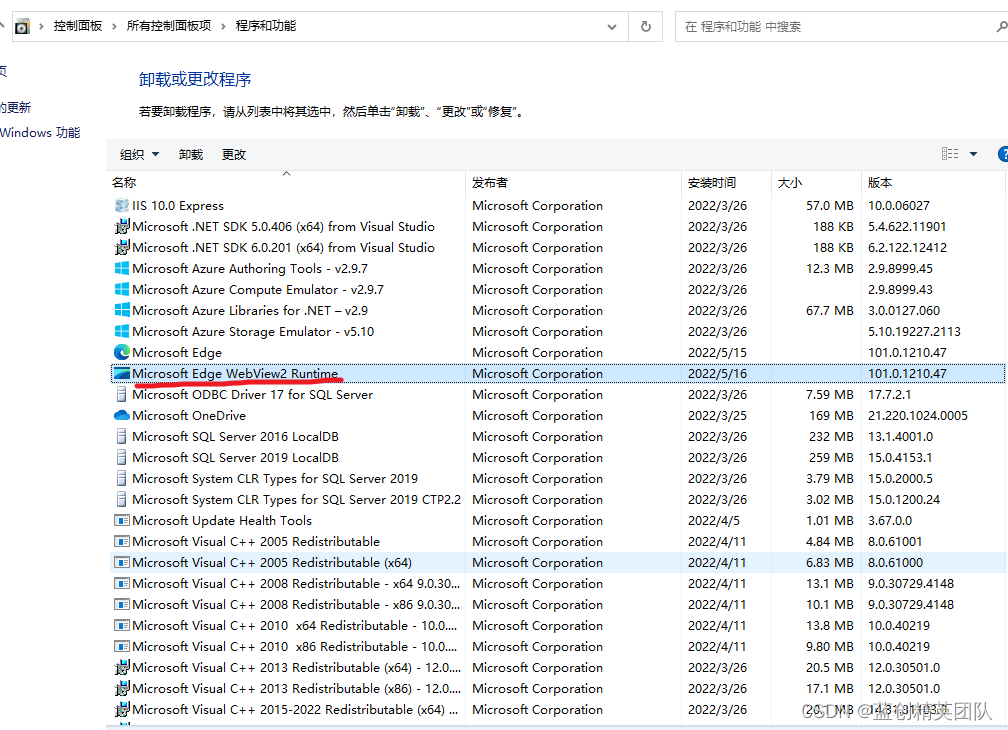
通过控制面板,我们也能看到已经安装了这个运行时了。
没有的话,需要上边的那个地址下载安装。
具体地址: https://go.microsoft.com/fwlink/p/?LinkId=2124703
- NuGet 包
需要引入以下 NuGet 包
Microsoft.Web.WebView2
安装好之后,我这里默认是使用的 WinFrom UI 框架。
新建项目 (winfrom 作为参考)
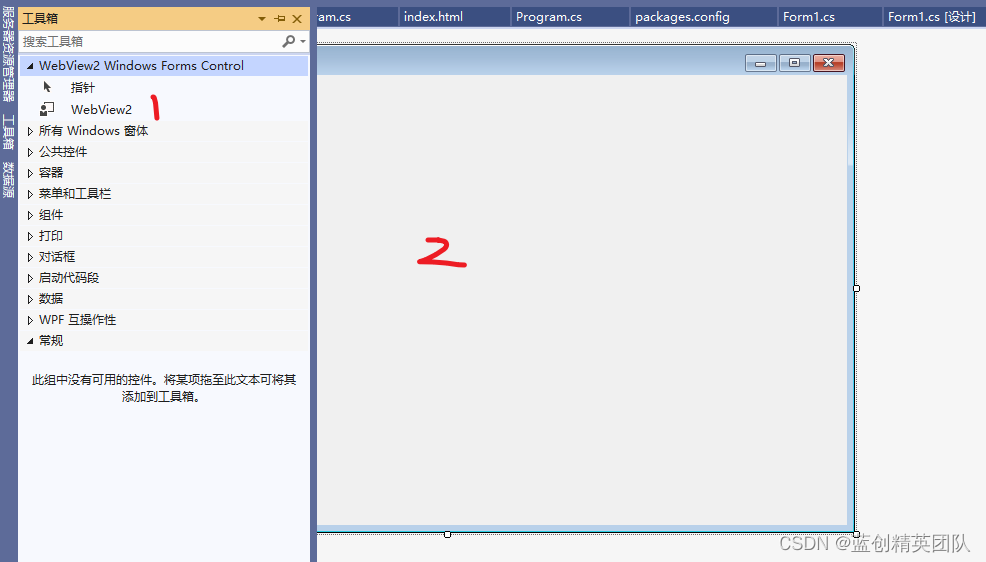
如果没有出现 WebView2 可以重启一下项目就会有了
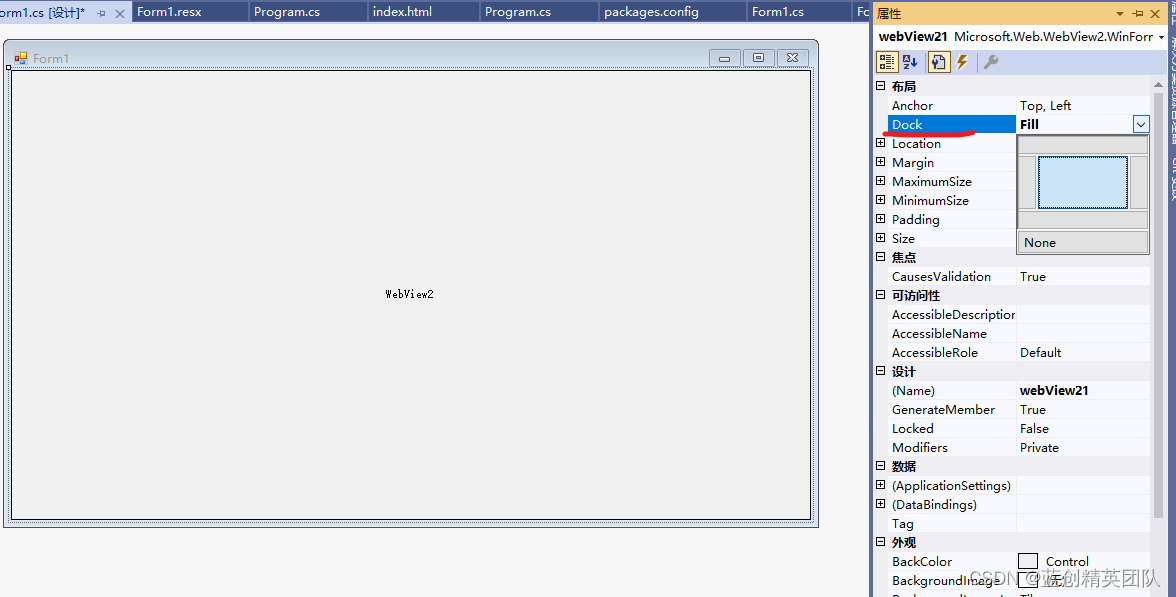
同时,为了方便看,我们把 Dock 属性选为 Fill 全填充就好了
这个时候,我们添加一下的基础环境代码,就可以让页面启动了。
public partial class Form1 : Form
{
    public Form1()
    {
        InitializeComponent();
        Resize += new EventHandler(Form_Resize);
        webView21.CoreWebView2InitializationCompleted += WebView21_CoreWebView2InitializationCompleted;
        Initialize();
    }
        /// <summary>
        /// 实现自适应页面缩放
        /// </summary>
    private void Form_Resize(object sender, EventArgs e)
    {
        webView21.Size = ClientSize - new Size(webView21.Location);
    }
    /// <summary>
    /// webview 加载完毕
    /// </summary>
    private void WebView21_CoreWebView2InitializationCompleted(object sender, CoreWebView2InitializationCompletedEventArgs e)
    {
        webView21.CoreWebView2.Navigate("https://www.baidu.com/");
    }
    /// <summary>
    /// WebView2初始化
    /// </summary>
    async void Initialize()
    {
        var result = await CoreWebView2Environment.CreateAsync(null, Path.Combine(AppDomain.CurrentDomain.BaseDirectory, "cache"), null);
        await webView21.EnsureCoreWebView2Async(result);
    }
}
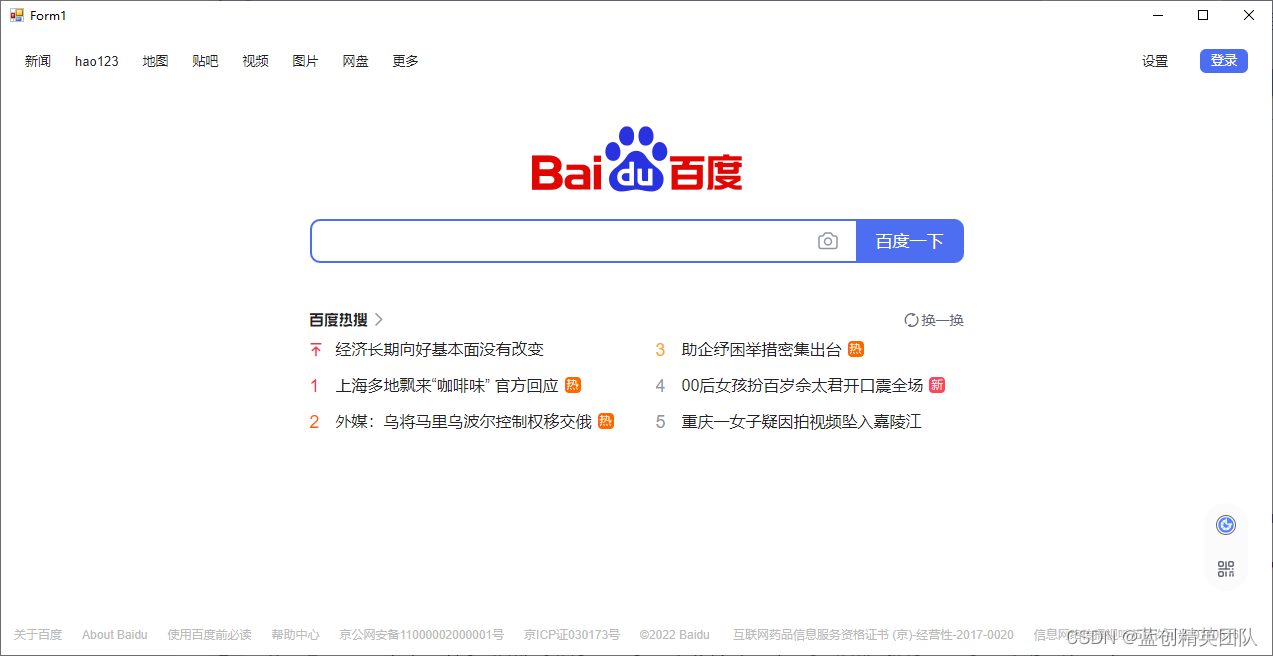
这个页面可以自由的拉伸,十分的方便。
其中这一行,在本地 Cache 增加了,这个时候,如果你登录了账号,你重启,账号还是存在的,因为数据存到本地缓存了。
var result = await CoreWebView2Environment.CreateAsync(null, Path.Combine(AppDomain.CurrentDomain.BaseDirectory, "cache"), null);
webView21.CoreWebView2.OpenDevToolsWindow();
开启开发者工具 (可以通过右键,检查页面实现打开开发者工具)
然后,我们要执行 js 脚本了,准备输入一个内容,然后,点击搜索。
实现这个功能,需要新增一个按钮
添加以下脚本即可
/// <summary>
/// 点击按钮
/// </summary>
private async void button1_Click(object sender, EventArgs e)
{
    //开启开发者工具 (可以通过右键,检查页面实现打开开发者工具)
    // webView21.CoreWebView2.OpenDevToolsWindow();

    //填充搜索内容
    await webView21.CoreWebView2.ExecuteScriptAsync("document.querySelector('#kw').value='1234'");
    //启动搜索
    await webView21.CoreWebView2.ExecuteScriptAsync("document.querySelector('#su').click();");
}
这个是实现的效果

至此,我们已经实现了一个完成的 WebView2 的 项目案例。
下边是相应的代码地址: