

HttpReports 基于.NET Core 开发的APM监控系统,使用MIT开源协议,主要功能包括,统计, 分析, 可视化, 监控,追踪等,适合在微服务环境中使用。
官方地址:https://www.yuque.com/httpreports/docs/uyaiil
主要功能
- 接口调用指标分析
- 多服务节点数据聚合分析
- 慢请求,错误请求分析
- 接口调用日志查询
- 多类型预警监控
- HTTP,Grpc 调用分析
- 分布式追踪
- 多数据库支持,集成方便
- 程序性能监控
第一步
打开 VS 新建.NET 项目我这里用的是.NET Core Web API 进行演示
第二步
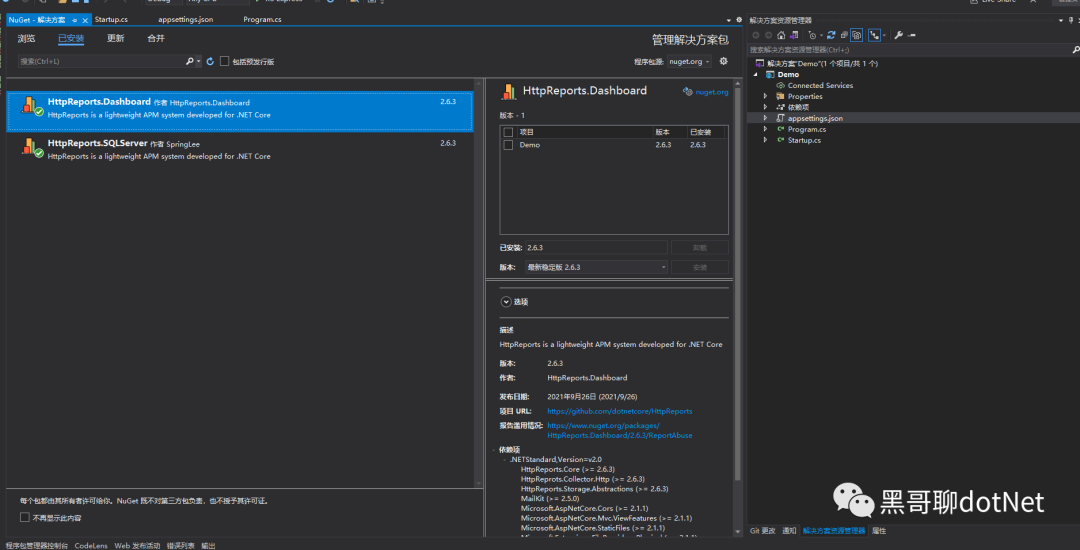
使用NuGet安装MHttpReports.Dashboard包和HttpReports.SqlServer
第三步
配置 appsetting.json
{
  "HttpReportsDashboard": {
    "ExpireDay": 3,
    "Storage": {
      "ConnectionString": "Server=10.1.30.252;Database=GEISDB;user id=sa;password=Mg2021;",
      "DeferSecond": 10,
      "DeferThreshold": 100
    },
    "Check": {
      "Mode": "Self",
      "Switch": true,
      "Endpoint": "",
      "Range": "500,2000"
    },
    "Mail": {
      "Server": "smtp.163.com",
      "Port": 465,
      "Account": "HttpReports@qq.com",
      "Password": "*******",
      "EnableSsL": true,
      "Switch": true
    }
  }
}
参数介绍:
- ExpireDay - 数据过期天数,默认 3 天,HttpReports 会自动清除过期的数据
- Storage - 存储信息
- DeferSecond - 批量数据入库的秒数,建议值 5-60
- DeferThreshold - 批量数据入库的数量,建议值 100-1000
- Mail - 邮箱信息,配置监控的话,可以发告警邮件
- Check - 健康检查配置,具体看 健康检查 页面
第四步
配置 Startup
// For more information on how to configure your application, visit https://go.microsoft.com/fwlink/?LinkID=398940
public void ConfigureServices(IServiceCollection services)
{
services.AddHttpReportsDashboard().AddSQLServerStorage();
}
// This method gets called by the runtime. Use this method to configure the HTTP request pipeline.
public void Configure(IApplicationBuilder app, IWebHostEnvironment env)
{
app.UseHttpReportsDashboard();
}
把 Dashboard 程序启动起来,如果没有问题的话,会跳转到 Dashboard 的登录页面
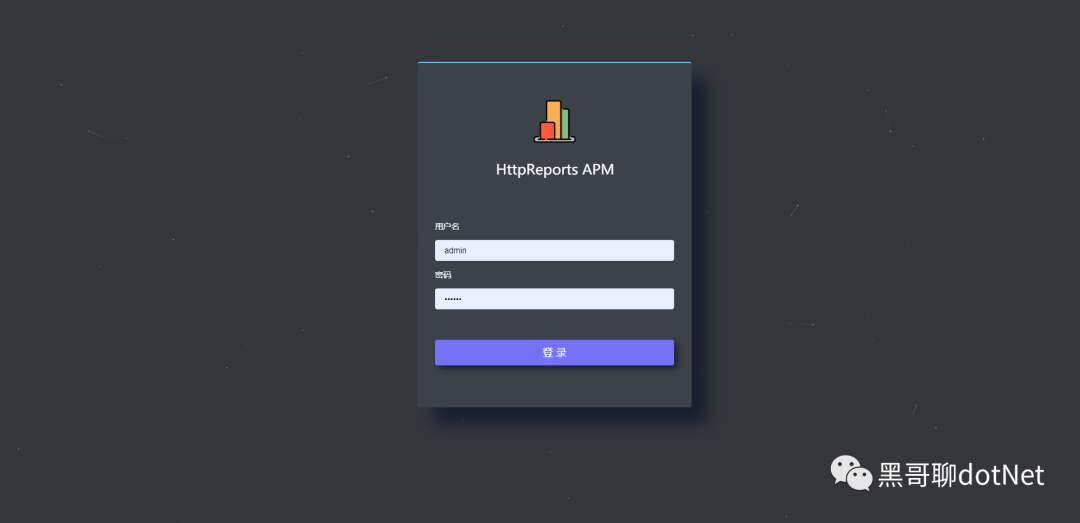
默认账号:admin
密码: 123456
现在 Dashboard 可视化有了,但是没有数据,我们还需要 给服务端程序,添加 HttpReports 来收集信息。
第五步
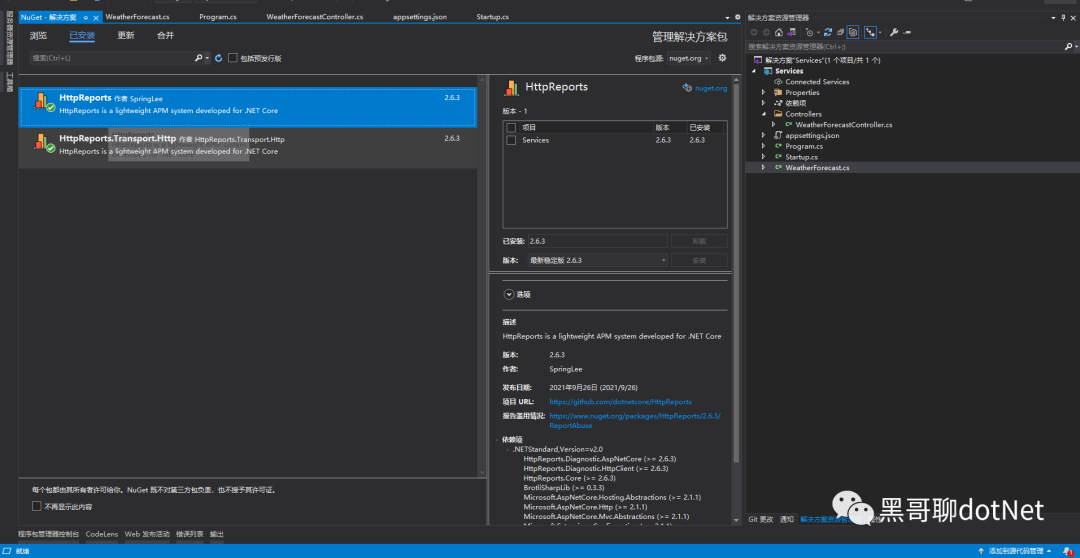
我新建一个 WebAPI 项目 UserService ,来充当用户服务,然后安装 HttpReports,HttpReports.Transport.Http
第六步
修改 Services 的Appsettings.json 简单配置一下
{
  "HttpReports": {
    "Transport": {
      "CollectorAddress": "http://localhost:5000/",
      "DeferSecond": 10,
      "DeferThreshold": 100
    },
    "Server": "http://localhost:7000",
    "Service": "User",
    "Switch": true,
    "RequestFilter": ["/api/health/*", "/HttpReports*"],
    "WithRequest": true,
    "WithResponse": true,
    "WithCookie": true,
    "WithHeader": true
  }
}
参数介绍:
Transport -
CollectorAddress - 数据发送的地址,配置 Dashboard 的项目地址即可
DeferSecond - 批量数据入库的秒数,建议值 5-60
DeferThreshold - 批量数据入库的数量,建议值 100-300
Server - 服务的地址,
Service - 服务的名称
Switch - 是否开启收集数据
RequestFilter - 数据过滤,用 * 来模糊匹配
WithRequest - 是否记录接口的入参
WithResponse - 是否记录接口的出参
WithCookie - 是否记录 Cookie 信息
WithHeader - 是否记录请求 Header 信息
最后一步
我们接着修改 UserService 项目的 Startup.cs 文件
app.UseHttpReports(); 这一行最好放到 Configure 方法 最上面
public void ConfigureServices(IServiceCollection services)
{
    services.AddHttpReports().AddHttpTransport();
    services.AddControllers();
}
// This method gets called by the runtime. Use this method to configure the HTTP request pipeline.
public void Configure(IApplicationBuilder app, IWebHostEnvironment env)
{
app.UseHttpReports();
if (env.IsDevelopment())
{
app.UseDeveloperExceptionPage();
}
app.UseRouting();
app.UseAuthorization();
app.UseEndpoints(endpoints =>
{
endpoints.MapControllers();
});
}
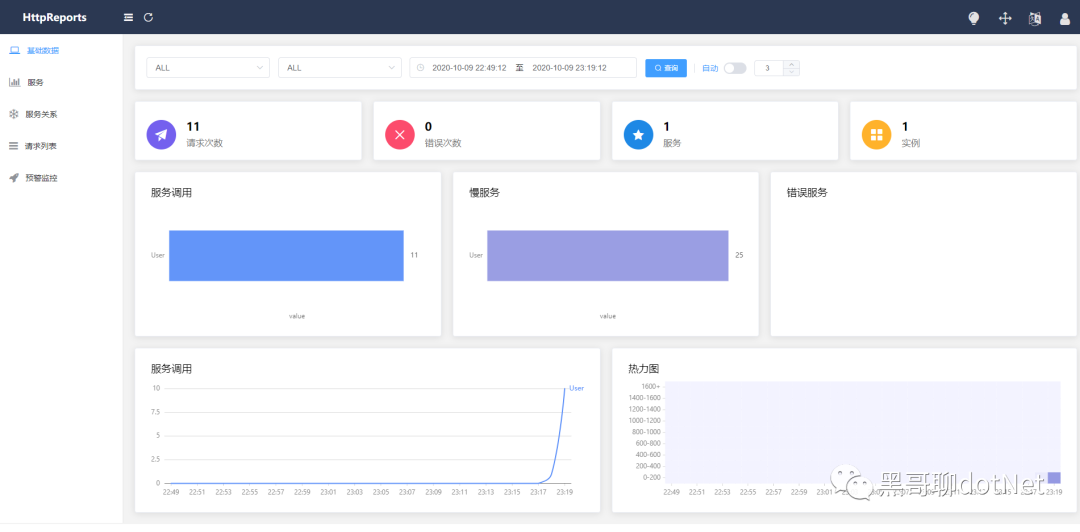
刷新下 UserService 的接口,再回到Dashboard的页面上面,已经可以看到数据了
总结
本篇博客描述了使用 HttpReports 进行接口统计,分析, 可视化, 监控,追踪等, 如果觉得还不错,请给个关注。