
本文由网友投稿,欢迎更多的朋友来分享。
作者:VleaStwo
1. 语言背景
- .NET 6/7/8
- ASP.NET Core Blazor
2. 需求背景
- 将URL或其他信息生成二维码
- 用于终端扫码查看信息
- 在二维码附近布置一定的文字信息
- 用于用户直接查看信息 (部分)
3. 解决路线
- 二维码生成工具
生成二维码版本非常多这里选用的是 Net.Codecrete.QrCodeGenerator v2.0.3
- 链接:
GitHub链接: https://github.com/manuelbl/QrCodeGenerator
NuGet链接: https://www.nuget.org/packages/Net.Codecrete.QrCodeGenerator/2.0.3
这里没出现什么问题所以就不尝试其他方案了, 大同小异。
- 绘图工具
- 根据群里大佬给的方案, 采用 "Graphics" 结果失败
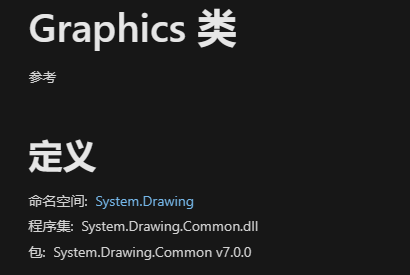
- 查阅微软资料发现从.NET 6开始只能在只能在windows上使用, 不过好在官方也给了几条解决方案:
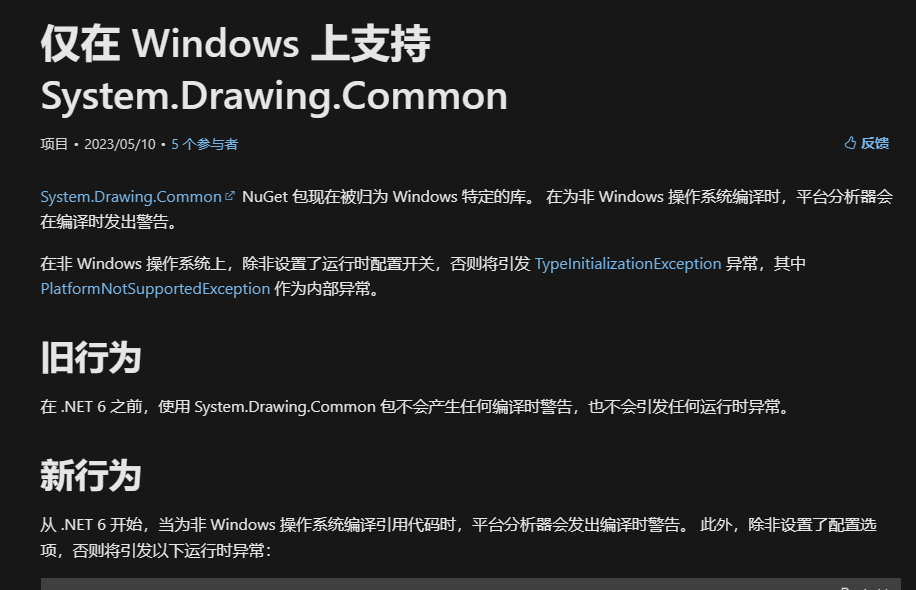
- 我选择的是 SkiaSharp v2.88.3
- 链接:
GitHub链接: https://github.com/mono/SkiaSharp
Nutget链接: https://www.nuget.org/packages/SkiaSharp/2.88.3
- 布局
二维码和文字的位置关系肯定是基本固定的,选择徒手画纸上还是电脑上画布置图都不影响,提前画图的目的是为了方便计算定位点,实际还是要根据自己的业务来设计布局的(脑力强大的可以不画 靠大脑缓存)。
实操代码
- QR生成
没什么需要讲解的就一行代码解决:
// 调用语句
var qr = QrCode.EncodeText(mes, QrCode.Ecc.Quartile);

// 库源码
// 简化备注
//    text:要编码的文本
//    ecl: 二维码质量等级
public static QrCode EncodeText(string text, Ecc ecl)
{
    Objects.RequireNonNull(text);
    Objects.RequireNonNull(ecl);
    var segments = QrSegment.MakeSegments(text);
    return EncodeSegments(segments, ecl);
}
- 绘图
- qr需要转换成类似bitmap的类才能继续二次绘图
https://www.nuget.org/packages/Net.Codecrete.QrCodeGenerator/2.0.3
里面已经说明了不同平台需要不同方案
Raster Images / Bitmaps Starting with .NET 6, System.Drawing is only supported on Windows operating system and thus cannot be used for multi-platform libraries like this one. Therefore, ToBitmap() has been removed and three options are now offered in the form of method extensions. To use it: Select one of the imaging libraries below Add the NuGet dependencies to your project Copy the appropriate QrCodeBitmapExtensions.cs file to your project Imaging library Recommendation NuGet dependencies Extension file System.Drawing For Windows only projects System.Drawing.Common QrCodeBitmapExtensions.cs SkiaSharp For macOS, Linux, iOS, Android and multi-platform projects SkiaSharp and SkiaSharp.NativeAssets.Linux (for Linux only) QrCodeBitmapExtensions.cs ImageSharp Currently in beta state SixLabors.ImageSharp.Drawing QrCodeBitmapExtensions.cs
上文大致意思就是根据自己的需要选择对应的转换方法,在github中已经写好了对应的demo拓展类可以直接复制。
- 我这里采用的是SkiaSharp, 需要先把上面的qr转换成可以使用的SKBitmap, 方法的话直接从项目的github上可以直接下载对应的扩展类,我这里直接放对应源码链接 可以自行下载: QrCode转SkiaSharp(SKBitmap)源码 。
<param name="scale">The width and height, in pixels, of each module.(翻译: 宽度和高度,以像素为单位,每个模块)</param>
<param name="border">The number of border modules to add to each of the four sides.(翻译: 边界模块的数量增加的四个方面)</param>
var bmp = qr.ToBitmap(10, 2);
- 拿到bmp以后,根据我的布局设定,我以图片的尺寸作为基底,1/10即为字高
int h = bmp.Height / 10;
- 创建画笔,参数比较常见就不解释了
var paint = new SKPaint
{
    Color = SKColors.Black,
    IsAntialias = true,
    IsLinearText = true,
    TextEncoding = SKTextEncoding.Utf8,
    Typeface = SKTypeface.FromFamilyName("微软雅黑"),
    TextSize = h,
    TextAlign = SKTextAlign.Left,
};
- 再创建一个两倍字号的画笔用于顶部区域
var tempPaint = paint.Clone();
tempPaint.TextSize = 2 * h;
- 创建画桌(板)
SKSurface sKSurface = SKSurface.Create(
    new SKImageInfo(bmp.Width * 3, bmp.Height * 2));
- 创建画布并填充白色
var canvas = sKSurface.Canvas;
canvas.DrawColor(SKColors.White);
- 画顶部区域(正常来说应该是预先画好的一张顶部图案)
// 左边缩进一个单位 然后向下偏移四个单位
canvas.DrawText(top,
    new SKPoint(01 * h, 04 * h),
    tempPaint);
// top是string类型 内容是顶部区域的文字内容
// SKPoint就一个常规的x,y组成的point
// 记住是左上角为(0,0)右下角是(∞,∞)就对了
- 画标题区域
// 首先根据自己写的算法把string转换成 List<string>
// 目的是为了文字过长的时候能够换行
var titles = GetTextLines(title, 28).ToList();
for (int i = 0; i < titles.Count; i++)
{
    canvas.DrawText(
        titles[i],
        new SKPoint(01 * h, (07 + i) * h),
        paint);
}
- 用的换行算法源码如下
/// <summary>
/// 文字换行算法
/// </summary>
/// <param name="text">原文</param>
/// <param name="maxLength">单行最大字数</param>
/// <returns>多行</returns>
private static IEnumerable<string> GetTextLines(
    string text, int maxLength)
{
    // 注意 maxLength 是字数不是实际宽度
    string[] words = text.Select(x => x.ToString()).ToArray(); //text.Split(' ');
    List<string> lines = new List<string>();
    string line = string.Empty;
    foreach (string word in words)
    {
        //if (!string.IsNullOrEmpty(line))
        //{
        //    line += " ";
        //}
        if (line.Length + word.Length <= maxLength)
        {
            line += word;
        }
        else
        {
            lines.Add(line);
            line = word;
        }
    }
    lines.Add(line);
    return lines;
}
注意: 这是在网上找到的有部分修改,不是我从0开始写的
- 左下角二维码
// 因为二维码自身就对周围做了缩进处理 所以不需要再缩进
canvas.DrawBitmap(bmp, new SKPoint(00 * h, 10 * h));
- 右下角文字备注
int row = 1;
for (int i = 0; i < notes.Count; i++)
{
    var strs = GetTextLines(notes[i], 18);
    foreach (var str in strs)
    {
        // 右下角10h位置 并且左右各缩进1h
        // row*h 文字下移位置
        canvas.DrawText(str,
        new SKPoint(10 * h, (10 + 1) * h + row * h),
        paint);

        row++;
    }
}
- 最后出图
// filename 要保存的文件名 记得是png文件
using (var image = sKSurface.Snapshot())
{
    using (var writeStream = File.OpenWrite(filename))
    {
        // 80是品质 够了
        image.Encode(
            SKEncodedImageFormat.Png,
            80)
            .SaveTo(writeStream);
    }
}
实际效果
- 测试代码
static void Main(string[] args)
{
    // 二维码内容
    string mes = "https://www.dotnet9.com/";
    // 标题
    string title = "ThingsGateway 基于net6/7+ ,跨平台边缘采集(物联网)网关";
    // 文字备注
    List<string> notes = new List<string>()
    {
        "Blazor Server架构,开发部署更简单",
        "采集/上传配置完全支持Excel导入导出",
        "插件式驱动,方便驱动二次开发",
        "时序数据库存储",
        "实时/历史报警(Sql转储),支持布尔/高低限值",
    };

    string filename =
        Path.Combine(Path.GetTempPath(), Guid.NewGuid() + ".png");
    // 顶部区域内容
    string top = "开源.NET 7和Blazor组合开发";

    // 封装的方法
    QrCreate.HorizontalDraw(mes, title, notes, filename, top);


    Console.WriteLine(filename);
    Console.ReadLine();
}
- 测试结果
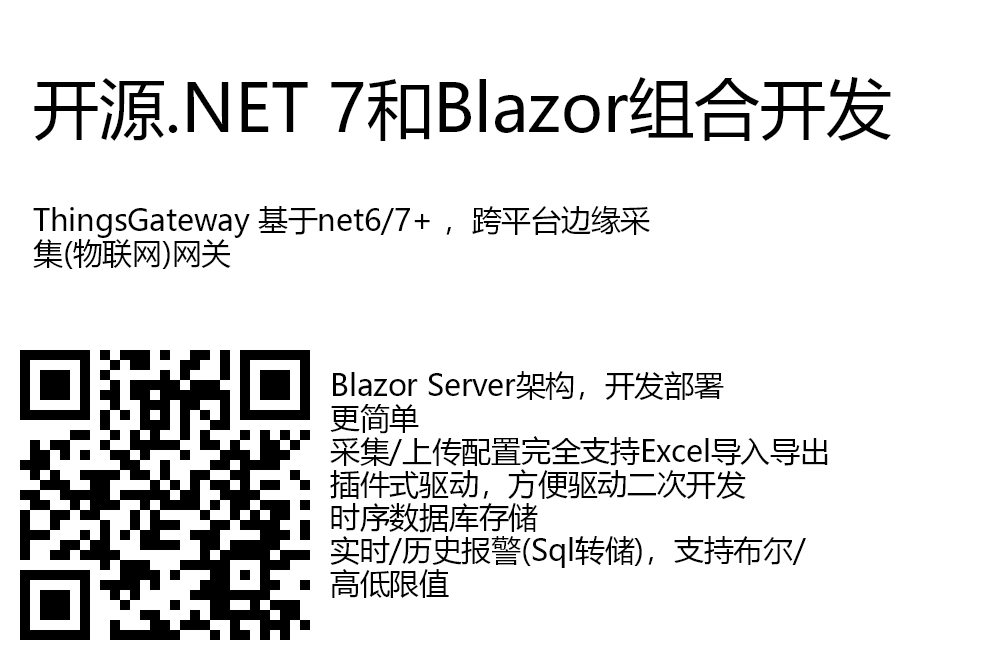
备注:图片是白底的,如果当前页面也是白底容易看不到图片的边缘建议自行下载图片观看