ThingsGateway (1) Collecting ModbusTcp Protocol Devices

ThingsGateway (1) Collecting ModbusTcp Protocol Devices

ThingsGateway is a new domestic open-source project, belonging to industrial data acquisition gateways. After nearly four months of refinement, it has become stable.

Last updated 7/16/2023 3:55 PM
Diego
5 min read
Category
Blazor
Tags
.NET C# Blazor Open Source Project Open Source

This article is contributed by a user, and more friends are welcome to share.

Author: Diego

Repository: https://gitee.com/diego2098/ThingsGateway

Original link: https://www.cnblogs.com/ThingsGateway/articles/17557709.html

Gitee source code repository: https://gitee.com/diego2098/ThingsGateway

GitHub source code repository: https://github.com/kimdiego2098/ThingsGateway

Documentation: https://diego2098.gitee.io/thingsgateway-docs/

I. Introduction

NuGet(ThingsGateway) License star star star

ThingsGateway is a new domestic open-source project, belonging to the industrial data acquisition gateway. After nearly four months of development, it has become stable.

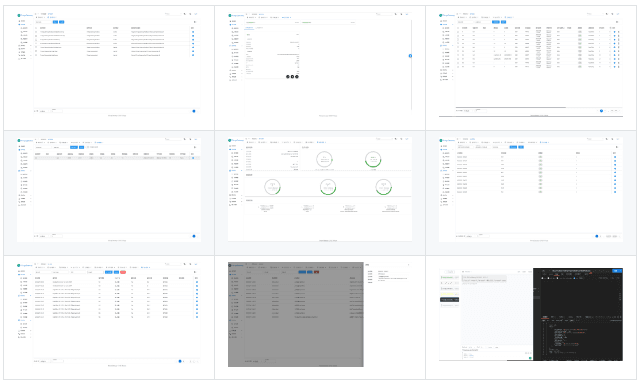
This article will test ThingsGateway with ModbusTcp protocol devices, demonstrated with animations for easy understanding.

II. Preparing the Test Environment

  1. ThingsGateway

  2. ModbusSalve

For how to run ThingsGateway, please refer to the source documentation.

III. Communication Test

3.1. Create an Acquisition Device

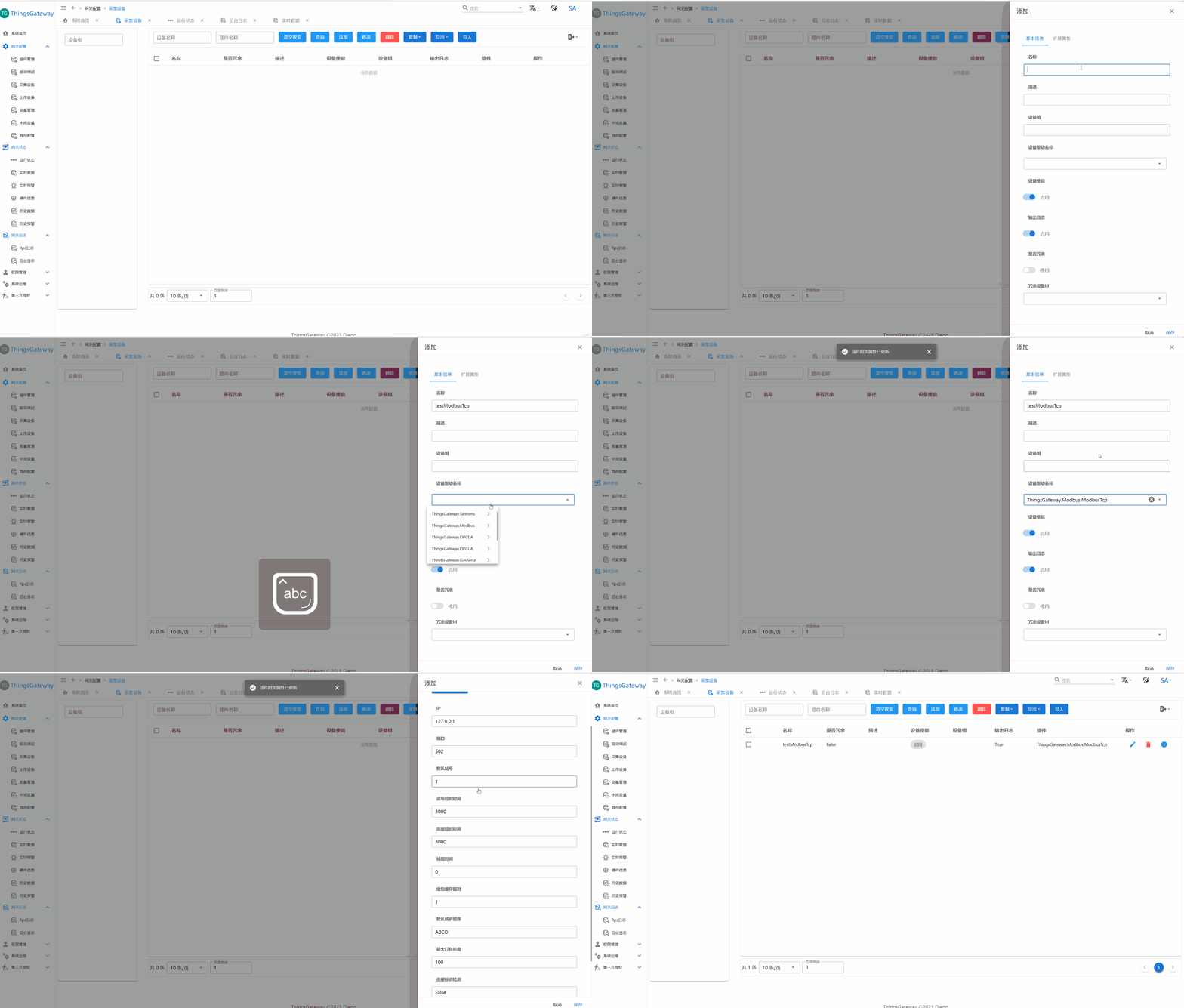
Create an acquisition device, select the ModbusTcp plugin, and view the device extension properties to see the configurable items of ModbusTcp.

In this test, we use the local port 502, so we keep the default settings.

3.2. Create Variables

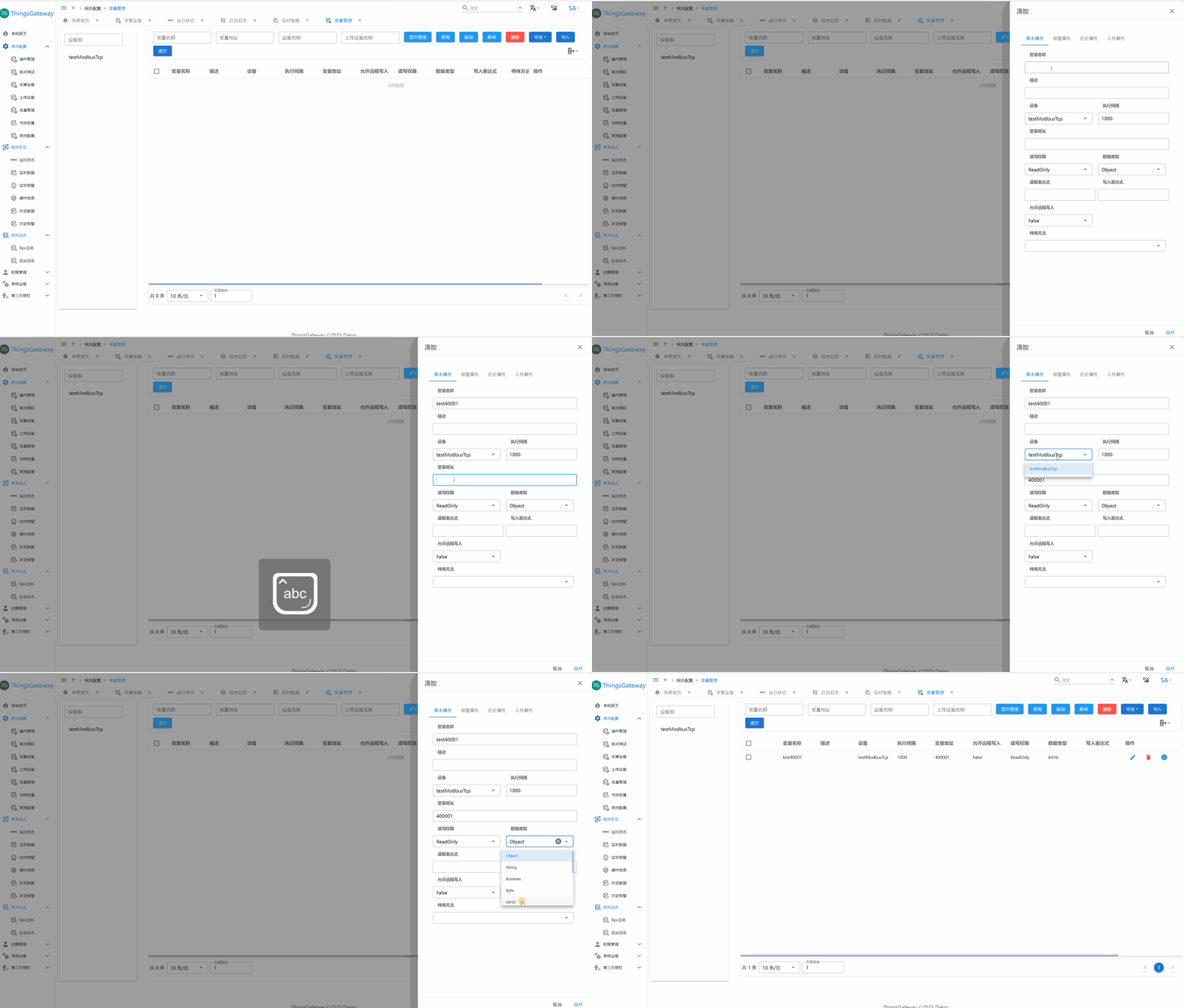
Create variables, fill in the variable name, variable address, and data type.

The variable address is 40001, which corresponds to holding register 0 in the Modbus protocol. For detailed address rules, please refer to the source documentation.

3.3. Restart the Acquisition Thread

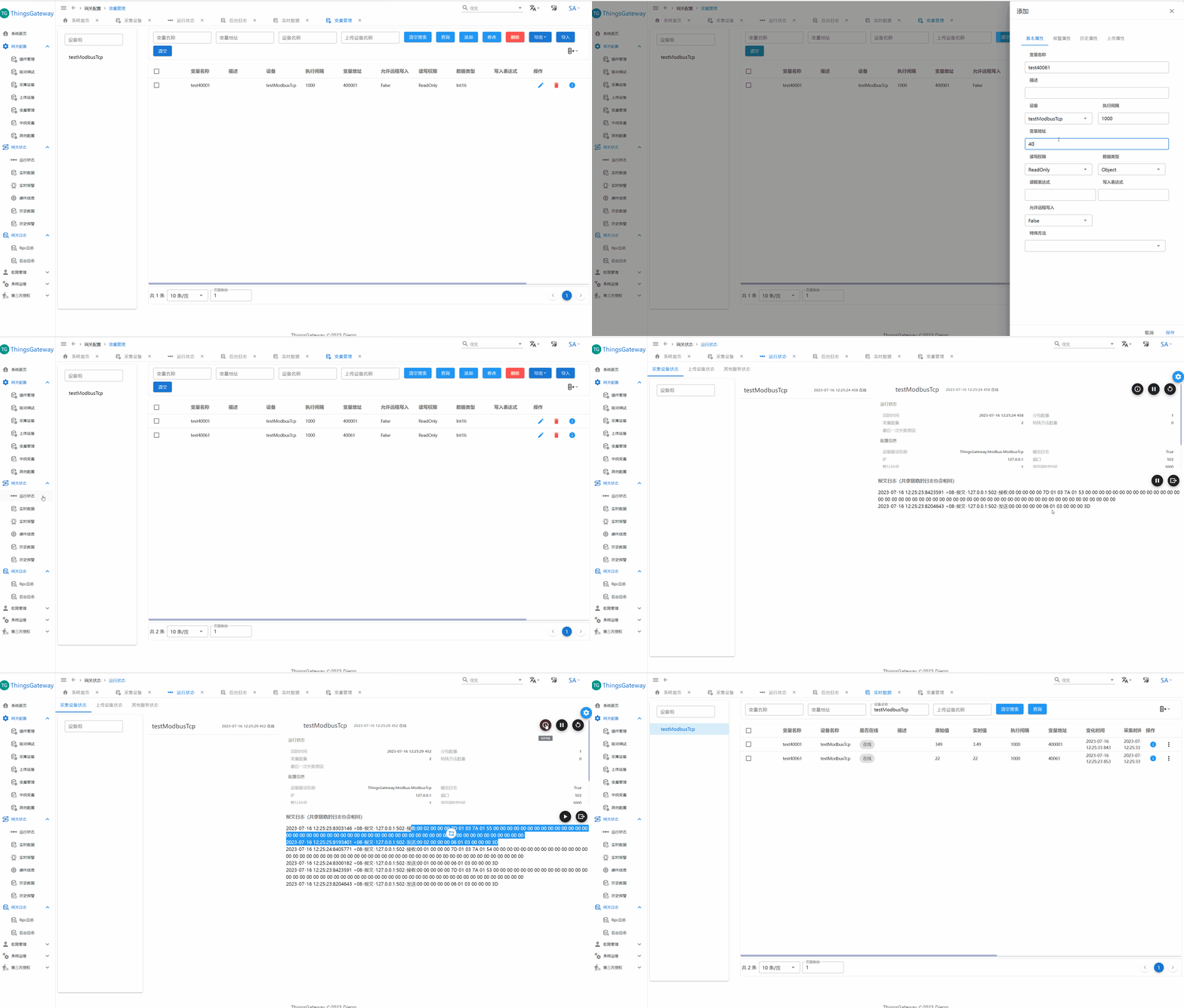
Restart all threads using the floating button in the upper right corner of the running status page. After restarting, you can see the device information.

The image shows the device is offline with the last error message. Obviously, I haven't started ModbusSlave for testing yet.

3.4. Start the Modbus Server

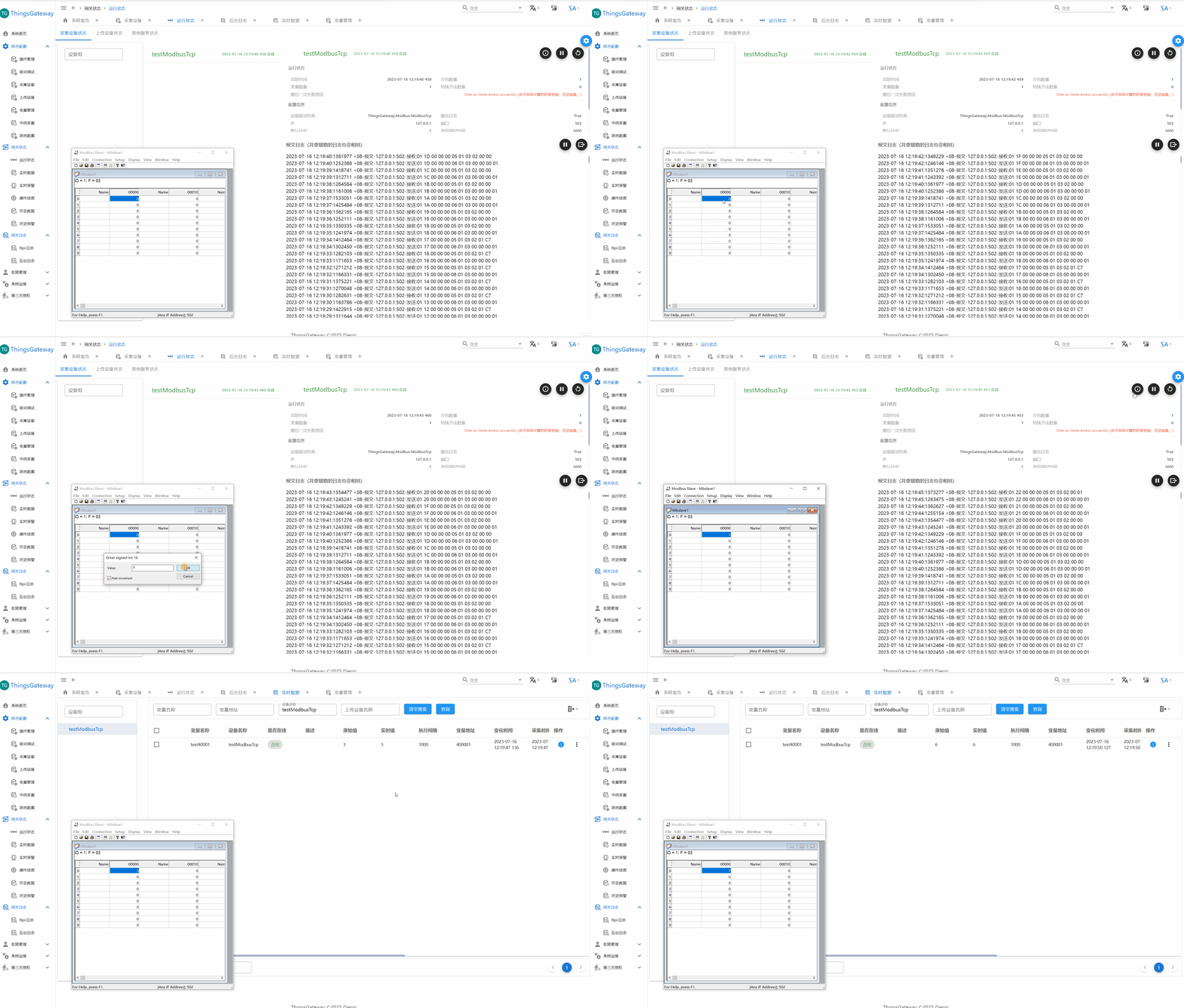
Start ModbusSlave, select ModbusTcp protocol, port 502.

After startup, you can see the gateway shows the device online and displays read/write messages in reverse order.

3.5. View Real-Time Data

Navigate via Running Status -> Acquisition Devices -> Related Variables, or directly click the Real-Time Data menu item to see real-time variable data.

Using ModbusSlave's auto-increment simulation, you can observe the data changes collected by the gateway (the gateway display page refreshes at 1 second).

At this point, the simple communication test is complete.

IV. Advanced Usage

4.1. Data Conversion

Consider an application scenario where the gas meter communication value is specified as actual value * 100, or other complex conversions. The gateway perfectly solves complex expression conversion.

Edit the variable's read expression to raw/100.0. After restarting the thread, you can see the difference between the real-time value and the raw value.

4.2. Multiple Variable Packet Parsing

When a ModbusTcp has tens of thousands of variables, reading them one by one is extremely inefficient. The gateway's packet limit feature solves this problem very simply.

For example, with the currently tested ModbusTcp plugin, simply modify the maximum packet length (default 100) or keep the default.

You can see in the actual communication messages that only one request is needed to read all packets.

4.3. Acquisition Redundancy

The concept of redundancy is familiar to most. Acquisition redundancy in the gateway works similarly.

After configuring redundant devices, when the acquisition device goes offline more than three times, it will switch to the backup device.

V. About .NET

The image below is from the .NET official website: https://dotnet.microsoft.com/zh-cn/. The core idea: .NET is free, open-source, fast, cross-platform, modern, and efficient:

5.1. .NET Free and Open Source

.NET is a free, open-source project developed and maintained on GitHub, the home for millions of developers who want to create great content together.

5.2. .NET Fast and Cross-Platform

According to TechEmpower, .NET executes faster than any other commonly used framework. You can write, run, and build on multiple platforms including Windows, Linux, and macOS.

5.3. .NET Modern and Efficient

.NET helps you build applications for Web, Mobile, Desktop, Cloud, and more. With a powerful supporting ecosystem and robust tools, .NET is the most productive platform for developers.

Keep Exploring

Related Reading

More Articles
Same category / Same tag 11/6/2024

Why My Blog Website Returned to Blazor

The development of the blog website has gone through many hardships, with nearly 10 versions including MVC, Vue, Go, etc. Now it has returned to Blazor and adopted static SSR, resulting in a significant speed increase and successful launch.

Continue Reading
Same category / Same tag 2/29/2024

Data Display Can Also Be Done Like This in Winform

In the process of developing Winform, data display functionality is often required. Previously, the gridcontrol control was commonly used. Today, through an example, I would like to introduce how to use the table component from Ant Design Blazor for data display in a Winform Blazor Hybrid application.

Continue Reading
Same category / Same tag 2/29/2024

Can the Winform interface also look good?

A few days ago, I introduced using Blazor Hybrid in Winform, and mentioned that with the Blazor UI, our Winform programs can be designed to look better. Next, I will illustrate with an example of drawing in Winform Blazor Hybrid, hoping it helps you.

Continue Reading