.NET Programmer's Playground: LINQPad

.NET Programmer's Playground: LINQPad

LINQPad's package is very small, only about 20 MB, and starts up very quickly. To use it, just enter the C# statements you want to execute and press F5.

Last updated 12/26/2024 9:42 PM
码农很忙
5 min read
Category
.NET
Tags
.NET C# LINQPad

If you want to execute a simple C# statement and get the result, you normally need to go through several steps:

  • Open Visual Studio and create a new Console project.
  • Write code in Program.cs and save.
  • Press the Run button or F5 to run the program and view the result.

Usually that's not a problem. But if you, like me, have installed various extensions in Visual Studio, startup time can become quite long. When creating a new project, you have to specify a name and save path for these temporary snippets; if you keep the default name, you may later forget the purpose of those files.

Using LINQPad solves the above issues. LINQPad's package is small (about 20 MB) and starts fast. Just type the C# statement you want to execute, then press F5:

Press F4 to open the "Query Properties" window, where you can reference everything needed at runtime, including: DLLs, configuration files, JSON and text files, etc. These referenced files will be copied to the output directory.

LINQPad also supports directly referencing NuGet packages in a query:

You can also save a query as a .linq file to reuse code later.

Language Support

Including "C# Expression", LINQPad supports 4 languages and 10 query types:

  • C# Expression
  • C# Statement(s)
  • C# Program
  • VB Expression
  • VB Statement(s)
  • VB Program
  • SQL
  • ESQL
  • F# Expression
  • F# Program

LINQPad automatically selects the correct query type based on your input, so you rarely need to worry.

Output Results

Console output from methods like Console.WriteLine appears directly in the Result tab:

LINQPad has a built-in extension method called Dump that displays object values. It extends Object and offers multiple overloads, allowing you to label the output:

Besides simple types, Dump also handles complex types admirably. You can rely solely on Dump to see all values of an object:

You can even dump a WinForm or WPF control directly, and it remains interactive:

Query results can be exported to Word, Excel, or HTML.

At the bottom left of the query editor is a status indicator that shows the execution state and elapsed time. This way, you don't need to write extra monitoring code when quickly testing an algorithm's performance.

Database Integration

LINQPad can connect to databases via Entity Framework or Entity Framework Core and corresponding database drivers, such as SQL Server, MySQL, Oracle, or even SQLite. Click "Add connection" in the top-right corner to set up the connection:

After configuring the database connection, you can select that connection and write C# code to access the database:

Besides seeing the results via Dump, you can also switch to the "SQL" tab to view the generated SQL:

If you need to execute SQL directly in LINQPad, simply set the Language to "SQL":

Chart Support

In addition to displaying result sets as tables, LINQPad can generate charts from them. Bar charts, line charts, pie charts, and more are all supported without much extra code:

LINQPad's Visual Studio Extension: LINQBridgeVs

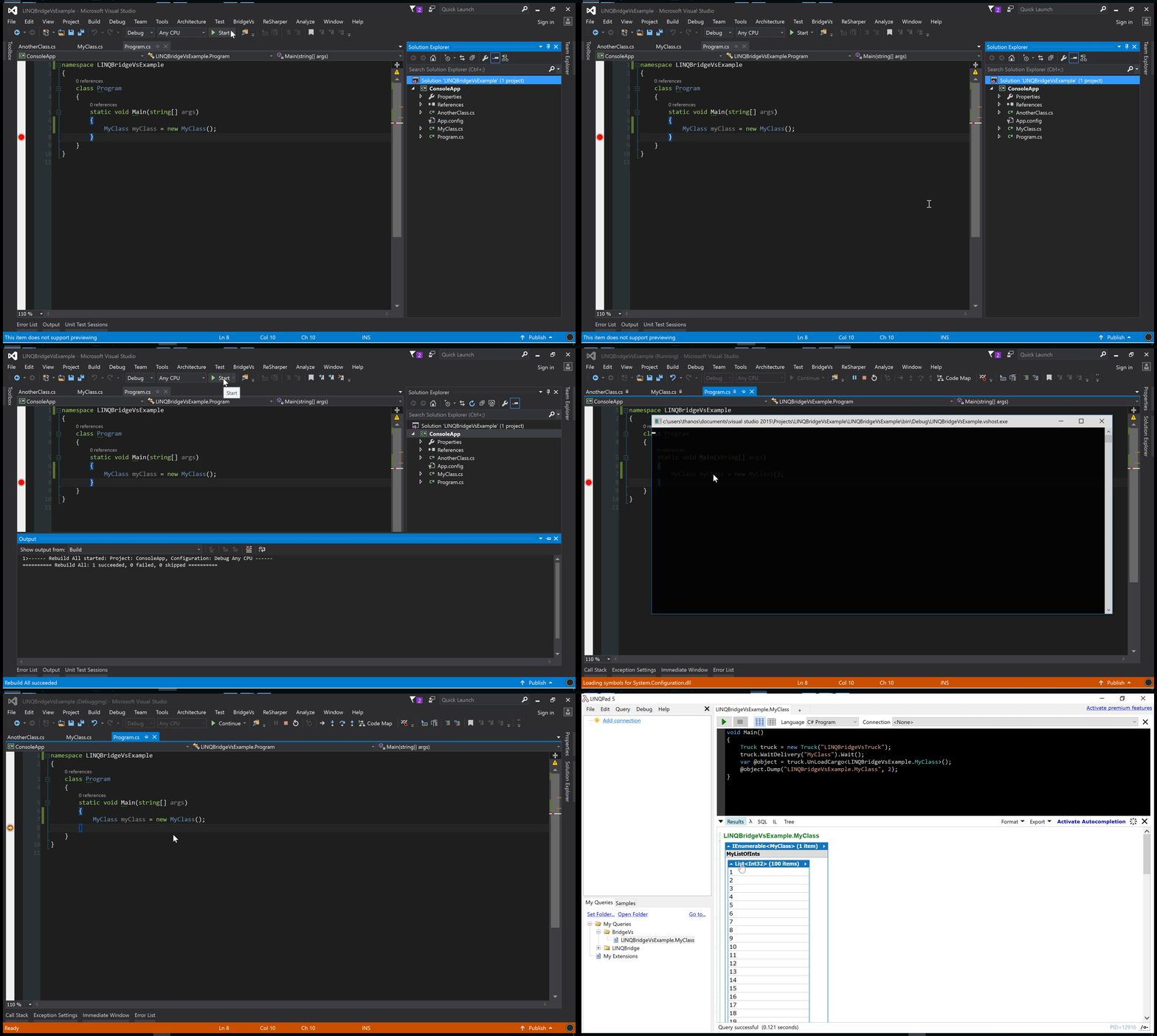
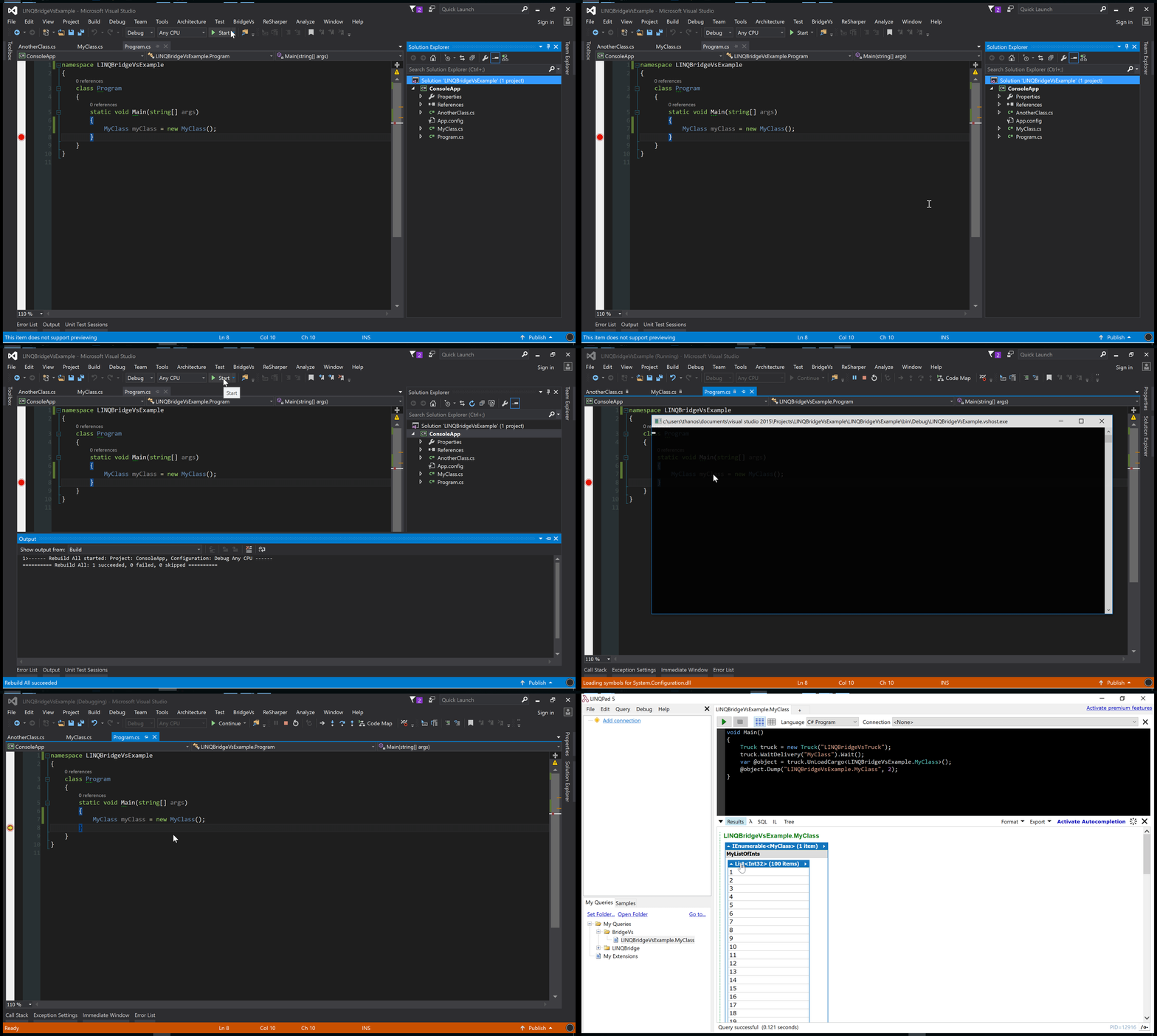
LINQBridgeVs brings LINQPad's powerful Dump capability into Visual Studio, supporting versions 2012 to 2019:

Learn More

This article covers most common operations in LINQPad. As a developer tool, LINQPad is easy to pick up. You can find more resources at https://www.linqpad.net/Resources.aspx.

LINQPad also comes with a large library of sample code. Switch the bottom-left tab to "Samples" to browse:

Summary

After several months of use, LINQPad has become an indispensable tool in my workflow. Now it's pinned to my taskbar, used not only for running test code but also as a data export tool and toolbox. My favorite feature is the built-in chart generation – when dull data is presented in charts, it's both impressive and satisfying.

LINQPad uses a perpetual license model – pay once, use forever, and install on up to three computers. The premium version for a single user costs around 700 RMB, supporting both LINQPad 5 and LINQPad 6. If the tool has genuinely helped you and your budget allows, buying a legitimate license is well worth it.

Keep Exploring

Related Reading

More Articles