

介绍
WPF 的缩写指微软的 Windows Presentation Foundation,而 WinForms 是 Windows Forms Applications 的简单组合。这两个都是微软的 Windows 应用程序图形用户界面,开发人员可以使用它们来开发 Windows 桌面应用程序。本文重点介绍两种开发 Windows 桌面应用程序的方法之间的主要区别,这些方法可以在现代系统开发中发挥更好的作用。
Windows Forms
WinForms 于 2002 年 2 月作为.NET Framework 的一部分引入。在很大程度上,WinForms 允许开发人员在 Windows 窗体上拖放控件,并允许开发人员使用可以具有 C#,VB.NET 或任何其他.NET 语言的代码隐藏文件来操纵这些控件。每个 WinForms 控件都是一个类的实例,因为 WinForms 作为具有一组 C++类的包装器存在。Microsoft 的 Visual Studio 使 WinForms 的开发更容易,因为开发人员可以轻松地从工具箱中拖放控件。
WinForms 工具箱中的控件:
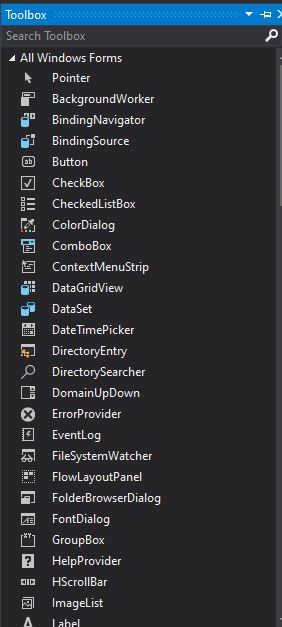
在 WinForms 桌面应用程序中,开发人员只能访问他们可以在其中操纵控件事件的代码隐藏文件。WinForms 桌面应用程序在控件的功能和应用程序行为方面有其局限性,这将在下一部分中揭示。
WPF 桌面应用程序
与 WinForms 不同,WPF 的体系结构包含三个主要组件:a presentation framework, presentation core, and mallcore。WPF 并不完全依赖于标准 Windows 控件,因此是一种独立方式。2007 年,Microsoft 引入了 Windows Presentation Foundation(WPF),以交替 WinForms 来进行.NET Framework 桌面应用程序开发。这一交替带来了桌面应用程序开发中的许多变化。首先,WPF 将设计人员和程序员分开,可以使用 Visual Studio 或 Blend 分别设计 UI,而开发人员可以使用代码隐藏文件来操纵控件事件。
WPF 使用 XAML 创建控件,其文件结构更像 ASP.NET,您可以自由使用设计器或编写 XAML 代码来创建控件。使用 Canvas Panel 的设计师仍然可以像在 WinForms 中一样在 Windows 页面上拖放控件。WPF 带来的主要区别是 XAML 文件和对 XAML 文件附带的可见设计器的访问。
WPF 可视化设计和 XAML 文件编辑:
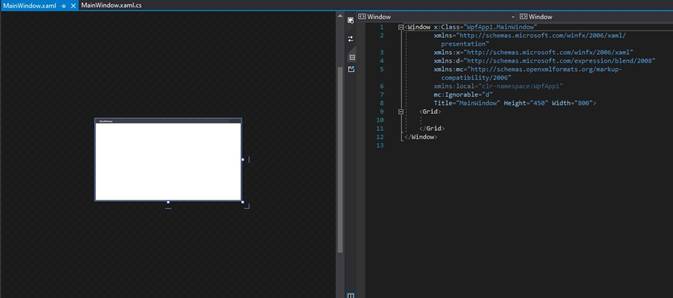
上图显示了 WPF 应用程序的布局,其中在 Designer 旁边显示了 XAML 文件。
WPF 项目的文件结构如下:
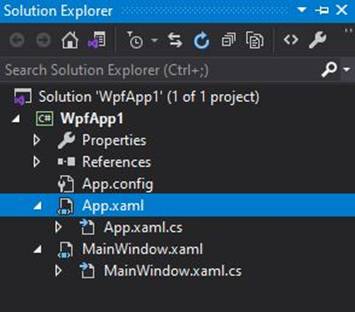
- 每个窗口或页面都有一个用于添加控件的.xaml 文件以及一个.cs,.vb 等文件,后者是代码隐藏文件,更像是 ASP.NET 方式。
- 与 WinForms 不同,WPF 生成一个初始 MainWindow 来启动应用程序,并且要更改启动窗口,可以在 App.xaml 文件中执行此操作。
WPF 主窗体启动配置:
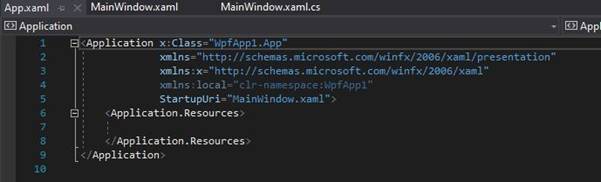
- 该文件充当应用程序的条目。
WPF 与 WinForms 的其他显著区别是控件。要添加控件,您只需要编写简单的 XAML 代码。例如,要在 WPF 窗口中添加文本框,你可以写如下代码实现:
<Window
  x:Class="WpfApp1.MainWindow"
  xmlns="http://schemas.microsoft.com/winfx/2006/xaml/presentation"
  xmlns:x="http://schemas.microsoft.com/winfx/2006/xaml"
  xmlns:d="http://schemas.microsoft.com/expression/blend/2008"
  xmlns:mc="http://schemas.openxmlformats.org/markup-compatibility/2006"
  xmlns:local="clr-namespace:WpfApp1"
  mc:Ignorable="d"
  Title="MainWindow"
  Height="450"
  Width="800"
>
  <StackPanel>
    <TextBox></TextBox>
  </StackPanel>
</Window>
请注意语法中的标记,该标记建议使用名称“扩展应用程序标记语言(XAML)”。XAML 代码放置在 Window 标记中。控件标签可能具有描述控件宽度,高度等的属性,具体取决于控件。
WPF 还带来了与 WinForms 的另一个显著区别,那就是可以添加带有图像的 Button 的功能。在 WinForms 中,向按钮添加图像意味着必须自己绘制图像或包含一些第三方控件,但是 WPF 按钮控件很简单,您可以向其中添加任何内容。
<Window
  x:Class="WpfApp1.MainWindow"
  xmlns="http://schemas.microsoft.com/winfx/2006/xaml/presentation"
  xmlns:x="http://schemas.microsoft.com/winfx/2006/xaml"
  xmlns:d="http://schemas.microsoft.com/expression/blend/2008"
  xmlns:mc="http://schemas.openxmlformats.org/markup-compatibility/2006"
  xmlns:local="clr-namespace:WpfApp1"
  mc:Ignorable="d"
  Title="MainWindow"
  Height="500"
  Width="800"
>
  <button Padding="5">
    <StackPanel Orientation="Horizontal">
      <image Source="/Image.jpg" Height="25" Width="50" />
      <TextBlock Margin="5,0">I'm a Button</TextBlock>
    </StackPanel>
  </button>
</Window>
输出如下所示:WPF 运行演示
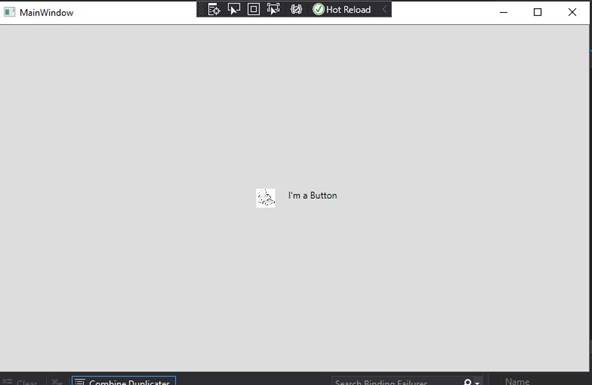
WPF 还提供了完全受支持的数据绑定功能,如下面的示例所示:
<Window
  x:Class="WpfApp1.MainWindow"
  xmlns="http://schemas.microsoft.com/winfx/2006/xaml/presentation"
  xmlns:x="http://schemas.microsoft.com/winfx/2006/xaml"
  xmlns:d="http://schemas.microsoft.com/expression/blend/2008"
  xmlns:mc="http://schemas.openxmlformats.org/markup-compatibility/2006"
  xmlns:local="clr-namespace:WpfApp1"
  mc:Ignorable="d"
  Title="MainWindow"
  Height="500"
  Width="800"
>
  <StackPanel Margin="10">
    <WrapPanel Margin="0,10">
      <label Content="Your Text Here:" FontWeight="Bold" />
      <TextBox
        Name="txtBind"
        Height="20"
        Width="250"
        RenderTransformOrigin="-2.75,0.587"
        Margin="59,0,336,0"
      />
    </WrapPanel>
    <WrapPanel Margin="0,10">
      <TextBlock Text="Bound-Text: " FontWeight="Bold" />
      <TextBlock Text="{Binding Path=Text, ElementName=txtBind}" />
    </WrapPanel>
  </StackPanel>
</Window>
输出:WPF 数据绑定演示
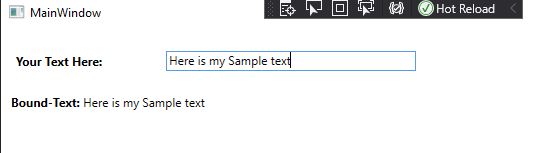
上例中的属性用于将<TextBlock>中的文本绑定到 txtBindTextBox 中的文本。这只是说明使用属性在 WPF 中绑定数据有多么简单。
结论
本文通过两种创建桌面应用程序的.NET 方式之间的体系结构,语法,文件结构以及应用程序行为差异,展示了 WinForms 和 WPF 之间的主要差异。尽管 WinForms 设计看似友好和直接,但是 XAML 带来了开发人员在现代桌面应用程序中可能需要的一些有用功能。
原文链接:https://www.c-sharpcorner.com/article/wpf-vs-winforms/