
原文链接:https://github.com/XamlFlair/XamlFlair
翻译:沙漠尽头的狼,Linluz(本文未全文翻译,建议阅读原文了解更多)

XamlFlair
XamlFlair 库的目标是简化常见动画的实现,并允许开发人员使用几行 Xaml轻松地添加单个或组合的动画集。
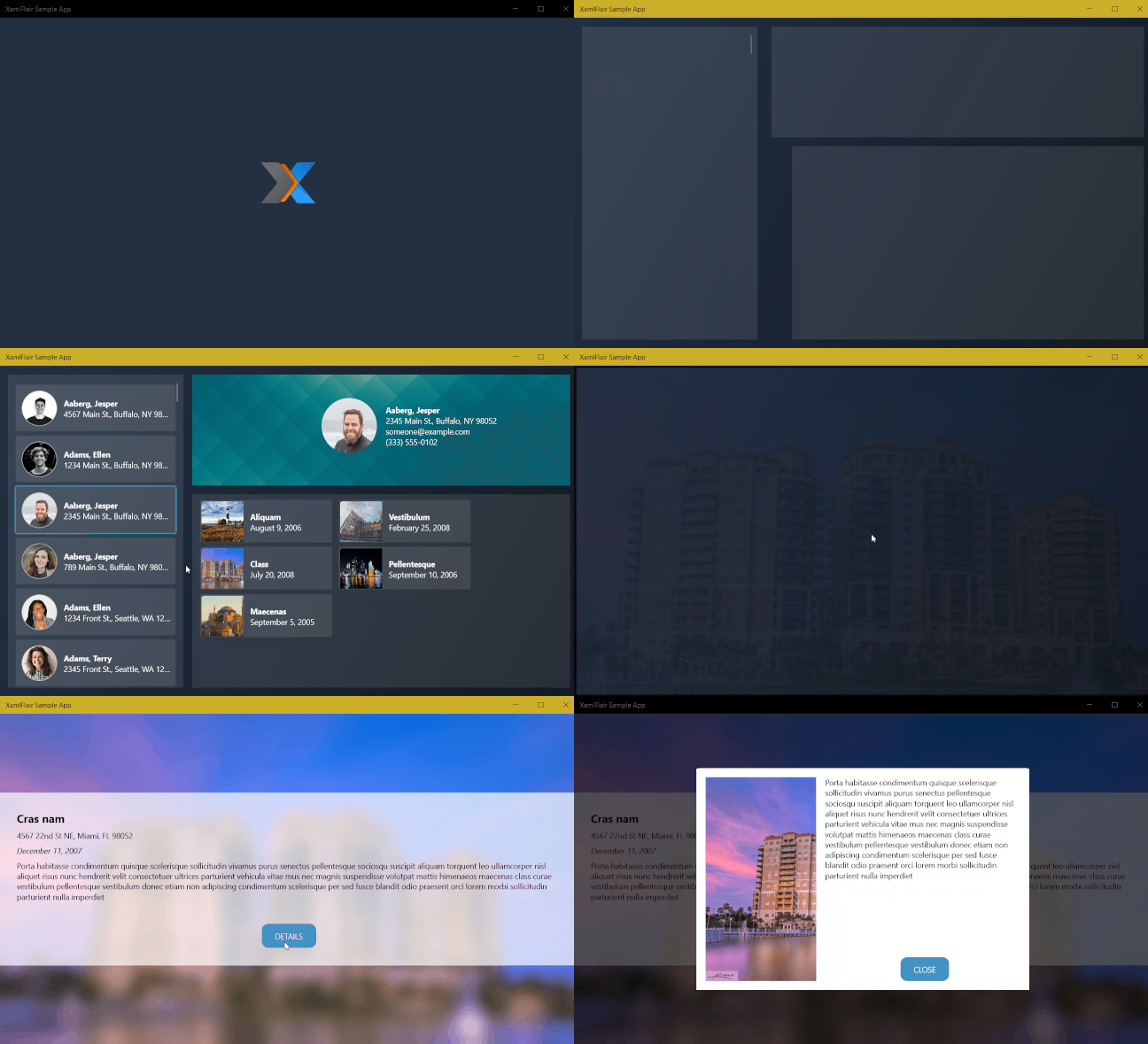
展示
Sekuence 益智游戏|
:-------------------------------------------:
 |
|
支持作者
如果你想用一些咖啡来支持我的工作,你可以在这里做:给我买杯咖啡。你的帮助让我有动力继续花时间在这个项目上,并继续维护和更新它的新功能。提前谢谢!
内容
从 NuGet 安装
| 平台 | Package | NuGet |
|---|---|---|
| UWP | XamlFlair.UWP |  |
| WPF | XamlFlair.WPF |  |
| Uno | XamlFlair.Uno |  |
使用以下命令从Package Manager Console下载XamlFlair:
UWP:
Install-Package XamlFlair.UWP
您的应用程序必须不低于 Windows 10 版本 1809(内部版本 17763)
WPF:
Install-Package XamlFlair.WPF
Uno:
Install-Package XamlFlair.Uno
您的 UWP 应用程序必须至少针对 Windows 10 版本 1809(构建 18362)
功能概述(Features Overview)
| Feature | UWP | WPF | UWP (Uno) | iOS (Uno) | Android (Uno) | Wasm (Uno) 试验性 |
|---|---|---|---|---|---|---|
| 动画系统 | 组合 | 故事板 | 故事板 | 故事板 | 故事板 | 故事板 |
| 变换类型 | N/A | 变换群组 | 复合变换 | 复合变换 | 复合变换 | 复合变换 |
| DefaultAnimations.xaml | - | ✔ | - | - | - | - |
TransformOn |
- | ✔ | - | - | - | - |
| 复合动画(Compound Animations) | ✔ | ✔ | ✔ | ✔ | ✔ | ✔ |
| 相对变换(Relative Translations) | ✔ | ✔ | ✔ | ✔ | ✔ | ✔ |
| 循环动画(Repeating Animations) | ✔ | ✔ | ✔ | ✔ | ✔ | ✔ |
| 事件 & 绑定(Events & Bindings) | ✔ | ✔ | ✔ | ✔ | ✔ | ✔ |
| 主/次完成命令 | ✔ | ✔ | ✔ | ✔ | ✔ | ✔ |
StartWith |
✔ | ✔ | ✔ | ✔ | ✔ | ✔ |
AllowOpacityReset |
- | ✔ | - | - | - | - |
ClipToBounds |
✔ | N/A | ✔ | ✔ | ✔ | ✔ |
| 动画列表(Animated Lists) | ✔ | ✔ | ✔ | ✔ | ✔ | ✔ |
| 模糊效果(Blur Effect) | ✔ | ✔ | - | - | - | - |
| 饱和效果(Saturation Effect) | ✔ | - | - | - | - | - |
| 色调效果(Tint Effect) | ✔ | - | - | - | - | - |
| 色彩动画(Color Animations) | - | ✔ | ✔ | ✔ | ✔ | ✔ |
| 透视旋转 (转台)(Perspective Rotations (Swivel)) | ✔ | - | - | - | - | - |
| 调试动画(Debugging Animations) | ✔ | ✔ | ✔ | ✔ | ✔ | - |
基础概念(Basic Concepts)
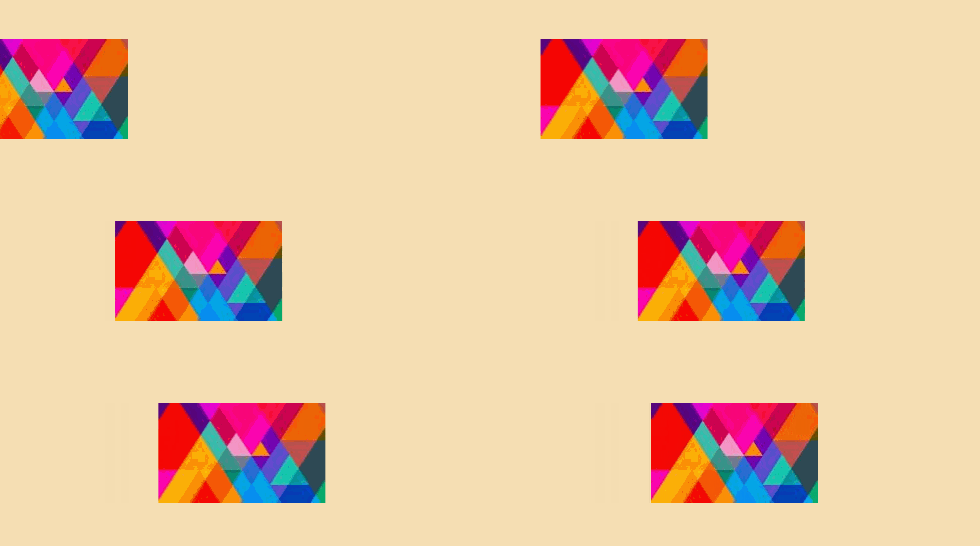
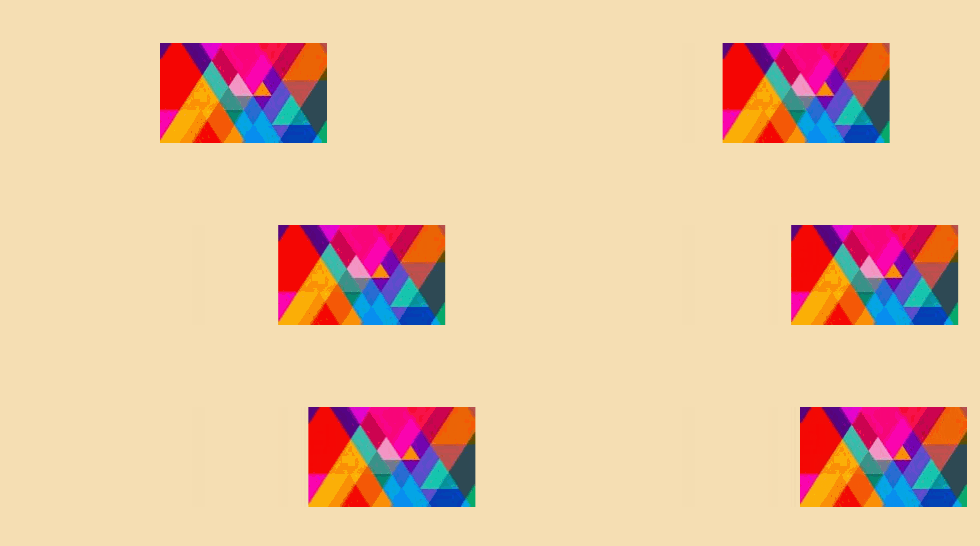
XamlFlair 的基本概念是基于 From 和 To 的动画。由 From 动画组成的任何 UI 元素都将以一个或多个任意值开始,并使用相应属性的默认值完成。由 To 动画组成的任何 UI 元素都将以其当前状态开始,并设置为一个或多个任意值。
From 动画的示例(一个移动到 Translation(0)的 UI 元素):
To 动画示例(从当前状态滑出的 UI 元素):
注意:需要注意的是,对于彩色动画,此规则有一个例外,这在“基本动画类型”部分中进行了说明。
使用
首先,需要添加以下 Xaml 命名空间引用:
UWP and Uno:
xmlns:xf="using:XamlFlair"
WPF:
xmlns:xf="clr-namespace:XamlFlair;assembly=XamlFlair.WPF"
给任何需要动画的 UI 元素FrameworkElement添加附加属性:
<Border xf:Animations.Primary="{StaticResource FadeIn}" />
注意:如果
FrameworkElement在 Xaml 中定义了CompositeTransform,则它将在动画过程中更改。
注意:
StaticResource的用法是引用全局通用动画,这将在下一节中讨论。
基本动画类型(Base Animation Types)
淡入淡出(Fade)
警告:设置
FadeTo动画时要小心,因为如果Visibility是Visible,元素将保留在可视树中。在某些情况下,您可能需要手动管理IsHitTestVisible,以允许用户点击元素。
移动(Translate)
缩放(Scale)
旋转(Rotate)
模糊 (Blur,只支持 UWP 和 WPF)
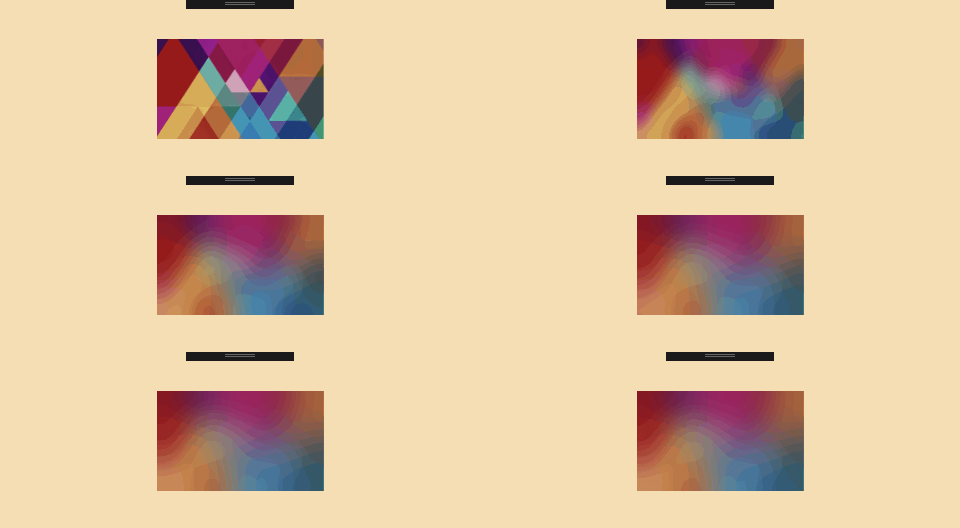
饱和度 (Saturate,只支持 UWP)
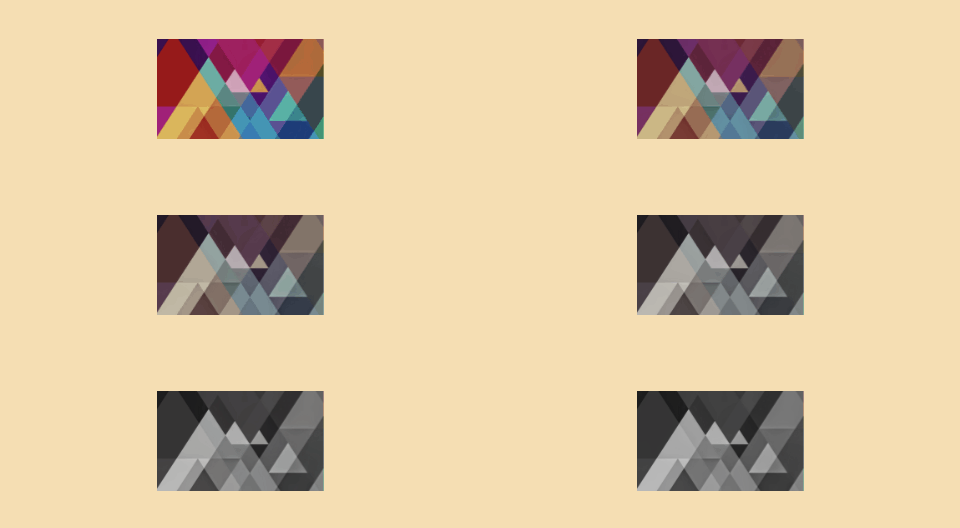
色调(Tint)(只支持 UWP)
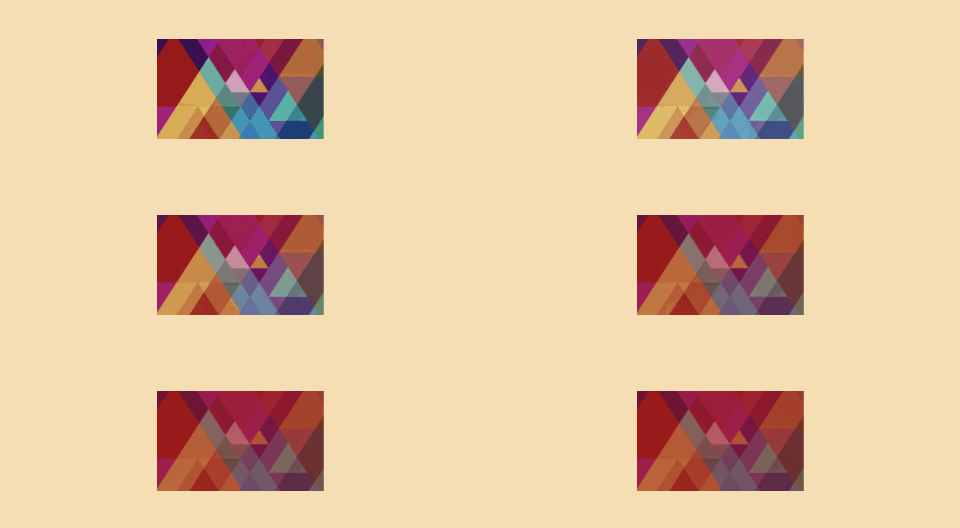
色彩 (Color,只支持 WPF 和 Uno)
注意:重要的是要注意,当使用
From动画设置色彩动画时,颜色将从指定值设置为其当前状态,而不是默认值。
旋轴 (Swivel,只支持 UWP)
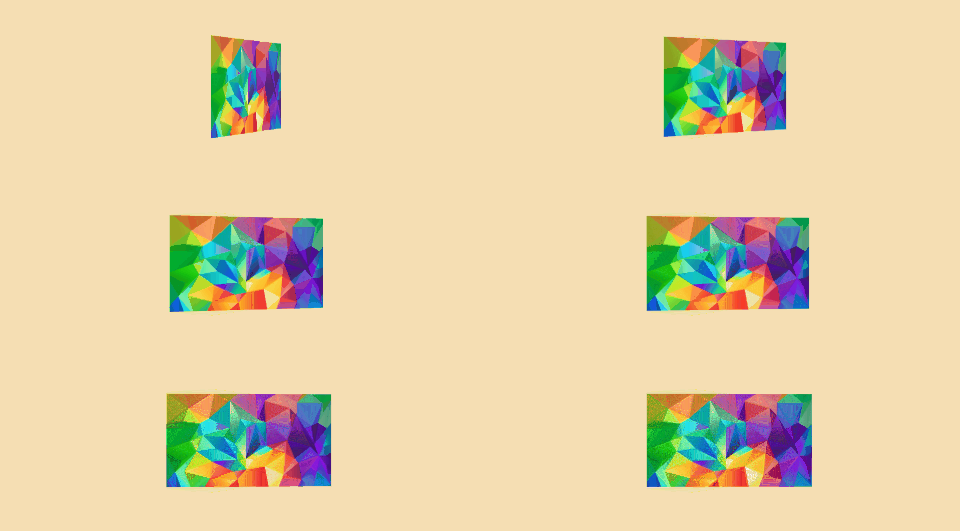
注意:请阅读Perspective Rotations (UWP Only)一节了解更多详细信息。
下面列出了使用 XamlFlair 时一些值得注意的默认值:
- Kind: FadeTo
- Duration (milliseconds): 500
- Easing: Cubic
- Easing Mode: EaseOut
- TransformCenterPoint: (0.5, 0.5)
- Event: Loaded
- InterElementDelay (milliseconds): 25 (List controls only)
- TransformOn: Render (WPF only)
- Saturation: 0.5 (UWP only)
- Tint: Transparent (UWP only)
色彩动画 (Color Animations,仅 WPF 和 Uno)
使用色彩动画时需要注意,因为它们与其他基本类型动画略有不同。使用ColorTo和ColorFrom时,必须执行以下操作:
- 只能设置以下属性的动画:
Control.Background,Control.Foreground,Control.BorderBrush,Border.Background,Border.BorderBrush,TextBlock.Foreground,Shape.Fill,Shape.Stroke - 确保在要设置动画的相应属性上设置 brush
- 还必须使用
ColorOn指定目标属性
以下示例将为 Rectangle 的Fill属性设置从 RoyalBlue 到 DarkGreen 的动画:
<xf:AnimationSettings
  x:Key="SampleColorAnimation"
  Kind="ColorTo"
  Color="DarkGreen"
  ColorOn="Fill"
/>

<Rectangle
  Fill="RoyalBlue"
  xf:Animations.Primary="{StaticResource SampleColorAnimation}"
/>
覆盖全局默认值
如果需要全局更改默认动画值之一(例如,默认Duration为 750 而不是 500),则可以在应用程序的初始化代码中调用OverrideDefaultSettings函数。以下示例更改Duration和Easing的默认值:
XamlFlair.Animations.OverrideDefaultSettings(
    duration: 750,
    easing: EasingType.Quadratic);
因此,在上面的示例代码中,每个动画都将以二次缓和的方式运行 750ms。
使用ResourceDictionary进行基本设置
所有常见动画都应该放在全局ResourceDictionary(例如:Animations.xaml)中,并在应用程序中需要时使用。目标是将所有动画合并为一个具有有意义名称的文件,以便任何开发人员都能准确地了解将动画应用到FrameworkElement中的内容。下面是一个小例子:
<ResourceDictionary
  xmlns="http://schemas.microsoft.com/winfx/2006/xaml/presentation"
  xmlns:x="http://schemas.microsoft.com/winfx/2006/xaml"
  xmlns:xf="using:XamlFlair"
>
  <x:Double x:Key="PositiveOffset">50</x:Double>
  <x:Double x:Key="NegativeOffset">-50</x:Double>
  <x:Double x:Key="SmallScaleFactor">0.75</x:Double>
  <x:Double x:Key="LargeScaleFactor">1.25</x:Double>

  <xf:AnimationSettings x:Key="FadeIn" Kind="FadeFrom" Opacity="0" />

  <xf:AnimationSettings x:Key="FadeOut" Kind="FadeTo" Opacity="0" />

  <!-- Scale to a larger value -->
  <xf:AnimationSettings
    x:Key="Expand"
    Kind="ScaleXTo,ScaleYTo"
    ScaleX="{StaticResource LargeScaleFactor}"
    ScaleY="{StaticResource LargeScaleFactor}"
  />

  <!-- Scale from a larger value -->
  <xf:AnimationSettings
    x:Key="Contract"
    Kind="ScaleXFrom,ScaleYFrom"
    ScaleX="{StaticResource LargeScaleFactor}"
    ScaleY="{StaticResource LargeScaleFactor}"
  />
  . . .
</ResourceDictionary>
要设置应用程序中已有的这组预配置AnimationSettings,请执行以下步骤:
- 项目工程点击右键菜单,点击Add > New Item...
- 选择 Resource Dictionary 并命名为
Animations.xaml App.xaml内容如下:
<Application.Resources>
  <ResourceDictionary>
    <ResourceDictionary.MergedDictionaries>
      <ResourceDictionary Source="Animations.xaml" />
    </ResourceDictionary.MergedDictionaries>
  </ResourceDictionary>
</Application.Resources>
- 在
Animations.xaml中,复制粘贴以下相应链接中的内容
你的应用程序现在有一组通用动画可以使用了。
默认动画 (仅 WPF)
除了创建包含自定义AnimationSettings的ResourceDictionary之外,XamlFlair 还提供一些默认动画。
要在应用程序中引用这些默认动画,请在App.xaml中执行以下步骤:
- 顶部添加
XamlFlair.WPF命名空间
xmlns:xf="clr-namespace:XamlFlair;assembly=XamlFlair.WPF"
- 更新应用程序资源(Application Resources):
<Application.Resources>
  <ResourceDictionary>
    <ResourceDictionary.MergedDictionaries>
      <xf:XamlFlairResources />
    </ResourceDictionary.MergedDictionaries>
  </ResourceDictionary>
</Application.Resources>
您的应用程序现在有一系列全局默认的动画可以使用了。
如果 Visual Studio Intellisense 在使用<xf:XamlFlairResources />时不起作用,您可能需要尝试以下操作:
<Application.Resources>
  <ResourceDictionary>
    <ResourceDictionary.MergedDictionaries>
      <ResourceDictionary
        Source="pack://application:,,,/XamlFlair.WPF;component/DefaultAnimations.xaml"
      />
    </ResourceDictionary.MergedDictionaries>
  </ResourceDictionary>
</Application.Resources>
TransformOn 属性 (仅 WPF)
RenderTransform可使用TransformOn属性应用动画。可用选项为Render和Layout。未指定任何内容时,默认为Render。以下是关于两个选项的示例:
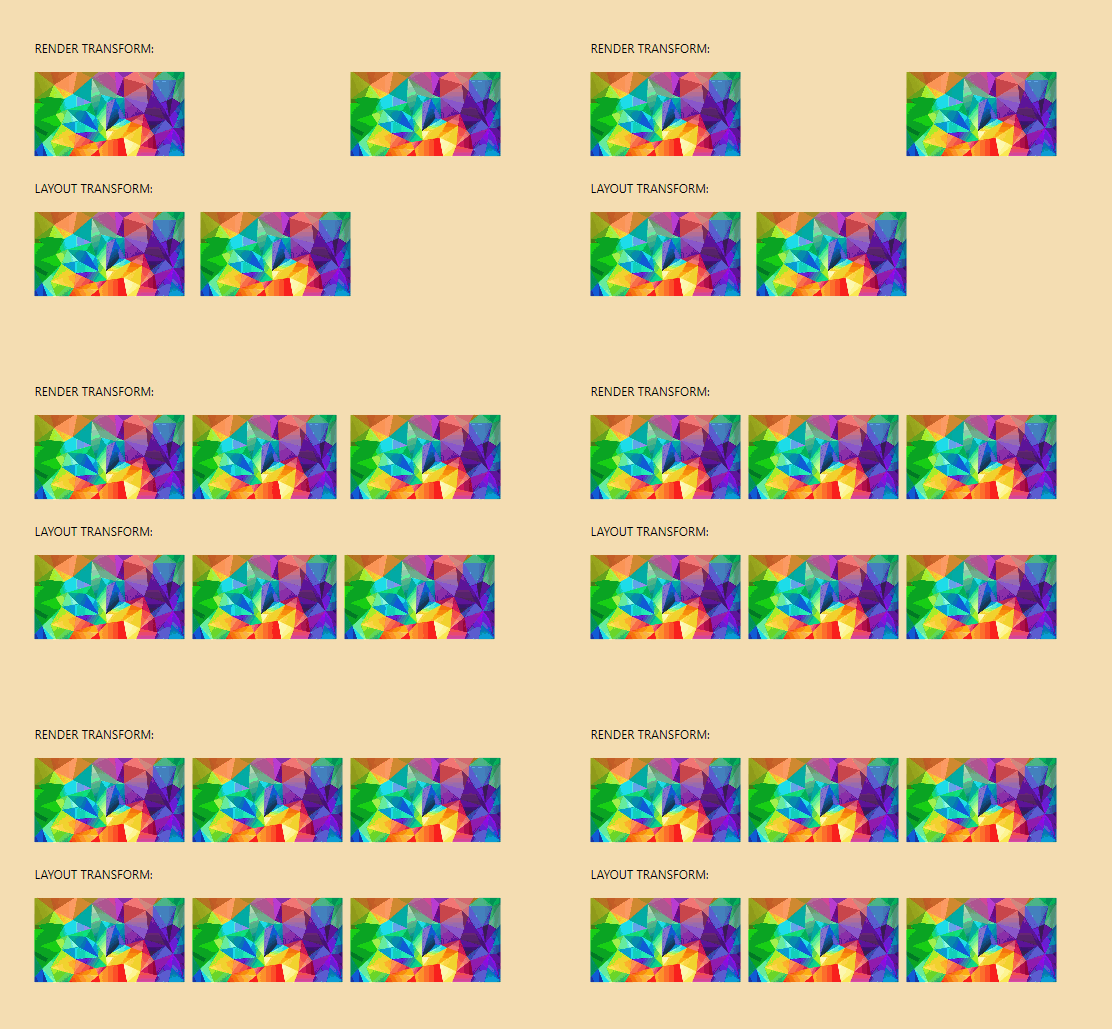
注意:非常重要的是要注意 WPF 的
LayoutTransform不支持任何TranslateTransform,因此 translate 动画永远不会生效。您可以在这里的备注部分了解更多信息。
原文 readme.md 太长了,翻译累了,大家有兴趣看原文吧,最后上一图:
