

在经过了两年的准备,以及迁移了几个应用项目积累了让我有信心的经验之后,我最近在开始将团队里面最大的一个项目,从 .NET Framework 4.5 迁移到 .NET 6 上。这是一个从 2016 时开始开发,最多有 50 多位开发者参与,代码的 MR 数量过万,而且整个团队没有一个人能说清楚项目里面的所有功能。此项目引用了团队内部的大量的基础库,有很多基础库长年不活跃。此应用项目当前也有近千万的用户量,迁移的过程也需要准备很多补救方法。如此复杂的一个项目,自然需要用到很多黑科技才能完成到 .NET 6 的落地。本文将告诉大家这个过程里,我踩到的坑,以及学到的知识,和为什么会如此做。
前文
准确来说,我在这个过程其实算是最后一公里,我估算了工作量,大概将这个项目从 .NET Framework 4.5 迁移到 .NET 6 上的工时约 1.5 年人。虽然我现在说的是我用了五周的时间就完成了,但实际上在此前的准备工作是没有被我算上的。此前的工作包括什么?还包括将各大基础库更改为支持 dotnet core 的版本,填补 dotnet core 和 dotnet framework 的差异,例如 .NET Remoting 和 WCF 等 IPC 的缺失。更新打包平台和构建平台,使支持 dotnet core 的构建和打包。更新软件的 OTA 也就是软件自动更新功能,用于支持复杂的灰度发布功能和测试 .NET 6 环境支持。逐步从边缘到核心,逐个应用项目迁移,进行踩坑和积累经验。
在做足了准备之后,再加上足量的勇气,以及一个好的时机,在整个团队的支持下,我就开始进行最后一公里的迁移。
其实在进行最后的从 .NET Framework 4.5 换到 .NET 6 之前,整个团队包括我都是完全没有想到还有如此多的坑需要填的。这个庞大的项目用了多少奇奇怪怪的黑科技还是没有人知道的。在记录本文时,我和伙伴们说,也许世界上没有其他的团队也会遇到咱的问题了。
背景
一个从 2016 时开始开发,最多有 50 多位开发者参与,而且这些开发者们没几位是省油的,有任何东西都需要自己造的开发者,有任何东西只要能用别人做好的绝不自己造的开发者,有写代码上过央视的开发者,有参与制定国家标准的开发者,有一个类里面一定要用满奇特的设计模式的开发者,有在代码注释里面一定要放大佛的开发者,有学到啥黑科技就一定要用上的开发者,有只要代码和人一个能跑就好的开发者,有睁着眼睛说瞎话代码和注释完全是两回事的开发者,有代码注释是文言文的开发者,有代码注释是全英文的开发者,有注释和文档远超过代码量的开发者,有中文还没学好的开发者,有喜欢挖坑而且必须自己踩的开发者,有啥东西都需要加日志的开发者,有十分帅穿着西装写代码的开发者,有穿着女装写代码的开发者,有在代码里面卖萌的开发者,有 这个函数只有我才能调用 的开发者,有相同的逻辑一定要用不同的方式实现的开发者,有在奔跑的坦克上换引擎的开发者。
在本次迁移的过程,还有一些坑需要填。其中一个就是 dotnet core 里面,没有一个多 Exe 入口的客户端应用的最佳实践。这里面涉及到客户端应用独立管理运行时环境时,多个 Exe 的冲突处理和安装完成之后的文件夹体积的矛盾。这个也是本文分享的重点。
本次还带了一些需求,包括: 在确定系统环境满足的情况下,低限度依赖系统,且需要做到不会被用户系统上所安装的 dotnet 运行时所影响。另外,考虑到后续要支持产品线内多个应用都共用运行时,但此运行时不能和其他团队,其他公司所共有避免被魔改,还需要进行一些尝试逻辑。最后,对使用的 WPF 版本是要求定制的,也就是说需要在官方发布版本的基础上,更改部分逻辑,满足特殊的产品需求。
这就意味着将 dotnet 重新分发,设置为团队完全控制的库。这个变更之后,在更新到 .NET 6 之后,可以执行完全的自主控制 dotnet 框架,包括 WPF 框架。于是可以做的事情就更加多了,无法实现的东西就更少了。
为了做到对 WPF 更多的定制化,我将 WPF 框架的地位从原先的应用运行时层,更改为基础库层,地位和 团队里面的基础组件 等 CBB 相同,只是作为底层库而存在,架构上和 最底层的基础库 平级。
本次遇到的问题分为两个大类,一个是此项目本身的复杂度带来的问题,另一个是 dotnet 带来的问题。本文只记录 dotnet 所带来的问题,其中更多部分是因为特殊需求定制而导致问题。
开发架构
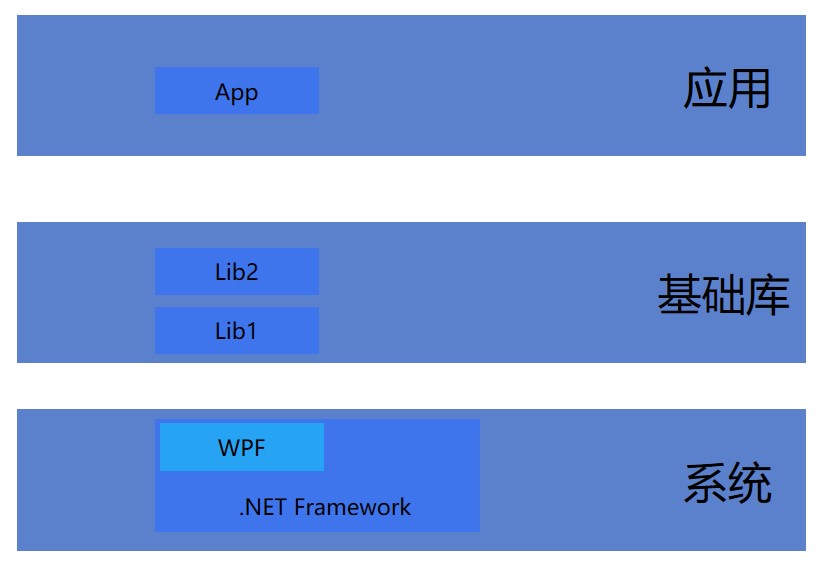
原本的应用开发架构上,所依赖的 .NET Framework 是作为系统组件的存在。系统组件受到系统环境的影响,在国内妖魔鬼怪的环境下,系统组件被魔改被损坏是常态。采用 .NET Framework 的应用有着很大的客服成本,需要帮助用户解决环境问题。随着用户量越来越大,这部分的客服成本也越来越大。这也就是为什么有能投入到如此多资源来更新项目的原因之一。
原本的应用开发架构分层如下图:
在更新到 dotnet 之后,运行时是在系统层的上方。如此的设计即可减少系统环境的影响,解决大量的应用环境问题:
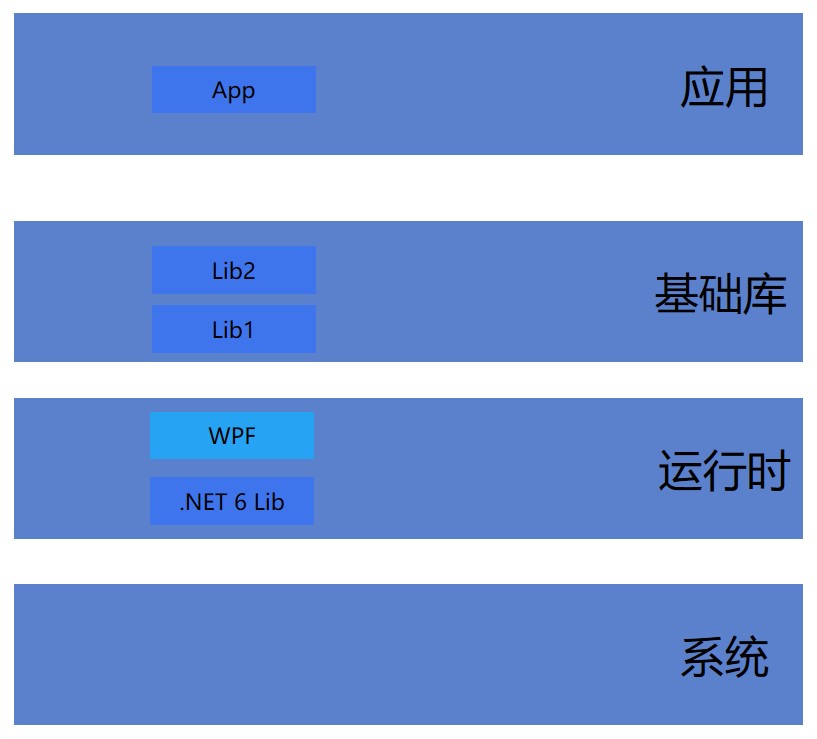
从上图可以看到 WPF 是作为运行时的部分存在,但这不利于后续对 WPF 的定制化。我所在的团队期望能完全将 WPF 进行控制,对 WPF 框架做深度定制。当然,本身团队也有此能力,因为我也算是 WPF 框架的官方开发者。这部分深度的定制将会根据定制的不同,部分进行开源。
变更后当前的开发架构分层如下图:
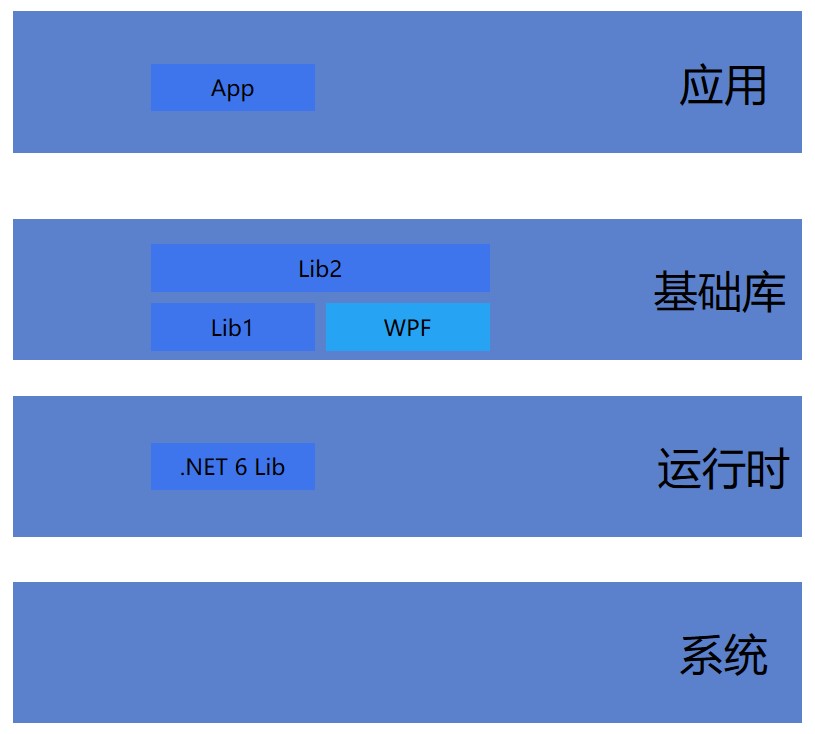
让 WPF 作为基础库的一部分而存在,而不再放入运行时里面。计划是产品项里面的多个产品项目是共用 .NET 运行时,单个各个产品之间自己带 WPF 的负载,作为基础库。
所遇到的问题
在进行最后一公里的更新就遇到了一些 dotnet core 机制上没有最佳实践的问题。
多 AppHost 入口应用的依赖问题
多 Exe 应用的客户端依赖问题是其中的一个机制性问题。当前正在迁移的项目是一个多进程模型的应用,有很多 Exe 的存在。然而 dotnet core 当前没有一个最佳实践可以让多个 Exe 之间完美共享运行时且不受系统所安装的全局 dotnet 运行时影响,同时照顾到安装完成之后的文件夹体积。
我列出的问题点如下:
- 多个 Exe 文件之间,如何共享运行时,如果不共享文件夹,各自独立发布,那将让输出文件夹体积非常大。
- 多个 Exe 文件,如果在相同的文件夹进行发布,将会相互覆盖相同的名字的程序集。根据 dotnet 的引用依赖策略,如果有版本不兼容情况,将出现 FileLoadException 错误。
- 不能使用 Program File 共享的全局程序集,因为这个文件夹里面的内容可能被其他公司的应用更改从而损坏,无法使用 dotnet core 环境独立的能力。
- 不能使用 Program File 共享的全局程序集,因为团队内将会对 dotnet 运行时进行定制,例如定制 WPF 程序集,将 WPF 的地位从运行时更改为基础库。这部分定制不能污染其他应用。
- 发布到用户端的运行时版本只能选用稳定的版本,而开发者会使用较新的 SDK 版本,开发构建输出的程序集将引用较新 SDK 版本,如应用运行加载的只是发布到用户端的运行时版本,将会因为版本低于构建版本而出错。
- 发布到用户端的运行时版本,是包含了定制版本的运行时,例如定制的 WPF 程序集。开发时应该引用定制的 WPF 程序集,但是不能引用低于构建版本的用户端的运行时版本。
另外由于 dotnet core 和 dotnet framework 对 exe 有机制性的变更,如 dotnet core 的 exe 只是一个 apphost 而已,默认不包含 IL 数据。而 dotnet framework 下默认 exe 里面是包含应用入口以及 IL 数据程序集的。这就导致了原本的 NuGet 分发里面有很多不支持的部分,好在这部分的坑踩平了。
然而在进行 AppHost 的定制的时候,却一定和 NuGet 分发进行冲突。由于 NuGet 是做统一的分发逻辑,如果在 NuGet 包上面带 Exe 文件,那一定此 Exe 文件所配置的内容一定不符合具体的项目需求。
依赖版本问题
在 dotnet 6 里面,依赖和 .NET Framework 的寻找逻辑是不相同的,在 .NET Framework 只要存在同名的 DLL 即可,无视版本号。然而在 dotnet 6 里面,却实际的 DLL 的版本号要大于或等于依赖引用的 DLL 版本。核心问题冲突在于分发给用户端的运行时框架版本,与开发者使用的 SDK 版本的差异。
为什么会出现此差异?原因是开发者使用的 SDK 基本都是最新的,然而分发给用户端的运行时的版本是没有勇气使用最新的。
想要理清此差异的问题,需要先理清概念:
- 开发者使用的 SDK 版本,也就是 dotnet 官方的 SDK 版本,大部分时候都使用最新的版本,例如 6.0.3 版本。
- 用户端的运行时的版本,分发给到用户的运行时版本,大部分时候都使用比较稳定的版本,例如 6.0.1 版本。
- 私有的版本,为了重新定制框架,例如给 WPF 框架加入自己的业务代码,由自己分发的版本。此版本也作为用户端的运行时的版本,只是会基于一个稳定的 dotnet 官方发布版本更改。
在更新到 dotnet 6 之后,咱拥有了完全控制 dotnet 的能力,可以使用自己的私有的 dotnet 版本,当然 dotnet 版本也包括 WPF 版本。这就意味着可以对 WPF 框架进行足够的定制化,在项目里面使用自己定制化的 WPF 框架。
然而使用自己定制化的 WPF 框架不是没有代价的,将遇到分发给用户端的运行时框架版本,与开发者使用的 SDK 版本的差异问题。此差异将会导致如果是分发的版本是私有的版本,这就意味着私有的版本一定落后开发者使用的 SDK 的版本。落后开发者使用的 SDK 的版本将会有两个方面的问题。
- 如果选用开发者的 SDK 版本作为软件运行加载的程序集,那么将因为不会加载到私有的版本的程序集,开发时无法使用到私有的版本。意味着私有的版本难以调试,而且也无法在开发时处理私有的版本的行为变更。
- 如果选用私有的版本作为软件运行加载的程序集,那么将因为私有的版本的版本号比开发者的 SDK 版本低,从而让开发者构建出来的程序集找不到对应的版本从而运行失败。
当前处理方法
当前的处理方法是在开发时应用软件的入口程序集里面,加上对定制部分的程序集的引用,和输出定制部分的程序集。如此可以在开发时使用私有的版本。
在服务器构建时,设置让应用软件的入口程序集不再对定制部分的程序集的引用,从而让构建出来的所有程序集不包含对定制部分的程序集的引用;构建时将定制部分的程序集的引用放入到 runtime 文件夹内被 AppHost 引用。
组织文件
代码文件组织
先将定制部分的程序集存放到代码仓库的 Build\dotnet runtime\ 文件夹里面,例如自定义的 WPF 框架就存放到 Build\dotnet runtime\WpfLibraries\ 文件夹里面。
接着将决定使用的 dotnet 运行时版本,放入到 Build\dotnet runtime\runtime\ 文件夹里面,此 runtime 文件夹的组织大概如下:
├─host
│  └─fxr
│      └─6.0.1
├─shared
│  ├─Microsoft.NETCore.App
│  │  └─6.0.9901
│  └─Microsoft.WindowsDesktop.App
│      └─6.0.9904
└─swidtag
接着将定制部分的程序集覆盖 runtime 文件夹。
输出文件组织
输出文件包含两个概念,分别是安装包安装到用户设备上的安装输出文件夹和在开发时的输出文件夹。这两个方式是不相同的。
安装包安装到用户设备上的安装输出文件夹,例如输出到 C:\Program Files\Company\AppName\AppName_5.2.2.2268\ 文件夹。
在输出的文件夹的组织方式大概如下:
├─runtime
│  ├─host
│  │  └─fxr
│  │      └─6.0.1
│  ├─shared
│  │  ├─Microsoft.NETCore.App
│  │  │  └─6.0.9901
│  │  └─Microsoft.WindowsDesktop.App
│  │      └─6.0.9904
│  └─swidtag
├─runtimes
│  ├─win
│  │  └─lib
│  │      ├─netcoreapp2.0
│  │      ├─netcoreapp2.1
│  │      └─netstandard2.0
│  └─win-x86
│      └─native
├─Resource
│
│ AppHost.exe
│ AppHost.dll
│ AppHost.runtimeconfig.json
│ AppHost.deps.json
│
│ App1.exe
│ App1.dll
│ App1.runtimeconfig.json
│ App1.deps.json
│
└─Lib1.dll
为什么会将 Runtime 包含运行时的文件夹放入到应用里面?基于如下理由:
- 由于有多个 exe 的存在,使用独立发布是不现实的。
- 考虑到后续可能团队内的多个应用都会共享一个运行时,而不是每个应用都自己带,因此将运行时 Runtime 放入到一个公共文件夹是合理的,但由于现在还没有稳定,先在应用内进行测试。
- 此 Runtime 文件夹是包含自己定制的内容,和 dotnet 官方的有一些不同,因此不能做全局安装。
既然不合适做独立发布,也不合适放在 Program File 做全局,那只能放在应用自己的文件夹里面。为了能让放在应用自己的文件夹里面的 Runtime 文件夹能被识别,就需要定制 AppHost 文件,详细请参阅如下博客:
- 在多个可执行程序(exe)之间共享同一个私有部署的 .NET 运行时 - walterlv
- 如何让 .NET 程序脱离系统安装的 .NET 运行时独立运行?除了 Self-Contained 之外还有更好方法!谈 dotnetCampus.AppHost 的工作原理 - walterlv
- 如何编译、修改和调试 dotnet runtime 仓库中的 apphost nethost comhost ijwhost - walterlv
开发时的输出文件夹是给开发者调试使用的,输出的文件夹是 $(SolutionDir)bin\$(Configuration)\$(TargetFramework) 文件夹,如 Debug 下的 dotnet 6 是输出到 bin\Debug\net6.0-windows 文件夹。在输出的文件夹的组织方式大概如下:
├─runtimes
│  ├─win
│  │  └─lib
│  │      ├─netcoreapp2.0
│  │      ├─netcoreapp2.1
│  │      └─netstandard2.0
│  └─win-x86
│      └─native
├─Resource
│
│ AppHost.exe
│ AppHost.dll
│ AppHost.runtimeconfig.json
│ AppHost.deps.json
│
│ App1.exe
│ App1.dll
│ App1.runtimeconfig.json
│ App1.deps.json
│
│ PresentationCore.dll
│ PresentationCore.pdb
│ PresentationFramework.dll
│ PresentationFramework.pdb
│ ...
│ PresentationUI.dll
│ PresentationUI.pdb
│ System.Xaml.dll
│ System.Xaml.pdb
│ WindowsBase.dll
│ WindowsBase.pdb
│
└─Lib1.dll
可以看到开发时的输出的文件夹没有包含 Runtime 文件夹,但是将定制的程序集放在输出文件夹,例如上面的定制的 WPF 程序集内容。如此可以实现在开发时,除了定制的程序集,其他可以使用 SDK 的程序集。为什么如此做,请参阅下文的原因:
修改项目文件
在入口程序集里面,加上对 定制部分的程序集 的引用逻辑,例如对定制的 WPF 的程序集,也就是放在 Build\dotnet runtime\WpfLibraries\ 文件夹里面的 DLL 进行引用和拷贝输出:
<ItemGroup>    <Reference Include="$(SolutionDir)Build\dotnet runtime\WpfLibraries\*.dll"/>
    <ReferenceCopyLocalPaths Include="$(SolutionDir)Build\dotnet runtime\WpfLibraries\*.dll"/>
  </ItemGroup>
如此即可实现在开发时,引用定制版本的程序集,输出,从而调试用到定制版本的程序集。
这是 dotnet 的 SDK 的一个功能,判断如果有和运行时框架存在的程序集已被引用,那么将优先使用此程序集而不使用框架的程序集。这就是以上代码可以使用定制的 WPF 程序集替换 dotnet 的 SDK 带的版本的基础支持。
由于在实际发布的时候,在服务器构建,为了减少在用户安装之后的文件夹体积,就期望不使用在入口程序集引用定制版本的程序集的输出的文件,只使用放在 runtime 文件夹的版本,减少重复的文件。因此需要对入口程序集的引用代码进行优化,设置在服务器构建时,不输出。
实现方法就是在服务器构建时,通过 msbuild 参数,设置属性,在项目文件判断属性了解是否服务器构建,如果是服务器构建就不进行引用程序集:
<ItemGroup Condition=" '$(TargetFrameworkIdentifier)' != '.NETFramework' And $(DisableCopyCustomWpfLibraries) != 'true'">    <Reference Include="$(SolutionDir)Build\dotnet runtime\WpfLibraries\*.dll"/>
    <ReferenceCopyLocalPaths Include="$(SolutionDir)Build\dotnet runtime\WpfLibraries\*.dll"/>
  </ItemGroup>
通过 msbuild 参数修改构建详细请看下文。
以上的方法存在设计的缺陷,那就是开发者使用的逻辑将和实际在用户运行的不相同,但是我也没有找到其他的方式可以解决如此多的问题。
修改构建
在服务器构建时,传入给 msbuild 的参数,加上 /p:DisableCopyCustomWpfLibraries=true 配置不要引用自定义版本的 WPF 框架。
然后在构建的时候,需要从 Build\dotnet runtime\runtime\ 文件夹拷贝定制的运行时放入到输出文件夹里面。
/// <summary>
/// 使用自己分发的运行时,需要从 Build\dotnet runtime\runtime 拷贝
/// </summary>
private void CopyDotNetRuntimeFolder()
{
    var runtimeTargetFolder = Path.Combine(BuildConfiguration.OutputDirectory, "runtime");
    var runtimeSourceFolder =
        Path.Combine(BuildConfiguration.BuildConfigurationDirectory, @"dotnet runtime\runtime");
    PackageDirectory.Copy(runtimeSourceFolder, runtimeTargetFolder);
}
也就是说不让入口程序集引用自定义版本的 WPF 框架,而是换成让应用运行去引用 runtime 文件夹里面的,从而减少重复的文件。
决策原因
以上的解决方法是有进行复杂的决策,下面来告诉大家每个决策的原因。
解决多个 Exe 文件之间共享运行时
多个 Exe 文件,而且有 Exe 存放在其他文件夹,如 Main 文件夹等。这些 Exe 如果都进行独立发布,那安装的输出文件夹体积很大,而且重复文件也很多,构建也需要慢慢等。
解决方法是通过 AppHost 的定制的方式,让所有的 Exe 都加载应用输出文件夹的 runtime 文件夹的内容。如此可以实现多个 Exe 文件之间共享运行时。
为了能让放在应用自己的文件夹里面的 Runtime 文件夹能被识别,定制 AppHost 文件,详细请参阅如下博客:
- 在多个可执行程序(exe)之间共享同一个私有部署的 .NET 运行时 - walterlv
- 如何让 .NET 程序脱离系统安装的 .NET 运行时独立运行?除了 Self-Contained 之外还有更好方法!谈 dotnetCampus.AppHost 的工作原理 - walterlv
- 如何编译、修改和调试 dotnet runtime 仓库中的 apphost nethost comhost ijwhost - walterlv
除进行定制 AppHost 文件去识别 Runtime 文件夹之外,第二个方案,另一个方法是修改文件组织结构,最外层称为 Main 入口应用文件夹,只放主入口 Exe 文件及其依赖和运行时,而其他的 Exe 都放在里层文件夹。要求放在里层文件夹的 Exe 不能直接被外部执行,而是只能由外层的入口 Exe 进行间接调用。在外层的入口 Exe 启动里程文件夹的 Exe 的时候,通过环境变量告知里程文件夹的 Exe 的 dotnet 机制去使用到最外层称为 Main 入口应用文件夹的运行时内容。
然而第二个方案在本次迁移过程中没有被我选择,根本原因就是有很多古老且边界的逻辑,这些逻辑有十分奇怪的调用方式。将原本的 Exe 放入到里层文件夹,自然就修改了 Exe 的相对路径,也许这就会挂了一堆业务模块。再有一部分 Exe 是被其他应用软件启动的,这部分也属于改不动的。由于这些需求的存在,选择将 Runtime 文件夹放在更外层,改 AppHost 文件,让这些可执行程序文件之间共享同一个私有部署的 .NET 运行时。
解决定制版本污染全局
对 dotnet 运行时的定制,例如定制 WPF 程序集,将 WPF 程序集的地位从运行时修改为基础库。这个定制更改的分发到用户端有两个方式。
- 带给应用自己,例如应用独立发布。
- 全局安装到 Program File 里面。
为了不污染到其他公司的应用,不能全局安装到 Program File 里面。只能带给应用自己。
如上文,做每个 Exe 的独立发布是不合适的,只能放入到输出文件夹的 runtime 文件夹。
调用插件进程
有插件进程是放在 AppData 文件夹的,不在应用的安装输出文件夹里面,如何调用插件进程让插件进程可以使用到运行时,而不需要让插件自己带一份运行时。
实现方法是通过环境变量的方式,在 dotnet 里面,将会根据进程的环境变量 DOTNET_ROOT 去找运行时。
在主应用入口 Program 启动给应用自己加上环境变量,根据 dotnet 的 Process 启动策略,被当前进程使用 Process 启动的进程,将会继承当前进程的环境变量。从而实现了在使用主应用启动的插件进程,可以拿到 DOTNET_ROOT 环境变量,从而使用主应用的运行时。
/// <summary>
/// 加上环境变量,让调用的启动进程也自动能找到运行时
/// </summary>
static void AddEnvironmentVariable()
{
    string key;
    if (Environment.Is64BitOperatingSystem)
    {
        // https://docs.microsoft.com/en-us/dotnet/core/tools/dotnet-environment-variables
        key = "DOTNET_ROOT(x86)";
    }
    else
    {
        key = "DOTNET_ROOT";
    }

    // 例如调用放在 AppData 的独立进程,如 CEF 进程,可以找到运行时
    var runtimeFolder =
        Path.Combine(AppDomain.CurrentDomain.SetupInformation.ApplicationBase!, "runtime");
    Environment.SetEnvironmentVariable(key, runtimeFolder);
}
根据官方文档,对 x86 的应用,需要使用 DOTNET_ROOT(x86) 环境变量。
详细请看 dotnet 6 通过 DOTNET_ROOT 让调起的应用的进程拿到共享的运行时文件夹
然而此方法也是有明确缺点的,那就是这些插件自身是不能单独运行的,单独运行将找不到运行时从而失败,必须由主入口进程或者其他拿到运行时的进程通过设置环境变量执行插件才能正确执行。
此问题也是有解决方法的,解决方法就是在不污染全局的 dotnet 的前提下,将 dotnet 安装在自己产品文件夹里面,默认的 Program File 里面的应用文件夹布局都是 C:\Program File\<公司名>\<产品名> 的形式。于是可以将 dotnet 当成一个产品进行安装,于是效果就是如 C:\Program File\<公司名>\dotnet 的组织形式。如此即可以在多个应用之间通过绝对路径共享此运行时。
本次不采用文件夹布局为 C:\Program File\<公司名>\dotnet 的组织形式去解决问题,是因为当前使用的 dotnet 管理方法,以及正在迁移版本过渡中,再加上使用的私有的 WPF 也没有成熟,因此不考虑放在 C:\Program File\<公司名>\dotnet 的形式。而且也作为这个组织形式,需要考虑 OTA 软件更新的问题,以及更新过程中出错回滚等问题,需要更多的资源投入。但此方式可以作为最终形态。
处理开发者的 SDK 版本比准备发给用户的运行时的版本高的问题
遇到的问题: 开发者的 SDK 版本比准备发给用户的运行时的版本高,此时构建出来的 DLL 将引用高版本的 .NET 的程序集,从而在开发者运行的时候,将会提示找不到对应版本的程序集。
由于写了 App.config 是无效的,因此无法使用之前的方式来将多个版本合为一个版本。正在寻找解决方法,但是依然没有找到。
尝试的解决方法有两个: 第一个是让开发者安装与用户运行时的版本相同的 SDK 然后通过 global.json 设置特定的版本。这是可以解决的,只是需要开发者额外安装 SDK 而已,安装 SDK 的方法是解压缩文件。
第一个方法需要给每个开发者安装旧 SDK 版本,而且每次更新 SDK 都需要重新对每个开发者来一次。这对于新加入的开发者不友好,因为需要开发者部署环境。但是 dotnet 的 SDK 如果有新版本,是不能安装旧版本的,除非是预览版,这就让开发者的部署比较复杂。这就是为什么当前不使用第一个方法的原因。
尝试第二个方法: 在 入口程序集 里面,引用 WPF 定制版本的程序集,此时将会在开发构建被输出,在开发运行被引用。在发布的时候,使用 runtime 文件夹下的内容,同时删除输出文件夹里的内容。
发布的时候,使用 runtime 文件夹下的内容,同时删除输出文件夹里的内容的原因是为了减少在用户端的文件体积,因为使用 runtime 文件夹下的内容和存放到程序集入口所在文件夹的定制版本的程序集文件是完全相同。例如定制版本的 WPF 程序集发布之后约 30M 左右,重复的文件将多占用用户端的 30M 左右的空间,但这不影响安装包的大小。
第二个方法有缺点,每次发布 WPF 私有版本,或者更新 .NET 版本,都需要手动拷贝文件。也许后续版本可以考虑做 NuGet 分发包。
第二个方法不能简单删除输出文件夹里的内容,而是需要在服务器打包让入口项目不做引用,否则将会因为 deps.json 文件引用程序集被删除,从而执行软件失败。
以下是 deps.json 的配置引用程序集例子:
"PresentationFramework/6.0.2.0": {
  "runtime": {
    "PresentationFramework.dll": {
      "assemblyVersion": "6.0.2.0",
      "fileVersion": "42.42.42.42424"
    }
  },
  "resources": {
    "cs/PresentationFramework.resources.dll": {
      "locale": "cs"
    },
    "de/PresentationFramework.resources.dll": {
      "locale": "de"
    },
    "es/PresentationFramework.resources.dll": {
      "locale": "es"
    },
    "fr/PresentationFramework.resources.dll": {
      "locale": "fr"
    },
    "it/PresentationFramework.resources.dll": {
      "locale": "it"
    },
    "ja/PresentationFramework.resources.dll": {
      "locale": "ja"
    },
    "ko/PresentationFramework.resources.dll": {
      "locale": "ko"
    },
    "pl/PresentationFramework.resources.dll": {
      "locale": "pl"
    },
    "pt-BR/PresentationFramework.resources.dll": {
      "locale": "pt-BR"
    },
    "ru/PresentationFramework.resources.dll": {
      "locale": "ru"
    },
    "tr/PresentationFramework.resources.dll": {
      "locale": "tr"
    },
    "zh-Hans/PresentationFramework.resources.dll": {
      "locale": "zh-Hans"
    },
    "zh-Hant/PresentationFramework.resources.dll": {
      "locale": "zh-Hant"
    }
  }
},
解决以上问题的方法就是如上的处理方法的做法,在开发者构建和服务器构建使用不同的引用关系。
处理用户加载到全局的程序集问题
背景
在 dotnet 里面,将会进行版本评估,基于 Roll forward 进行策略逻辑,假设走的是默认的 Minor 的策略。优先寻找的是 AppHost 里面记录的 Runtime 文件夹,接着去寻找 Program File 的 dotnet 文件夹。取里面一个合适的版本号,假如 应用 当前是采用 6.0.1 进行打包,而 Program File 里面,用户安装了 6.0.3 的版本,那将会被选择使用 Program File 的 6.0.3 的版本。
这就意味着,如果用户的 Program File 的 6.0.3 版本是损坏的,将会让 应用 使用被损坏文件。
于是就达不到使用 dotnet 能处理环境问题。
期望是能不在用户端自动加载 Program File 这个全局的程序集,而是使用应用自己带的 runtime 文件夹的程序集。
处理方法
让 应用 的 Runtime 的 dotnet 的文件夹的版本号足够高,即可解决此问题。
更改放在 应用 的 Runtime 的 dotnet 的文件夹为 6.0.990x 版本,最后的 x 是对应原本 dotnet 官方的 Minor 版本号。如 6.0.1 对应 6.0.9901 版本号。
根据 Roll forward 的逻辑,将会判断 6.0.990x 版本是最高版本,从而不会加载 Program File 这个全局的程序集。
详细请看 https://docs.microsoft.com/en-us/dotnet/core/versions/selection
调试方法
进行修改 Runtime 文件夹加载路径,是需要进行调试的,由于开发者大部分情况下都有安装好 SDK 环境,这也让开发者无法很好的在自己的设备上进行调试。原因是如果自己的 Runtime 文件夹配置出错,将让 AppHost 默认加载进入了 SDK 环境,因此也就在开发者的设备上可以符合预期的运行。
然而在用户的设备上,没有环境,或者是损坏的,那么应用将跑不起来。
一个在开发者设备上调试的方法是加上环境变量,通过 dotnet 自带的 AppHost 调试方式,将引用加载进行输出。
假设要测试的应用是 App.exe 文件,可以打开 cmd 先输入以下命令,用于给当前的 cmd 加上环境变量,如此做可以不污染开发环境:
set COREHOST_TRACE=1
set COREHOST_TRACEFILE=host.txt
设置完成之后,再通过命令行调用 App.exe 文件,此时的 App.exe 文件将会输出调试信息到 host.txt 文件:
App.exe
一个调试信息的内容如下:
--- The specified framework 'Microsoft.WindowsDesktop.App', version '6.0.0', apply_patches=1, version_compatibility_range=minor is compatible with the previously referenced version '6.0.0'.
--- Resolving FX directory, name 'Microsoft.WindowsDesktop.App' version '6.0.0'
Multilevel lookup is true
Searching FX directory in [C:\lindexi\App\App\runtime]
Attempting FX roll forward starting from version='[6.0.0]', apply_patches=1, version_compatibility_range=minor, roll_to_highest_version=0, prefer_release=1
'Roll forward' enabled with version_compatibility_range [minor]. Looking for the lowest release greater than or equal version to [6.0.0]
Found version [6.0.1]
Applying patch roll forward from [6.0.1] on release only
Inspecting version... [6.0.1]
Changing Selected FX version from [] to [C:\lindexi\App\App\runtime\shared\Microsoft.WindowsDesktop.App\6.0.1]
Searching FX directory in [C:\Program Files (x86)\dotnet]
Attempting FX roll forward starting from version='[6.0.0]', apply_patches=1, version_compatibility_range=minor, roll_to_highest_version=0, prefer_release=1
'Roll forward' enabled with version_compatibility_range [minor]. Looking for the lowest release greater than or equal version to [6.0.0]
Found version [6.0.1]
Applying patch roll forward from [6.0.1] on release only
Inspecting version... [3.1.1]
Inspecting version... [3.1.10]
Inspecting version... [3.1.20]
Inspecting version... [3.1.8]
Inspecting version... [5.0.0]
Inspecting version... [5.0.11]
Inspecting version... [6.0.1]
Inspecting version... [6.0.4]
Attempting FX roll forward starting from version='[6.0.0]', apply_patches=1, version_compatibility_range=minor, roll_to_highest_version=0, prefer_release=1
'Roll forward' enabled with version_compatibility_range [minor]. Looking for the lowest release greater than or equal version to [6.0.0]
Found version [6.0.1]
Applying patch roll forward from [6.0.1] on release only
Inspecting version... [6.0.4]
Inspecting version... [6.0.1]
Changing Selected FX version from [C:\lindexi\App\App\runtime\shared\Microsoft.WindowsDesktop.App\6.0.1] to [C:\Program Files (x86)\dotnet\shared\Microsoft.WindowsDesktop.App\6.0.4]
Chose FX version [C:\Program Files (x86)\dotnet\shared\Microsoft.WindowsDesktop.App\6.0.4]
从 --- 开始,就是加载各个负载,如桌面等。开始读取的寻找文件夹是放在 AppHost 里面的配置,这是通过 在多个可执行程序(exe)之间共享同一个私有部署的 .NET 运行时 - walterlv 的方法设置的,让应用去先寻找 runtime 文件夹的内容,如上文的文件布局。
接着在 dotnet 里面,读取到的 Roll forward 策略是 minor 的值,接下来寻找到 6.0.1 版本,放在 runtime 文件夹的内容:
'Roll forward' enabled with version_compatibility_range [minor]. Looking for the lowest release greater than or equal version to [6.0.0]
Found version [6.0.1]
作为第一个找到的内容,就将作为默认的运行时文件夹:
Changing Selected FX version from [] to [C:\lindexi\App\App\runtime\shared\Microsoft.WindowsDesktop.App\6.0.1]
接着继续寻找 C:\Program Files (x86)\dotnet 文件夹:
Searching FX directory in [C:\Program Files (x86)\dotnet]
在全局的文件夹找到了很多个版本,找到了很多个版本将和默认的运行时文件夹进行对比版本,找到最合适的一个。
如上面代码,找到了 6.0.4 比默认的 6.0.1 更合适,于是就修改当前找到的运行时文件夹为 6.0.4 的版本:
Changing Selected FX version from [C:\lindexi\App\App\runtime\shared\Microsoft.WindowsDesktop.App\6.0.1] to [C:\Program Files (x86)\dotnet\shared\Microsoft.WindowsDesktop.App\6.0.4]
由于没有其他可以寻找的文件夹了,就将 6.0.4 作为使用的运行时文件夹:
Chose FX version [C:\Program Files (x86)\dotnet\shared\Microsoft.WindowsDesktop.App\6.0.4]
通过此方式可以了解到自己让应用找到的运行时文件夹符合预期。
以上就是迁移此应用所踩到的坑,以及所采用的决策。希望对大家的迁移有所帮助。