Reason
Recently, I was studying the internal operational logic of ServiceScope and found very few resources. Only articles about IOC mentioned how to use the official dependency injection in the Core era. So I decided to look at the source code. This part of the source code is in the Microsoft.Extensions.DependencyInjection library, located at src/libraries. After reading a bit, I found that the internal service resolution involves a lot of back-and-forth, making it very uncomfortable to trace through the code.
Is it possible to debug C# source code as smoothly as Java?
Effect
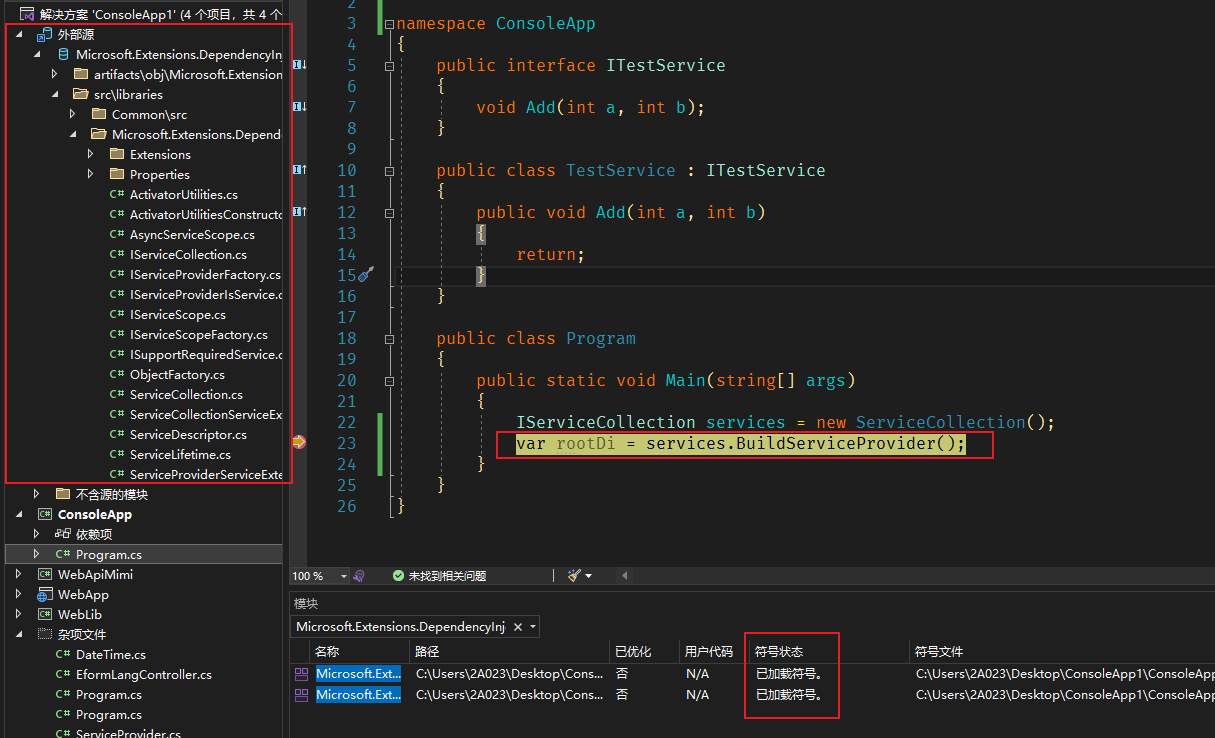
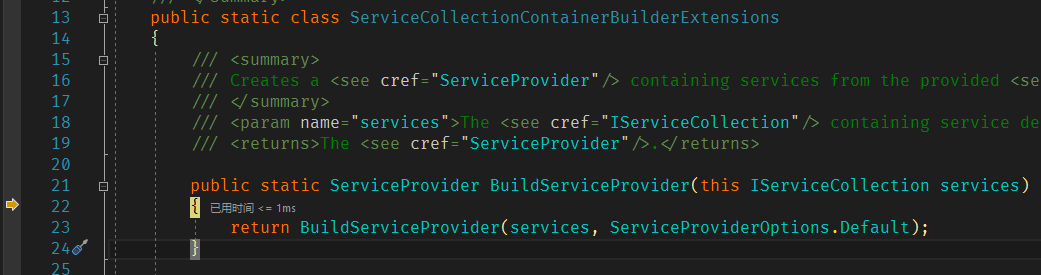
It turns out it is possible! Without further ado, look at the images:


It's very fast, like debugging local code... Much smoother than decompiled code!
I'm not sure what kind of black magic the official project uses, but it can directly pull the source code (the external source in the image), while my own developed projects cannot achieve this.
Specific Steps
The official documentation explains this, but it missed a few key points that caused me to get stuck for a long time. I will explain in detail below:
- PS1: This is mainly for Windows VS, other platforms should be similar.
- PS2: I primarily needed to examine the DI build logic, which doesn't vary much between versions, so I directly obtained version 6.0.
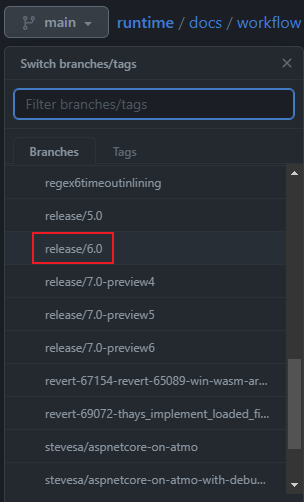
1. Open the official repository
Then pull the branch you want to view to your local machine. I mainly looked at:

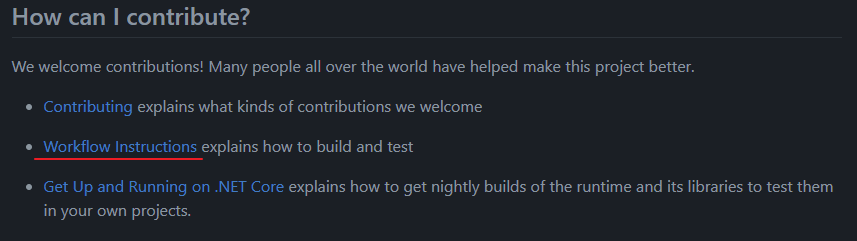
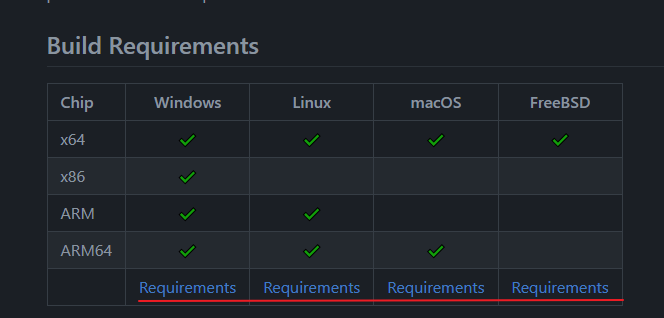
2. Find their build instructions

3. Install the basic environment for the corresponding platform

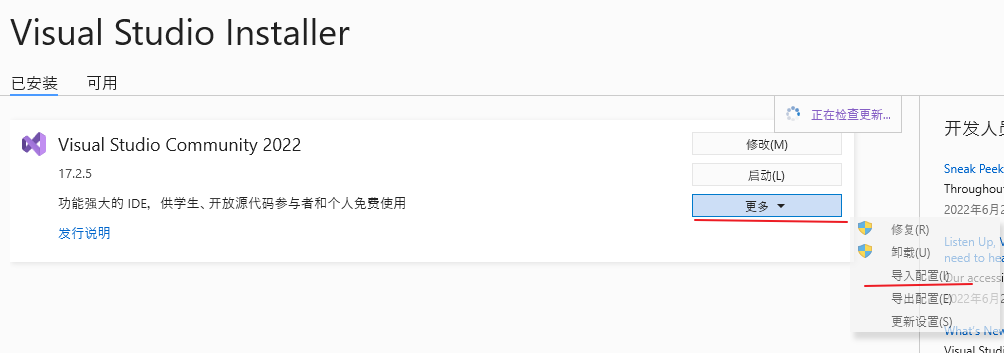
For the Windows VS platform, install like this:


Then click "View details", ignore the popup (like Unable to install XXXXX), and click "Modify".
For this step, the official statement is that you only need to install a higher version of the SDK, not necessarily a matching one. Usually, development machines already have .NET Framework and several .NET SDKs installed. I personally have .NET Framework 4.0 targeting pack + 4.7.2 targeting pack + .NET 6.0 SDK.
[Important] 4. Restore the corresponding library
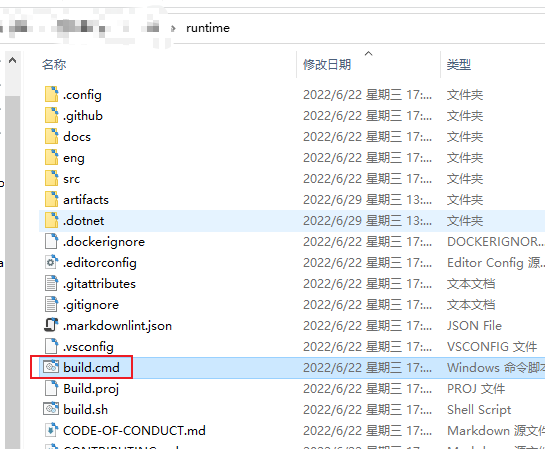
Use the resource browser to navigate to the root directory of runtime, note this build.cmd:

Right-click to open the command line or pwd, execute like this:

The script will download a ps1 file and execute it automatically. We just wait; it will automatically restore the libraries we need and also restore the dependent base packages.
The official code structure already has NuGet configuration and output directory set up, so we don't need additional configuration. Next step is to compile.
5. Generate the dll files for the corresponding library
Open the code file of the corresponding library:

Right-click to open the command line or pwd, execute like this:

Wait for the compilation to finish, then look for the files in this directory:

Each library will be generated under artifacts, with a separate folder for each architecture. At this point, you can directly reference this dll in your test project and debug happily.
[Optional] 6. Generate dependent library files
Here I wanted to debug Microsoft.Extensions.DependencyInjection. On NuGet, you can see it also depends on an abstract definition package Microsoft.Extensions.DependencyInjection.Abstractions. To avoid getting stuck during debugging, I generated this package the same way.
Other
- While researching, I found that you can also compile directly with VS, but it requires some configuration. I didn't fully understand that, so I used this method. I also don't need to compile everything.
VS Codeis also possible, but I mainly use VS, so I'll skip that part.- The
build.cmdscript without parameters seems to compile all packages; I don't need that, so I skip it.