The Best Option for Displaying Local Images in MAUI Blazor? - Supports Windows/macOS/Android/iOS

The Best Option for Displaying Local Images in MAUI Blazor? - Supports Windows/macOS/Android/iOS

In MAUI Blazor, external files cannot be directly read and displayed, but they can be displayed via base64. However, because base64 is too long, it may cause interface lag...

Last updated 1/10/2023 9:59 PM
dotnet-simple
3 min read
Category
MAUI Blazor
Tags
.NET C# Blazor MAUI

The sample code in this article can be used to dynamically load local images. For ease of demonstration, the file paths in the code are hardcoded.

First, in MAUI Blazor, you cannot directly read external files for display, but you can use base64 to display them. However, base64 strings can be too long and may cause UI lag...

In such cases, you can use blob URLs to load external images. This approach does not require copying files to the wwwroot folder; it converts bytes into a URL that Blazor can read.

Here’s how to implement it:

First, add a JavaScript method in wwwroot/index.html to convert bytes to a blob URL. Copy the following method:

<script>
/**
 * Convert image byte array to blob URL
 */
function imgToLink(blob) {
    var myBlob = new Blob([blob], { type: "image/png" });
    return (window.URL || window.webkitURL || window || {}).createObjectURL(myBlob);
}

</script>

Then, add the following code to Index.razor:

@page "/"
@inject IJSRuntime JS

<img src="@url" height="200px" width="200"/>

@code
{
    private string url;
    protected override async Task OnInitializedAsync()
    {
        // The logo.png placed in the project directory will be packaged into the cache folder. You can also use an external file link,
        // but you need to ensure read permissions before reading, otherwise an error will occur.
        var logo = Path.Combine(FileSystem.CacheDirectory, "logo.png");
        // Read and convert to byte[]
        var data = await File.ReadAllBytesAsync(logo);
        // Convert to blob URL via JavaScript
        url = await JS.InvokeAsync<string>("imgToLink", data);
        await base.OnInitializedAsync();
    }
}

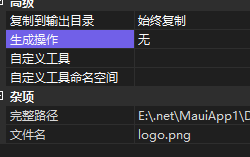
After completing the above, add the image to the project:

Set the image property to "Copy always":

Then run the program directly:

This approach is better than converting to base64 because it doesn't leave too many strings in the UI. Highly recommended. If you have a better method, please share it in the comments below.

Sample code:

Shared by token

Technical exchange group: 737776595

This article is reproduced.

Author: dotnet-simple

Original title: Maui reads external files and displays them in Blazor

Original link: https://www.cnblogs.com/hejiale010426/p/17040997.html

Keep Exploring

Related Reading

More Articles
Same category / Same tag 4/26/2022

Using Masa Blazor in MAUI

Using `.NET MAUI`, you can develop applications that run on `Android`, `iOS`, `macOS`, and `Windows`, Linux (community-supported) from a single shared codebase. One codebase runs on multiple platforms.

Continue Reading