

大家好,我是沙漠尽头的狼。
本文介绍C# WPF里怎么使用CefSharp嵌入一个网页,并给出一个简单示例演示C#和网页(JS)的交互实现。
一、示例搭建步骤
先给出本文示例代码:WpfWithCefSharpDemo。
1. 创建项目
创建一个WPF项目,比如命名为“WpfWithCefSharpDemo”,Winform项目类似。
2. 创建一个网页
嵌入的网页可以是在线的(即给出一个URL),也可以是一个离线的HTML网页,本文为了演示,在工程里直接创建网页test.html,属性设置生成操作为内容,复制到输出目录为如果较新则复制。
<!DOCTYPE html>
<html>
<head>
    <meta charset="UTF-8">
    <title>CefSharp测试</title>
    <script>
        // 测试在Web中调用C#的方法
        function callCSharpMethod() {
            window.cefSharpExample.testMethod("来自JS的调用");
        }

        // 测试C#调用JS的方法,只传递一个普通的字符串
        function displayMessage(message) {
            alert(message);
        }

        // 接收C#传递过来的JSON对象,并以表格形式展示在页面上
        function displayJson(json) {
            var obj = JSON.parse(json);
            var html = "<table border='1'>";
            for (var prop in obj) {
                html += "<tr>";
                html += "<td>" + prop + "</td>"
                html += "<td>" + obj[prop] + "</td>"
                html += "</tr>"
            }
            html += "</table>";
            document.getElementById("jsonTable").innerHTML = html;
        }

    </script>
</head>
<body>
<h1>CefSharp测试</h1>
<button onclick="callCSharpMethod()">调用C#方法</button>
<div id="jsonTable"></div>
</body>
</html>
上面的代码给了相关的注释,应该很明了:
- JS方法
callCSharpMethod:用于测试JS调用C#的方法,其中cefSharpExample为C#注册的一个对象,testMethod是其一个方法,JS中方法名首字母是小写(C#里按规则是大写),首字母这里有区别,要注意一下; - JS方法
displayMessage和displayJson:用于测试C#调用JS的方法,方法定义类似,前者入参是一个普通字符串,后者入参是一个JSON字符串。 - div元素jsonTable用于展示C#传来的JSon对象数据。
3. 添加CefSharp包
安装CefSharp程序包,可以在Visual Studio的NuGet包管理器中搜索CefSharp.Wpf并安装。
4. 添加CefSharp控件
在MainWindow.xaml中引入CefSharp.Wpf命名空间(取别名为wpf,这里随意),将它的chromium控件加入到窗体中,顺带加几个测试按钮等:
<Window x:Class="WpfWithCefSharpDemo.MainWindow"
        xmlns="http://schemas.microsoft.com/winfx/2006/xaml/presentation"
        xmlns:d="http://schemas.microsoft.com/expression/blend/2008"
        xmlns:x="http://schemas.microsoft.com/winfx/2006/xaml"
        xmlns:mc="http://schemas.openxmlformats.org/markup-compatibility/2006"
        xmlns:wpf="clr-namespace:CefSharp.Wpf;assembly=CefSharp.Wpf"
        mc:Ignorable="d"
        Title="WPF加载CefSharp测试" Height="450" Width="800">
    <Grid>
        <Grid.RowDefinitions>
            <RowDefinition Height="35"></RowDefinition>
            <RowDefinition Height="*"></RowDefinition>
            <RowDefinition Height="50"></RowDefinition>
        </Grid.RowDefinitions>
        <TextBlock Text="下面显示的是网页内容"></TextBlock>
        <Border Grid.Row="1" BorderBrush="DarkOrange" BorderThickness="2">
            <wpf:ChromiumWebBrowser x:Name="Browser" Loaded="Browser_OnLoaded">
            </wpf:ChromiumWebBrowser>

        </Border>
        <Border Margin="3 5" Grid.Row="2" BorderBrush="Blue" BorderThickness="2" VerticalAlignment="Center">
            <StackPanel Orientation="Horizontal" Height="35">
                <TextBlock Text="右侧按钮是WPF按钮" VerticalAlignment="Center" Margin="5 3"></TextBlock>
                <Button Content="调用JS方法" Click="CallJSFunc_Click" Height="30" Padding="10 2"></Button>
                <Button Content="C#传递Json对象到网页" Click="SendJsonToWeb_Click" Height="30" Padding="10 2"></Button>
            </StackPanel>
        </Border>
    </Grid>
</Window>
5. 在C#中调用JS方法
在MainWindow.xaml.cs里,添加相关控件的事件处理方法,即C#调用JS方法的相关代码:
using CefSharp;
using Newtonsoft.Json;
using System;
using System.IO;
using System.Text;
using System.Windows;

namespace WpfWithCefSharpDemo
{
    public partial class MainWindow : Window
    {
        public MainWindow()
        {
            InitializeComponent();

            // 允许以同步的方式注册C#的对象到JS中
            Browser.JavaScriptObjectRepository.Settings.LegacyBindingEnabled = true;
            CefSharpSettings.WcfEnabled = true;

            // 注册C#的对象到JS中的代码必须在Cef的Browser加载之前调用
            Browser.JavaScriptObjectRepository.Register("cefSharpExample", new CefSharpExample(), false,
                options: BindingOptions.DefaultBinder);
        }

        /// <summary>
        /// Cef浏览器控件加载完成后,加载网页内容,可以加载网页的Url,也可以加载网页内容
        /// </summary>
        /// <param name="sender"></param>
        /// <param name="e"></param>
        private void Browser_OnLoaded(object sender, RoutedEventArgs e)
        {
            var htmlFile = $"{AppDomain.CurrentDomain.BaseDirectory}test.html";
            if (!File.Exists(htmlFile))
            {
                return;
            }

            var htmlContent = File.ReadAllText(htmlFile, Encoding.UTF8);
            Browser.LoadHtml(htmlContent);
        }

        /// <summary>
        /// C#里调用JS的一般方法
        /// </summary>
        /// <param name="sender"></param>
        /// <param name="e"></param>
        private void CallJSFunc_Click(object sender, RoutedEventArgs e)
        {
            var jsCode = $"displayMessage('C#里的调用')";
            Browser.ExecuteScriptAsync(jsCode);
        }

        /// <summary>
        /// C#调用一个JS的方法,并传递一个JSON对象
        /// </summary>
        /// <param name="sender"></param>
        /// <param name="e"></param>
        private void SendJsonToWeb_Click(object sender, RoutedEventArgs e)
        {
            var jsonContent = new
            {
                Id = 1,
                Name = "沙漠尽头的狼",
                Age = 25,
                WebSite="https://dotnet9.com"
            };
            var jsonStr = JsonConvert.SerializeObject(jsonContent);

            // 传递Json对象,即传递一个JSON字符串,和前面的一个示例一样
            var jsCode = $"displayJson('{jsonStr}')";
            Browser.ExecuteScriptAsync(jsCode);
        }
    }

    public class CefSharpExample
    {
        public void TestMethod(string message)
        {
            Application.Current.Dispatcher.Invoke(() => { MessageBox.Show("JS里的调用"); });
        }
    }
}
CefSharpExample用于封装JS调用的类及方法定义,注意C#这里TestMethod方法名首字母是大写的,前面创建的HTML网页调用的该方法名首字母小写,再提醒一次,这里的区别要注意。
6. 效果展示
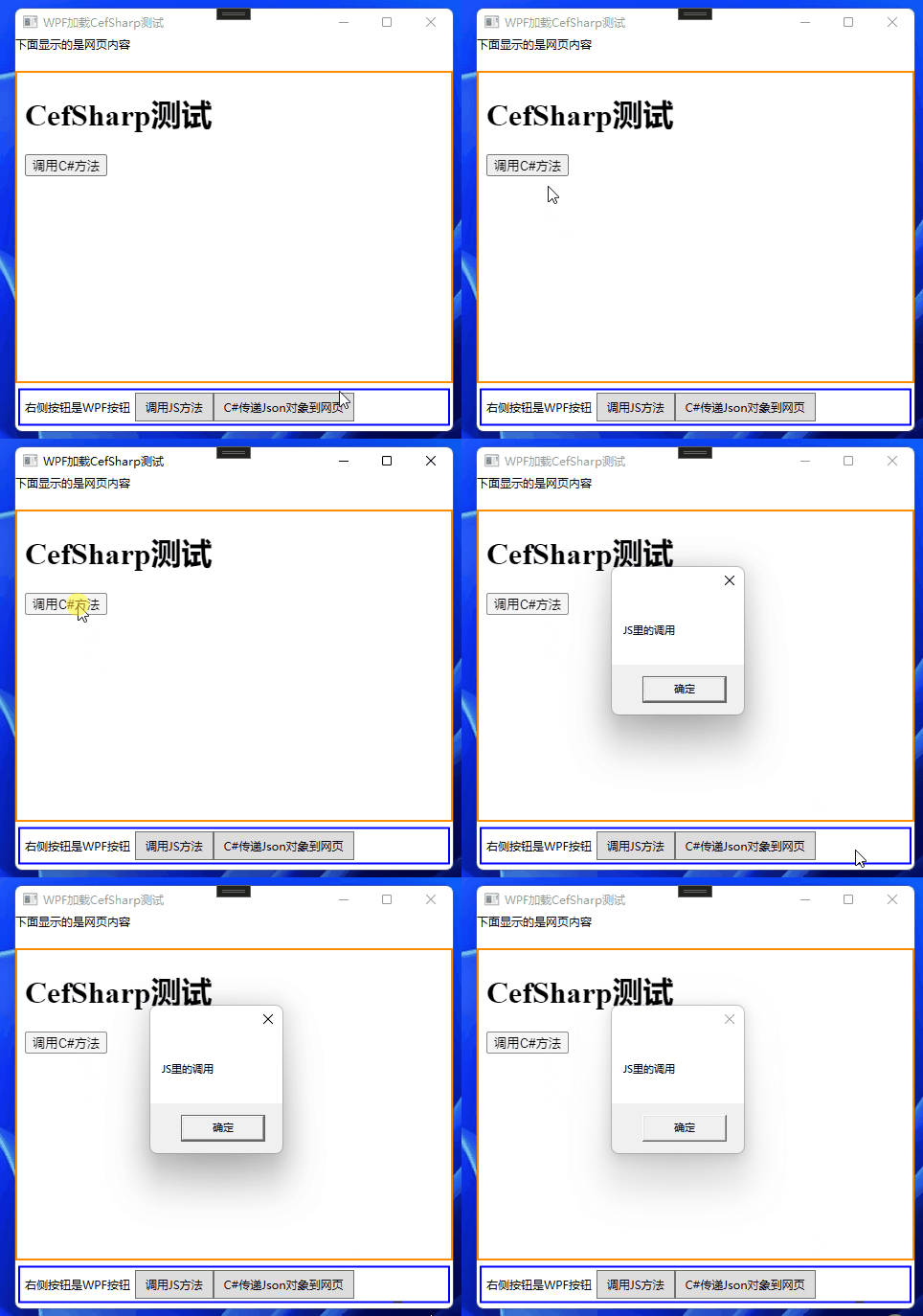
JS调用C#的方法:黄色方框内显示的网页内容,点击HTML按钮调用C#方法测试。
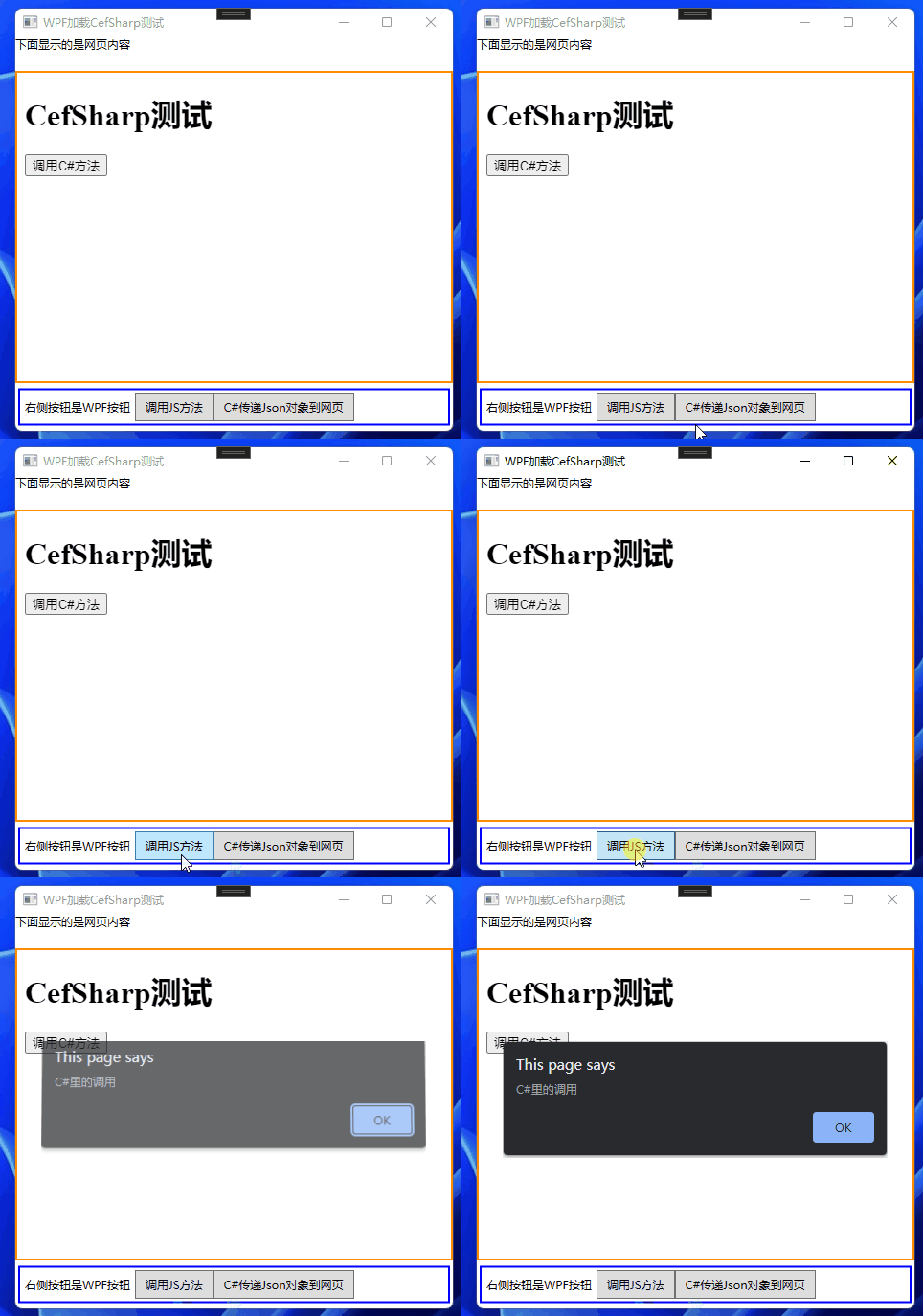
C#调用JS的普通方法:蓝色方框内显示的WPF控件,点击WPF按钮调用JS方法测试。
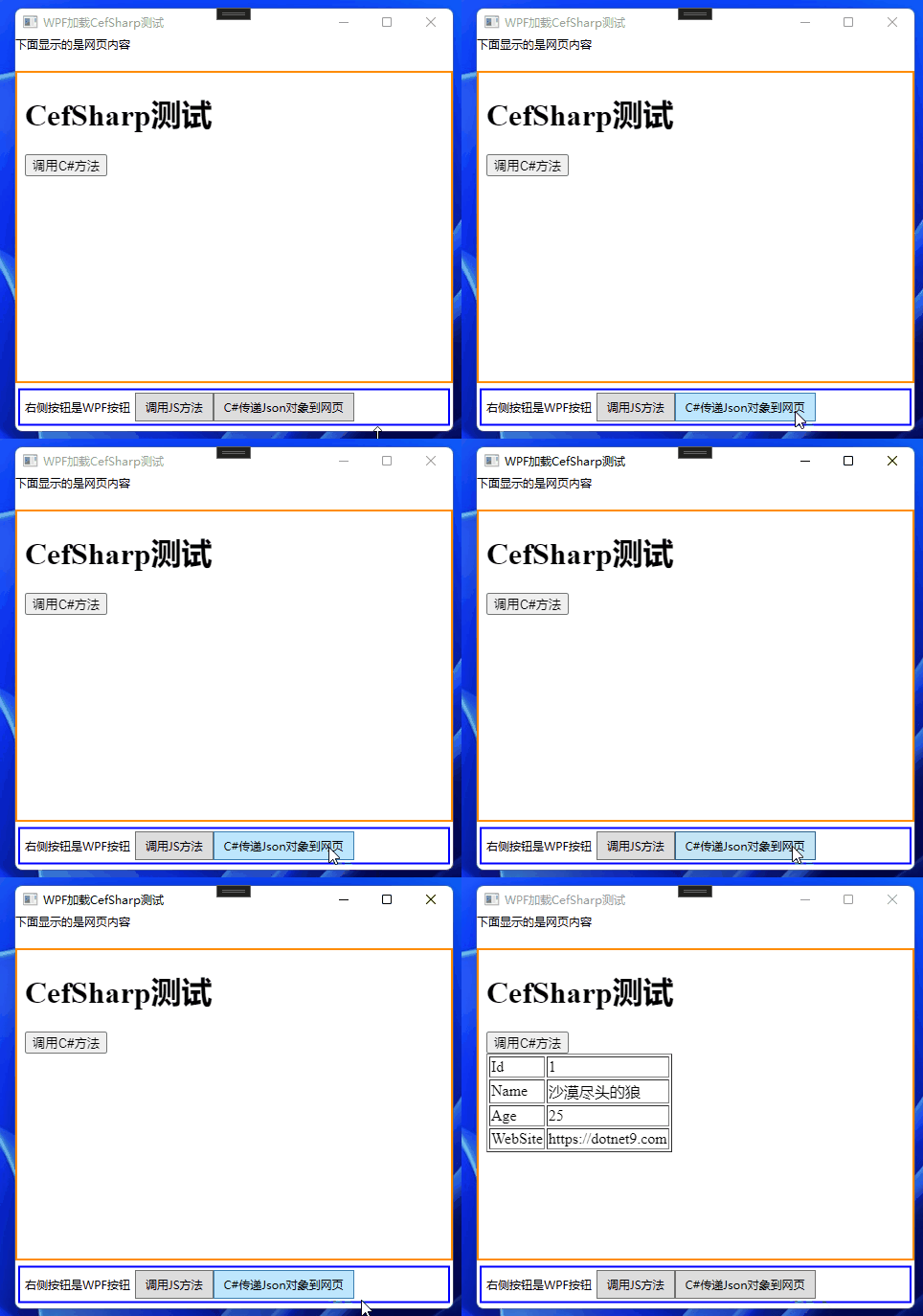
C#传递Json对象给JS的方法:蓝色方框内,点击WPF按钮C#传递Json对象到网页测试。
二、总结
请对着上面的示例完成一遍,如果做过WPF或Winform原生WebBrowser控件的使用的同学,我们这里做个WPF自带WebBrowser控件与CefSharp的优劣势对比结束本文(来自ChatGPT回答的结果),欢迎留言讨论:
WPF自带的WebBrowser控件优势:
WebBrowser控件是WPF自带的,不需要安装任何其他的库或组件。
WebBrowser控件是基于Internet Explorer内核,因此它在Windows操作系统中有天然的兼容性和稳定性。
WebBrowser控件提供了许多与浏览器相关的事件,例如Navigating、Navigated、LoadCompleted等,我们可以通过这些事件对网页加载和导航进行控制和反馈。
WPF自带的WebBrowser控件劣势:
WebBrowser控件使用的是旧版本的IE内核,不支持现代HTML5、CSS3等标准,而且在性能上也不如CefSharp。
WebBrowser控件的API相对较少,难以实现一些高级功能,例如拦截网页导航、自定义渲染等。
CefSharp优势:
CefSharp是基于Chromium项目构建的,支持最新的HTML5、CSS3等Web标准,并且性能表现更出色。
CefSharp提供了一套丰富的API,我们可以通过它来实现多种高级功能,例如自定义网络请求、拦截网页导航、修改HTML内容等。
CefSharp使用的是多线程模型和硬件加速渲染,不会阻塞UI线程,同时具有更好的稳定性和安全性。
CefSharp劣势:
CefSharp需要安装额外的库或组件,增加了开发的复杂度。
CefSharp在某些情况下可能会出现性能问题,例如在高密度屏幕上渲染时。
因此,在选择Web浏览器控件时,我们需要根据具体的需求来选择。如果只是简单地展示网页内容,并不需要过多的高级功能,那么WPF自带的WebBrowser控件足以满足需要。但如果需要实现一些复杂的功能,例如自定义网络请求、拦截网页导航等,那么CefSharp可能会更加适合。总的来说,CefSharp相对于WPF自带的WebBrowser控件,具有更强大的功能和更高的性能表现,但使用也相对更加复杂一些。
参考:
微信技术交流群:添加微信(codewf)备注“入群”
QQ技术交流群:771992300。
