
本文来自转载
原文作者:RyzenAdorer
原文标题:.NET Core 3 WPF MVVM 框架 Prism 系列之导航系统
原文链接:https://www.cnblogs.com/ryzen/p/12703914.html
本文将介绍如何在.NET Core3 环境下使用 MVVM 框架 Prism 基于区域 Region 的导航系统
在讲解 Prism 导航系统之前,我们先来看看一个例子,我在之前的 demo 项目创建一个登录界面:

我们看到这里是不是一开始想象到使用 WPF 带有的导航系统,通过 Frame 和 Page 进行页面跳转,然后通过导航日志的 GoBack 和 GoForward 实现后退和前进,其实这是通过使用 Prism 的导航框架实现的,下面我们来看看如何在 Prism 的 MVVM 模式下实现该功能
1. 区域导航
我们在上一篇介绍了 Prism 的区域管理,而 Prism 的导航系统也是基于区域的,首先我们来看看如何在区域导航
1.1. 注册区域
LoginWindow.xaml:
<Window
  x:Class="PrismMetroSample.Shell.Views.Login.LoginWindow"
  xmlns="http://schemas.microsoft.com/winfx/2006/xaml/presentation"
  xmlns:x="http://schemas.microsoft.com/winfx/2006/xaml"
  xmlns:d="http://schemas.microsoft.com/expression/blend/2008"
  xmlns:mc="http://schemas.openxmlformats.org/markup-compatibility/2006"
  xmlns:local="clr-namespace:PrismMetroSample.Shell.Views.Login"
  xmlns:region="clr-namespace:PrismMetroSample.Infrastructure.Constants;assembly=PrismMetroSample.Infrastructure"
  mc:Ignorable="d"
  xmlns:prism="http://prismlibrary.com/"
  xmlns:i="http://schemas.microsoft.com/expression/2010/interactivity"
  Height="600"
  Width="400"
  prism:ViewModelLocator.AutoWireViewModel="True"
  ResizeMode="NoResize"
  WindowStartupLocation="CenterScreen"
  Icon="pack://application:,,,/PrismMetroSample.Infrastructure;Component/Assets/Photos/Home, homepage, menu.png"
>
  <i:Interaction.Triggers>
    <i:EventTrigger EventName="Loaded">
      <i:InvokeCommandAction Command="{Binding LoginLoadingCommand}" />
    </i:EventTrigger>
  </i:Interaction.Triggers>
  <Grid>
    <ContentControl
      prism:RegionManager.RegionName="{x:Static region:RegionNames.LoginContentRegion}"
      Margin="5"
    />
  </Grid>
</Window>
1.2. 注册导航
App.cs:
protected override void RegisterTypes(IContainerRegistry containerRegistry)
  {
        containerRegistry.Register<IMedicineSerivce, MedicineSerivce>();
        containerRegistry.Register<IPatientService, PatientService>();
        containerRegistry.Register<IUserService, UserService>();

        //注册全局命令
        containerRegistry.RegisterSingleton<IApplicationCommands, ApplicationCommands>();
        containerRegistry.RegisterInstance<IFlyoutService>(Container.Resolve<FlyoutService>());

        //注册导航
        containerRegistry.RegisterForNavigation<LoginMainContent>();
        containerRegistry.RegisterForNavigation<CreateAccount>();
  }
1.3. 区域导航
LoginWindowViewModel.cs:
public class LoginWindowViewModel:BindableBase
{

    private readonly IRegionManager _regionManager;
    private readonly IUserService _userService;
    private DelegateCommand _loginLoadingCommand;
    public DelegateCommand LoginLoadingCommand =>
            _loginLoadingCommand ?? (_loginLoadingCommand = new DelegateCommand(ExecuteLoginLoadingCommand));

    void ExecuteLoginLoadingCommand()
    {
        //在LoginContentRegion区域导航到LoginMainContent
        _regionManager.RequestNavigate(RegionNames.LoginContentRegion, "LoginMainContent");

         Global.AllUsers = _userService.GetAllUsers();
    }

    public LoginWindowViewModel(IRegionManager regionManager, IUserService userService)
    {
          _regionManager = regionManager;
          _userService = userService;
    }

}
LoginMainContentViewModel.cs:
public class LoginMainContentViewModel : BindableBase
{
    private readonly IRegionManager _regionManager;

    private DelegateCommand _createAccountCommand;
    public DelegateCommand CreateAccountCommand =>
            _createAccountCommand ?? (_createAccountCommand = new DelegateCommand(ExecuteCreateAccountCommand));

    //导航到CreateAccount
    void ExecuteCreateAccountCommand()
    {
         Navigate("CreateAccount");
    }

    private void Navigate(string navigatePath)
    {
         if (navigatePath != null)
              _regionManager.RequestNavigate(RegionNames.LoginContentRegion, navigatePath);

    }


    public LoginMainContentViewModel(IRegionManager regionManager)
    {
         _regionManager = regionManager;
    }

 }
效果如下:

这里我们可以看到我们调用 RegionMannager 的 RequestNavigate 方法,其实这样看不能很好的说明是基于区域的做法,如果将换成下面的写法可能更好理解一点:
//在LoginContentRegion区域导航到LoginMainContent
  _regionManager.RequestNavigate(RegionNames.LoginContentRegion, "LoginMainContent");
换成
//在LoginContentRegion区域导航到LoginMainContent
 IRegion region = _regionManager.Regions[RegionNames.LoginContentRegion];
 region.RequestNavigate("LoginMainContent");
其实 RegionMannager 的 RequestNavigate 源码也是大概实现也是大概如此,就是去调 Region 的 RequestNavigate 的方法,而 Region 的导航是实现了一个 INavigateAsync 接口:
public interface INavigateAsync
{
   void RequestNavigate(Uri target, Action<NavigationResult> navigationCallback);
   void RequestNavigate(Uri target, Action<NavigationResult> navigationCallback, NavigationParameters navigationParameters);

}
我们可以看到有 RequestNavigate 方法三个形参:
- target:表示将要导航的页面 Uri
- navigationCallback:导航后的回调方法
- navigationParameters:导航传递参数(下面会详解)
那么我们将上述加上回调方法:
//在LoginContentRegion区域导航到LoginMainContent
 IRegion region = _regionManager.Regions[RegionNames.LoginContentRegion];
 region.RequestNavigate("LoginMainContent", NavigationCompelted);

 private void NavigationCompelted(NavigationResult result)
 {
     if (result.Result==true)
     {
         MessageBox.Show("导航到LoginMainContent页面成功");
     }
     else
     {
         MessageBox.Show("导航到LoginMainContent页面失败");
     }
 }
效果如下:

2. View 和 ViewModel 参与导航过程
2.1. INavigationAware
我们经常在两个页面之间导航需要处理一些逻辑,例如,LoginMainContent 页面导航到 CreateAccount 页面时候,LoginMainContent 退出页面的时刻要保存页面数据,导航到 CreateAccount 页面的时刻处理逻辑(例如获取从 LoginMainContent 页面的信息),Prism 的导航系统通过一个 INavigationAware 接口:
public interface INavigationAware : Object
    {
        Void OnNavigatedTo(NavigationContext navigationContext);

        Boolean IsNavigationTarget(NavigationContext navigationContext);

        Void OnNavigatedFrom(NavigationContext navigationContext);
    }
- OnNavigatedFrom:导航之前触发,一般用于保存该页面的数据
- OnNavigatedTo:导航后目的页面触发,一般用于初始化或者接受上页面的传递参数
- IsNavigationTarget:True 则重用该 View 实例,Flase 则每一次导航到该页面都会实例化一次
我们用代码来演示这三个方法:
LoginMainContentViewModel.cs:
public class LoginMainContentViewModel : BindableBase, INavigationAware
{
     private readonly IRegionManager _regionManager;

     private DelegateCommand _createAccountCommand;
     public DelegateCommand CreateAccountCommand =>
            _createAccountCommand ?? (_createAccountCommand = new DelegateCommand(ExecuteCreateAccountCommand));

     void ExecuteCreateAccountCommand()
     {
         Navigate("CreateAccount");
     }

     private void Navigate(string navigatePath)
     {
         if (navigatePath != null)
            _regionManager.RequestNavigate(RegionNames.LoginContentRegion, navigatePath);
     }

     public LoginMainContentViewModel(IRegionManager regionManager)
     {
          _regionManager = regionManager;
     }

     public bool IsNavigationTarget(NavigationContext navigationContext)
     {
          return true;
     }

     public void OnNavigatedFrom(NavigationContext navigationContext)
     {
          MessageBox.Show("退出了LoginMainContent");
     }

     public void OnNavigatedTo(NavigationContext navigationContext)
     {
          MessageBox.Show("从CreateAccount导航到LoginMainContent");
     }
 }
CreateAccountViewModel.cs:
public class CreateAccountViewModel : BindableBase,INavigationAware
{
     private DelegateCommand _loginMainContentCommand;
     public DelegateCommand LoginMainContentCommand =>
            _loginMainContentCommand ?? (_loginMainContentCommand = new DelegateCommand(ExecuteLoginMainContentCommand));

     void ExecuteLoginMainContentCommand()
     {
         Navigate("LoginMainContent");
     }

     public CreateAccountViewModel(IRegionManager regionManager)
     {
         _regionManager = regionManager;
     }

     private void Navigate(string navigatePath)
     {
        if (navigatePath != null)
            _regionManager.RequestNavigate(RegionNames.LoginContentRegion, navigatePath);
     }

     public bool IsNavigationTarget(NavigationContext navigationContext)
     {
         return true;
     }

     public void OnNavigatedFrom(NavigationContext navigationContext)
     {
         MessageBox.Show("退出了CreateAccount");
     }

     public void OnNavigatedTo(NavigationContext navigationContext)
     {
         MessageBox.Show("从LoginMainContent导航到CreateAccount");
     }

 }
效果如下:

修改 IsNavigationTarget 为 false:
public class LoginMainContentViewModel : BindableBase, INavigationAware
{
     public bool IsNavigationTarget(NavigationContext navigationContext)
     {
          return false;
     }
}

public class CreateAccountViewModel : BindableBase,INavigationAware
{
     public bool IsNavigationTarget(NavigationContext navigationContext)
     {
         return false;
     }
 }
效果如下:

我们会发现 LoginMainContent 和 CreateAccount 页面的数据不见了,这是因为第二次导航到页面的时候当 IsNavigationTarget 为 false 时,View 将会重新实例化,导致 ViewModel 也重新加载,因此所有数据都清空了
2.2. IRegionMemberLifetime
同时,Prism 还可以通过 IRegionMemberLifetime 接口的 KeepAlive 布尔属性控制区域的视图的生命周期,我们在上一篇关于区域管理器说到,当视图添加到区域时候,像 ContentControl 这种单独显示一个活动视图,可以通过 Region 的 Activate 和 Deactivate 方法激活和失效视图,像 ItemsControl 这种可以同时显示多个活动视图的,可以通过 Region 的 Add 和 Remove 方法控制增加活动视图和失效视图,而当视图的 KeepAlive 为 false,Region 的 Activate 另外一个视图时,则该视图的实例则会去除出区域,为什么我们不在区域管理器讲解该接口呢?因为当导航的时候,同样的是在触发了 Region 的 Activate 和 Deactivate,当有 IRegionMemberLifetime 接口时则会触发 Region 的 Add 和 Remove 方法,这里可以去看下 Prism 的 RegionMemberLifetimeBehavior 源码
我们将 LoginMainContentViewModel 实现 IRegionMemberLifetime 接口,并且把 KeepAlive 设置为 false,同样的将 IsNavigationTarget 设置为 true
LoginMainContentViewModel.cs:
public class LoginMainContentViewModel : BindableBase, INavigationAware,IRegionMemberLifetime
{

     public bool KeepAlive => false;

     private readonly IRegionManager _regionManager;

     private DelegateCommand _createAccountCommand;
     public DelegateCommand CreateAccountCommand =>
            _createAccountCommand ?? (_createAccountCommand = new DelegateCommand(ExecuteCreateAccountCommand));

     void ExecuteCreateAccountCommand()
     {
         Navigate("CreateAccount");
     }

     private void Navigate(string navigatePath)
     {
         if (navigatePath != null)
            _regionManager.RequestNavigate(RegionNames.LoginContentRegion, navigatePath);
     }

     public LoginMainContentViewModel(IRegionManager regionManager)
     {
          _regionManager = regionManager;
     }

     public bool IsNavigationTarget(NavigationContext navigationContext)
     {
          return true;
     }

     public void OnNavigatedFrom(NavigationContext navigationContext)
     {
          MessageBox.Show("退出了LoginMainContent");
     }

     public void OnNavigatedTo(NavigationContext navigationContext)
     {
          MessageBox.Show("从CreateAccount导航到LoginMainContent");
     }
 }
效果如下:
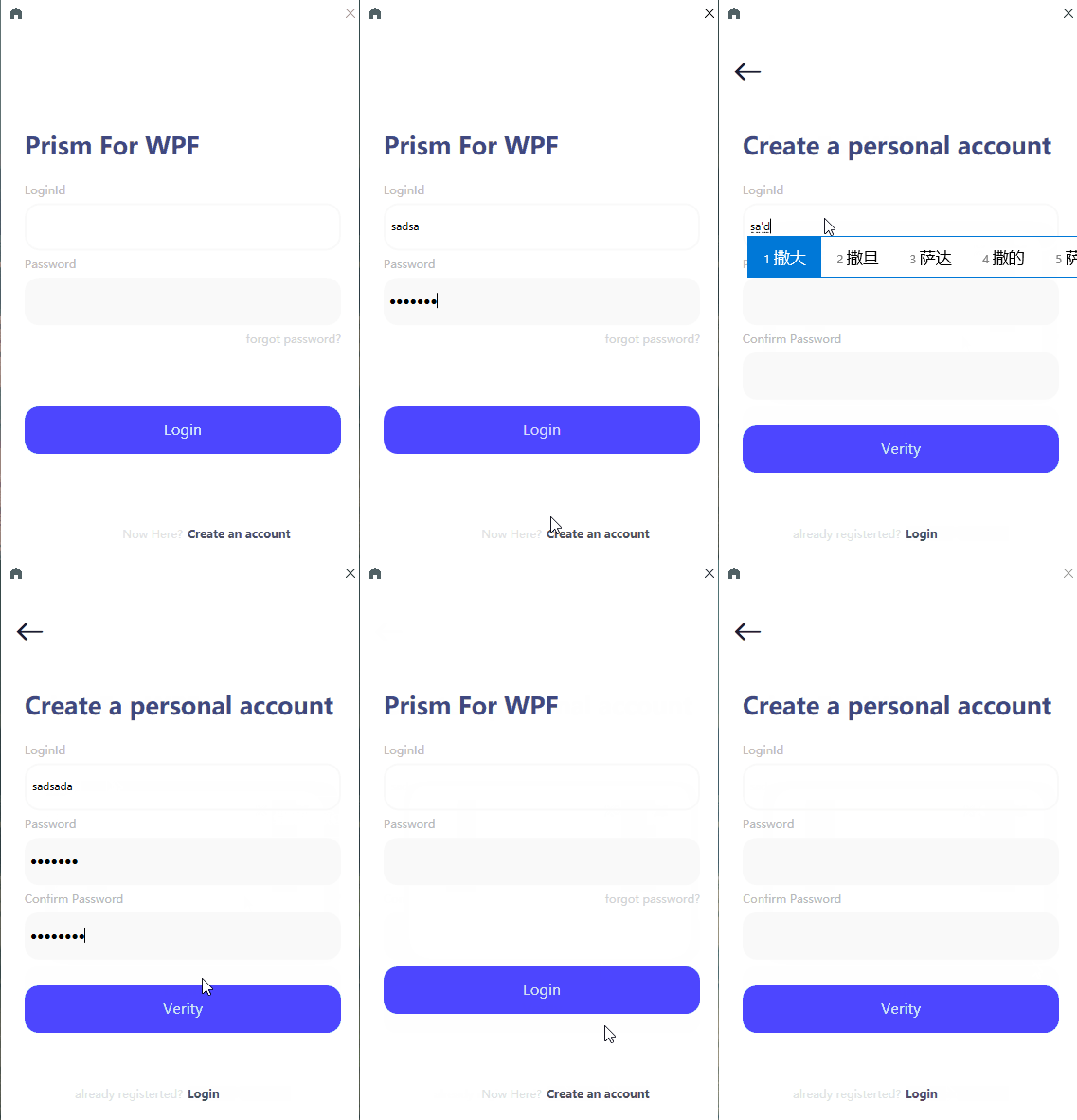
我们会发现跟没实现 IRegionMemberLifetime 接口和 IsNavigationTarget 设置为 false 情况一样,当 KeepAlive 为 false 时,通过断点知道,重新导航回 LoginMainContent 页面时不会触发 IsNavigationTarget 方法,因此可以知道判断顺序是:KeepAlive -->IsNavigationTarget
2.3. IConfirmNavigationRequest
Prism 的导航系统还支持再导航前允许是否需要导航的交互需求,这里我们在 CreateAccount 注册完用户后寻问是否需要导航回 LoginMainContent 页面,代码如下:
CreateAccountViewModel.cs:
public class CreateAccountViewModel : BindableBase, INavigationAware,IConfirmNavigationRequest
{
     private DelegateCommand _loginMainContentCommand;
     public DelegateCommand LoginMainContentCommand =>
            _loginMainContentCommand ?? (_loginMainContentCommand = new DelegateCommand(ExecuteLoginMainContentCommand));

     private DelegateCommand<object> _verityCommand;
     public DelegateCommand<object> VerityCommand =>
            _verityCommand ?? (_verityCommand = new DelegateCommand<object>(ExecuteVerityCommand));

     void ExecuteLoginMainContentCommand()
     {
         Navigate("LoginMainContent");
     }

     public CreateAccountViewModel(IRegionManager regionManager)
     {
         _regionManager = regionManager;
     }

     private void Navigate(string navigatePath)
     {
        if (navigatePath != null)
            _regionManager.RequestNavigate(RegionNames.LoginContentRegion, navigatePath);
     }

     public bool IsNavigationTarget(NavigationContext navigationContext)
     {
         return true;
     }

     public void OnNavigatedFrom(NavigationContext navigationContext)
     {
         MessageBox.Show("退出了CreateAccount");
     }

     public void OnNavigatedTo(NavigationContext navigationContext)
     {
         MessageBox.Show("从LoginMainContent导航到CreateAccount");
     }

     //注册账号
     void ExecuteVerityCommand(object parameter)
     {
         if (!VerityRegister(parameter))
         {
                return;
         }
         MessageBox.Show("注册成功!");
         LoginMainContentCommand.Execute();
     }

     //导航前询问
     public void ConfirmNavigationRequest(NavigationContext navigationContext, Action<bool> continuationCallback)
     {
         var result = false;
         if (MessageBox.Show("是否需要导航到LoginMainContent页面?", "Naviagte?",MessageBoxButton.YesNo) ==MessageBoxResult.Yes)
         {
             result = true;
         }
         continuationCallback(result);
      }
 }
效果如下:

3. 导航期间传递参数
Prism 提供 NavigationParameters 类以帮助指定和检索导航参数,在导航期间,可以通过访问以下方法来传递导航参数:
- INavigationAware 接口的 IsNavigationTarget,OnNavigatedFrom 和 OnNavigatedTo 方法中 IsNavigationTarget,OnNavigatedFrom 和 OnNavigatedTo 中形参 NavigationContext 对象的 NavigationParameters 属性
- IConfirmNavigationRequest 接口的 ConfirmNavigationRequest 形参 NavigationContext 对象的 NavigationParameters 属性
- 区域导航的 INavigateAsync 接口的 RequestNavigate 方法赋值给其形参 navigationParameters
- 导航日志 IRegionNavigationJournal 接口 CurrentEntry 属性的 NavigationParameters 类型的 Parameters 属性(下面会介绍导航日志)
这里我们 CreateAccount 页面注册完用户后询问是否需要用当前注册用户来作为登录 LoginId,来演示传递导航参数,代码如下:
CreateAccountViewModel.cs(修改代码部分):
private string _registeredLoginId;
public string RegisteredLoginId
{
    get { return _registeredLoginId; }
    set { SetProperty(ref _registeredLoginId, value); }
}

public bool IsUseRequest { get; set; }

void ExecuteVerityCommand(object parameter)
{
    if (!VerityRegister(parameter))
    {
        return;
    }
    this.IsUseRequest = true;
    MessageBox.Show("注册成功!");
    LoginMainContentCommand.Execute();
}

public void ConfirmNavigationRequest(NavigationContext navigationContext, Action<bool> continuationCallback)
{
    if (!string.IsNullOrEmpty(RegisteredLoginId) && this.IsUseRequest)
    {
         if (MessageBox.Show("是否需要用当前注册的用户登录?", "Naviagte?", MessageBoxButton.YesNo) == MessageBoxResult.Yes)
         {
              navigationContext.Parameters.Add("loginId", RegisteredLoginId);
         }
    }
    continuationCallback(true);
}
LoginMainContentViewModel.cs(修改代码部分):
public void OnNavigatedTo(NavigationContext navigationContext)
{
     MessageBox.Show("从CreateAccount导航到LoginMainContent");

     var loginId= navigationContext.Parameters["loginId"] as string;
     if (loginId!=null)
     {
         this.CurrentUser = new User() { LoginId=loginId};
     }

 }
效果如下:

4. 导航日志
Prism 导航系统同样的和 WPF 导航系统一样,都支持导航日志,Prism 是通过 IRegionNavigationJournal 接口来提供区域导航日志功能,
public interface IRegionNavigationJournal
{
    bool CanGoBack { get; }

    bool CanGoForward { get; }

    IRegionNavigationJournalEntry CurrentEntry {get;}

    INavigateAsync NavigationTarget { get; set; }

    void GoBack();

    void GoForward();

    void RecordNavigation(IRegionNavigationJournalEntry entry, bool persistInHistory);

    void Clear();
}
我们将在登录界面接入导航日志功能,代码如下:
LoginMainContent.xaml(前进箭头代码部分):
<TextBlock Width="30" Height="30" HorizontalAlignment="Right" Text="" FontWeight="Bold" FontFamily="pack://application:,,,/PrismMetroSample.Infrastructure;Component/Assets/Fonts/#iconfont" FontSize="30" Margin="10" Visibility="{Binding IsCanExcute,Converter={StaticResource boolToVisibilityConverter}}">
<i:Interaction.Triggers>
<i:EventTrigger EventName="MouseLeftButtonDown">
<i:InvokeCommandAction Command="{Binding GoForwardCommand}"/>
</i:EventTrigger>
</i:Interaction.Triggers>
<TextBlock.Style>
<Style TargetType="TextBlock">
<Style.Triggers>
<Trigger Property="IsMouseOver" Value="True">
<Setter Property="Background" Value="#F9F9F9"/>
</Trigger>
</Style.Triggers>
</Style>
</TextBlock.Style>
</TextBlock>
BoolToVisibilityConverter.cs:
public class BoolToVisibilityConverter : IValueConverter
{
    public object Convert(object value, Type targetType, object parameter, CultureInfo culture)
    {
          if (value==null)
          {
              return DependencyProperty.UnsetValue;
          }
          var isCanExcute = (bool)value;
          if (isCanExcute)
          {
              return Visibility.Visible;
          }
          else
          {
              return Visibility.Hidden;
          }
    }

    public object ConvertBack(object value, Type targetType, object parameter, CultureInfo culture)
    {
            throw new NotImplementedException();
    }
 }
LoginMainContentViewModel.cs(修改代码部分):
IRegionNavigationJournal _journal;

private DelegateCommand<PasswordBox> _loginCommand;
public DelegateCommand<PasswordBox> LoginCommand =>
            _loginCommand ?? (_loginCommand = new DelegateCommand<PasswordBox>(ExecuteLoginCommand, CanExecuteGoForwardCommand));

private DelegateCommand _goForwardCommand;
public DelegateCommand GoForwardCommand =>
            _goForwardCommand ?? (_goForwardCommand = new DelegateCommand(ExecuteGoForwardCommand));

private void ExecuteGoForwardCommand()
{
    _journal.GoForward();
}

private bool CanExecuteGoForwardCommand(PasswordBox passwordBox)
{
    this.IsCanExcute=_journal != null && _journal.CanGoForward;
    return true;
}

public void OnNavigatedTo(NavigationContext navigationContext)
{
     //MessageBox.Show("从CreateAccount导航到LoginMainContent");
     _journal = navigationContext.NavigationService.Journal;

     var loginId= navigationContext.Parameters["loginId"] as string;
     if (loginId!=null)
     {
                this.CurrentUser = new User() { LoginId=loginId};
     }
     LoginCommand.RaiseCanExecuteChanged();
}
CreateAccountViewModel.cs(修改代码部分):
IRegionNavigationJournal _journal;

private DelegateCommand _goBackCommand;
public DelegateCommand GoBackCommand =>
            _goBackCommand ?? (_goBackCommand = new DelegateCommand(ExecuteGoBackCommand));

void ExecuteGoBackCommand()
{
     _journal.GoBack();
}

 public void OnNavigatedTo(NavigationContext navigationContext)
 {
     //MessageBox.Show("从LoginMainContent导航到CreateAccount");
     _journal = navigationContext.NavigationService.Journal;
 }
效果如下:

4.1 选择退出导航日志
如果不打算将页面在导航过程中不加入导航日志,例如 LoginMainContent 页面,可以通过实现 IJournalAware 并从 PersistInHistory()返回 false
public class LoginMainContentViewModel : IJournalAware
{
    public bool PersistInHistory() => false;
}
5. 小结
prism 的导航系统可以跟 wpf 导航并行使用,这是 prism 官方文档也支持的,因为 prism 的导航系统是基于区域的,不依赖于 wpf,不过更推荐于单独使用 prism 的导航系统,因为在 MVVM 模式下更灵活,支持依赖注入,通过区域管理器能够更好的管理视图 View,更能适应复杂应用程序需求,wpf 导航系统不支持依赖注入模式,也依赖于 Frame 元素,而且在导航过程中也是容易强依赖 View 部分,下一篇将会讲解 Prism 的对话框服务
6. 源码
最后,附上整个 demo 的源代码:PrismDemo 源码