
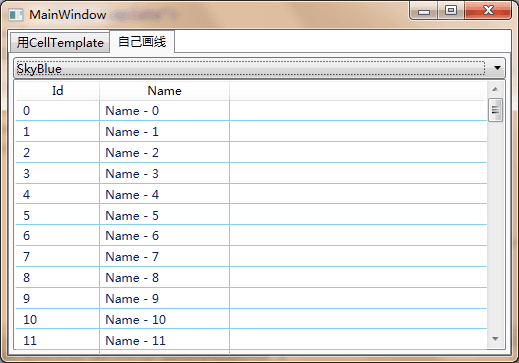
感谢 rgqancy 指出的 Bug,已经修正
先给个效果图:
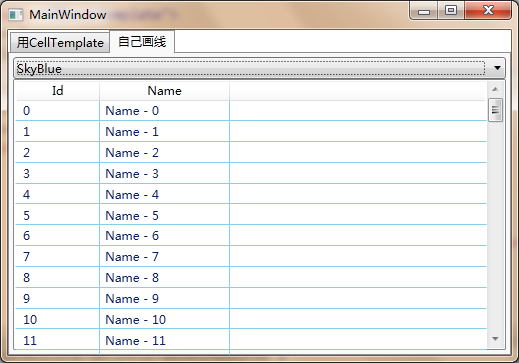
使用时的代码:
<l:GridLineDecorator>
    <ListView ItemsSource="{Binding}">
        <ListView.View>
            <GridView>
                <GridViewColumn Header="Id" DisplayMemberBinding="{Binding Id}"/>
                <GridViewColumn Header="Name" DisplayMemberBinding="{Binding Name}"/>
            </GridView>
        </ListView.View>
    </ListView>
</l:GridLineDecorator>
------------------------正文-------------------------------
经常看见有人问在使用 WPF 的 ListView 的时候,怎样能够有网格线的效果。例如http://www.bbniu.com/forum/thread-1090-1-1.html
对这个问题,首先能想到的解决办法是,在 GridViewColumn 的 CellTemplate 中,放上一个 Border,然后设置 Border 的 BorderBrush 和 BorderThickness。例如:
<GridViewColumn.CellTemplate>
    <DataTemplate>
        <Border BorderBrush="LightGray" BorderThickness="1" UseLayoutRounding="True">
            <TextBlock Text="{Binding Id}"/>
        </Border>
    </DataTemplate>
</GridViewColumn.CellTemplate>
但是,很快你会发现,Border 不能随着列宽的变化而变化,就像这样:
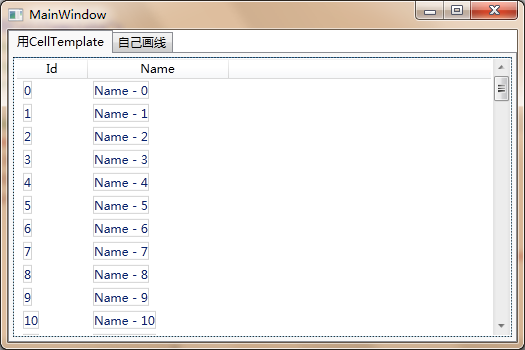
而且,即使将 ListView 的 HorizontalContentAlignment 置为 Stretch,也不能起到作用。必须在 ListViewItem 上设置 HorizontalContentAlignment="True"。因此,必须添加一个 ListViewItem 的样式,统一指定:
<Style TargetType="ListViewItem">
    <Setter Property="HorizontalContentAlignment" Value="Stretch"/>
</Style>
但问题还是没有解决,因为 Border 不能填满整个 Cell,就像这样:
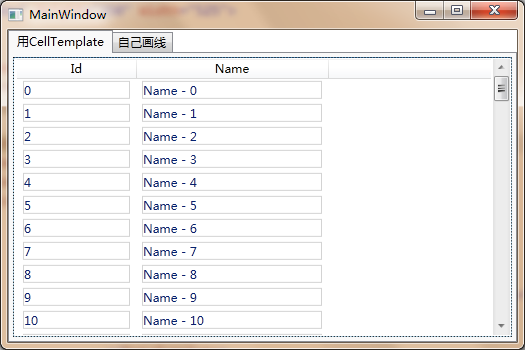
于是,你得小心的设置各个 Border 的 Margin,来让它们“恰好”都连在一起,看上去就像是连续的线条。也许调整 Margin 还不够,还得修改 ListViewItem 的模板;模板修改好了,发现创建这么多的 Border 性能又跟不上;最头大的是,每个 Column 都要指定一次 CellTemplate,万一哪天边线的颜色要统一调整一下……
因此,这种办法固然可行,操作起来其实麻烦的要死。
有没有一种方式,可以直接在 ListView 上“画线”呢?固然,我们可以自己写一个 ListView,在 OnRender 里面画线什么的,但理想的情况还是能够在可以不改动任何现有控件的条件下,实现这个画网格的功能。同时,这个网格线的颜色可以随意调整就更好了。
因此,总的要求如下:
可以画网格
不用改动 ListView,或者自己写 ListView
可以调整网格的颜色
如果对设计模式熟悉的话,“不改动现有代码,增加新的功能”,应该马上能够想到装饰器模式。其实,WPF 中本身就有 Decorator 这个控件,而常用的 Border 就是一个 Decorator,可以帮助控件画背景色,画边线等等。
因此,如果能够有这么一个 Decorator,把 ListView 往里面一放,就能有画线的功能,岂不快哉?不过,这里我并不打算直接继承 Decorator 来修改,因为 WPF 提供的 Decorator 是针对所有 UIElment 的,而我们只想针对 ListView。
GridLineDecorator 直接继承自 FrameworkElement,并且通过重载 VisualChild 和 LogicalChild 相关的代码来显示其包装的 ListView。
using System;
using System.Collections.Generic;
using System.Linq;
using System.Text;
using System.Windows;
using System.Windows.Controls;
using System.Windows.Markup;
using System.Windows.Media;
using System.Windows.Threading;

namespace ListViewWithLines
{
    [ContentProperty("Target")]
    public class GridLineDecorator : FrameworkElement
    {
        private ListView _target;
        private DrawingVisual _gridLinesVisual = new DrawingVisual();
        private GridViewHeaderRowPresenter _headerRowPresenter = null;

        public GridLineDecorator()
        {
            this.AddVisualChild(_gridLinesVisual);
            this.AddHandler(ScrollViewer.ScrollChangedEvent, new RoutedEventHandler(OnScrollChanged));
        }

        #region GridLineBrush

        /// <summary>
        /// GridLineBrush Dependency Property
        /// </summary>
        public static readonly DependencyProperty GridLineBrushProperty =
            DependencyProperty.Register("GridLineBrush", typeof(Brush), typeof(GridLineDecorator),
                new FrameworkPropertyMetadata(Brushes.LightGray,
                    new PropertyChangedCallback(OnGridLineBrushChanged)));

        /// <summary>
        /// Gets or sets the GridLineBrush property.  This dependency property
        /// indicates ....
        /// </summary>
        public Brush GridLineBrush
        {
            get { return (Brush)GetValue(GridLineBrushProperty); }
            set { SetValue(GridLineBrushProperty, value); }
        }

        /// <summary>
        /// Handles changes to the GridLineBrush property.
        /// </summary>
        private static void OnGridLineBrushChanged(DependencyObject d, DependencyPropertyChangedEventArgs e)
        {
            ((GridLineDecorator)d).OnGridLineBrushChanged(e);
        }

        /// <summary>
        /// Provides derived classes an opportunity to handle changes to the GridLineBrush property.
        /// </summary>
        protected virtual void OnGridLineBrushChanged(DependencyPropertyChangedEventArgs e)
        {
            DrawGridLines();
        }

        #endregion

        #region Target

        public ListView Target
        {
            get { return _target; }
            set
            {
                if (_target != value)
                {
                    if (_target != null) Detach();
                    RemoveVisualChild(_target);
                    RemoveLogicalChild(_target);

                    _target = value;

                    AddVisualChild(_target);
                    AddLogicalChild(_target);
                    if (_target != null) Attach();

                    InvalidateMeasure();
                }
            }
        }

        private void GetGridViewHeaderPresenter()
        {
            if (Target == null)
            {
                _headerRowPresenter = null;
                return;
            }
            _headerRowPresenter = Target.GetDesendentChild<GridViewHeaderRowPresenter>();
        }

        #endregion

        #region DrawGridLines

        private void DrawGridLines()
        {
            if (Target == null) return;
            if (_headerRowPresenter == null) return;

            var itemCount = Target.Items.Count;
            if (itemCount == 0) return;

            var gridView = Target.View as GridView;
            if (gridView == null) return;

            // 获取drawingContext
            var drawingContext = _gridLinesVisual.RenderOpen();
            var startPoint = new Point(0, 0);
            var totalHeight = 0.0;

            // 为了对齐到像素的计算参数,否则就会看到有些线是模糊的
            var dpiFactor = this.GetDpiFactor();
            var pen = new Pen(this.GridLineBrush, 1 * dpiFactor);
            var halfPenWidth = pen.Thickness / 2;
            var guidelines = new GuidelineSet();

            // 画横线
            for (int i = 0; i < itemCount; i++)
            {
                var item = Target.ItemContainerGenerator.ContainerFromIndex(i) as ListViewItem;
                if (item != null)
                {
                    var renderSize = item.RenderSize;
                    var offset = item.TranslatePoint(startPoint, this);

                    var hLineX1 = offset.X;
                    var hLineX2 = offset.X + renderSize.Width;
                    var hLineY = offset.Y + renderSize.Height;

                    // 加入参考线,对齐到像素
                    guidelines.GuidelinesY.Add(hLineY + halfPenWidth);
                    drawingContext.PushGuidelineSet(guidelines);
                    drawingContext.DrawLine(pen, new Point(hLineX1, hLineY), new Point(hLineX2, hLineY));
                    drawingContext.Pop();

                    // 计算竖线总高度
                    totalHeight += renderSize.Height;
                }
            }

            // 画竖线
            var columns = gridView.Columns;
            var headerOffset = _headerRowPresenter.TranslatePoint(startPoint, this);
            var headerSize = _headerRowPresenter.RenderSize;

            var vLineX = headerOffset.X;
            var vLineY1 = headerOffset.Y + headerSize.Height;

            foreach (var column in columns)
            {
                var columnWidth = column.GetColumnWidth();
                vLineX += columnWidth;

                // 加入参考线,对齐到像素
                guidelines.GuidelinesX.Add(vLineX + halfPenWidth);
                drawingContext.PushGuidelineSet(guidelines);
                drawingContext.DrawLine(pen, new Point(vLineX, vLineY1), new Point(vLineX, totalHeight));
                drawingContext.Pop();
            }

            drawingContext.Close();
        }

        #endregion

        #region Overrides to show Target and grid lines

        protected override int VisualChildrenCount
        {
            get { return Target == null ? 1 : 2; }
        }

        protected override System.Collections.IEnumerator LogicalChildren
        {
            get { yield return Target; }
        }

        protected override Visual GetVisualChild(int index)
        {
            if (index == 0) return _target;
            if (index == 1) return _gridLinesVisual;
            throw new IndexOutOfRangeException(string.Format("Index of visual child '{0}' is out of range", index));
        }

        protected override Size MeasureOverride(Size availableSize)
        {
            if (Target != null)
            {
                Target.Measure(availableSize);
                return Target.DesiredSize;
            }

            return base.MeasureOverride(availableSize);
        }

        protected override Size ArrangeOverride(Size finalSize)
        {
            if (Target != null)
                Target.Arrange(new Rect(new Point(0, 0), finalSize));

            return base.ArrangeOverride(finalSize);
        }

        #endregion

        #region Handle Events

        private void Attach()
        {
            _target.Loaded += OnTargetLoaded;
            _target.Unloaded += OnTargetUnloaded;
        }

        private void Detach()
        {
            _target.Loaded -= OnTargetLoaded;
            _target.Unloaded -= OnTargetUnloaded;
        }

        private void OnTargetLoaded(object sender, RoutedEventArgs e)
        {
            if (_headerRowPresenter == null)
                GetGridViewHeaderPresenter();
            DrawGridLines();
        }

        private void OnTargetUnloaded(object sender, RoutedEventArgs e)
        {
            DrawGridLines();
        }

        private void OnScrollChanged(object sender, RoutedEventArgs e)
        {
            DrawGridLines();
        }

        #endregion
    }
}
其中,Target 是一个属性,类型是 ListView,还有一个_guidLinesVisual,则是用于绘制网格的 DrawingVisual。有人可能会问,为什么不直接重载 OnRender 方法,在里面画线呢?
理由是,重载 OnRender 方法画线,当 ListView 设置了背景后,会将我们画的线盖住。这是因为控件的背景是在模板中放了一个 Border 来绘制的,Border 也是在 OnRender 中绘制的,它后绘制,我们的先绘制,会将我们画的线给盖住。同时,你会发现,当 ListView 的 Column 改变大小的时候,并不会引起 GridLineDecorator 重绘,所以网格线无法同步变化。
其实,GridLineDecorator 里面的 GetVisualChild 重载也非常讲究:
protected override Visual GetVisualChild(int index)
{
    if (index == 0) return _target;
    if (index == 1) return _gridLinesVisual;
    throw new IndexOutOfRangeException(string.Format("Index of visual child '{0}' is out of range", index));
}
首先返回的是 ListView,接着才是_gridLinesVisual。 不过,即使是使用 DrawingVisual,也会有 Column 宽度改变无法通知重绘的问题。解决这个问题有好几个思路:
- 监听一下 GridViewColumn 的宽度变化
- 监听 CompositionTarget.Rendering 事件
第一个办法,不可行,因为 GridViewColumn 的宽度变化事件你找不到,第二个办法是可行,不过效率嘛……
在经过一番研究之后,终于找到了一个可行的办法,监听 ScrollViewer 的 ScrollChanged 事件,因为 ListView 内部是放置了两个 ScrollViewer,一个用于显示 Header,一个用于显示 Items。当 Column 的宽度变化时,会触发 ScrollViewer 的 ScrollChanged 事件。
因此,在构造函数里面:
public GridLineDecorator()
{
    this.AddVisualChild(_gridLinesVisual);
    this.AddHandler(ScrollViewer.ScrollChangedEvent, new RoutedEventHandler(OnScrollChanged));
}
画线的逻辑,主要就是遍历所有的 Container(其实是 ListViewItem),计算其相对于 GridLineDecorator 的位移,算出横线和纵线的坐标和长度,画线。代码比较多,大家可以下载以后自己看。
细心的童鞋可能会发现,有时候底部的线条在 ListViewItem 显示不完整时,没有画到最下端,这是由于 ListView 做了 Virtualize 处理。大家可以设置 VirtualizingStackPanel.IsVirtualizing="False"来强制绘制。
附代码:https://files.cnblogs.com/RMay/ListViewWithLines.zip
站长注:
原作者写的很好,效果不错,数据量小,比如几千条,上面的方案完全没问题;如果程序需要接收几十万数据(分页接收),使用装饰器的方式效率一般(可考虑如何优化),下面代码可简单添加水平线:
<ListView.ItemContainerStyle>
    <Style TargetType="{x:Type ListViewItem}">
        <Setter Property="BorderThickness" Value="0 0 1 1" />
        <Setter Property="BorderBrush" Value="Black" />
    </Style>
</ListView.ItemContainerStyle>

- 原文标题:【WPF】自定义 GridLineDecorator 给 ListView 画网格
- 原文作者:大佛脚下
- 原文链接:https://www.cnblogs.com/RMay/archive/2010/12/27/1918048.html
- 原文示例代码:https://files.cnblogs.com/RMay/ListViewWithLines.zip
- 最后示例:https://github.com/dotnet9/CsharpSocketTest