Discussing the Implementation Process of Starting as Administrator in C#

Discussing the Implementation Process of Starting as Administrator in C#

Starting as an administrator is not just about launching a process; in actual development, the situations encountered can be much more complex.

Last updated 3/10/2024 10:05 PM
nobody
5 min read
Category
.NET
Tags
.NET C# Administrator

Foreword

This article was contributed by a netizen (@nobody). Technical discussions are welcome in the comments.

Running as an administrator is not just about starting a process simply; in actual development, situations can be more complex. For example, if the user opens the application directly as an administrator, then there is no need to self-start as an administrator; if the user is operating unattended, it is necessary to consider the prompting behavior of administrator elevation, and only start as an administrator when the setting is "Elevate without prompting"; another example is that administrator privileges can be inherited—if application A is started as an administrator, then when application A starts application B, application B typically inherits the administrator rights from application A.

This article mainly introduces the implementation process of starting as an administrator in unattended scenarios. For other situations, flexible combination should achieve the desired result.

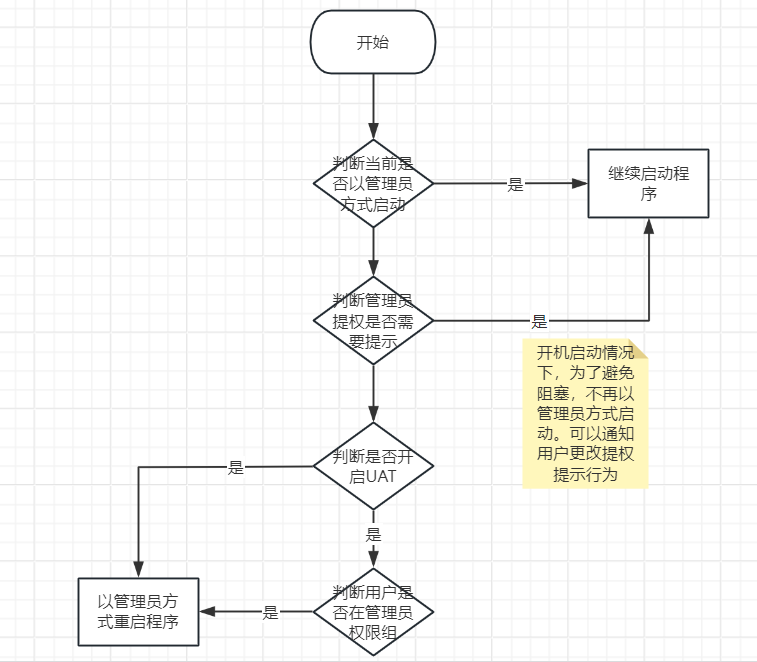
The main characteristics of unattended operation include the application starting automatically at boot, restarting after crash, and executing automatically. The program must not include any operations that block its startup or execution, such as pop-up prompts requiring user confirmation or account/password input. The key approach to handling unattended scenarios is illustrated in the figure below:

Note: If the user's elevation behavior is not set to "Elevate without prompting" but the application must run as administrator, the elevation behavior must be changed. This can be done by navigating to gpedit.msc → Computer Configuration → Windows Settings → Security Settings → Local Policies → Security Options → User Account Control: Admin Approval Mode for the built-in Administrator account behavior for elevation prompt.

Implementation Steps

The following are the code implementations for the steps involved in the process:

  1. Determine whether the current application is started as an administrator. Code:
public static bool IsRunAsAdmin()
{
    WindowsIdentity windowsIdentity = WindowsIdentity.GetCurrent();
    WindowsPrincipal windows = new WindowsPrincipal(windowsIdentity);
    if (windows.IsInRole(WindowsBuiltInRole.Administrator))
    {
        return true;
    }
    return false;
}

Note: This code checks whether the user started the process as an administrator, not whether the user is an administrator. Even if the user is an administrator, the application may not be started with administrator privileges. Most search results for "check if user is administrator" return this code.

  1. Start as an administrator. The most basic code is as follows:
public static void RunAsAdmin()
{
    ProcessStartInfo startInfo = new ProcessStartInfo();
    // Set the flag to start as administrator
    startInfo.Verb = "runas";
    // Use shell to start the process
    startInfo.UseShellExecute = true;
    startInfo.FileName = Process.GetCurrentProcess().MainModule.FileName;
    Process.Start(startInfo);
}

Note: The Verb property is the identifier for starting as administrator. Besides setting Verb, you must also set UseShellExecute=true to start the process using the shell; otherwise, administrator privileges will be inherited. That is, if the original application was not started as administrator, the inheritance will also fail to elevate, causing the attempt to start as administrator to fail. The ProcessStartInfo has many other properties readers can explore.

  1. Determine whether UAC (User Account Control) is enabled. If UAC is disabled, the current user has administrator privileges. Code:
public static bool IsUACEnabled()
{
    // Registry key
    RegistryKey key = Registry.LocalMachine.OpenSubKey(@"SOFTWARE\Microsoft\Windows\CurrentVersion\Policies\System", false);
    if (key != null)
    {
        // Get the value of subkey EnableLUA; 1 means UAC is enabled
        object value = key.GetValue("EnableLUA");
        if (value != null && value.ToString() == "1")
        {
            return true;
        }
    }
    return false;
}
  1. Determine whether the current user is in the administrator group. Code:
public static bool IsInAdminGroup()
{
    WindowsIdentity windowsIdentity = WindowsIdentity.GetCurrent();
    WindowsPrincipal windowsPrincipal = new WindowsPrincipal(windowsIdentity);
    var claims = windowsPrincipal.Claims;
    // The claims collection includes user group information; S-1-5-32-544 represents the Administrators group
    return claims.Any(c => c.Type == "http://schemas.xmlsoap.org/ws/2005/05/identity/claims/denyonlysid" && c.Value == "S-1-5-32-544");
}
  1. Determine the UAC administrator elevation prompt behavior. Here we need to check if the behavior is set to "Elevate without prompting". Code:
public static bool IsUpPermissionWithOutTip()
{
    // Registry key
    RegistryKey key = Registry.LocalMachine.OpenSubKey(@"SOFTWARE\Microsoft\Windows\CurrentVersion\Policies\System", false);
    if (key != null)
    {
        // Get the value of subkey ConsentPromptBehaviorAdmin; 0 means elevate without prompting, thus no blocking
        object value = key.GetValue("ConsentPromptBehaviorAdmin");
        if (value != null && value.ToString() == "0")
        {
            return true;
        }
    }
    return false;
}

The above are five methods extracted according to the main flow. In actual development, you may also need to consider the issue of infinite restarts after failing to start as administrator. The methods do not handle exceptions; users should add exception handling based on their own requirements.

Summary

This article presents implementation methods for unattended scenarios based on the author's development experience. Readers should flexibly assemble these methods or add additional functionality/logic according to actual needs. The author may have blind spots or incomplete logic; corrections are welcome.

Keep Exploring

Related Reading

More Articles