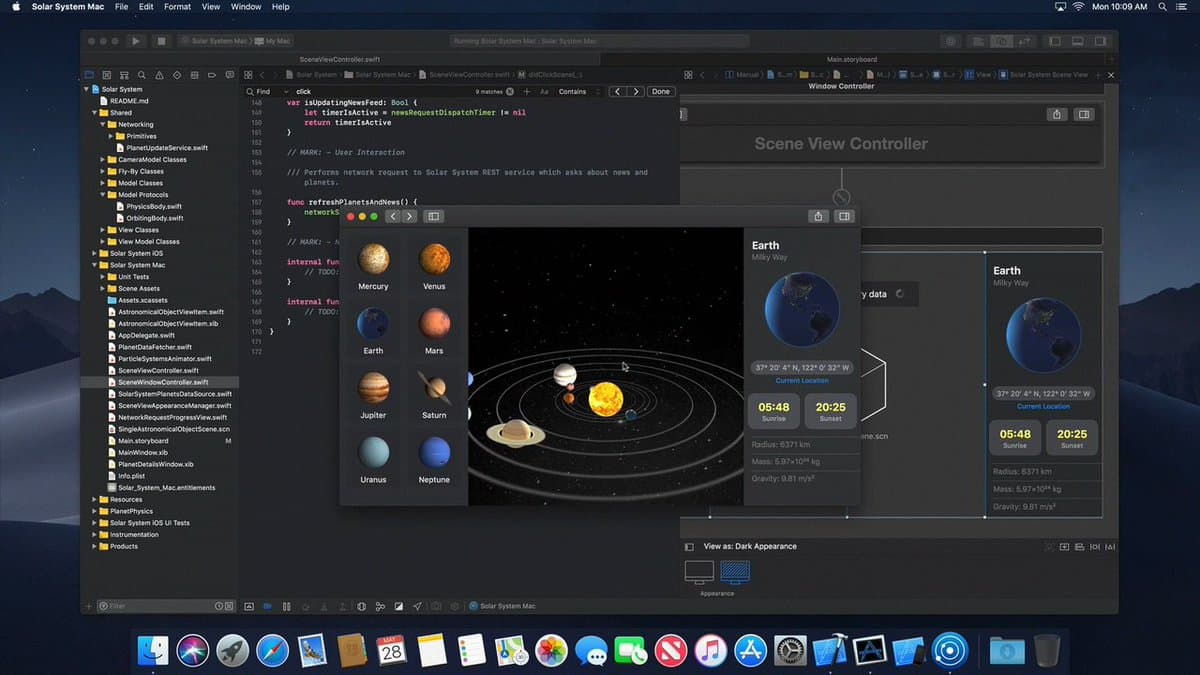
Master Xcode Shortcuts to Boost Your Productivity

Master Xcode Shortcuts to Boost Your Productivity

If you are an iOS, macOS, tvOS, or watchOS developer, Xcode is probably the IDE you use most often.

Last updated 6/22/2021 10:57 PM
沙漠尽头的狼
9 min read
Category
Sharing
Tags
Xcode

Developers often spend a lot of time in their IDE. If you’re an iOS, macOS, tvOS, or watchOS developer, Xcode is likely the IDE you interact with most frequently.

I often hear developers making excuses for not learning Xcode shortcuts when they first start using it. In their defense, they have a valid argument:

If you don’t remember shortcuts, using the mouse at least helps you get things done quickly. Besides, learning shortcuts is like an extra learning curve, especially when you’re just starting out.

To explain the impact of keyboard shortcuts on developer productivity, let me share a research result with them:

If your job requires you to use an IDE for eight hours a day, using keyboard shortcuts can save you eight working days per year.

Eight days is a long time. With just a few hours of practice, you can become proficient with Xcode shortcuts and save an extra week. The efficiency of using shortcuts will keep you focused on the bigger tasks at hand and speed up your development and workflow.

In the following sections, we’ll cover many Xcode keyboard shortcuts that I’ve found useful. I hope they can help improve your development efficiency too.

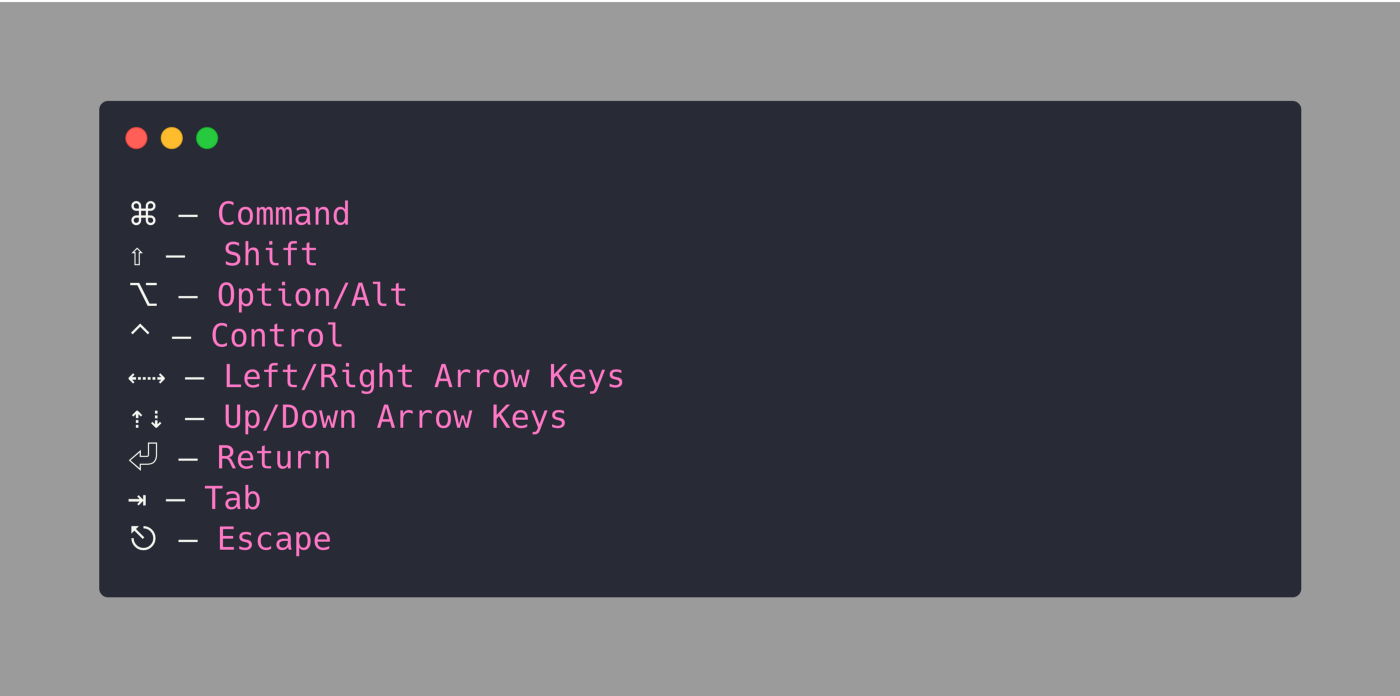
You don’t need to memorize this list. I’ve added the named shortcuts next to the symbols:

You don’t need to memorize this list. I’ve added the named shortcuts next to the symbols.

...

1. Basic Shortcuts

Here is a list of the most commonly used shortcuts in Xcode:

  • Build: ⌘ + B
  • Run: ⌘ + R
  • Test: ⌘ + U
  • Stop: ⌘ + .
  • Clean: ⌘ + ⇧ + K
  • Clean the build folder: ⌘ + ⇧ + ⌥ + K
  • Open quickly: ⇧ + ⌘ + O
  • Code completion: ⌃ + Space

2. Assistant Editor Shortcuts

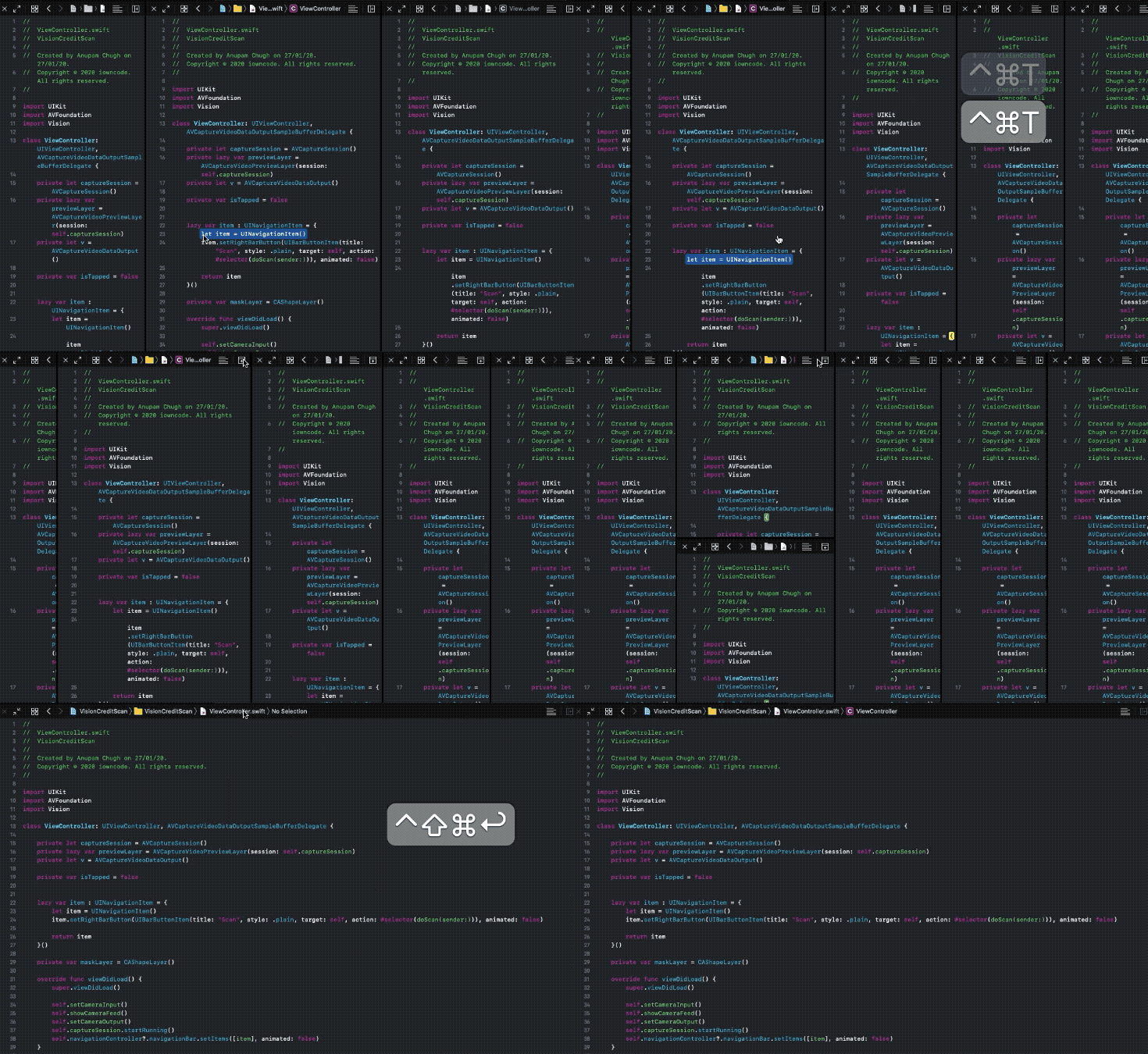
Xcode 11 brought many changes to the assistant editor. Now you can run multiple editors as needed, toggle focus mode on the current editor, or focus on the current editor while hiding others. Additionally, a new button was introduced to set the position of the assistant editor relative to the current editor.

2.1 Adding a secondary editor

Use the following shortcut to add a secondary editor. If in focus mode, the new editor will not be reflected on the screen.

Shortcut: ⌃ + ⌘ + T

(Control + Command + T)

By moving the mouse to the “Add New Editor” button and holding the Option key, we can switch the position of the new editor to the right or bottom.

2.2 Focusing the current editor

To hide all editors except the current one, use the following key combination:

Shortcut: ⇧ + ⌃ + ⌘ + ↩

(Shift + Control + Command + Enter)
2.3 Opening a file manually in the assistant editor

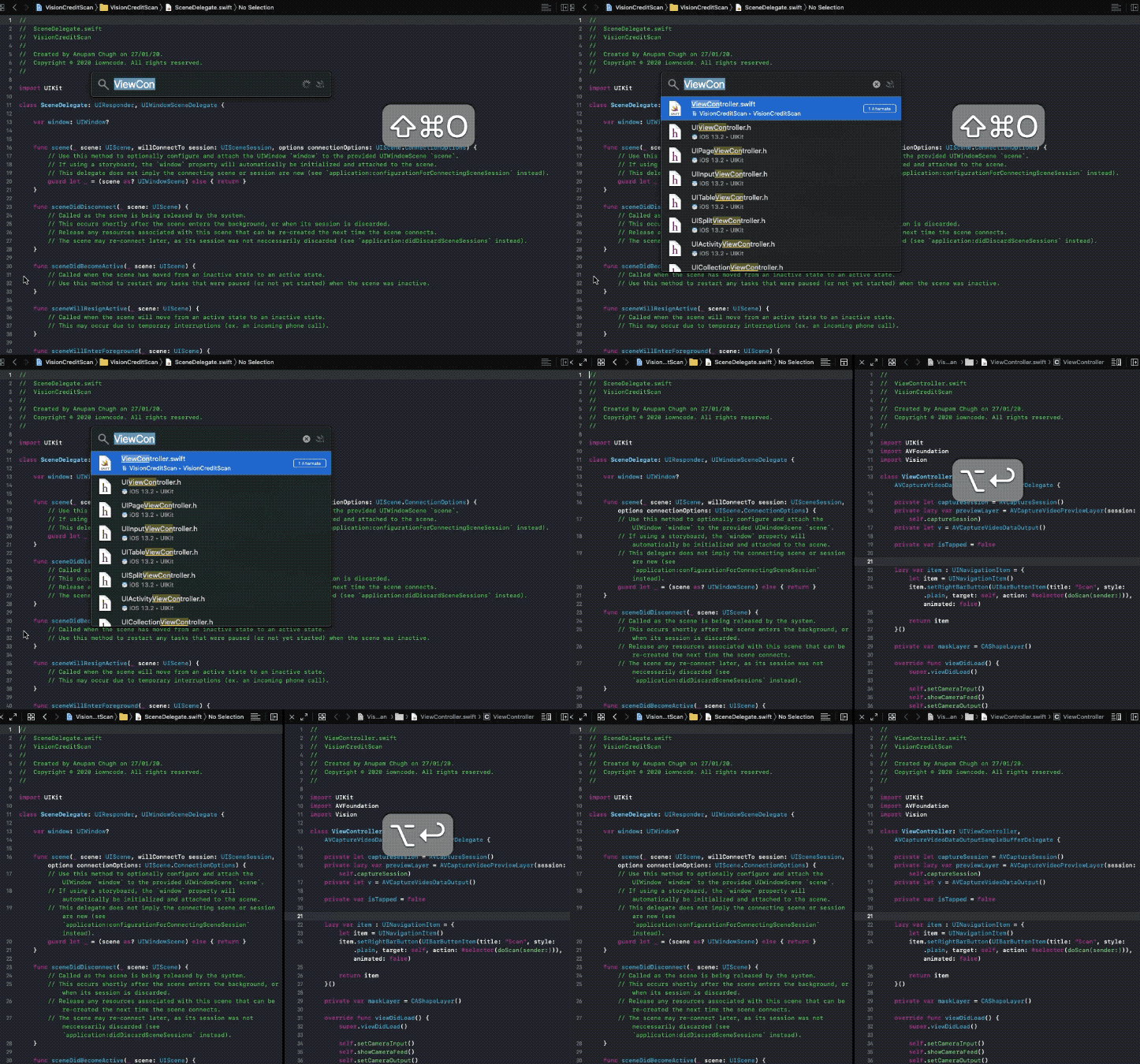
A significant change in the Xcode 11 assistant editor is the absence of a manual action option. To open a target file in the assistant editor, press Shift + Command + O to open quickly, and press the Option key while selecting the file, as shown:

Shortcut: ⇧ + ⌘ + O followed by ⌥

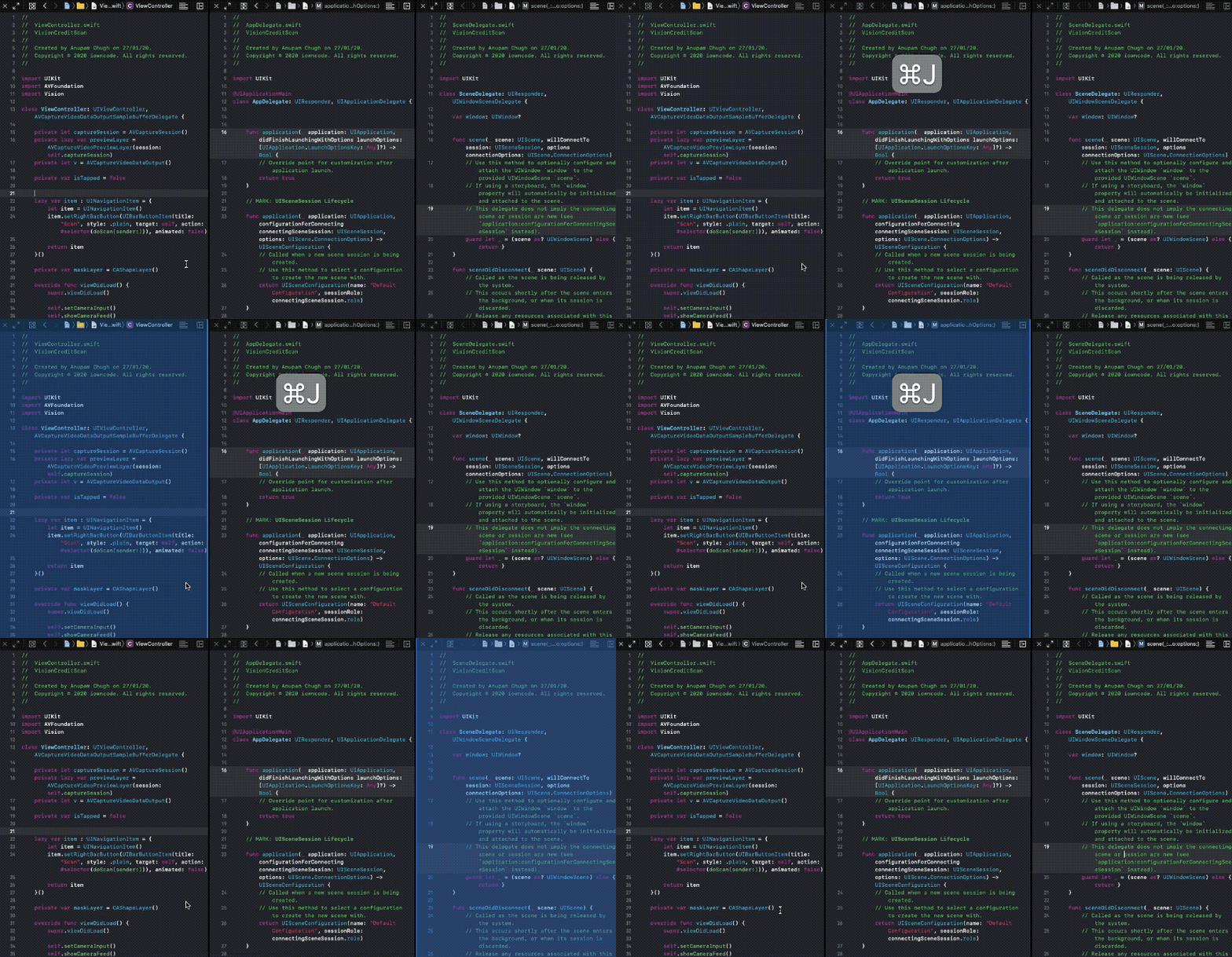
When using multiple assistant editors and needing to switch between them, using the trackpad may not be as convenient. Here are some shortcuts to easily navigate between multiple editors:

Highlight editor: ⌘ + J

(Command + J)

After highlighting the current editor, use the arrow keys to switch between assistant editors, and press the Return key on the new editor to make it active.

3. Fix All Errors In-Scope

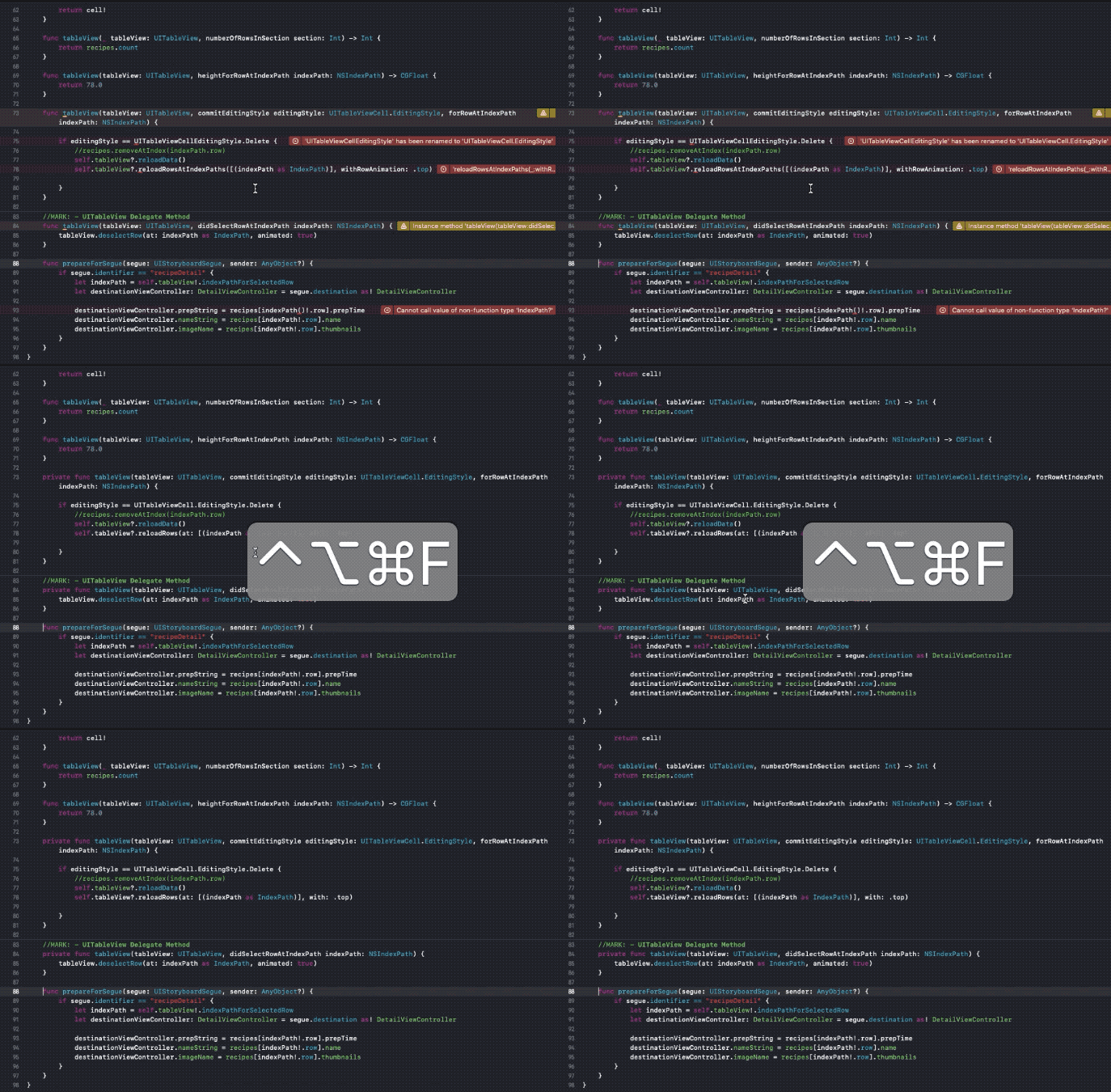
I often encounter scenarios where Xcode throws a large number of errors, especially related to Swift syntax — common when migrating across different versions.

Fortunately, the Fix-it All option is very effective for fixing most common errors and saves us a lot of time, especially in large projects.

Shortcut: ⌃ + ⌥ + ⌘ + F

(Control + Option + Command + F)
4. Multiple Cursors on Multiple Selections

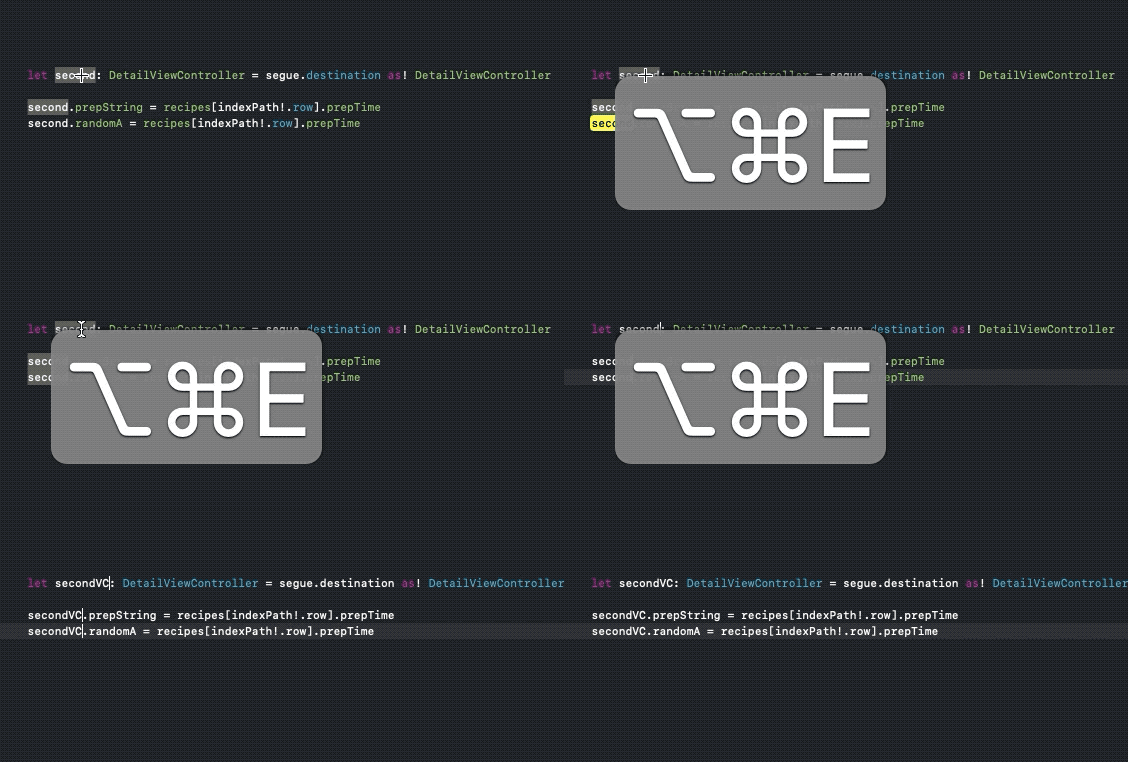
Often, multiple cursors are needed to avoid typing/copying the same content across different lines. We can select the current word and press Alt + Command + E to select the next occurrence. This places multiple cursors on the words and allows us to edit them simultaneously.

Shortcut: ⌥ + ⌘ + E

(Option + Command + E)

To select the previous occurrence, use Shift + Option + Command + E.

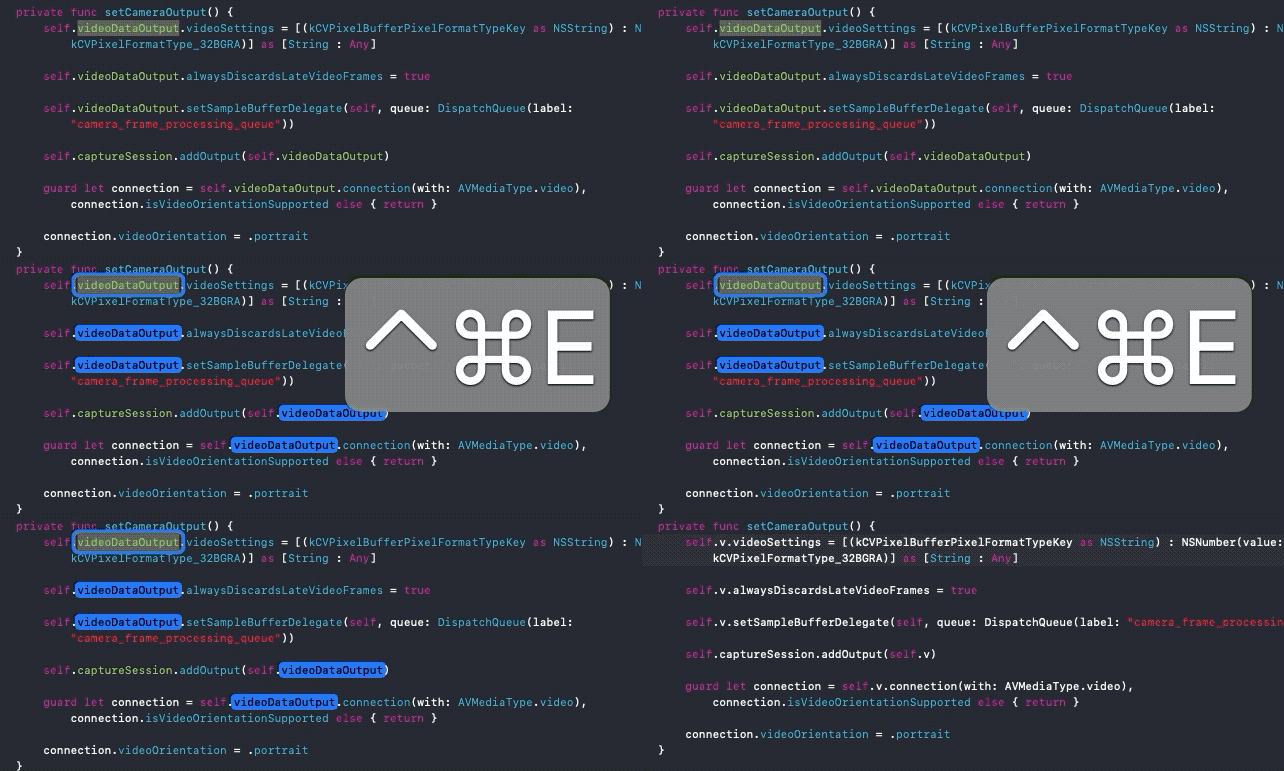
5. Refactor All In Scope

Refactoring is inevitable. This makes editing variables and methods within scope a key tool. The following shortcut allows us to edit everything in scope simultaneously:

Shortcut: ⌃ + ⌘ + E

(Control + Command + E)

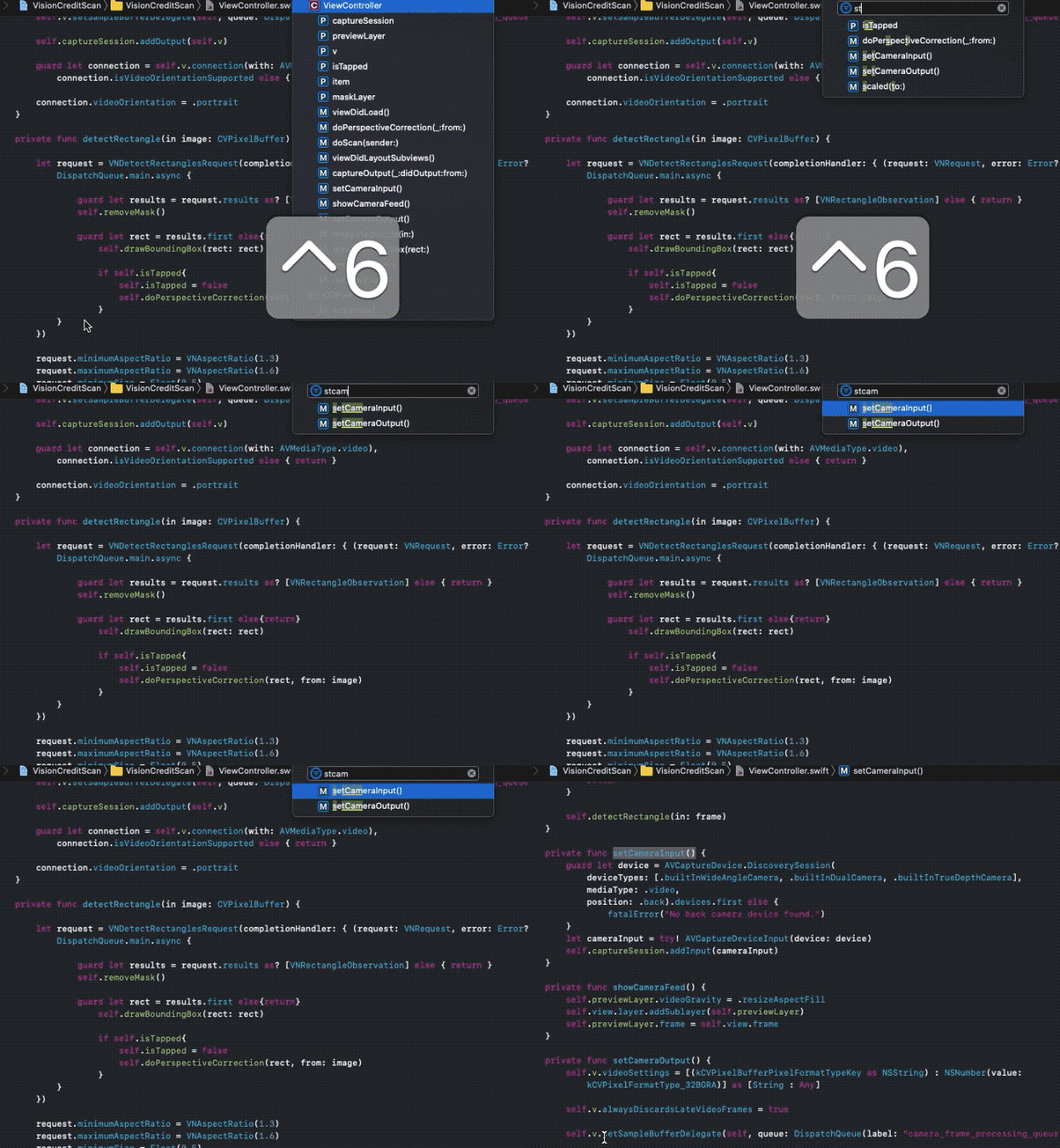
6. Jump to Method

To view an outline of the file, along with all methods, simply press Command + 6. It opens a panel where you can search for the desired method and jump directly to it.

Shortcut: ⌃ + 6

(Control + 6)

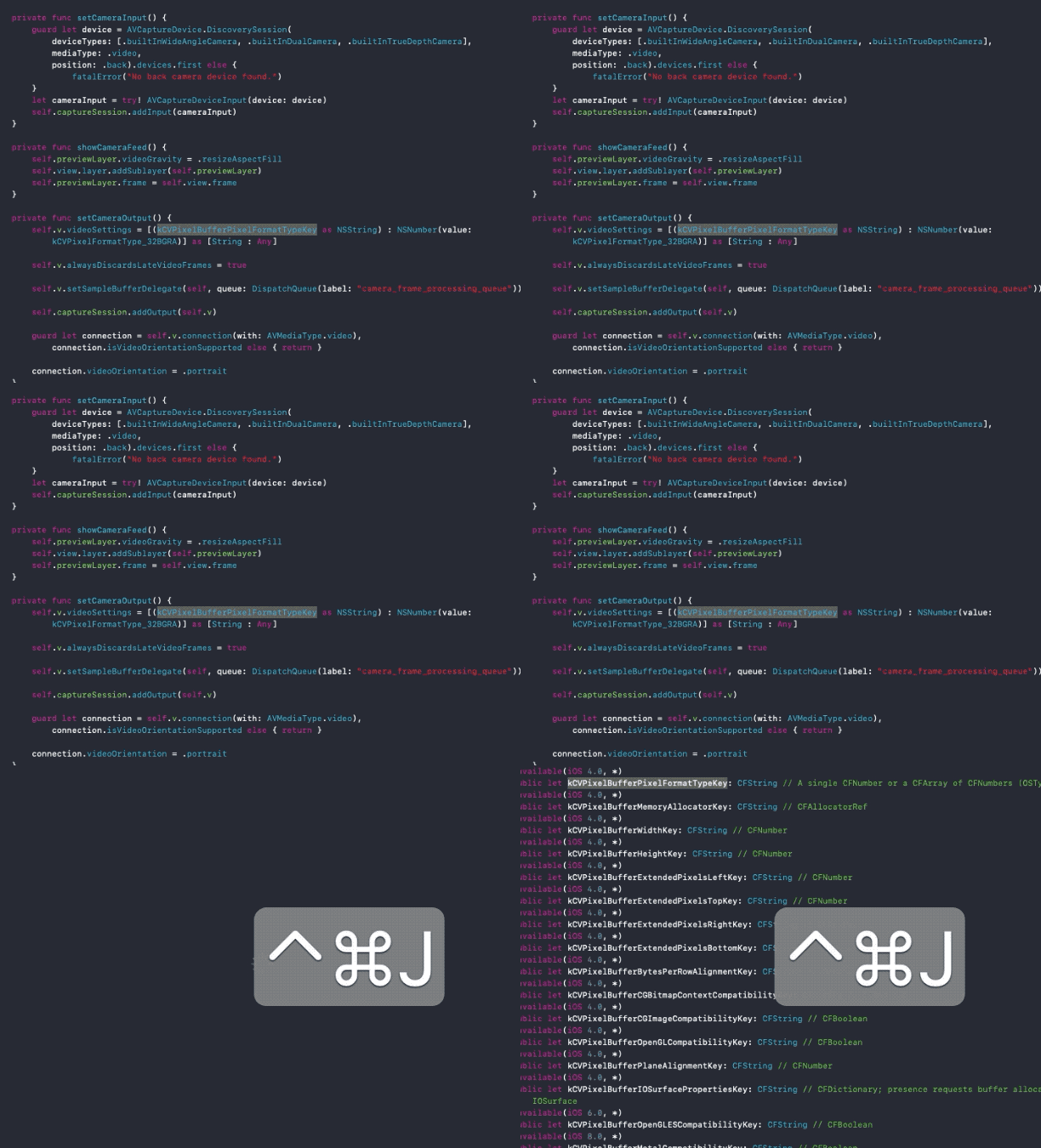
7. Jump to Definition

Since Xcode 9, the "Command + click" shortcut does not directly take you to the definition. Instead, it shows a popup with a list of options. To jump directly to the definition without showing the popup, use the following shortcut:

Shortcut: ⌃ + ⌘ + J

(Control + Command + J)

8. Fold and Unfold Methods

When file sizes get out of hand (ideally they shouldn’t), there is a handy shortcut to code fold and fold all methods/selected methods.

It places a code region on each enclosing block. Here are the shortcuts for different cases:

Fold all: ⇧ + ⌥ + ⌘ + ←

(Shift + Option + Command + Left Arrow)

Unfold all: ⇧ + ⌥ + ⌘ + →

(Shift + Option + Command + Right Arrow)

Fold current block: ⌥ + ⌘ + ←

(Option + Command + Left Arrow)

[6.gif]

9. Closing Tabs

Xcode has many shortcuts that let you choose which tabs to close. You can close the current tab, or close other tabs. The shortcuts for each action are given below:

Close tab: ⌘ + W

(Command + W)

Close other tabs: ⌘ + ⌥ + W

(Command + Option + W)

...

10. Reorder Statements

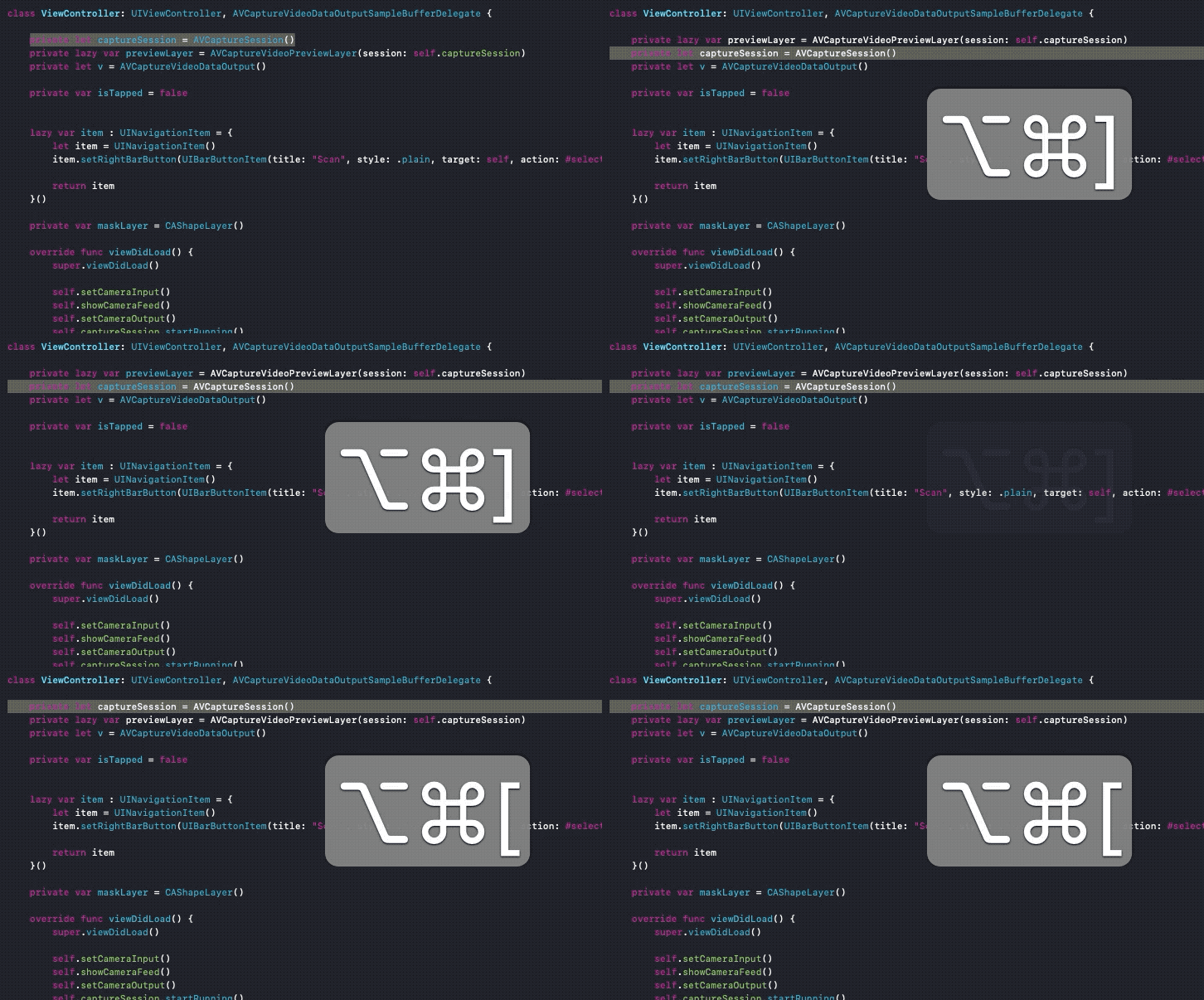
To change the order of statements and move them to another position, use the following shortcut:

Shortcut: ⌘ + ⌥ + ( ] or [ )

(Command + Option + Square Brackets)
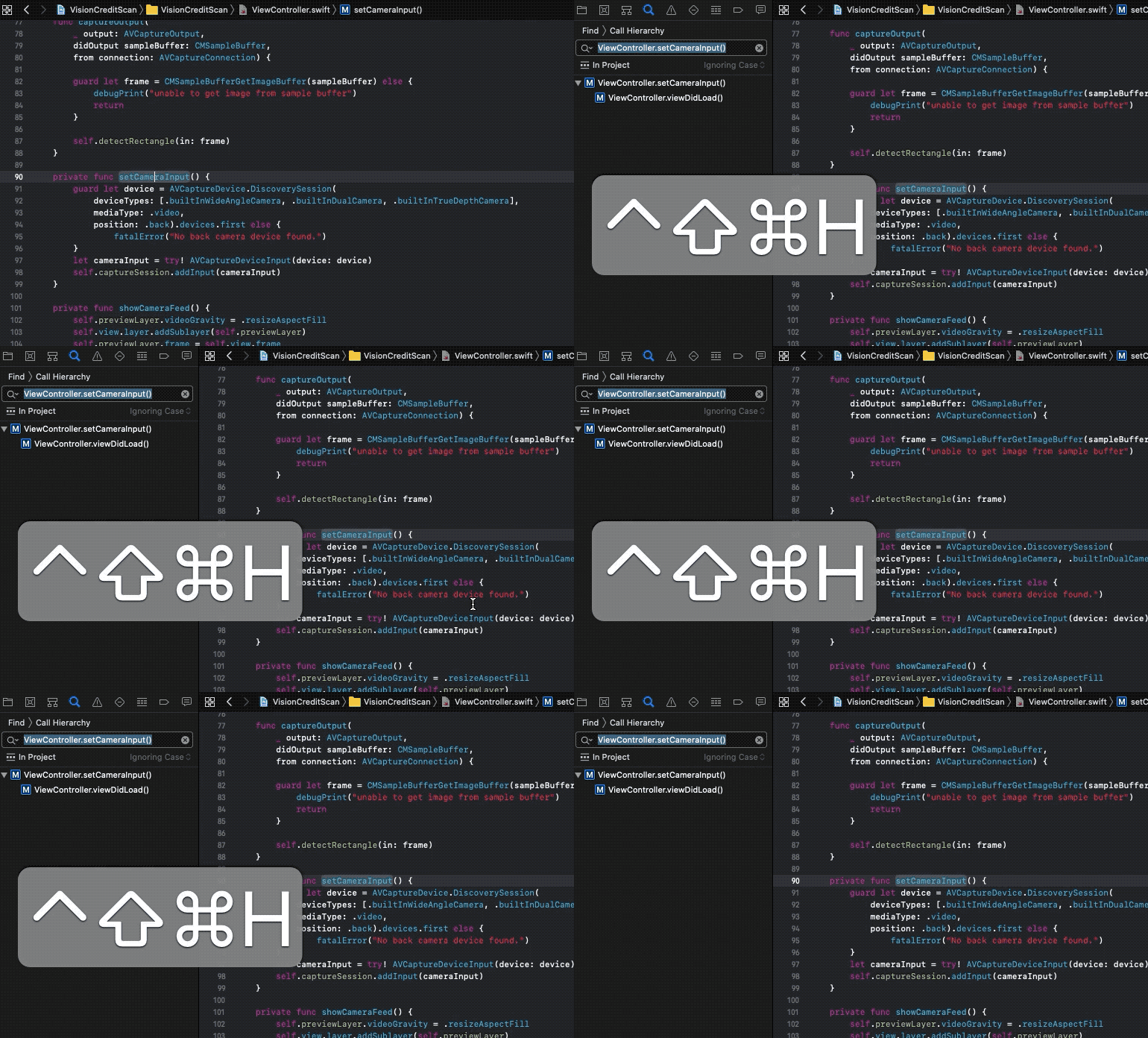
11. Find Call Hierarchy

To quickly find the call hierarchy of the selected symbol (whether a method or instance), simply use the following shortcut. It opens the call hierarchy in the project navigator.

Shortcut: ⇧ + ⌃ + ⌘ + H

(Shift + Control + Command + H)
...

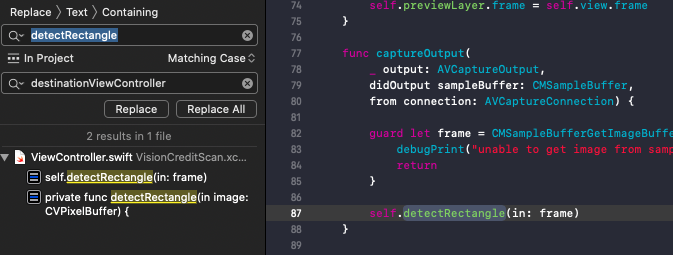
12. Global Search And/Or Replace

The Xcode IDE has the ability to perform quick global searches, and even replace symbols everywhere (handle with care).

Search in entire project: ⇧ + ⌘ + F

(Shift + Command + F)

Search and replace in entire project: ⇧ + ⌥ + ⌘ + F

(Shift + Command + Option + F)
13. SwiftUI Previews

SwiftUI changed the way we think and build UI. With the built-in canvas preview in Xcode, building UI through code or directly in the preview has become much easier. Shortcuts are just the icing on the cake to speed up the development process.

13.1 Toggle canvas

If you want to quickly prototype in code without the live preview distracting you, this is a handy shortcut.

Shortcut: ⌥ + ⌘ + ↩

(Option + Command + Enter)

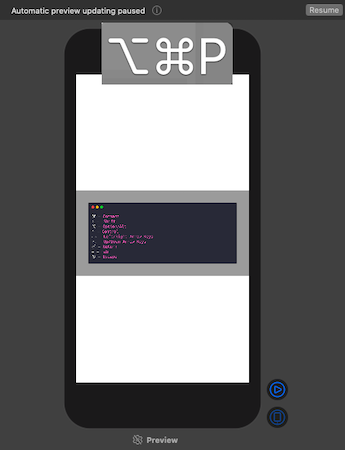
Resume auto preview

Auto preview often pauses, requiring us to manually resume. Xcode 11 has a shortcut for this purpose.

Shortcut: ⌥ + ⌘ + P

(Option + Command + P)

14. Minimap Shortcuts

Xcode 11 gave us the Minimap. A much-needed code outline view on the right side of the IDE. By moving the mouse over it, you can navigate to any part of the code.

Among the important shortcuts, one toggles the Minimap view, and another shows an outline of all properties, methods, classes, and code blocks in the file:

Toggle Minimap: ⇧ + ⌃ + ⌘ + F

(Shift + Control + Command + F)

Minimap outline: ⇧ + ⌃ + ⌘

(Shift + Control + Command)

Conclusion

We’ve quickly gone through many Xcode shortcuts that can significantly boost productivity and speed. Xcode 11 introduced some handy utilities and shortcuts that will only help you accelerate your work.

For developers just starting with shortcuts, I suggest taking it slow. Pick a few shortcuts and incorporate them into your daily use cases to build muscle memory. Trying to remember everything at once is not the best way to master keyboard shortcuts.

That’s it for this article — thank you for reading!

Keep Exploring

Related Reading

More Articles
Recent update 5/18/2026

枝见 Zhijian: A Markdown Mind Map Editor Built with Avalonia

This article introduces Zhijian, a local mind map editor based on Avalonia, supporting blank creation, folder loading, precise onboarding guidance, macOS shortcut adaptation, outline/Markdown/mind map synchronization, node notes, thumbnails, zoom, canvas dragging, and Markdown/OPML/XMind file exchange.

Continue Reading