If we want to add a button to clear the form data, the fastest way is to add a button with type="reset". This means we need two buttons, and we can leverage Blazor's core concept: component encapsulation.
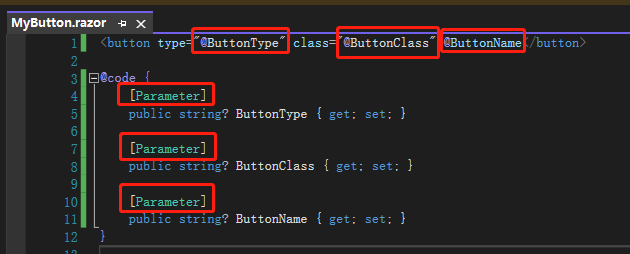
First, let's create a new Razor component named MyButton in the Shared folder. Define three parameters representing the button type, button style, and button name. Note that we need to add [Parameter] attribute to each property; this tells Blazor that the values of these properties come from the parent component that uses this component.

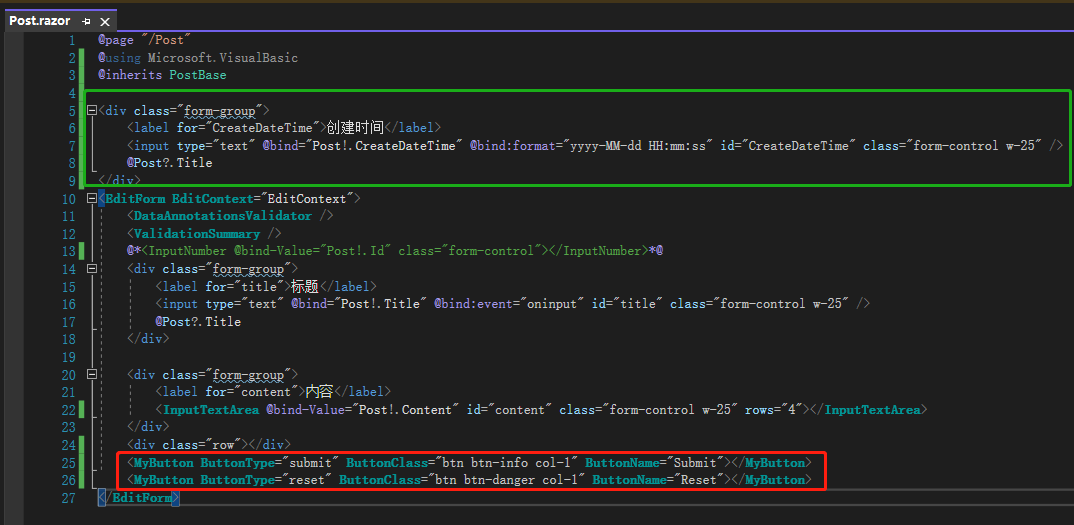
Next, remove the one-way binding for the title, and move the update time <div> outside of the <EditForm>, because the reset button clears the entire form, and we don't want the update time to be cleared. Finally, use two <MyButton> components at the bottom, specifying the button type, button style, and button name we want. Blazor will tell you which Parameters haven't been used yet, and it will also give hints if there are duplicate Parameters, so there's no need to worry.

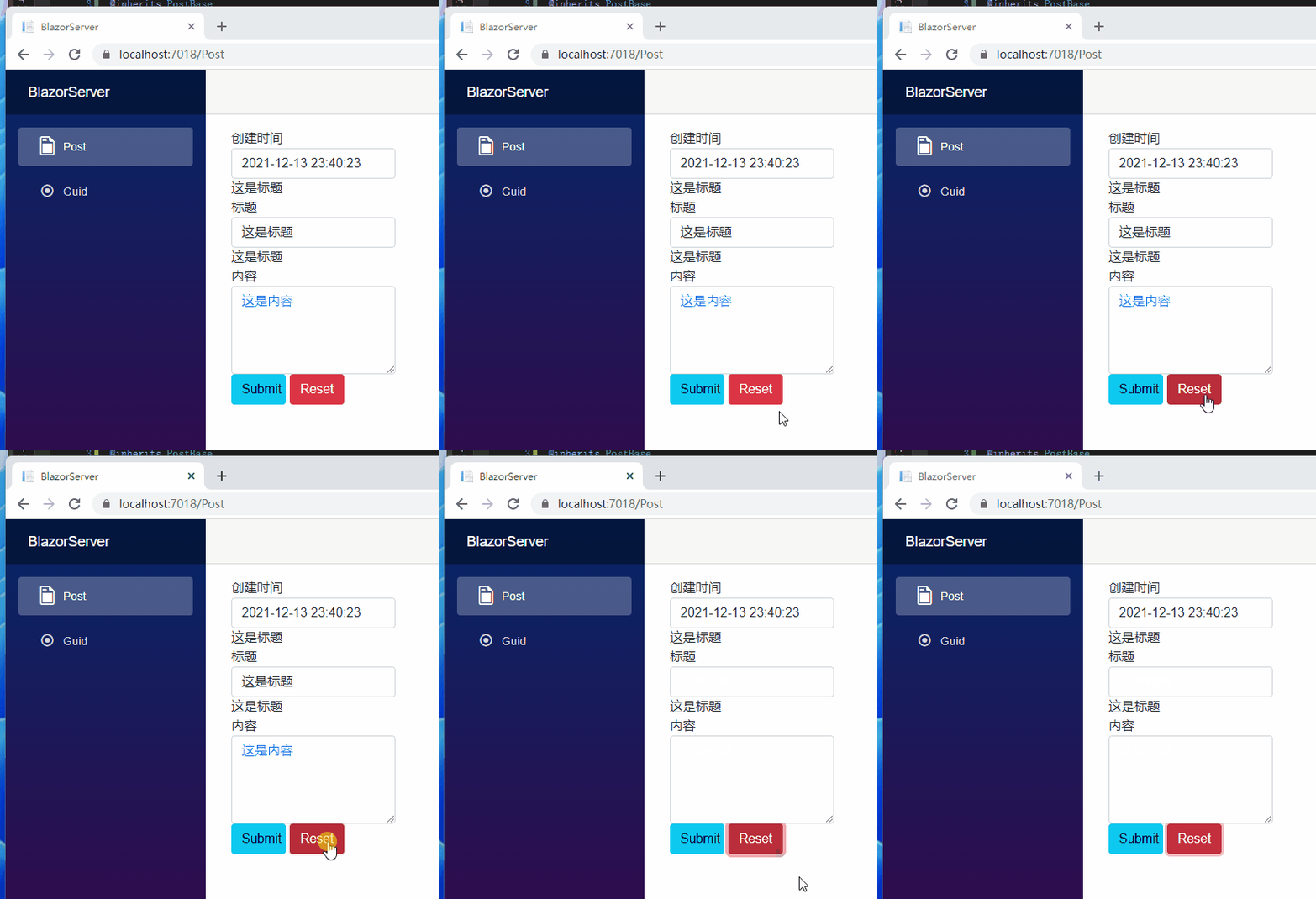
After pressing the Reset button, you can see that both the title and content are cleared.

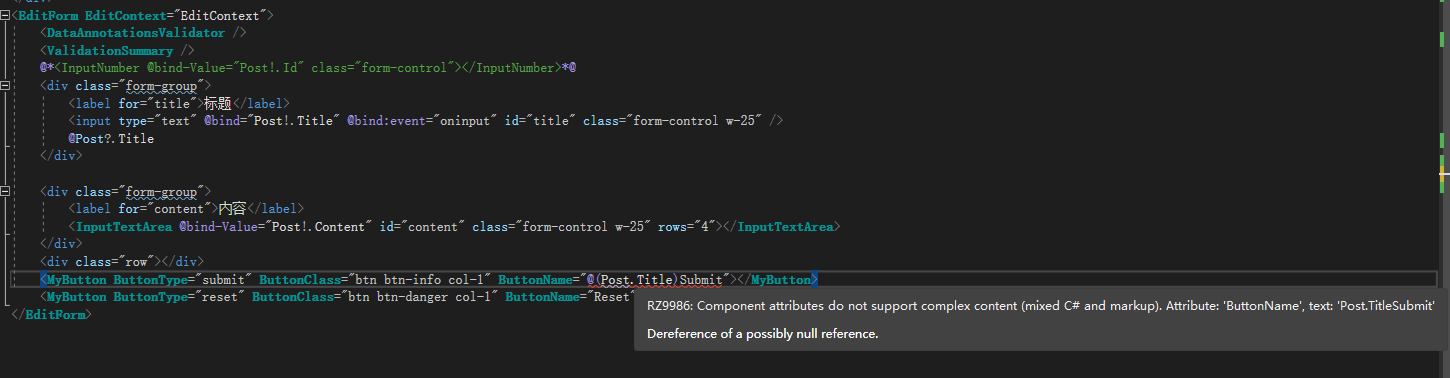
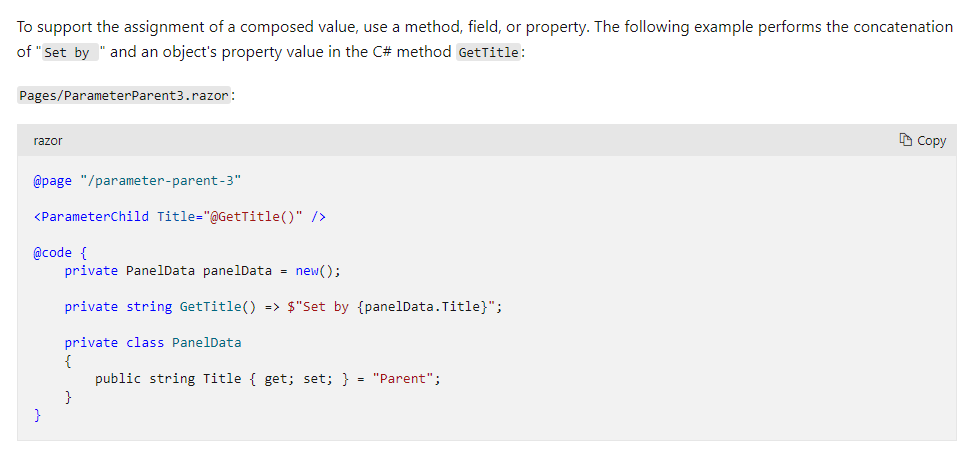
It's important to note that Parameters do not support mixed Razor and HTML string syntax. If you want to do this, it's recommended to use field, property, or a string method to return a combined string.


Another thing to avoid with Parameters: when a parent component passes values to a child component, if the parent component has a StateHasChanged-related action, it will re-render both the parent and the child component, unless the child component stores the parent's value in a variable.
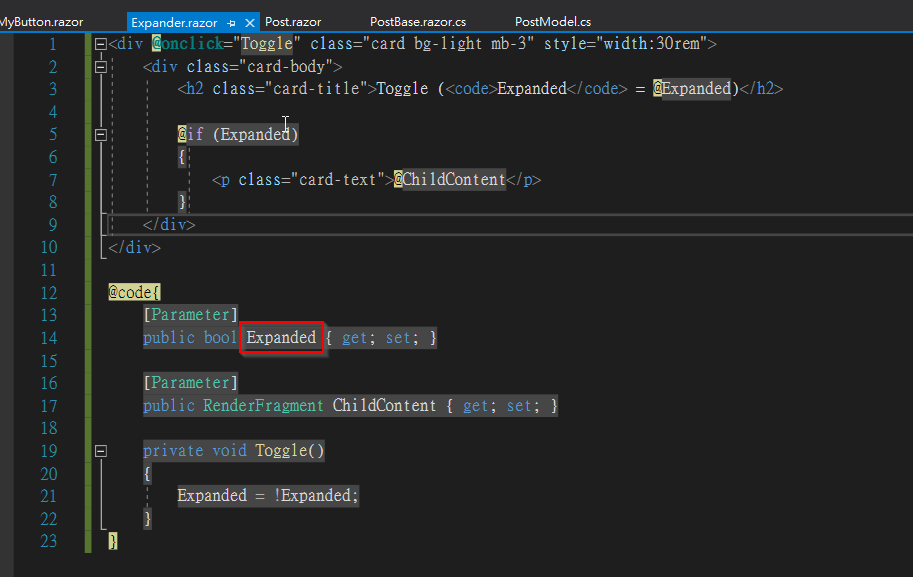
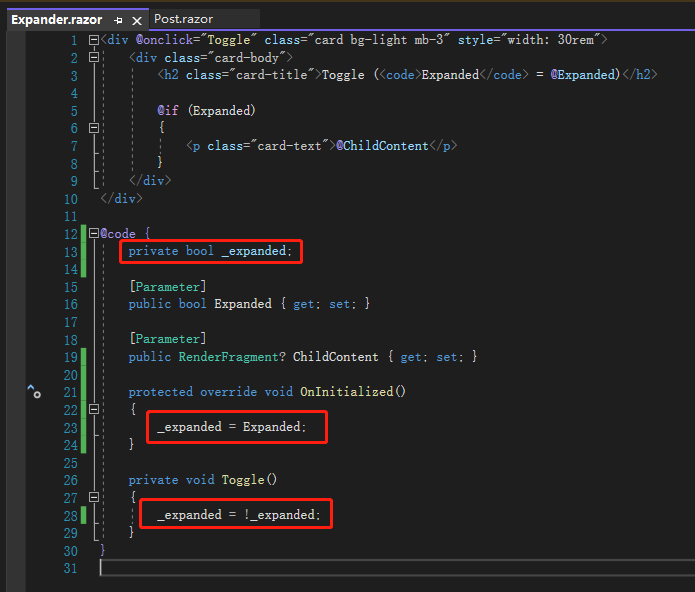
The above explanation might not be clear. Let's look at an example from Microsoft. First, create an expander component that does a simple thing: clicking the <div> collapses or expands the content. There is also a ChildContent of type RenderFragment, which allows the external component using this component to define the content template.

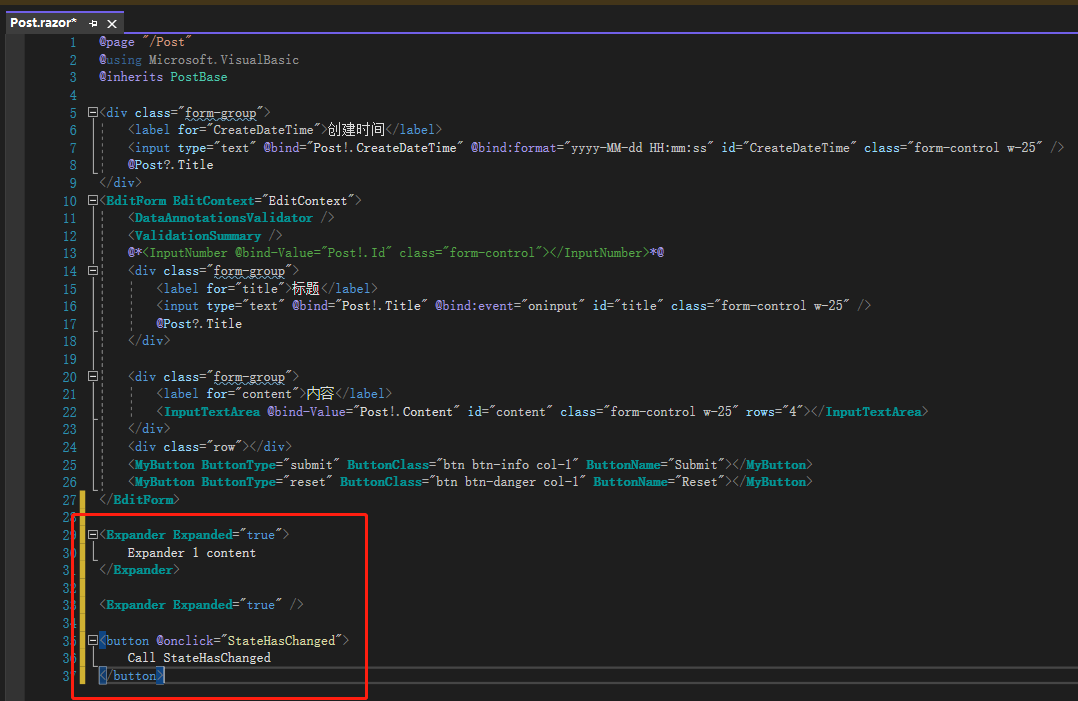
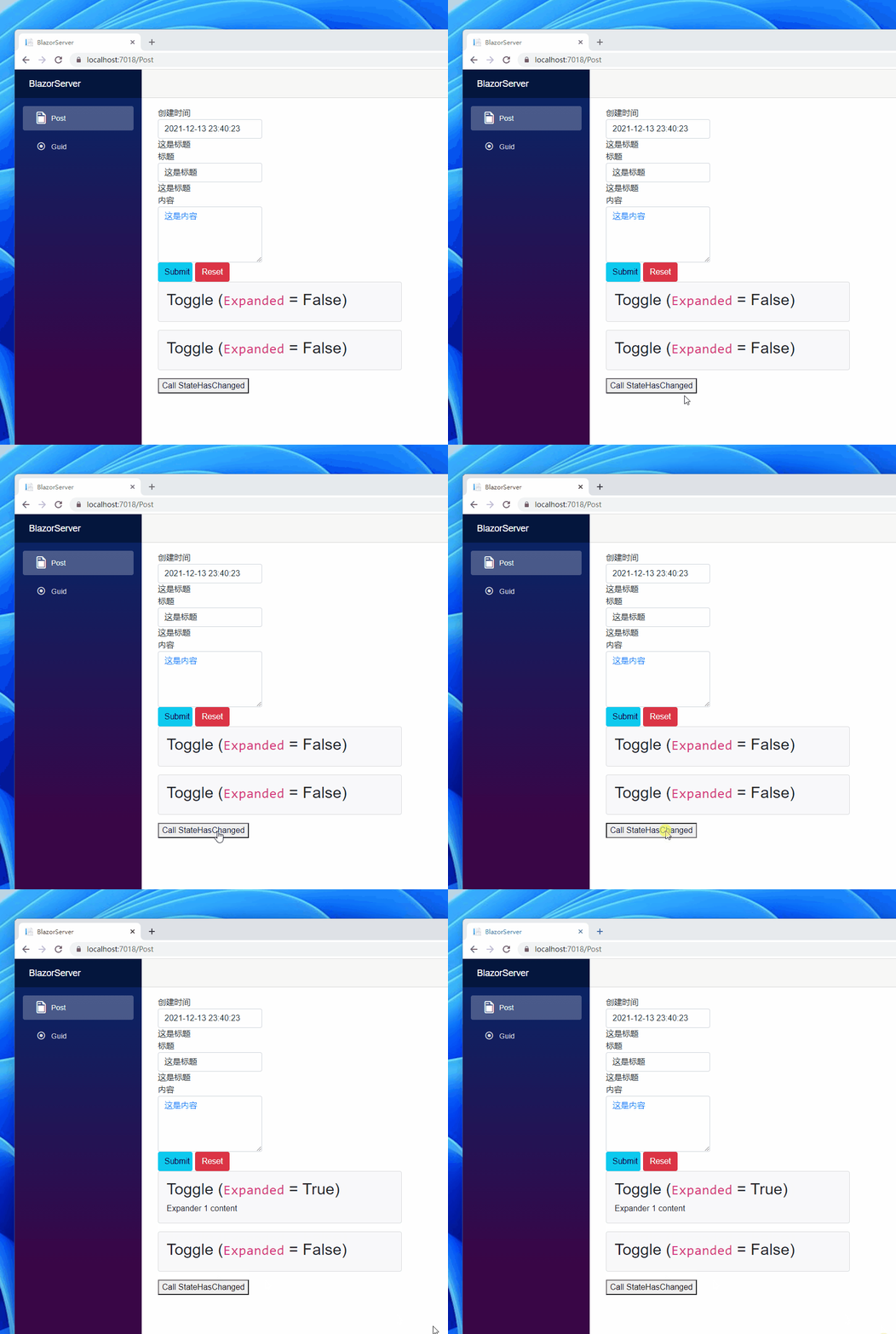
Then, in Post.razor, call two Expander components. The first one uses ChildContent and includes a <p> element. Finally, there is a button with the @onclick="StateHasChanged" event, simulating the parent component's StateHasChanged event.

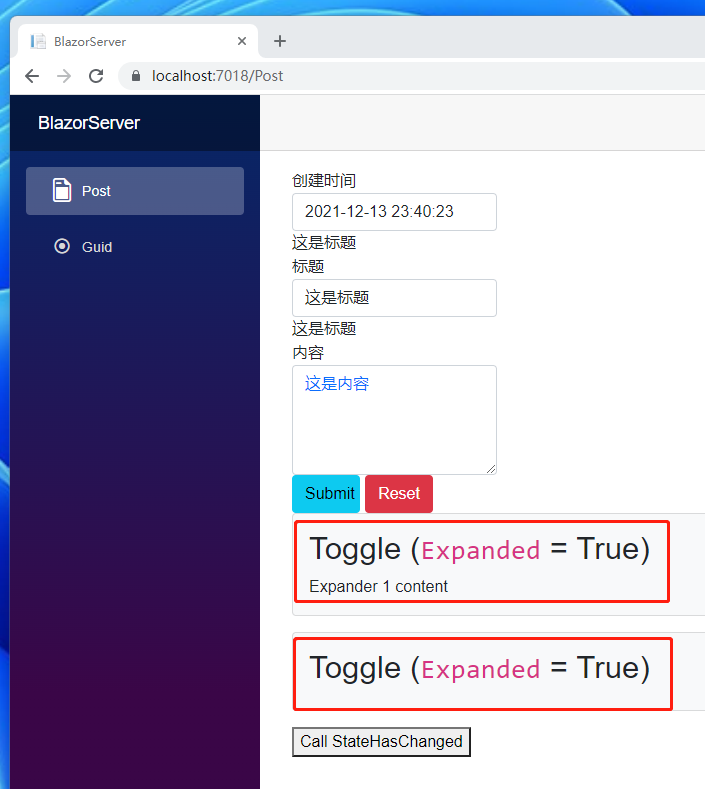
When you open the web page, you can see that both Expander components have their Expanded property set to True.

Then click both Expander components, and you can see that their Expanded properties all become False.

However, if you then click the button at the bottom, you'll notice that only the first Expander's Expanded becomes True. Why is that?

The reason lies in the parent component's state and the ChildContent property. Because the parent component's state changes, it re-renders and passes new data to the first child, so its Expanded is reset to true. The second child, since it does not receive ChildContent, does not re-render.
To avoid this problem, you can define a private field named _expanded. When the component is initialized, it saves the Expanded value passed from the parent component, and all subsequent logic is based on _expanded.

References:
Note: The code in this article is refactored using .NET 6 + Visual Studio 2022. You can click the original link to compare with the refactored code. Thank you for reading and supporting the original author.