
1. 开发了一个摸鱼 App
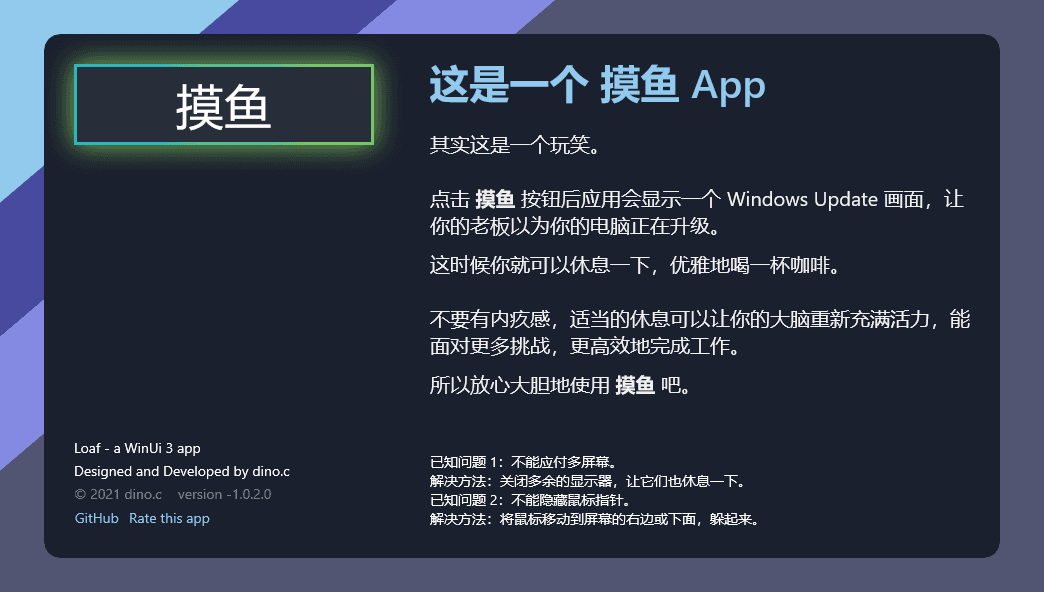
我做了一个简单的 App:摸鱼。
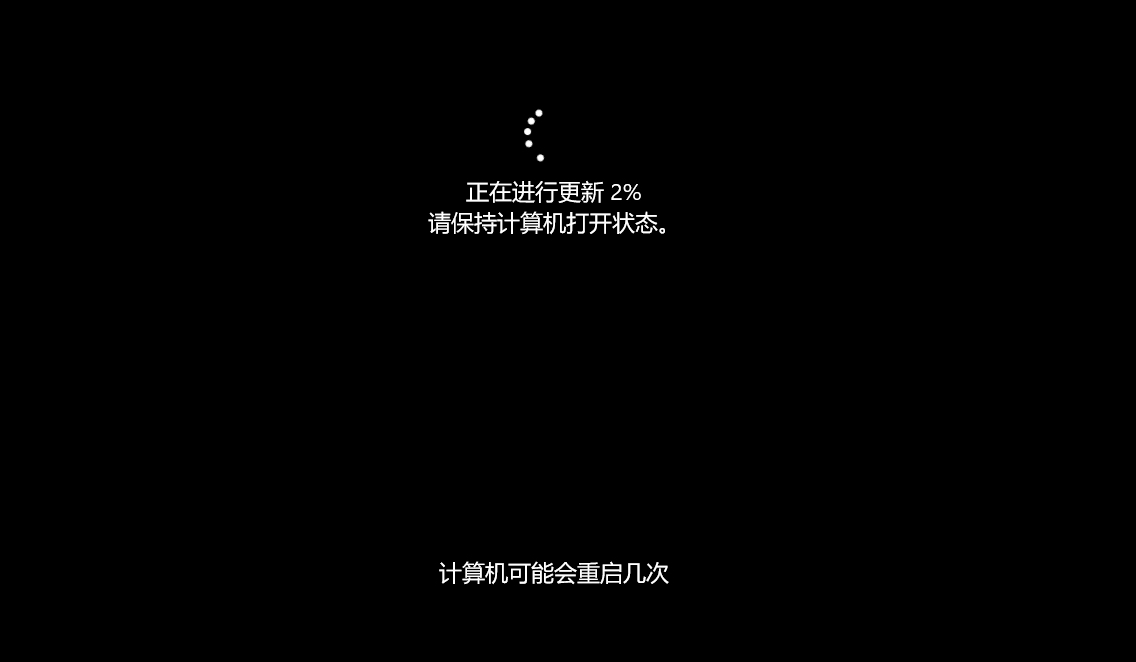
如上图所示,这个 App 就只有一个按钮,点击后假装开始 Windows Update,然后用户就可以光明正大地摸鱼了。
不要小看摸鱼,所有天才的点子都不是敲键盘时激发的。在工作遇到阻滞时,越是投入工作越是找不到解决方案,这时候把目光从屏幕挪开,说不定在一边洗澡一边玩着小黄鸭时,一边发呆一边看着窗外时,一边睡觉一边扣肚子时,解决问题的灵感突然就掉进了脑海里。
所以我恬不知耻地将这个 App 发布到了 高效工作 分类,微软还通过了,现在可以在这里下载到这个应用:
https://www.microsoft.com/zh-cn/p/loaf-a-winui3-app/9ndj3q12nrrm

当然,如标题所说,这是个 WinUI 3 App。
2. 什么是 WinUI 3

WinUI 3 是随 Windows App SDK 提供的适用于 Windows 桌面应用程序和 UWP 应用程序的本机用户体验 (UX) 框架。简单来说,WinUI 3 将 UWP 的 UI 层分离出来给 Win32 Windows App 使用。为了更好地理解 WinUI 3 可以参考下面的链接:
- Windows UI 库 (WinUI) - Windows apps
- Windows UI 库 (WinUI) 3 - Windows apps
- 通过 Windows 应用 SDK 生成桌面 Windows 应用 - Windows apps
- Windows 应用 SDK 的稳定通道发行说明 - Windows apps
- microsoftmicrosoft-ui-xaml Windows UI Library_ the latest Windows 10 native controls and Fluent styles for your applications
- microsoft-ui-xaml_roadmap
- WinUI 3 试玩报告
- WinUI 3 Preview 3 发布了,再一次试试它的性能
经过长久的等待,最近,WinUI 3 好像悄悄地发布了正式版。既没有大型的宣传,又没有集成在刚刚发布的 Visual Studio 2022 里,甚至没看到像样的邮件或新闻、博客,查文档的话它好像和 Windows App SDK 一起发布了,总之现在 WinUI 3 的 1.0 版本能用了。在把玩了一番后我觉得暂时不能把自己的 App 迁移到 WinUI 3,虽然我已经期待了很久很久。因为不能对现有应用动手,又为了更深入尝试 WinUI 3,我做了“摸鱼”这个小应用。
3. 开发过程
下面来说说开发过程。总体来说挺好玩,但也有很多挑战。
首先,如果要使用 Visual Studio 2022 开发 WinUI 3 的 C# App,需要下载 Visual Studio 2022 的扩展:WindowsAppSDK.Cs.Extension.Dev17.Standalone.vsix。安装扩展后才可以创建 WinUI 3 项目。

C++ 或 Visual Studio 2019 的扩展可以在以下文档找到各自的下载链接:
Windows 应用 SDK 的稳定通道发行说明 - Windows apps
创建好项目后就会发现 WinUI 3 没有设计视图(以后应该也不会有),所以这时候最好还是再创建一个 UWP 项目,在 UWP 项目中把 XAML 设计好再复制到 WinUI 3 项目。
迁移过程中需要将大部分 Windows.* 命名空间替换成 Microsoft.*。不过 Win2D 里还在用 Windows.* 命名空间,所以搞得有些混乱。
然后就是引用各种包,微软自己管理的 UWP 最常用的包大致上都有对应的 WinUI 版本,例如 Microsoft.Toolkit.Uwp.UI 替换为 CommunityToolkit.WinUI.UI,而 Win2D.uwp 替换为 Microsoft.Graphics.Win2D。
UWP 大部分开发经验都可以用在 WinUI 3 上,在 摸鱼 这个小 App 里遇到最大的问题是 Window 管理。可能 WinUI 3 的 Window Api 还没想好,导致连修改标题都很麻烦,需要用到好几行代码:
namespace SampleApp
{
    /// <summary>
    /// An empty window that can be used on its own or navigated to within a Frame.
    /// </summary>
    public sealed partial class MainWindow : Window
    {
        private AppWindow m_appWindow;

        public MainWindow()
        {
            this.InitializeComponent();
            // Get the AppWindow for our XAML Window
            m_appWindow = GetAppWindowForCurrentWindow();
            if (m_appWindow != null)
            {
                // You now have an AppWindow object and can call its methods to manipulate the window.
                // Just to do something here, let's change the title of the window...
                m_appWindow.Title = "WinUI ❤️ AppWindow";
            }
        }

        private AppWindow GetAppWindowForCurrentWindow()
        {
            IntPtr hWnd = WinRT.Interop.WindowNative.GetWindowHandle(window);
            WindowId myWndId = Microsoft.UI.Win32Interop.GetWindowIdFromWindow(hWnd);
            return AppWindow.GetFromWindowId(myWndId);
        }
   }
}
进入全屏的代码也和 UWP 不一样:
///进入全屏
m_appWindow.SetPresenter(AppWindowPresenterKind.FullScreen);
///退出全屏
m_appWindow.SetPresenter(AppWindowPresenterKind.Default);
而且全屏和 UWP 还不一样,没法按 Esc 键退出全屏,也没有了屏幕顶部隐藏的标题栏。所以要自己捕获全局的 Esc 键事件再调用代码退出全屏(至于平板状态怎么退出全屏我就不知道了)。
还有一点,WinUI 3 和 UWP 的样式有些不一样,例如 ProgressRing 的样式就不是 Windows 8 以来那个几个点转圈圈的样式。幸好可以把 UWP 的 Style 复制过来,只需简单修改一下。
虽然开发过程遇到很多问题,对这个小 App 来说还算轻松愉快。有趣的是,当遇到 WinUI 3 没提供想要的 API 的时候可以直接调用 Win32 API 实现需求。更有趣的是,这些 Win32 API 有些有效,有些无效。
所有代码完成后,最后一步是发布到商店,幸好发布流程和 UWP 的基本一致,现在已经可以在商店下载这款 App。
4. 遇到的问题
没有设计视图,这是个很严重的问题。我自己倒是还可以接受,因为起码还有热重载可用,但对入门不友好。
文档混乱,几乎所有 UWP 和 Windows App SDK 的文档合并了,这就要命了,真的要命,例如 WinUI 3 的文档有指向 Mica 的导航,明明 WinUI 3 都不支持 Mica。现在在 https://docs.microsoft.com/en-us/windows/apps/ 页面里甚至找不到 UWP 的入口,总之无论 UWP 还是 Windows App SDK 的文档都一片混沌。
Demo 没用,给我 UWP 的 Demo 就算了,连 Windows 8 的 Demo 都给我端上来就过分了。
Windows App SDK 这个名字本身就不好,所有引擎搜出来一大堆 Windows 的东西,但不是 Windows App SDK 的。
没有 Background acrylic 和 RevealBoraderBrush,Win2D 也缺了 CanvasAnimatedControl,这些东西的缺失提高了从 UWP 迁移到 WinUI 3 的难度。
从开发到发布一路上遇上各种一言难尽的 Bug 和小问题。
5. 最后
我记得当年 WinForms、WPF、Silverlight 的入门都相当轻松,后面微软的各个 UI 越来越难,而 WinUI 3 更是最难的一个。比起 UWP,WinUI 3 本应该有巨大的优势,但现在我建议暂时还是再等等新版本。玩玩小应用可以,生产环境要谨慎。
倒是 WinUI 2 好像越来越好玩,或者我们可以一边玩 WinUI 2 一边等 WinUI 3 的新版本。
6. 源码
https://github.com/DinoChan/Loaf
作者:Dino.C
出处:https://www.cnblogs.com/dino623/p/developing_an_app_with_winui3.html
版权:本文采用「CC BY 4.0」知识共享许可协议进行许可。