
前几天我在做一个副业,意识到我需要使用一些 JavaScript 功能。一想到要再次处理 Node.js 和 npm,我就完全放弃了,所以我决定研究一下在 .NET 应用程序中运行 JavaScript 的可能性。很疯狂吧?实际上,这出乎意料的简单。
1. 你为什么要这样做?
尽管我很喜欢 .NET 生态系统,但有些事情,JavaScript 生态系统做得更好。其中之一就是任何事情都能找到一个库,特别是涉及到网络时。
以语法高亮为例。这可以直接用 C# 来做,但这不是一个特别流畅的体验。例如,TextMateSharp 项目为 TextMate 语法提供了一个解释器。这些文件是 VS Code 用来为一种语言添加基本语法高亮的。然而,如果你想部署应用程序,它包装了一个本地依赖,这就增加了一些复杂性。
相比之下,JavaScript 有大量成熟的语法高亮库。仅举几例,有 highlight.js、Prism.js(在本博客中使用)和 shiki.js。尤其是前两个,非常成熟,有多个插件和主题,而且有简单的 API。
作为一个 .NET 开发者,JavaScript 的明显问题是,你需要学习并选择进入一个完整的独立工具链,与 Node.js 和 NPM 一起工作。这似乎是一个很大的开销,只是为了使用一个小功能。
因此,我们陷入了一个困境。我们要么走 C#(+ Native)路线,要么就得转用 JavaScript。
或者......我们直接从我们的 .NET 应用程序中调用 JavaScript 🤯
2. 在 .NET 中运行 JavaScript
一旦你决定在你的 .NET 代码中运行 JavaScript,你就会考虑几个选择。你可以借用 JavaScript 引擎,让它为你运行你的 JavaScript,但你并没有真正解决问题,你仍然需要安装 Node.js。
另一个选择是在你的库中直接捆绑 JavaScript 引擎。这并不像听起来那么疯狂,有几个 NuGet 包采用了这种方法,然后暴露出一个 C# 层来与引擎进行交互。
下面是你可以使用的一些包的列表。
Jering.JavaScript.NodeJS
这个库采取了上述的第一种方法。它不包括包中的 Node.js。相反,它为执行 JavaScript 代码提供了一个 C# API,并调用了安装在你机器上的 Node.js。这在你知道两者都已安装的环境中可能很有用,但它并没有真正解决我想避免的问题。
ChakraCore
ChakraCore 是 Edge 转为基于 Chromium 引擎之前最初使用的 JavaScript 引擎。根据 GitHub 项目的介绍:
ChakraCore是一个带有 C 语言 API 的 JavaScript 引擎,你可以用它来为任何 C 语言或 C 语言兼容项目添加对 JavaScript 的支持。它可以在 Linux macOS 和 Windows 上针对 x64 处理器进行编译。而 x86 和 ARM 只适用于 Windows。
因此,ChakraCore 包括一个本地依赖,但由于 C# 可以 P/Invoke 到本地库,这本身并不是一个问题。但它会带来一些部署方面的挑战。
ClearScript (V8)
Node.JS、Chromium、Chrome 和最新的 Edge 使用的都是 V8 JavaScript 引擎。Microsoft.ClearScript 包为该库提供了一个封装,为调用 V8 库提供了一个 C# 接口。就像 ChakraCore 一样,V8 引擎本身是一个本地依赖。ClearScript 库负责 P/Invoke 调用,提供了一个很好的 C# API,但你仍然要确保你在目标平台上部署了正确的本地库。
Jint
Jint 很有意思,因为它是一个完全在 .NET 中运行的 JavaScript 解释器,没有任何本地的依赖!它完全支持 ECMAScript 5.1 (ES5),并支持 .NET Standard 2.0,所以你可以在你的所有项目中使用它!
Jurassic
Jurassic 是另一个 JavaScript 引擎的 .NET 实现,类似于 Jint。也和 Jint 类似,它支持所有的 ES5,而且似乎也部分支持 ES6。与 Jint 不同的是,Jurassic 不是一个解释器,它将 JavaScript 编译成 IL,这使得它的速度非常快,而且它没有本地的依赖性。
那么,在所有这些选择中,你应该选择哪一个?
3 JavaScriptEngineSwitcher:当一个 JS 引擎不够用的时候
还有一个伟大的项目可以让你简单地尝试上面其中的任何一个库。虽然所有的库都允许你运行 JavaScript,但它们都有略微不同的 C# API 来与之交互。这可能会使比较它们变得有点痛苦,因为你必须为每个库学习不同的 API。
JavaScriptEngineSwitcher 这个库为我提到的所有库和更多的库提供了封装:
- Jering.JavaScript.NodeJS
- ChakraCore
- Microsoft ClearScript.V8
- Jint
- Jurassic
- MSIE JavaScript Engine for .NET
- NiL.JS
- VroomJs
每个库都在一个单独的包中(有本地依赖关系的引擎需要一个额外的本地包),还有一个 Core 包,它提供通用的 API。即使你不打算切换 JS 引擎,我也倾向于尽可能地使用 JavaScriptEngineSwitcher 封装库,这样你就不必在以后需要切换引擎时弄清楚一个新的 API 了。
在 .NET 项目中改变使用的 JavaScript 引擎在我看来是完全可能的。例如,我开始使用 Jint,但当我需要执行更大的脚本时,我遇到了性能问题,于是换成了 Jurassic。JavaScriptEngineSwitcher 让这一切变得很简单,只需在我的项目中添加一个新的包并改变一些初始化代码即可。
我最近才发现 JavaScriptEngineSwitcher 这个库,但最新版本的下载量已接近一百万,它被用于 .NET 静态网站建设者 Statiq 中。在这篇文章的最后部分,我将举一个最基本用法的例子。
4 案例:用 JavaScriptEngineSwitcher 在控制台应用中运行 prism.js
在这篇文章的开头,我讨论了一个特定的场景--代码块的语法高亮。在本节中,我将展示如何使用 prism.js 高亮一小段代码,并在一个控制台应用程序中运行。
开始之前请添加 JavaScriptEngineSwitcher.Jurassic NuGet 包的引用。
dotnet add package JavaScriptEngineSwitcher.Jurassic
接下来,下载你想运行的 JavaScript 文件。例如,我从 Prism.js 的官网下载了 prism.js 文件,并将 C# 添加到默认支持高亮的语言集。在把文件放到项目文件夹的根目录后,我把文件更新为嵌入资源。你可以在你的 IDE 中操作,也可以手动编辑项目文件:
<Project Sdk="Microsoft.NET.Sdk">

  <PropertyGroup>
    <OutputType>Exe</OutputType>
    <TargetFramework>net6.0</TargetFramework>
    <ImplicitUsings>enable</ImplicitUsings>
    <Nullable>enable</Nullable>
  </PropertyGroup>

  <ItemGroup>
    <PackageReference Include="JavaScriptEngineSwitcher.Jurassic" Version="3.17.4" />
  </ItemGroup>

  <!-- 👇 Make prism.js an embedded resource -->
  <ItemGroup>
    <None Remove="prism.js" />
    <EmbeddedResource Include="prism.js" />
  </ItemGroup>

</Project>
剩下的就是编写代码,在我们的程序中运行脚本。下面的代码段设置了 JavaScript 引擎,从程序集中加载嵌入的 prism.js 库,并执行它。
using JavaScriptEngineSwitcher.Jurassic;

// Create an instance of the JavaScript engine
IJsEngine engine = new JurassicJsEngine();

// Execute the embedded resource called JsInDotnet.prism.js from the provided assembly
engine.ExecuteResource("JsInDotnet.prism.js", typeof(Program).Assembly);
现在我们可以在同一个上下文中运行我们自己的 JavaScript 命令。我们可以通过使用 SetVariableName、Execute 和 Evaluate 从 C# 向 JavaScript 引擎传递数值:
// This is the code we want to highlight
string code = @"
using System;

public class Test : ITest
{
    public int ID { get; set; }
    public string Name { get; set; }
}";

// set the JavaScript variable called "input" to the value of the c# variable "code"
engine.SetVariableValue("input", code);

// set the JavaScript variable called "lang" to the string "csharp"
engine.SetVariableValue("lang", "csharp");

// run the Prism.highlight() function, and set the result to the "highlighed" variable
engine.Execute($"highlighted = Prism.highlight(input, Prism.languages.csharp, lang)");

// "extract the value of "highlighted" from JavaScript to C#
string result = engine.Evaluate<string>("highlighted");

Console.WriteLine(result);
当你把它们放在一起运行时,高亮的代码会被打印到控制台:
<span class="token keyword">using</span>
<span class="token namespace">System</span
><span class="token punctuation">;</span>

<span class="token keyword">public</span>
<span class="token keyword">class</span>
<span class="token class-name">Test</span>
<span class="token punctuation">:</span>
<span class="token type-list"><span class="token class-name">ITest</span></span>
<span class="token punctuation">{</span>
<span class="token keyword">public</span>
<span class="token return-type class-name"
  ><span class="token keyword">int</span></span
>
ID <span class="token punctuation">{</span>
<span class="token keyword">get</span><span class="token punctuation">;</span>
<span class="token keyword">set</span><span class="token punctuation">;</span>
<span class="token punctuation">}</span>
<span class="token keyword">public</span>
<span class="token return-type class-name"
  ><span class="token keyword">string</span></span
>
Name <span class="token punctuation">{</span>
<span class="token keyword">get</span><span class="token punctuation">;</span>
<span class="token keyword">set</span><span class="token punctuation">;</span>
<span class="token punctuation">}</span>
<span class="token punctuation">}</span>
渲染后,看起来像这样:
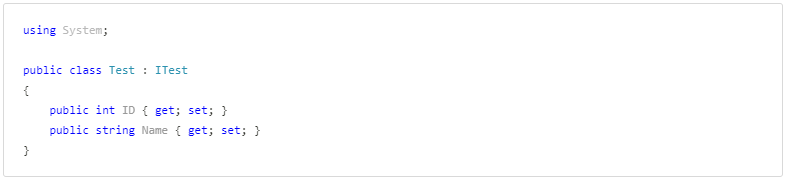
我对整个过程的简单程度感到惊讶。启动一个 JavaScript 引擎,加载 prism.js 文件,并执行我们的自定义代码是如此顺利。这是我面临问题的完美解决方案。
我显然不建议所有的应用程序都这样做。如果你需要运行大量的 JavaScript,那么直接使用 Node.js 生态系统及工具可能更容易。但如果你只是想利用一个小型的、独立的工具(如 prims.js),那么这是一个不错的选择。
5 总结
在这篇文章中,我展示了如何使用 JavaScriptEngineSwitcher NuGet 包来在 .NET 应用程序中运行 JavaScript。这个包为许多不同的 JavaScript 引擎提供了一个一致的接口。其中一些引擎(如 Chakra Core 和 V8)需依赖一个本地组件,而其他引擎(如 Jint 和 Jurassic)只使用托管代码。最后,我展示了你如何使用 JavaScriptEngineSwitcher 在 .NET 应用程序内部运行 Prims.js 代码高亮库。
原文:https://andrewlock.net/running-javascript-in-a-dotnet-app-with-javascriptengineswitcher/
作者:Andrew Lock
翻译:精致码农