.NET Core 3.1 Upgrade to .NET 8

.NET Core 3.1 Upgrade to .NET 8

.NET Core 3.1 has been used for a long time. Actually, Microsoft stopped supporting it at the end of 2022. The subsequent LTS version .NET 6 will also end support in November 2024, so upgrading directly to .NET 8 is the best choice.

Last updated 12/8/2023 5:27 AM
不止dotNET
5 min read
Category
.NET
Tags
.NET C# Technology Updates

.NET Core 3.1 has been in use for quite a long time. In fact, Microsoft stopped supporting it at the end of 2022, and the subsequent LTS version, .NET 6, will also reach end of support in November 2024. Therefore, upgrading directly to .NET 8 is the best choice.

Microsoft has officially released an upgrade tool: Upgrade Assistant.

With the upgrade tool, the upgrade process becomes very simple. This article introduces how to use the Upgrade Assistant to upgrade a .NET Core 3.1 project to .NET 8.

Installing the Upgrade Assistant

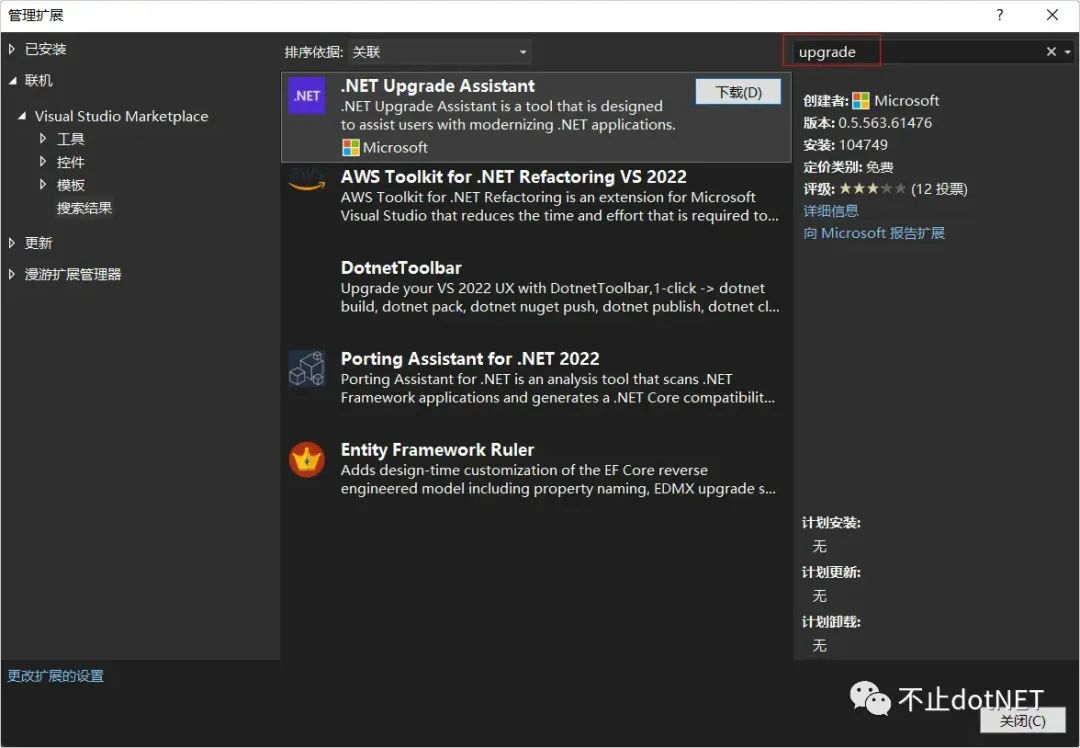
First, ensure that VS2022 has been updated to version 17.8. Then, install the extension " .NET Upgrade Assistant " via the Extensions Manager in VS2022. Note that if you have previously installed an older version of this extension, you need to uninstall it and then reinstall it.

Image

Upgrading the Project

A .NET Core 3.1 solution often contains many projects. Following the dependency relationships between projects, upgrade them one by one starting from the bottom-level projects.

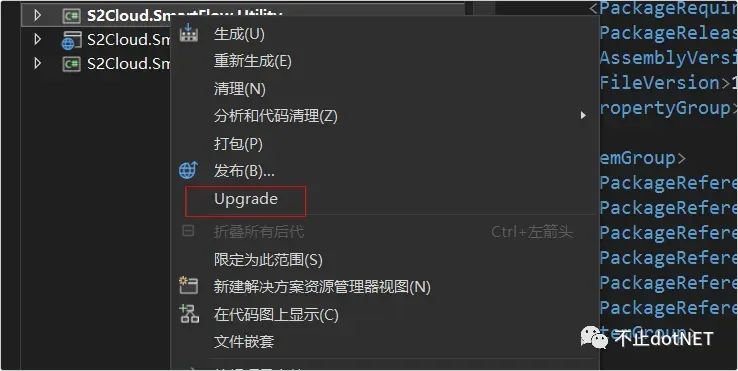
  1. After installing the upgrade tool, right-click on the project and the "Upgrade" button will appear:

Image

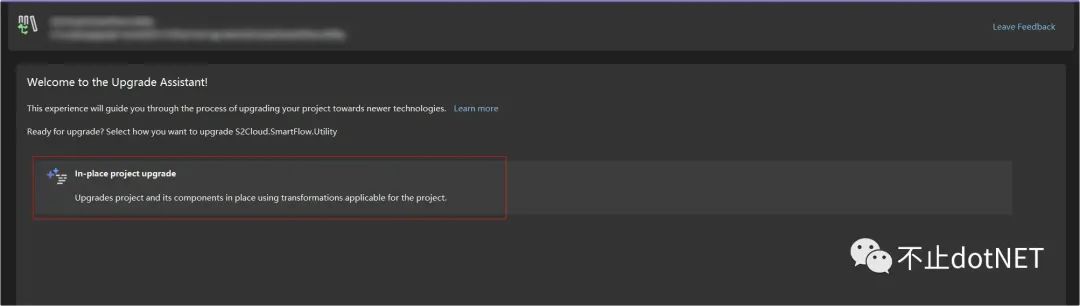
  1. In the pop-up window, choose the upgrade mode:

Image

  1. Select the target version for the upgrade. Here I chose .NET 8, which is a long-term support version. The latest version of the upgrade tool only supports upgrading to versions 7 and 8. If you need to upgrade to .NET 6, you must use an older version:

Image

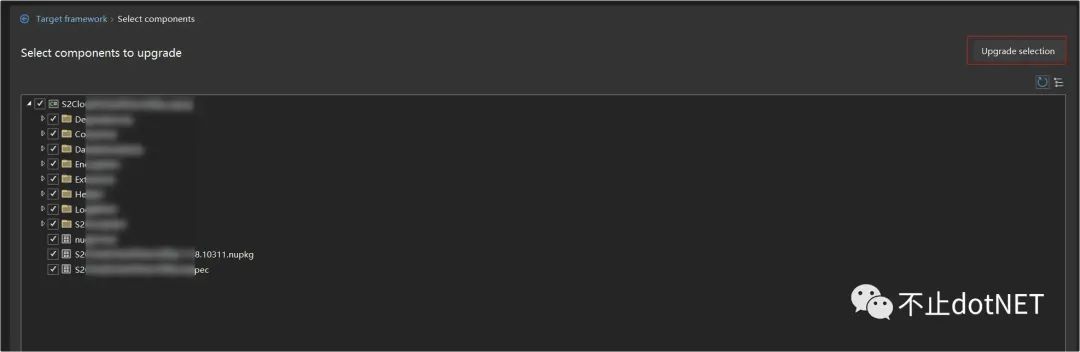
  1. Choose the items that need updating (all are selected by default) and click "Upgrade selection" to begin:

Image

  1. Soon you will see a success message:

Image

Compilation

I have tested several older projects, and no errors occurred during the upgrade process itself. However, after the upgrade, various compilation errors appeared when building the code.

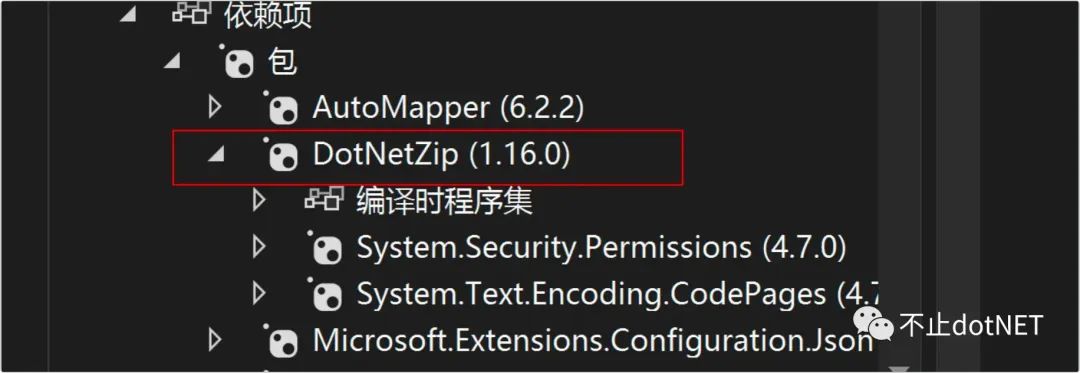
Issue 1: Ionic.Zip

In the original version, the project used Ionic.Zip for zip compression. This library is no longer supported in .NET 8 and needs to be replaced with DotNetZip:

Image

Issue 2: BinaryFormatter is Obsolete

The code uses binary serialization in several places, but BinaryFormatter is deprecated in .NET 8. There are two ways to resolve this:

  1. Modify the source code and replace it with the new recommended approach.
  2. Ignore the issue by modifying the project file to add the following configuration:
<Project Sdk="Microsoft.NET.Sdk">
  <PropertyGroup>
   ...
   <NoWarn>$(NoWarn);SYSLIB0011</NoWarn>
  </PropertyGroup>
</Project>

Reference: https://learn.microsoft.com/en-us/dotnet/fundamentals/syslib-diagnostics/syslib0011

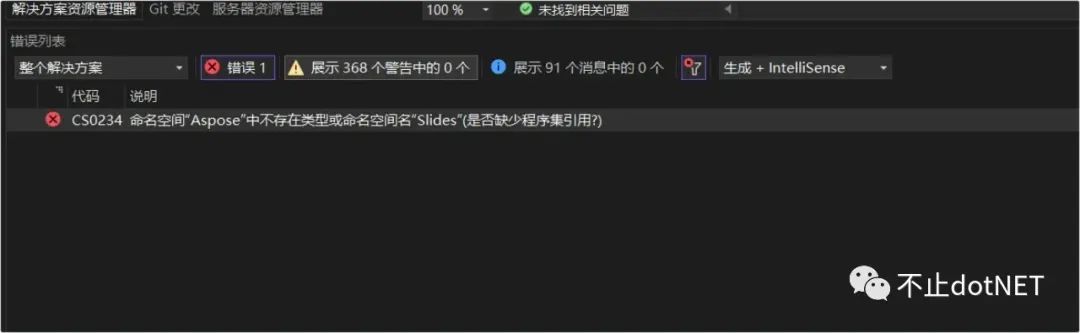
Issue 3: Aspose Usage Issues

The project uses the Aspose suite for processing Office files. After the upgrade, there may be compatibility issues with the version. Simply upgrade to the corresponding supported version.

Image

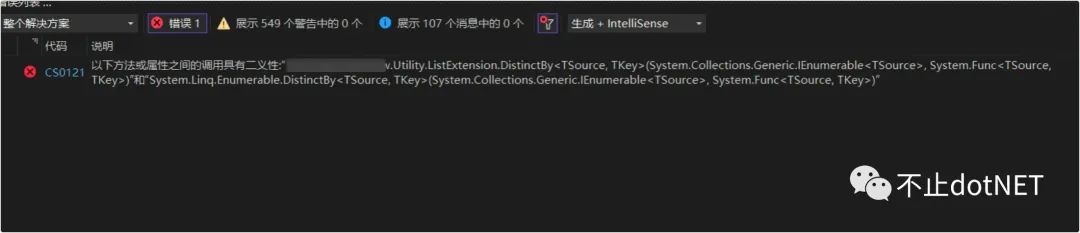
Issue 4: Ambiguous Method Call

In previous versions, if a List stored a complex type, there was no built-in way to directly deduplicate based on a specific field:

List<UserInfo> list = new List<UserInfo>();
list.Add(new UserInfo() { Name="oec2003",Age=18});
list.Add(new UserInfo() { Name = "oec2003" ,Age=18});
list.Add(new UserInfo() { Name = "oec2004" ,Age=18});

var distnctList = list.DistinctBy(x=>x.Age);

foreach (var item in distnctList)
{
    Console.WriteLine(item.Name);
}

public class UserInfo
{
    public string Name { get; set; }
    public int Age { get; set; }
}

The DistinctBy method in the code above does not exist in .NET Core 3.1, so we had to create a custom extension method. However, .NET 8 now provides this method by default, which causes a conflict. Simply remove our custom extension method and use the built-in one.

Image

Running

After resolving the above compilation issues, the program starts and runs normally. The whole process is quite fast. It must be said that Microsoft's backward compatibility is excellent, and with the help of the tool, upgrading to a new version is stress-free and painless.

In comparison, although some other technologies are constantly being updated and iterated, the mainstream version in use is still a specific one.

Keep Exploring

Related Reading

More Articles