
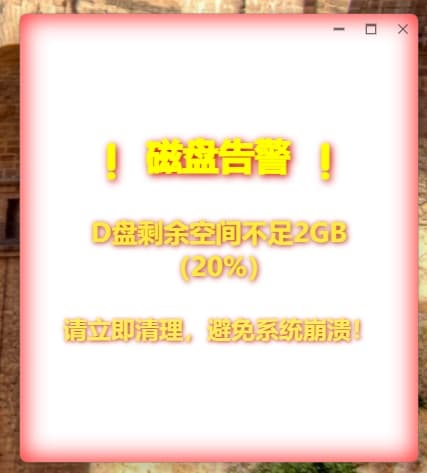
需求背景
当我们写的程序发放出去后,用户是在进行一些危险操作,我们的软件应该给一些提醒效果,比如边框边缘有红色,类似与高德地图那样子的报警提醒效果
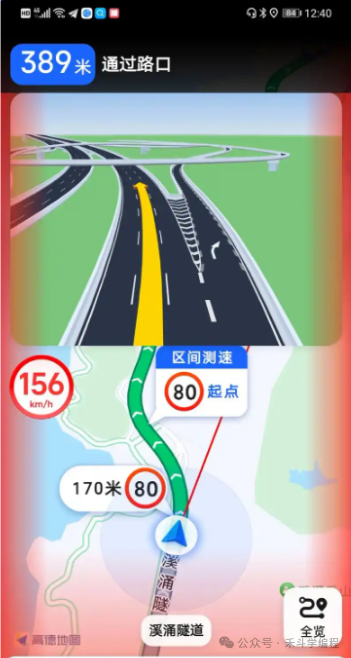
实现逻辑
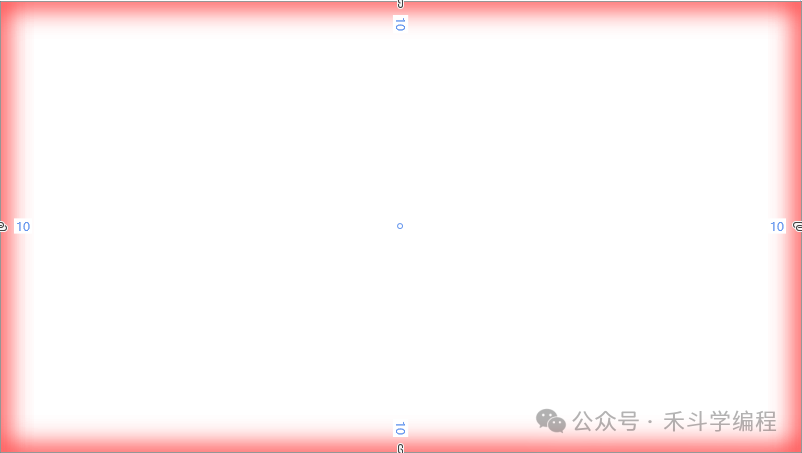
准备带边框的元素Border,我们设置他的边框线、线颜色以及Effect效果,Effect效果设置为DropShadowEffect,其中比较重要的是DropShadowEffect中的BlurRadius以及Color属性
困难点
边框线颜色如果是透明色的话,如果设置了DropShadowEffect那是不会生效的
解决办法
我们对边框线颜色设置任意一款颜色,最好是纯色的,然后我们用Grid的ClipToBounds属性将Border多余的颜色裁剪掉,这个时候你会看到Border的边框线很粗,这不是理想的效果,这个时候我们可以逆向思维,将Border的Margin设置为负数,比如BorderThickness为10,那么Margin设置为-10,这个时候我们就可以看到我们想要的效果了
<Grid CacheMode="BitmapCache" ClipToBounds="True">
    <Border Margin="-10"
            BorderBrush="#FFFF"
            BorderThickness="10"
            CacheMode="BitmapCache">
        <Border.Effect>
            <DropShadowEffect
                BlurRadius="40"
				Direction="275"
                RenderingBias="Performance"
                ShadowDepth="0"
                Color="Red" />
        </Border.Effect>
    </Border>
    <Border
            Margin="-10"
            BorderBrush="#FFFF"
            BorderThickness="10"
            CacheMode="BitmapCache">
        <Border.Effect>
            <DropShadowEffect
                 BlurRadius="40"
                 Direction="275"
                 RenderingBias="Performance"
                 ShadowDepth="0"
                 Color="Red" />
        </Border.Effect>
    </Border>
</Grid>
如果嫌颜色太浅了,我们完全可以多加几个叠加就好了
提醒:文章一定要认真看完理解再用,尽量不要复制粘贴,授人以鱼不如授人以渔,请耐心理解看完!!!
站长根据原文作者代码实现了Avalonia版本,效果如下:
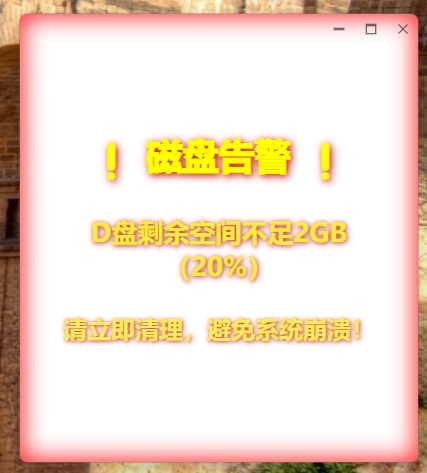
代码如下:
<u:UrsaWindow xmlns="https://github.com/avaloniaui"
        xmlns:x="http://schemas.microsoft.com/winfx/2006/xaml"
        xmlns:d="http://schemas.microsoft.com/expression/blend/2008"
        xmlns:mc="http://schemas.openxmlformats.org/markup-compatibility/2006"
        xmlns:u="https://irihi.tech/ursa"
        mc:Ignorable="d" d:DesignWidth="400" d:DesignHeight="450"
        Width="400" Height="450"
        x:Class="DeviceMrgSample.Views.WarningWindow"
        Title="WarningWindow">
	<u:UrsaWindow.Styles>
        <Style Selector="Border.warning-border">
            <Style.Animations>
                <Animation Duration="0:0:05"
                           IterationCount="Infinite"
                           PlaybackDirection="Alternate">
                    <KeyFrame Cue="0%">
                        <Setter Property="Opacity" Value="0.5"/>
                    </KeyFrame>
                    <KeyFrame Cue="100%">
                        <Setter Property="Opacity" Value="1"/>
                    </KeyFrame>
                </Animation>
            </Style.Animations>
        </Style>
        <Style Selector="Grid#gridRoot > TranslateTransform">
            <Style.Animations>
                <Animation Duration="0:0:0.3"
                          IterationCount="Infinite">
                    <KeyFrame Cue="0%">
                        <Setter Property="X" Value="0"/>
                        <Setter Property="Y" Value="0"/>
                    </KeyFrame>
                    <KeyFrame Cue="20%">
                        <Setter Property="X" Value="-10"/>
                        <Setter Property="Y" Value="5"/>
                    </KeyFrame>
                    <KeyFrame Cue="40%">
                        <Setter Property="X" Value="8"/>
                        <Setter Property="Y" Value="-7"/>
                    </KeyFrame>
                    <KeyFrame Cue="60%">
                        <Setter Property="X" Value="-12"/>
                        <Setter Property="Y" Value="3"/>
                    </KeyFrame>
                    <KeyFrame Cue="80%">
                        <Setter Property="X" Value="9"/>
                        <Setter Property="Y" Value="-4"/>
                    </KeyFrame>
                    <KeyFrame Cue="100%">
                        <Setter Property="X" Value="0"/>
                        <Setter Property="Y" Value="0"/>
                    </KeyFrame>
                </Animation>
            </Style.Animations>
        </Style>
    </u:UrsaWindow.Styles>

    <Grid x:Name="gridRoot" ClipToBounds="True">
        <Grid.RenderTransform>
            <TranslateTransform/>
        </Grid.RenderTransform>

        <Border Classes="warning-border"
                Margin="-25"
                BorderBrush="#FFFF"
                BorderThickness="25">
            <Border.Effect>
                <DropShadowEffect
                    BlurRadius="40"
                    OffsetX="0"
                    OffsetY="0"
                    Opacity="0.8"
                    Color="Red" />
            </Border.Effect>
        </Border>
        <Border
            Margin="-15"
            BorderBrush="#FFFF"
            BorderThickness="15">
            <Border.Effect>
				<DropShadowEffect
                    BlurRadius="40"
                    OffsetX="0"
                    OffsetY="0"
                    Color="Red" />
            </Border.Effect>
        </Border>

        <StackPanel VerticalAlignment="Center"
                    HorizontalAlignment="Center"
                    Margin="40">
            <TextBlock Text="❗ 磁盘告警 ❗"
                       FontSize="36"
                       FontWeight="Black"
                       Foreground="#FFFF00"
                       Margin="0 0 0 30"
                       TextAlignment="Center">
                <TextBlock.Effect>
                    <DropShadowEffect Color="#CC0000"
                                    BlurRadius="12"
                                    OffsetX="2"
                                    OffsetY="2"/>
                </TextBlock.Effect>
            </TextBlock>

            <TextBlock Text="D盘剩余空间不足2GB(20%)"
                       FontSize="26"
                       FontWeight="Bold"
                       Foreground="#FFEB3B"
                       TextWrapping="Wrap"
                       MaxWidth="280"
                       Margin="0 0 0 20"
                       TextAlignment="Center">
                <TextBlock.Effect>
                    <DropShadowEffect Color="#B71C1C"
                                    BlurRadius="8"
                                    OffsetX="1"
                                    OffsetY="1"/>
                </TextBlock.Effect>
            </TextBlock>

            <TextBlock Text="请立即清理,避免系统崩溃!"
                       FontSize="24"
                       FontWeight="SemiBold"
                       Foreground="#FFEE58"
                       TextAlignment="Center"
                       Margin="0 10 0 0">
                <TextBlock.Effect>
                    <DropShadowEffect Color="#C62828"
                                    BlurRadius="6"
                                    OffsetX="1"
                                    OffsetY="1"/>
                </TextBlock.Effect>
            </TextBlock>
        </StackPanel>
    </Grid>
</u:UrsaWindow>