I Announce: This Website Has Finally Been Refactored by Me Using AI

I Announce: This Website Has Finally Been Refactored by Me Using AI

Over the May Day holiday, I finished refactoring CodeWF with AI: Razor Pages, SEO, filtering of illegal search keywords, loading optimization, content hot updates, minimal test suite, and how to use the website repository.

Last updated 5/1/2026 9:32 PM
dotnet9
19 min read
Category
.NET AI Web Development
Topic
Websites
Tags
AI Razor Pages Website Refactoring CodeWF Performance Optimization

I’d like to make an announcement.

This website has finally been rebuilt by me using AI.

But not the kind where “AI just casually fills in a few lines of code.”

Instead, AI was deeply involved in everything: page re-creation, structural reorganization, route compatibility, SEO, load optimization, content integration, Markdown cleanup, minimal test suite, CI, and even this very article itself.

The result is straightforward.

The efficiency is ridiculously high.

So in this article, I want to formally document this refactoring and also touch on one thing:

Don’t resist AI. Forget about whether it will replace you for now—first learn how to harness it, and you’ll truly get twice the result with half the effort.

First, the results

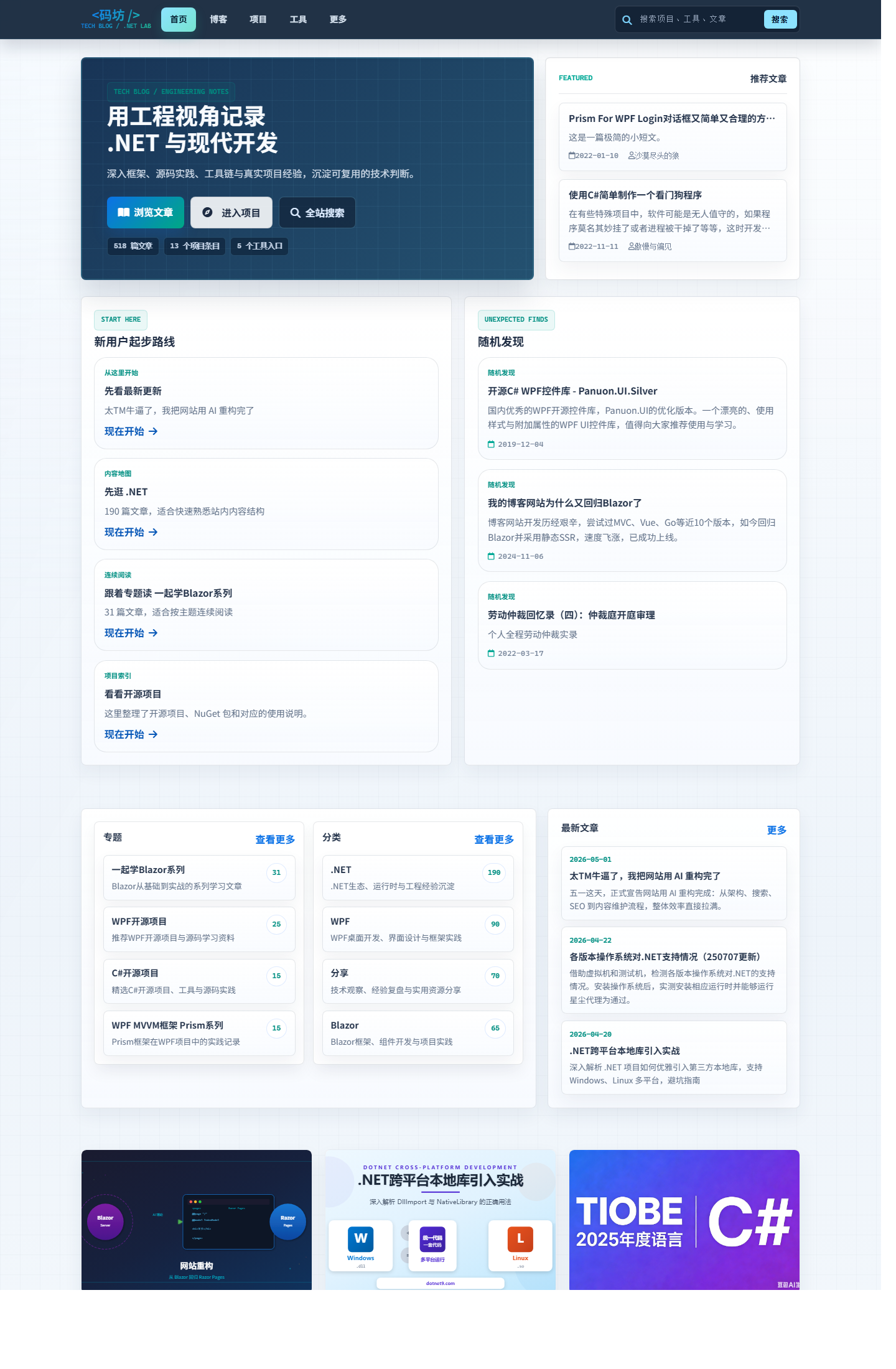
Home page

This time, the home page is no longer just “piling up content.”

I reorganized the information hierarchy: latest articles, projects, documentation, and tool access are clearer. The initial view is more focused, and it feels like a consistently maintained personal tech site rather than a patchwork of scattered pages.

It now achieves at least two things:

  1. First-time visitors immediately know what this site is about.
  2. Returning readers can find new content and common entry points faster.

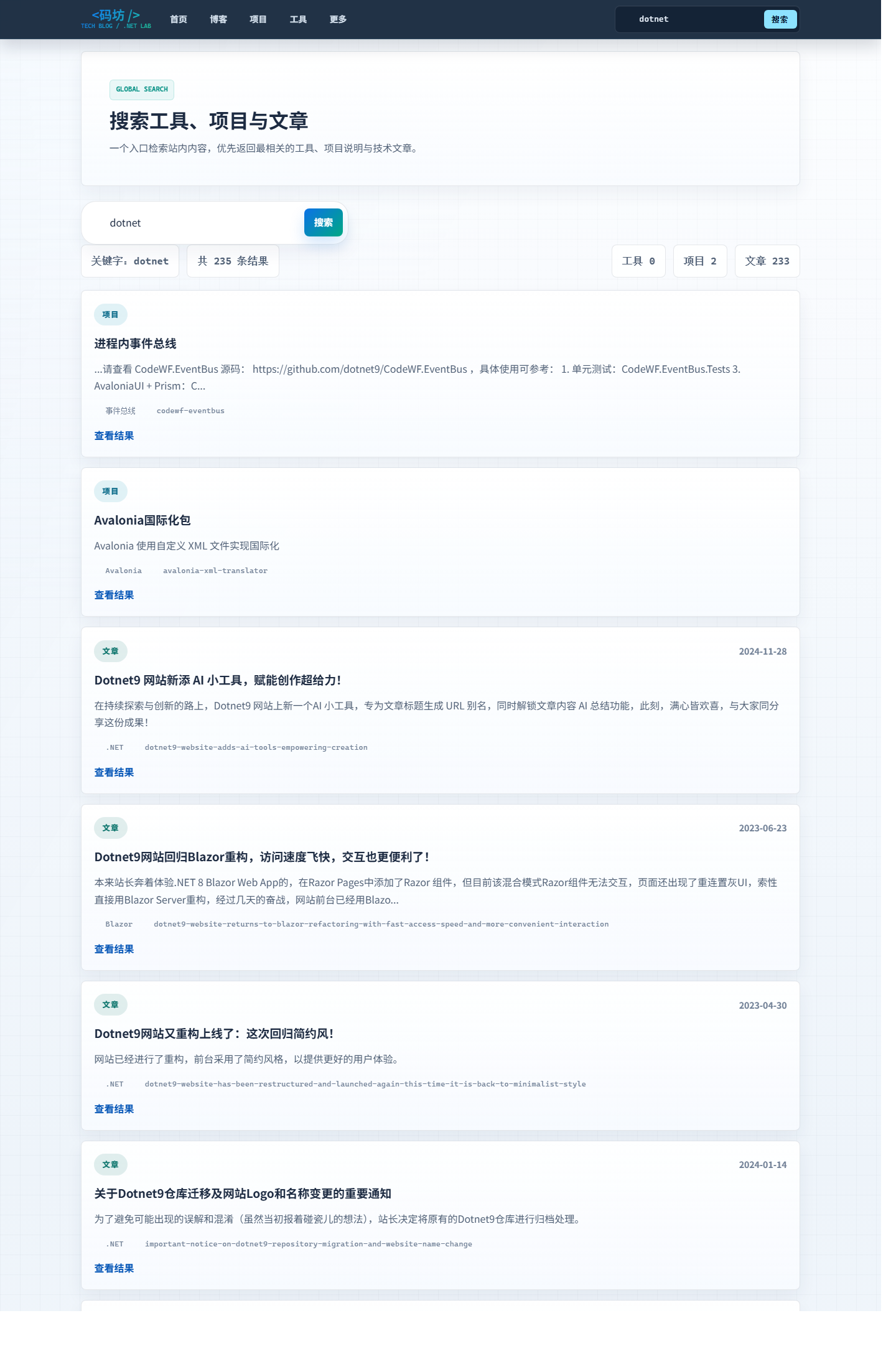
Search was something I really focused on this time.

Many personal sites in the past had search that was “just barely functional” — the experience was mediocre.

This time, I overhauled the search page, search routes, keyword handling, and result display. Most importantly, I added a very practical detail:

Illegal keyword filtering during search.

This isn’t just for show; it’s genuinely useful.

Implementation-wise, I didn’t make it complicated. The idea is straightforward:

  1. Normalize the user’s input.
  2. Match it against the word list in site/blocked-search-keywords.json.
  3. If a match is found, block it immediately so the dirty keyword doesn’t enter the search results flow.

This approach has several benefits:

  • Reduces pollution from strange keywords in search pages and logs.
  • Prevents pages from being repeatedly hit by low-quality search traffic.
  • Saves a lot of unnecessary cleanup work for a public website.

This feature is small but very much from a “site owner’s perspective.”

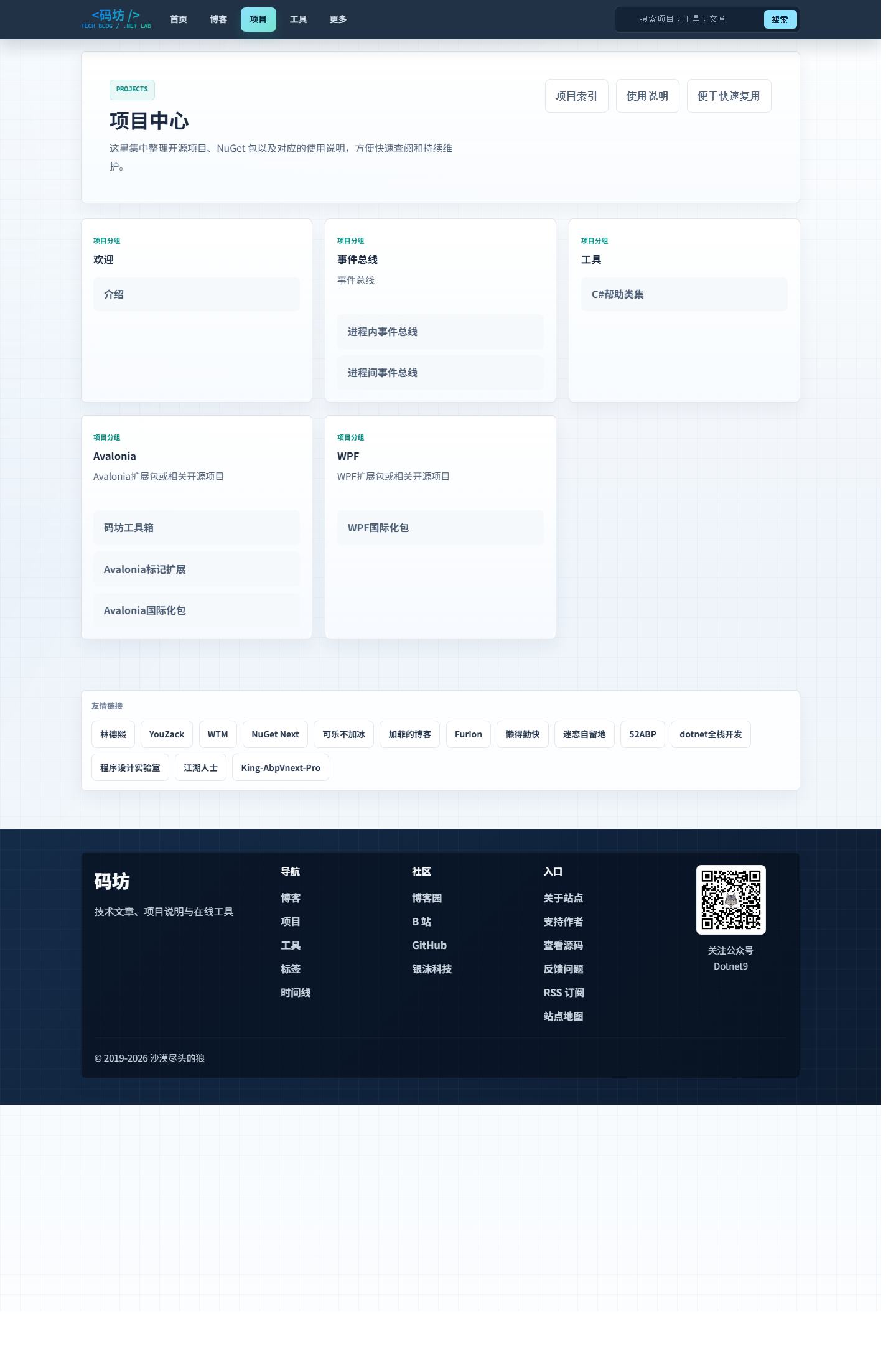
Project Center

The Project Center was also reorganized.

Previously, many projects, components, NuGet packages, and tool entry points were scattered across different articles, making it hard for readers to get an overall picture.

This time, I gathered them as much as possible into a clearer entry point.

Now you can quickly see:

  • What projects I’m working on.
  • Which ones are open-source repositories.
  • Which ones are tool-type pages.
  • Which content is ready to be used directly.

This is also important for me.

Because the site is not just “for others to see” — it’s also my own project showcase and skill archive.

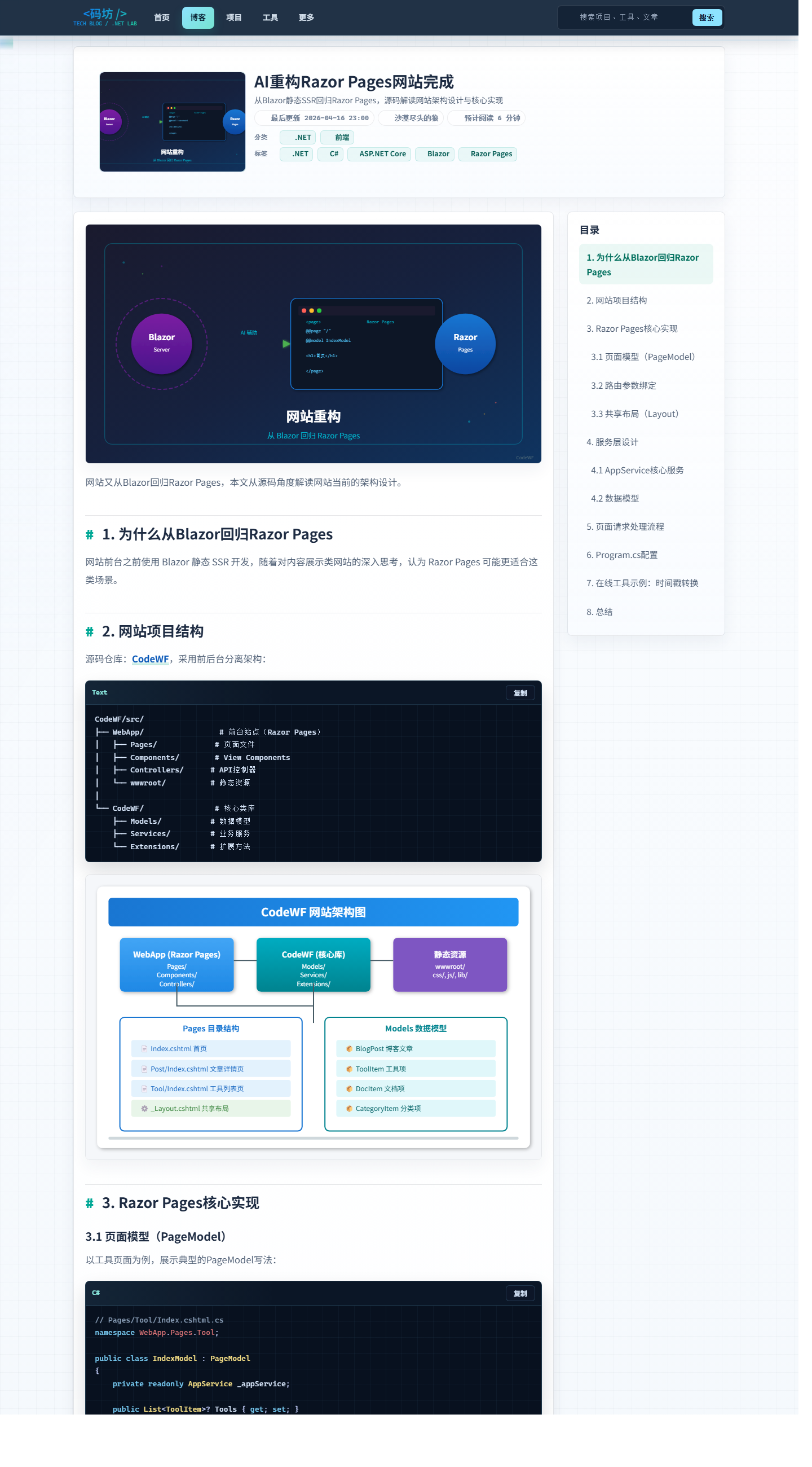
Article detail page

I paid the most attention to the article page this time.

Because for a tech site, how comfortable it is to read the main content matters more than how fancy the home page looks.

The main things I focused on:

  • Markdown rendering should no longer have weird issues.
  • Code blocks should display neatly.
  • Page information structure should be clearer.
  • Resource referencing should be as unified as possible.

Just recently, I also cleaned up a batch of historical Markdown structural anomalies in old articles, like mixed-up format fences, backtick adhesions, missing language tags, etc.

Such issues aren’t obvious day-to-day, but when they accumulate, the frontend rendering becomes very painful.

What was actually refactored this time

In one sentence:

It’s not just a facelift; it’s about reorganizing the site into something more like a “product.”

Here’s what I mainly did this time:

  • Restructured page layout.
  • Filled in route compatibility.
  • Strengthened basic SEO capabilities.
  • Redesigned the search experience.
  • Added illegal keyword filtering.
  • Separated resource domains.
  • Optimized loading performance.
  • Enabled content hot-reload.
  • Added README, minimal test suite, and CI.
  • Cleaned up historical Markdown structural issues.

If you’re a developer, you’ll understand what this means.

Often, the most time-consuming thing isn’t “writing a page,” but gradually tidying up a pile of fragmented, historically burdened, and corner-case-heavy items into a maintainable repository.

AI really helped me a lot with this.

Some implementation details

1. Separate site repository and resource repository

This time, I continued the “dual repository” approach:

CodeWF/           # Site repository
Assets.Dotnet9/   # Asset repository

CodeWF handles the site itself: pages, components, routes, rendering, and SEO.

Assets.Dotnet9 handles “content assets”: articles, configurations, images, navigation, tool data, etc.

I’ve come to really like this separation.

Because the worst fear for a content site is: editing an article accidentally messes up site logic, or editing a page tightly couples content resources.

By separating them, your mind stays much clearer.

The benefits are straightforward:

  • Clear responsibilities between site code and content assets.
  • Editing articles doesn’t disturb site logic.
  • Better suited for independent deployment and caching.
  • Easier for content synchronization and static resource acceleration later.

2. Separate site domain and resource domain

I want to highlight this detail.

The site entry and resource access are deployed on two separate domains.

All images, covers, and embedded resources from the asset repository are served from this domain:

https://img1.dotnet9.com

That’s why all the image references in this article use absolute URLs like:

https://img1.dotnet9.com/2026/05/codewf-homepage.png

This isn’t to “look professional”; it’s to avoid headaches later.

Separating site pages and resource access makes many things easier:

  • Static resource caching strategies can be applied independently.
  • Resource migration and CDN become more flexible.
  • The main site domain has less load pressure.
  • Article content becomes easier to maintain and publish independently.

3. Content supports hot-reload

I really like this feature.

Now during local development, modifying articles, JSON configs, and some image resources no longer requires restarting the site every time.

Under the hood, it uses FileSystemWatcher to monitor changes in the resource directory.

The monitored content includes:

  • Markdown
  • JSON
  • Image resources like png/jpg/webp/svg

This kind of thing is very simple, even lacking “flashy tech.”

But if you regularly write and maintain your own site and articles, you’ll know how much time it saves.

Because the most annoying part of writing articles isn’t the writing itself—it’s “edit a section, restart, view it again.”

4. This time, I also seriously worked on loading speed—here’s a simple breakdown

I didn’t chase after fancy metrics. Instead, the approach was very down-to-earth:

Fix the most obvious performance wastes first.

That means: compress what should be compressed, cache what should be cached, defer what should be deferred, and prioritize what should be prioritized.

First, compression.

I tackled this first because it has almost no side effects and offers stable benefits.

I enabled ResponseCompression in the site, activating both Brotli and Gzip, and also added image/svg+xml to the compression scope.

Text-based resources like HTML, CSS, JS, and SVG are naturally compressible. Compressing them before delivery directly reduces the initial transfer size.

This type of optimization isn’t sexy, but it’s valuable. It’s not about “theoretically faster”—it’s about the first resource download being genuinely lighter when a user opens the page.

Second, static resource caching.

This I also addressed concretely, not just saying “I did caching” in a vague way.

Files like .css, .js, .png, .jpg, .webp, .svg, fonts, and some json/txt files now carry:

Cache-Control: public,max-age=604800

That’s a one-week cache.

The logic is simple: not every page load should re-download old resources.

Especially for a blog, many resources don’t change frequently. After caching hits, the second visit becomes much smoother, with fewer unnecessary requests.

Additionally, I configured asp-append-version="true" for files like site.css, home.css, site.js, and bootstrap.min.css so they carry version parameters.

This lets me cache resources for longer without worrying that users will get stale files after an update.

The direct benefits:

  • Old resources can be cached confidently.
  • When a file changes, the URL auto-updates.
  • No need to manually clear cache or worry about users seeing outdated styles.

Third, image loading.

For images, I didn’t take a lazy “blanket approach.” Instead, I separated “list images” from “featured images.”

For non-critical images on the article list page, home page cards, category pages, etc., I uniformly use:

loading="lazy" decoding="async"

Meaning: load later if possible, decode asynchronously to avoid blocking the main thread.

But for more critical visual elements like the top cover on an article detail page, I didn’t force lazy loading. Instead, I keep normal loading while adding decoding="async" and fetchpriority="high", so the images that should be prioritized actually get priority.

I don’t like the approach of “just lazy load all images and call it optimized.” In real pages, different images have different importance and should be treated differently.

Fourth, streamlining the page rendering pipeline.

In simple terms, this reduces a very annoying situation:

Page content hasn’t appeared yet, but miscellaneous resources are already queuing up.

For example, I defer some non-critical external resources:

  • Added preconnect for cdnjs.
  • Font Awesome stylesheets use media="print" onload="this.media='all'" for async loading.
  • Prism code highlighting styles are handled similarly.
  • The Baidu analytics script no longer loads synchronously on page entry. Instead, it’s inserted after window.load, using requestIdleCallback or setTimeout.

Individually, these aren’t big deals, but together they smooth out the page loading rhythm.

Give users what they should see first, then add icons, analytics, and enhanced styles. I believe that order is more important than anything.

Fifth, SEO and access entry cleanup.

This may look like SEO on the surface, but I prefer to think of it as “reorganizing the site’s access points.”

Because content sites often don’t die from an inability to create pages, but from:

  • Search engines not knowing whether a page is truly the main content.
  • The same content having multiple entry points, diluting link authority.
  • Sharing only a bare link with incomplete card information.
  • Changing routes yourself and breaking historical and crawled links.

So this time, I took this part much more seriously.

First, the most basic layer: canonical, Open Graph, and Twitter Card.

Now pages uniformly output canonical URLs. Article detail pages explicitly set og:type to article, og:image points directly to the article’s cover, and also include publish time, update time, and author info.

These details aren’t always visible to the naked eye, but they’re crucial.

Search engines, social platforms, and aggregation tools first need to determine: is this an article or a plain page? What’s its canonical link? Which image should be used as the cover?

When these basics are incomplete, you might think “the page opens fine,” but search and sharing systems won’t agree.

Going a step deeper, I also added structured data for article pages.

Not just a title and description—I output a complete Article type JSON-LD containing:

  • headline
  • description
  • image
  • datePublished
  • dateModified
  • author
  • publisher
  • mainEntityOfPage

This has little impact on regular readers, but it greatly helps search engines understand the page’s type, identity, publish time, etc.

Then there’s RSS and sitemap. I didn’t just put up a shell.

The RSS feed now automatically outputs the latest 10 articles—not an empty link to pretend.

And the sitemap isn’t just the home page; it includes all these entry points:

  • Home
  • Blog list
  • Category pages
  • Topic pages
  • Tag pages
  • Documentation pages
  • Tool pages
  • Each article detail page

Each node also carries lastmod, changefreq, and priority.

This seems basic, but it’s critical for crawl paths. You’re essentially telling search engines which pages are more important, which are updated more frequently, and which content should be crawled first.

One small detail I care about is controlling robots.

Pages like search results are not suitable for being indexed as core content, so I add noindex,follow to specific entries to avoid unnecessary pages being indexed.

This kind of treatment is like cleaning house—not flashy, but it avoids many future problems.

Finally, access entry points and route compatibility.

This time, I also kept intuitive URLs like /blog, /search, /doc, /sitemap.xml.

This isn’t just to “make the URL look better”; it’s for two things:

  1. Users and crawlers can more easily understand the site structure.
  2. Even if page organization changes later, historical and common access paths won’t suddenly break.

So strictly speaking, this part isn’t entirely about “faster browser rendering.”

But for a content site, access efficiency is never just about the front-end milliseconds. It also includes how you get discovered, crawled, shared, and how you don’t waste link equity.

So I consider this entire block as part of this optimization.

Individually, none of these things are dramatic.

But stacking them one by one creates a noticeable difference in experience.

Often, making a site faster isn’t about one “magical optimization” but about doing all these small things correctly.

If you want to run this repository directly

Let me be direct so if someone reads this and thinks “looks capable,” they have a clear path to run it.

1. Clone both repositories

git clone https://github.com/dotnet9/CodeWF.git
git clone https://github.com/dotnet9/Assets.Dotnet9.git

Simple idea: one for site code, one for content assets.

2. Point the local asset directory

$env:Site__LocalAssetsDir = "D:\github\owner\Assets.Dotnet9"
dotnet run --project D:\github\owner\CodeWF\src\WebApp

When the site starts, it reads articles and configurations directly from the asset repository.

3. Where to put articles

Articles follow this structure:

YYYY/MM/slug.md

For example:

2026/05/labor-day-ai-rebuilt-my-site.md

4. Where to change site configuration

Common content is in the site directory inside the asset repository.

For instance:

  • site/categories.json
  • site/albums.json
  • site/doc/navigation.json
  • site/tools/tools.json
  • site/blocked-search-keywords.json

In other words, this site isn’t heavily dependent on a backend CMS to maintain.

Editing Markdown, JSON, and images covers most content updates.

What AI actually helped me with this time

I want to talk about this separately.

Because many people either over-glorify or instinctively resist AI right now.

My own experience:

AI’s greatest value isn’t in thinking for you, but in accelerating execution.

This time, it mainly helped me with:

  • Organizing refactoring ideas.
  • Detailing page and route adjustments.
  • Adding README, CI, and minimal test suite.
  • Cleaning up historical Markdown structural issues.
  • Assisting in structuring articles.
  • Generating and adjusting article cover SVGs.
  • Tying together scattered tasks into a complete workflow.

In the past, many tasks weren’t things I couldn’t do.

They were too trivial, too messy, too draining—procrastination set in and they never got done.

Now with AI, as long as the direction is clear and acceptance criteria are strict, it can really push many “I-don’t-want-to-do-it” tasks forward.

I will continue to use AI to build more tools in the future

I’ll also share this in advance.

Later, I’ll keep building more online tools based on this site.

But I don’t want to aim for large and comprehensive right away.

My approach is simple:

First, satisfy the site owner’s real needs. Whatever tool is missing, let AI help me develop one.

For example:

  • Content processing utilities
  • Development helper tools
  • Image or text conversion tools
  • Practical tools closer to daily site writing, coding, and article drafting

This has two advantages.

First, the tools aren’t just for padding numbers—they’ll actually be used.

Second, with real usage scenarios, tools are more likely to be polished over time.

Some say building such a site no longer has much meaning

I can understand that sentiment.

If you only look at traffic, monetization, and platform distribution efficiency, many independent tech sites aren’t the optimal solution.

So if someone says:

“But nowadays, building this kind of website feels pointless.”

My answer is direct:

Yes, I half agree.

For me, the meaning isn’t about how many people read it.

It’s more about two things:

  1. Showcasing my article records over the years.
  2. Satisfying a sense of achievement.

If someone wants to read, that’s great.

If no one reads, I’ll still continue doing it, haha.

Because it’s ultimately my own content base, project showcase, and a place to accumulate things long-term.

Feel free to give suggestions, and PRs are welcome

If you’ve used this site or looked at the repository code, any feedback is welcome.

You can find the two repositories:

Feedback welcome includes:

  • Page experience issues
  • Search experience issues
  • Markdown rendering issues
  • Resource organization suggestions
  • New tool ideas
  • Typo or wording corrections
  • Direct PRs

Both the site and asset repositories are open for collaborative improvement.

One final note

After this refactoring, my biggest takeaway isn’t “AI is amazing.”

It’s:

People who know how to use AI will indeed become much more relaxed and faster than before.

Don’t rush to resist it.

First, learn how to state requirements, break down tasks, verify results, and treat AI as an efficient collaboration assistant.

You’ll find that many things you used to think were troublesome, didn’t want to start, or kept putting off can now actually get done.

One more thing.

This article was also completed with AI assistance—I handled the direction, fact-checking, and final approval.

If you’re also tinkering with personal websites, content sites, or tool sites, feel free to reach out.

Keep Exploring

Related Reading

More Articles
Same category / Same tag 5/18/2026

枝见 Zhijian: A Markdown Mind Map Editor Built with Avalonia

This article introduces Zhijian, a local mind map editor based on Avalonia, supporting blank creation, folder loading, precise onboarding guidance, macOS shortcut adaptation, outline/Markdown/mind map synchronization, node notes, thumbnails, zoom, canvas dragging, and Markdown/OPML/XMind file exchange.

Continue Reading