Practical Little Tool Developed by WPF - Quick Floating Menu

Practical Little Tool Developed by WPF - Quick Floating Menu

This article was contributed by a netizen and organized by the Dotnet9 webmaster. The webmaster thinks this little tool is very practical and is trying to use it at home and work.

Last updated 11/29/2020 10:50 PM
闫金华(闫驚鏵)
7 min read
Category
WPF
Topic
WPF Open Source Projects
Tags
.NET C# WPF WPF Open Source Projects Open Source

This article is contributed by a netizen and compiled by the Dotnet9 site admin. The admin finds this small tool very practical and has been trying to use it at home and in the office.

Table of Contents:

  1. What is this tool for?
  2. Main content
  3. Source code acquisition and download experience
  4. Admin's suggestions

1. What is this tool for?

Q: Where do you launch installed applications in the operating system?

A:

  1. The start menu in the bottom-left corner of the OS;
  2. The OS taskbar;
  3. Desktop shortcuts on the OS.

Correct answer, score 10!

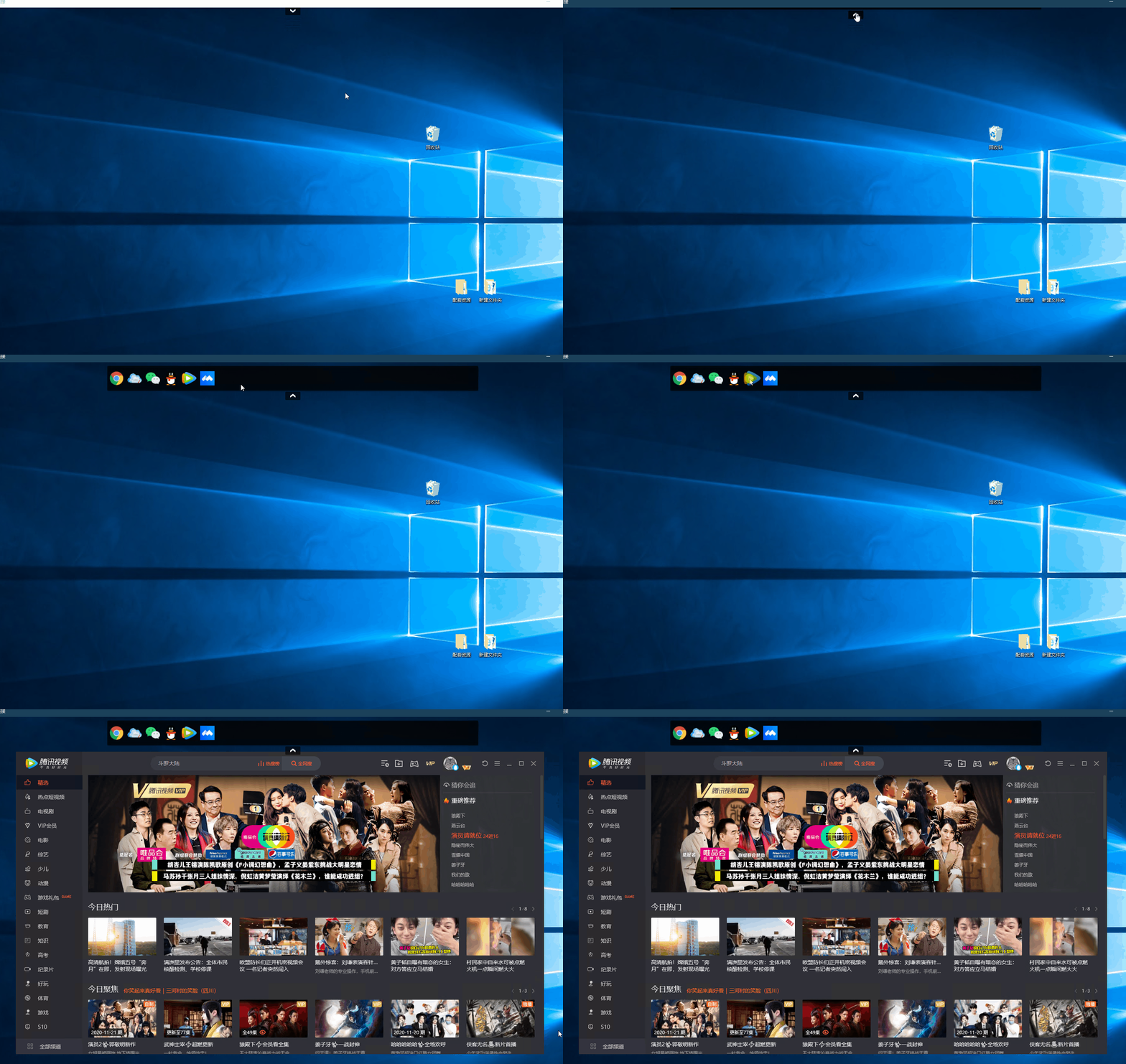
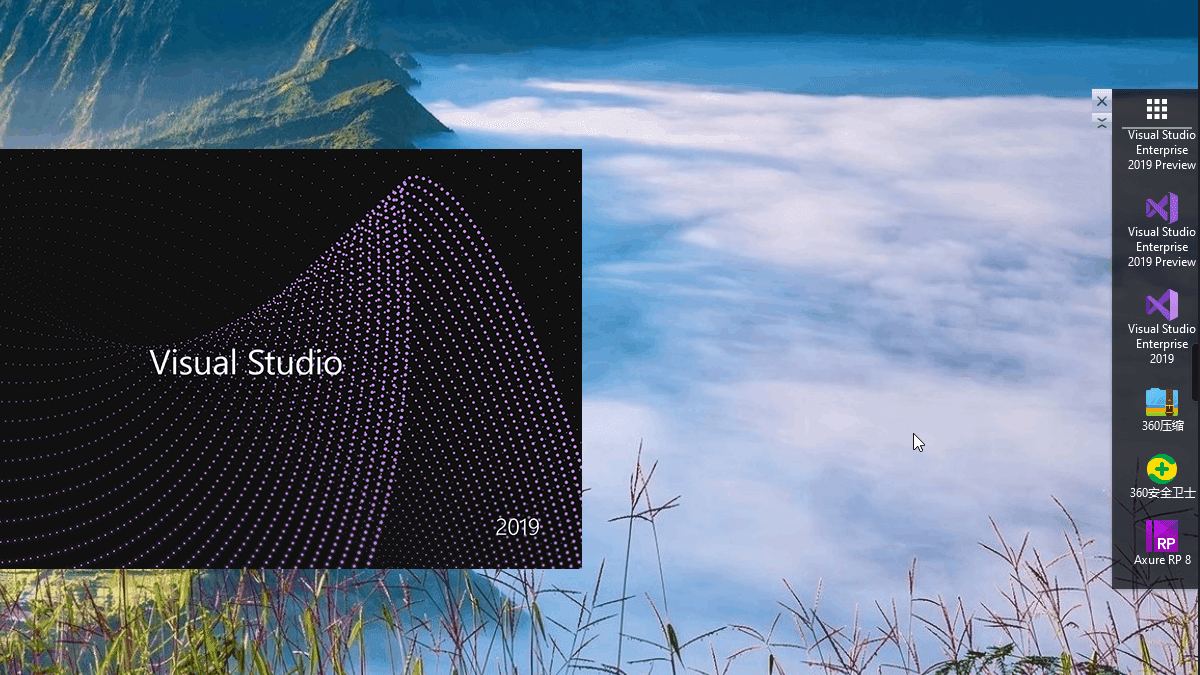
Everyone mainly looks for applications in these three places. Have you ever thought about centralizing the shortcuts of these applications in one place? Want an app? Just scroll the mouse, see the target app, click it, and it launches. Check out the operation below – is that what you want?

Quickly find and launch applications

Quickly find and launch applications

There are many similar software tools on the market with more powerful features, but since we are programmers, wouldn't it be embarrassing not to create our own little gadget? Haha, below is a style extracted by the admin from the author's open-source project (VS 2019 + .NET 5; after recent communication, I learned that the author temporarily removed the horizontal menu – laugh-crying – hope the author adds it back later):

Horizontal menu

Horizontal menu

2. Main content

Foreword

Seeing that the (admin's note: WPF section of Blog Park) has been rather quiet recently, I'm here to liven things up.

2020-10-29

[New Updates]

  1. Added system tray.
  2. Added skin switching.
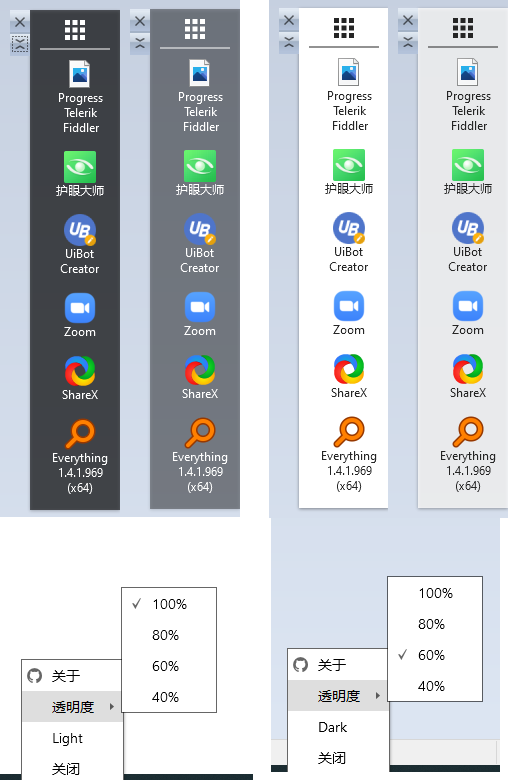
  3. Added transparency toggle.

[Environment]

Visual Studio 2019, .NET Framework 4.0 SDK

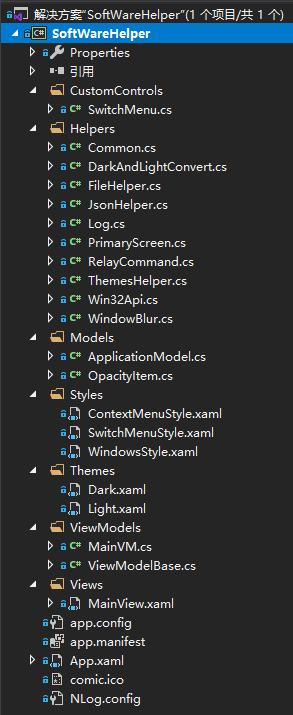
This project uses the MVVM pattern. Brief introduction to the functional code:

  1. Get the working area dimensions of the primary monitor.
  2. Set the current main form height, and position the form's Left and Top to the far right.
private Rect desktopWorkingArea;       
desktopWorkingArea = System.Windows.SystemParameters.WorkArea;
this.Height = desktopWorkingArea.Height / 2;
this.Left = desktopWorkingArea.Width - this.Width;
this.Top = desktopWorkingArea.Height / 2 - (this.Height / 2);
  1. Allow only Y-axis movement for the form, calling Win32's MoveWindow.
#region Moving the form
protected override void OnMouseLeftButtonDown(MouseButtonEventArgs e)
{
    anchorPoint = e.GetPosition(this);
    inDrag = true;
    CaptureMouse();
    e.Handled = true;
}

protected override void OnMouseMove(MouseEventArgs e)
{
    try
    {
        if (inDrag)
        {
            System.Windows.Point currentPoint = e.GetPosition(this);
            var y = this.Top + currentPoint.Y - anchorPoint.Y;
            Win32Api.RECT rect;
            Win32Api.GetWindowRect(new WindowInteropHelper(this).Handle, out rect);
            var w = rect.right - rect.left;
            var h = rect.bottom - rect.top;
            int x = Convert.ToInt32(PrimaryScreen.DESKTOP.Width - w);

            Win32Api.MoveWindow(new WindowInteropHelper(this).Handle, x, (int)y, w, h, 1);
        }
    }
    catch (Exception ex)
    {
        Log.Error($"MainView.OnMouseMove{ex.Message}");
    }
}

protected override void OnMouseLeftButtonUp(MouseButtonEventArgs e)
{
    if (inDrag)
    {
        ReleaseMouseCapture();
        inDrag = false;
        e.Handled = true;
    }
}
#endregion
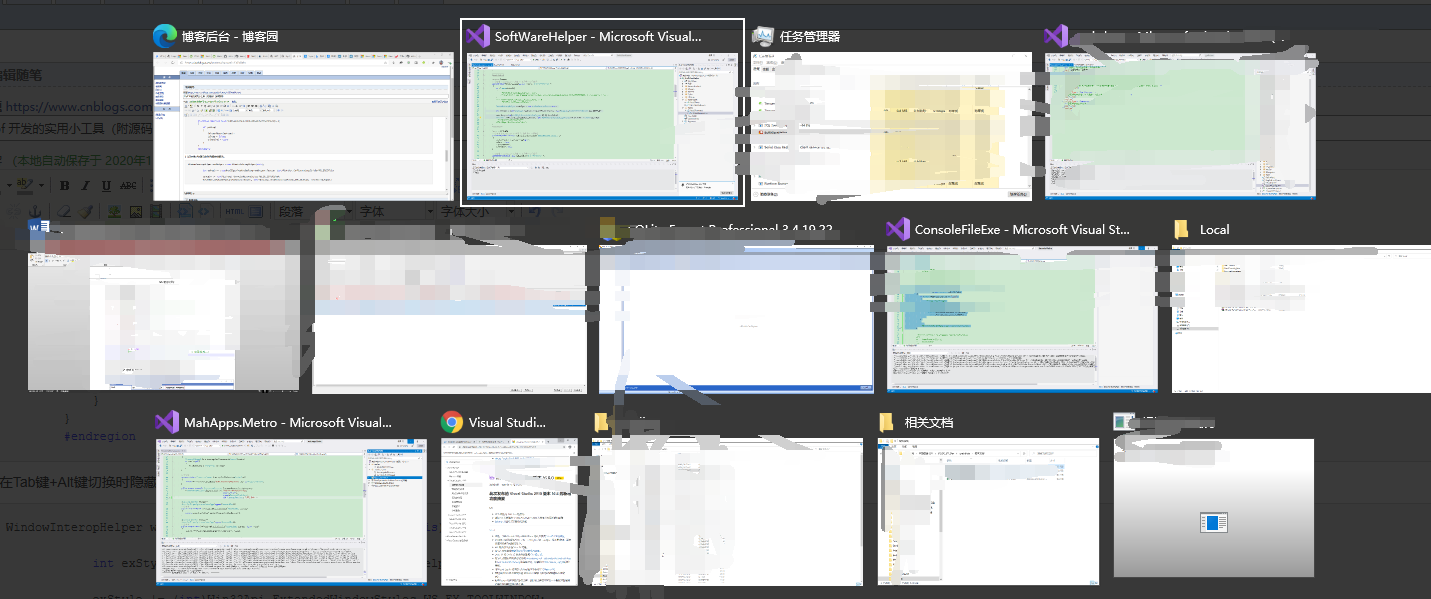
  1. Hide the current form when switching with Alt+Tab.
WindowInteropHelper wndHelper = new WindowInteropHelper(this);

int exStyle = (int)Win32Api.GetWindowLong(wndHelper.Handle, (int)Win32Api.GetWindowLongFields.GWL_EXSTYLE);

exStyle |= (int)Win32Api.ExtendedWindowStyles.WS_EX_TOOLWINDOW;
Win32Api.SetWindowLong(wndHelper.Handle, (int)Win32Api.GetWindowLongFields.GWL_EXSTYLE, (IntPtr)exStyle);

Hide the current form with Alt+Tab

Hide the current form with Alt+Tab

  1. After the form is loaded, read the installed applications (and system desktop shortcuts) from the registry, extract the .ICO, convert to .PNG, and save.

Reading installed applications

Reading installed applications

  1. The remaining code involves WPF animations and custom control code.

[Preview Screenshots]

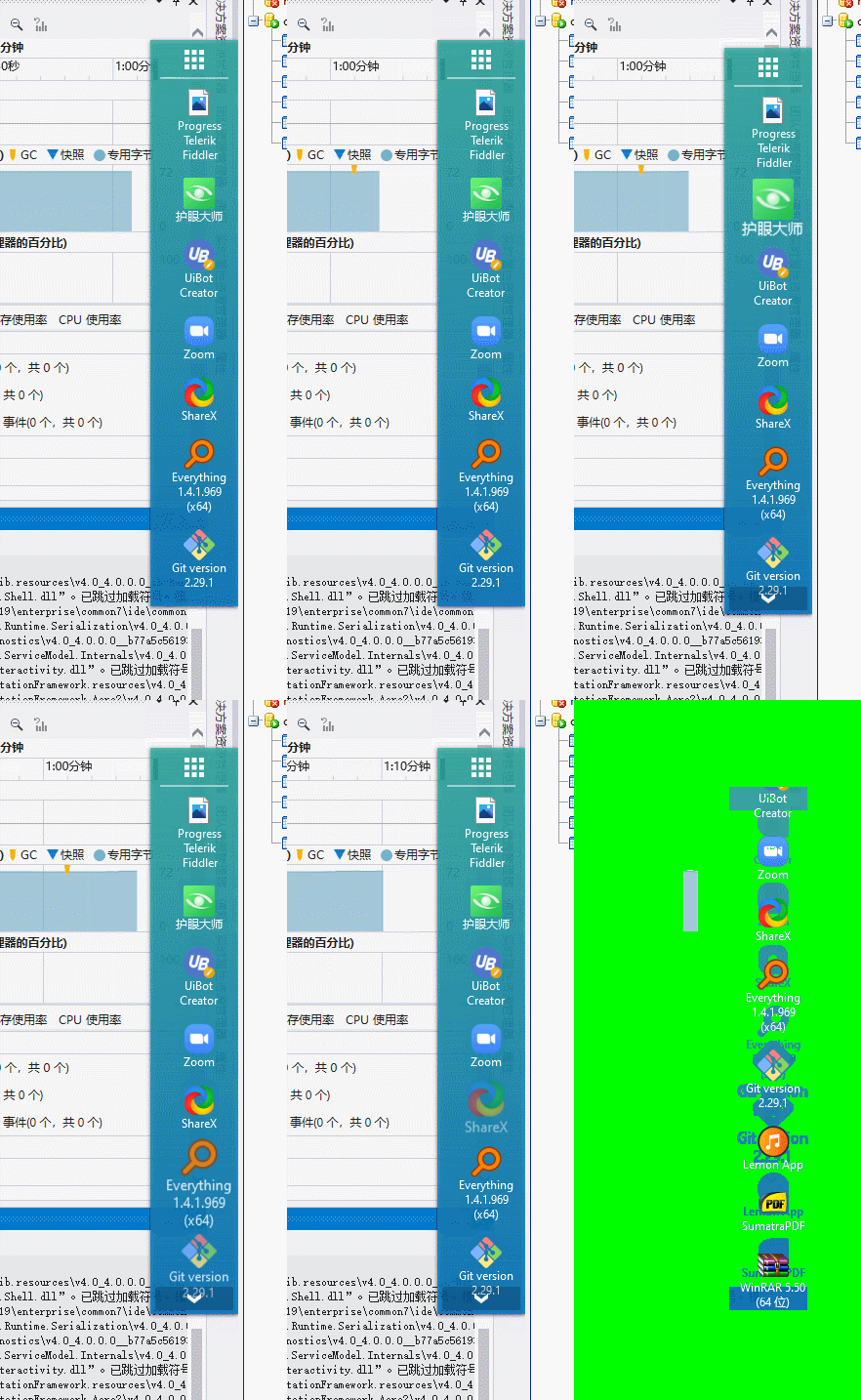
Vertical menu

Vertical menu

2020/11/09

[New Updates]

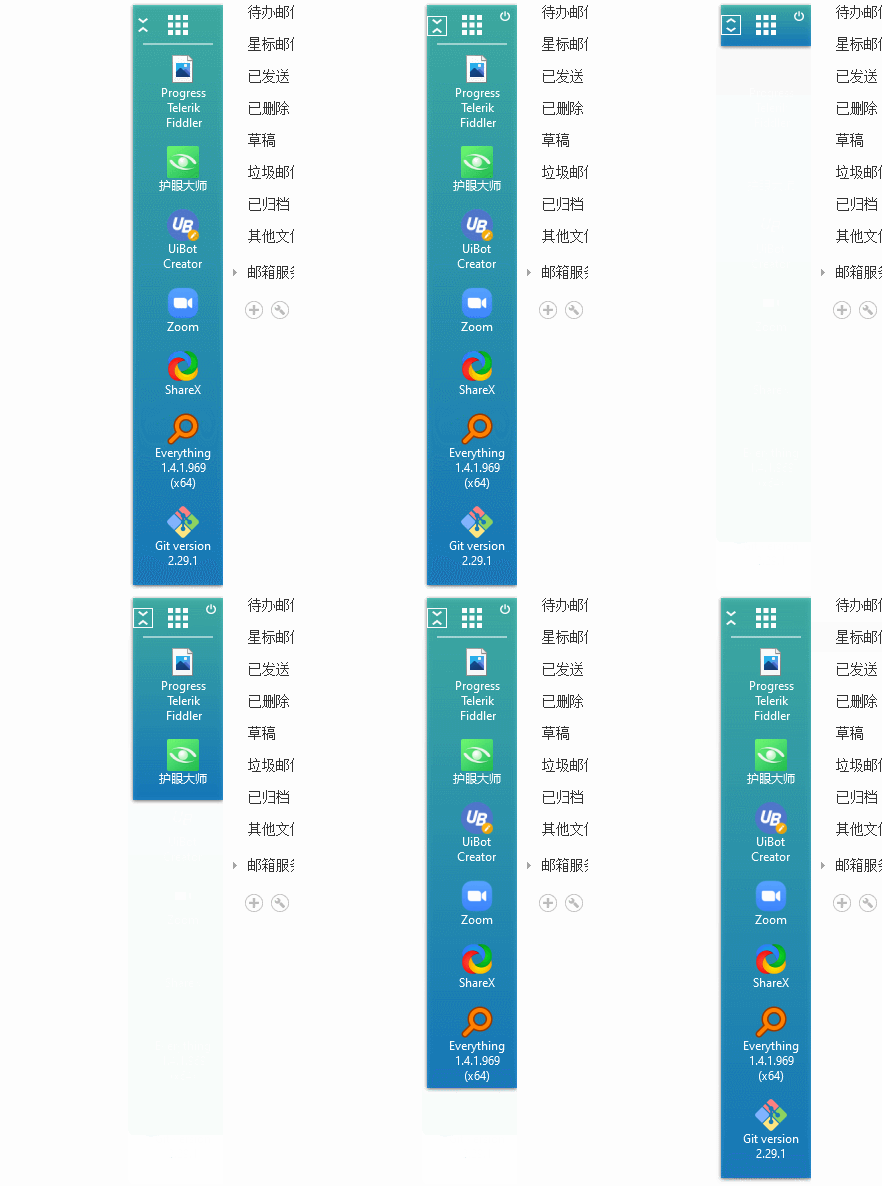
Added scrolling animation.

[Preview Screenshots]

Vertical scrolling animation

Vertical scrolling animation

Vertical menu hiding

Vertical menu hiding

Vertical menu collapsing

Vertical menu collapsing

Vertical menu switching

Vertical menu switching

2020/11/19

[New Updates]

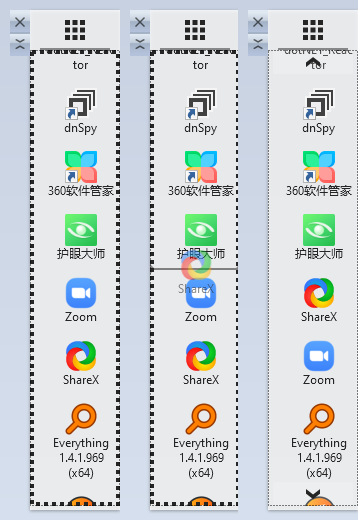
  1. Added drag movement.

Usage instructions: Right-click on the main page, and a dashed border appears, allowing you to modify the position of the current application. However, the change is not saved; the default order will be restored on the next launch.

  1. Fixed an issue where searching for existing references could find uninstalled items.

[Preview Screenshots]

Bug fix

2020/11/20

[New Updates]

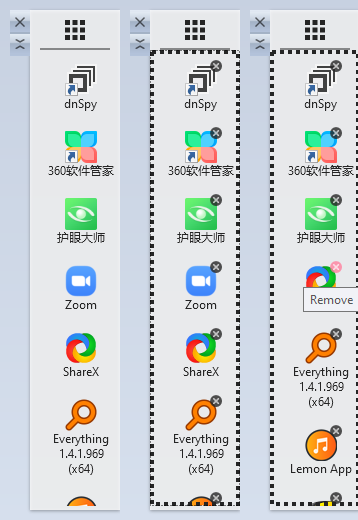
  1. Added remove application feature.
  2. Buttons hidden during edit mode.
  3. Animation disabled during edit mode.

[Preview Screenshots]

Can delete

3. Source code acquisition and download experience

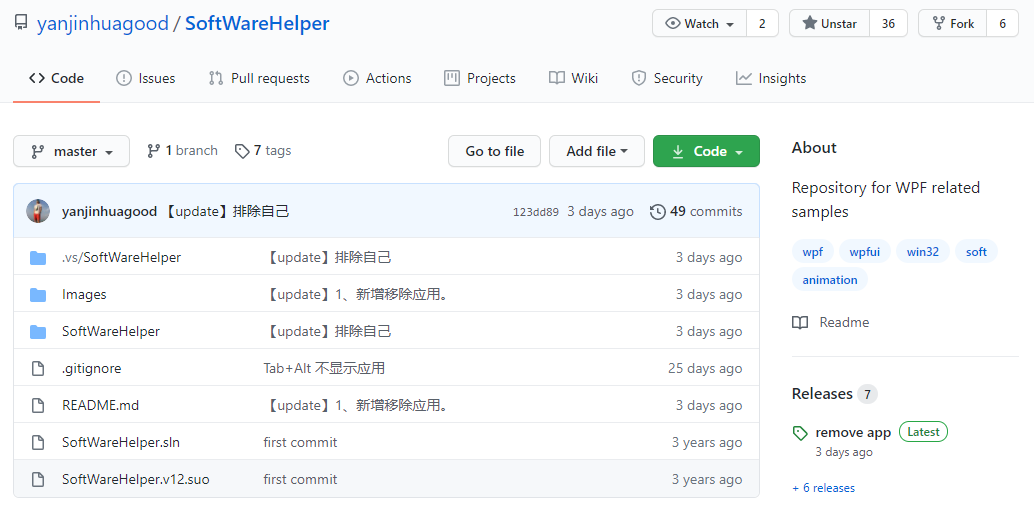
Source code download link: SoftWareHelper

SoftWareHelper

Download and extract to try: Click to download

Author's submitted articles:

4. Admin's suggestions

The author is updating this project out of pure enthusiasm. If you need it, you can download and use it via the above links. If you find it good, don't forget to give a star: SoftWareHelper.

SoftWareHelper Repository

Before receiving the author's submission, the admin also noticed the author's first article on Blog Park, downloaded the project, and tried it out. The admin liked the horizontal quick menu and extracted it for modification (some ideas have been implemented, the rest await completion):

  • Menu configured via configuration file, because the OS may have too many installed applications and doesn't need to load all of them: Implemented.
  • Support drag-and-drop of exe files (or system-generated shortcuts) to add: Implemented.
  • Support URL configuration (click to open a specified URL, similar to bookmark shortcuts): Implemented.
  • Support cmd command configuration (e.g., system app mstsc, configure remote desktop target IP and port, one-click connect): Implemented.
  • Provide a UI for menu configuration: Not implemented.
  • Display icons and text: Not implemented.
  • ...more ideas still being considered.

If the author finds the above ideas feasible, they might consider adding them.

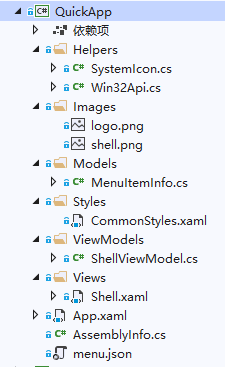
The admin shamelessly presents a modified version based on the author's open-source project, a very crude version: QuickApp

QuickApp

Besides the admin's own modified version ideas above, there are also the following small suggestions for the author to consider on the original project:

  • Keep the original horizontal menu display style; ideally support all directions on the desktop: top, bottom, left, and right (dynamically switchable position).
  • Currently only light and dark skins; more can be added later (probably by changing the background color).

Any other suggestions? Feel free to leave a comment below the article, or click on the original author's blog post above to leave a comment. Let's brainstorm and make an interesting small tool together!

Acknowledgments

Thanks to the netizen for the contribution.

Everyone is welcome to submit articles to the admin, or recommend WPF projects or control libraries.

Keep Exploring

Related Reading

More Articles
Same category / Same tag 1/26/2025

Implementing Internationalization in WPF Using Custom XML Files

This article details the method of implementing internationalization in WPF applications using custom XML files, including installing the necessary NuGet packages, dynamically retrieving the language list, dynamically switching languages, using translated strings in code and XAML interfaces, and provides a source code link to help developers easily achieve internationalization in WPF applications.

Continue Reading