There are many ways to implement internationalization in WPF:
You can use XAML resource files (*.xaml) to store the display content for each language. I've introduced this in another account:
You can also use standard resource files (*.resx), which are not limited to a project template and can be applied to other project types, such as C/S, B/S, and App (Xamarin).
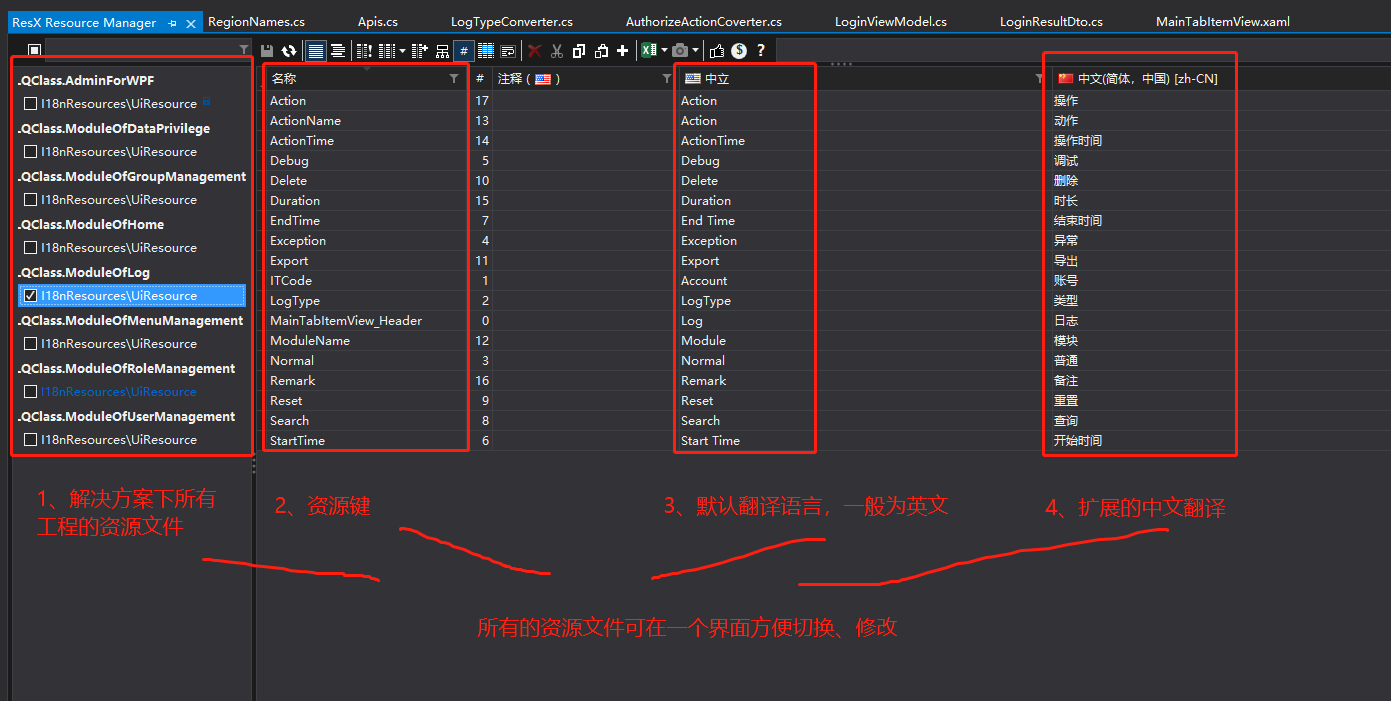
This article is not about how to implement project internationalization, but rather to introduce a VS extension that makes it easier to manage standard resource files (*.resx), like this:
Manage multiple resource files with ResX Manager.

Convenient features:
- List all resource files in the entire solution in one interface.
- Compare and manage international resource files of the same project side by side.
According to the naming convention for multilingual resource files, resource files with the same prefix use a suffix (the part before .resx) to differentiate languages. For example, UiResource.zh-CN.resx is Simplified Chinese, UiResource.resx is the default language, and other language extensions can be added by creating a resource file and modifying the suffix.
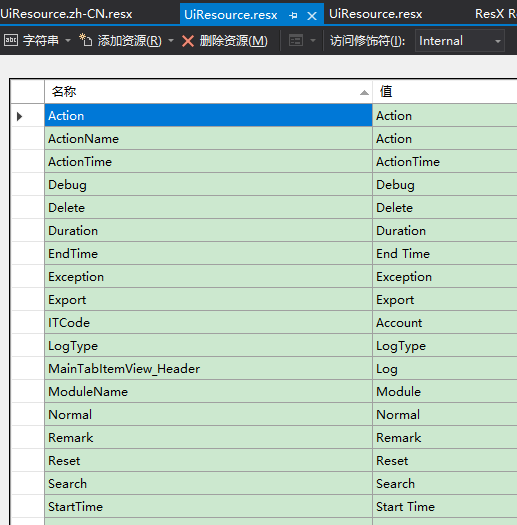
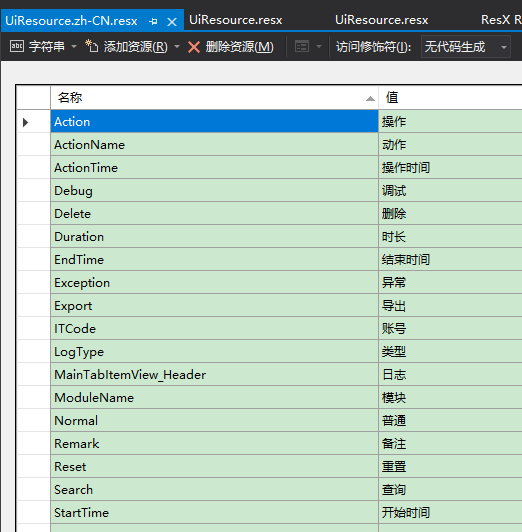
Compare the effect of directly opening resource files:
Default language resource file

Simplified Chinese resource file

The above are just two files. If you support more international languages, you would have to double-click every resource file to add or modify translations. That would be very tedious.
Now that the groundwork is laid, let's see how to install this plugin and how to use it.
1 Installation
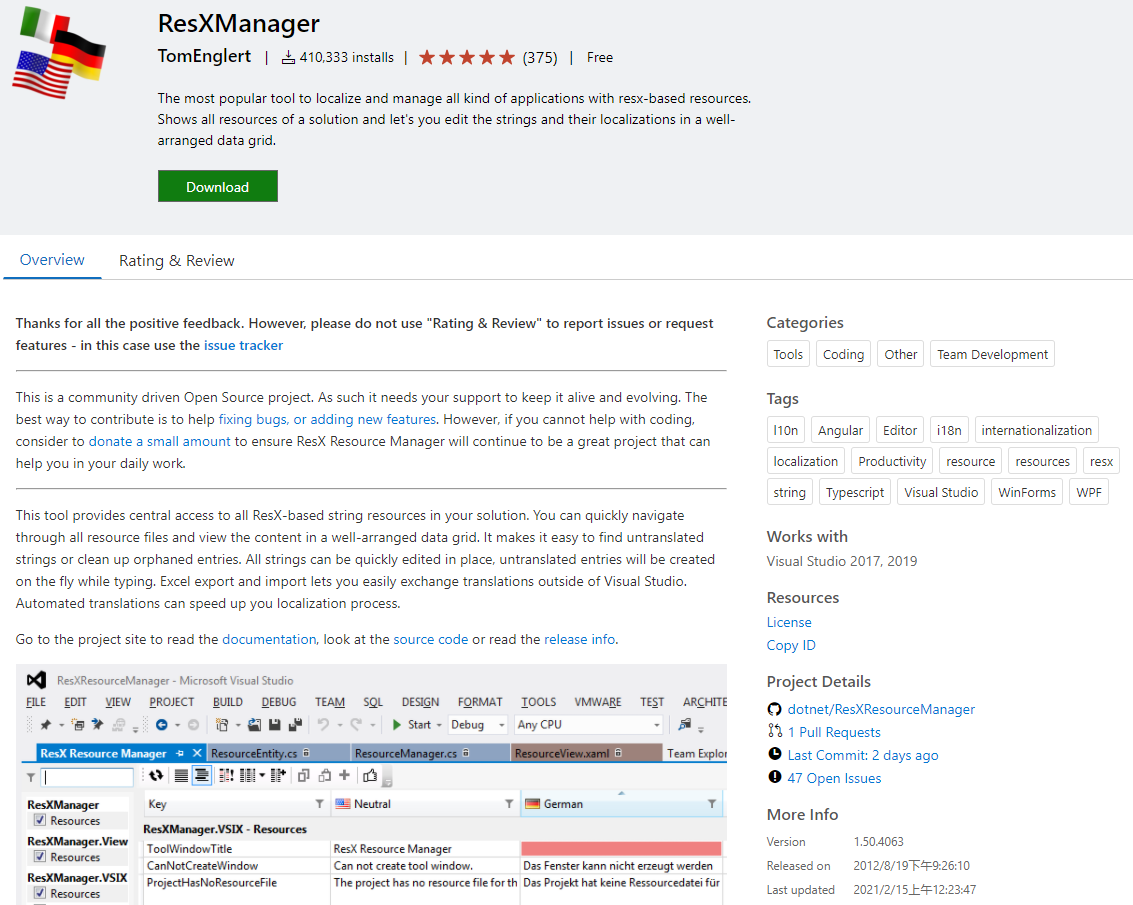
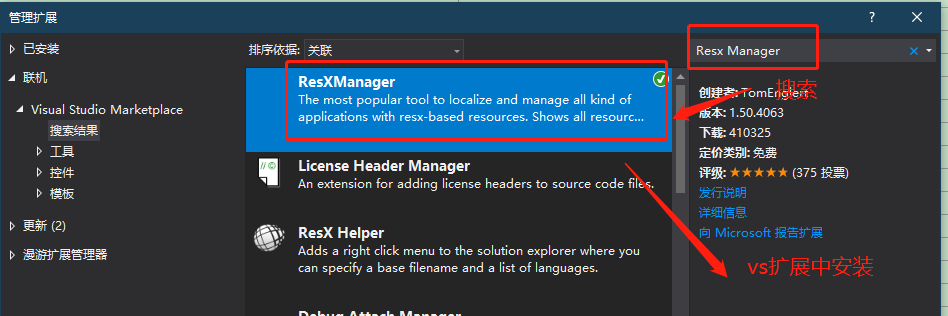
Download and install from the ResXManager release page:

Or search for "ResX Manager" in the VS extensions:

2 Feature Description
2.1 Unified Management and Modification of Resource Files
See the first image in this article (from LqClass WPF project resource files). The left side shows the resource file structure and location of all projects in the solution. After selecting a resource file, the right side displays the keys in the resource file and the translated text for each language. Resource files with the same naming convention can be edited simultaneously.
2.2 Find Missing Translations
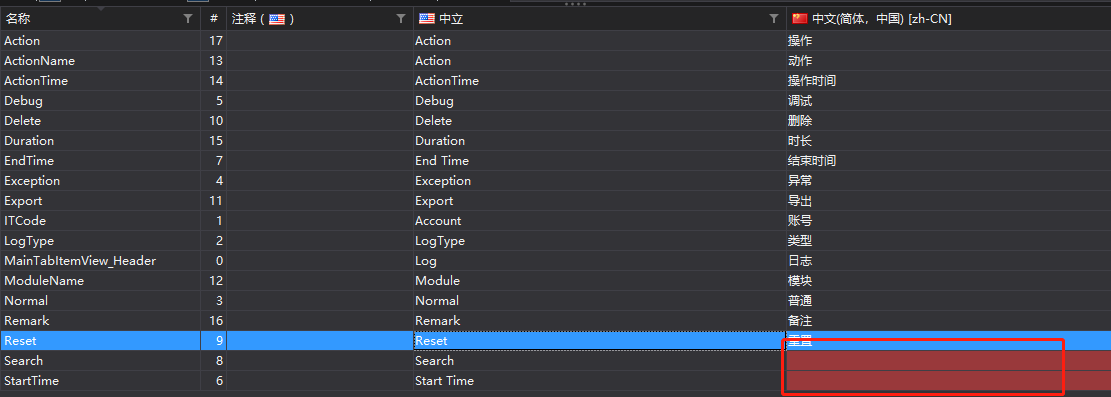
As shown below, the Chinese translations for the Search and StartTime keys are missing, and the input boxes have a red background as a reminder. You can then enter the translation directly.
Missing translation indicator

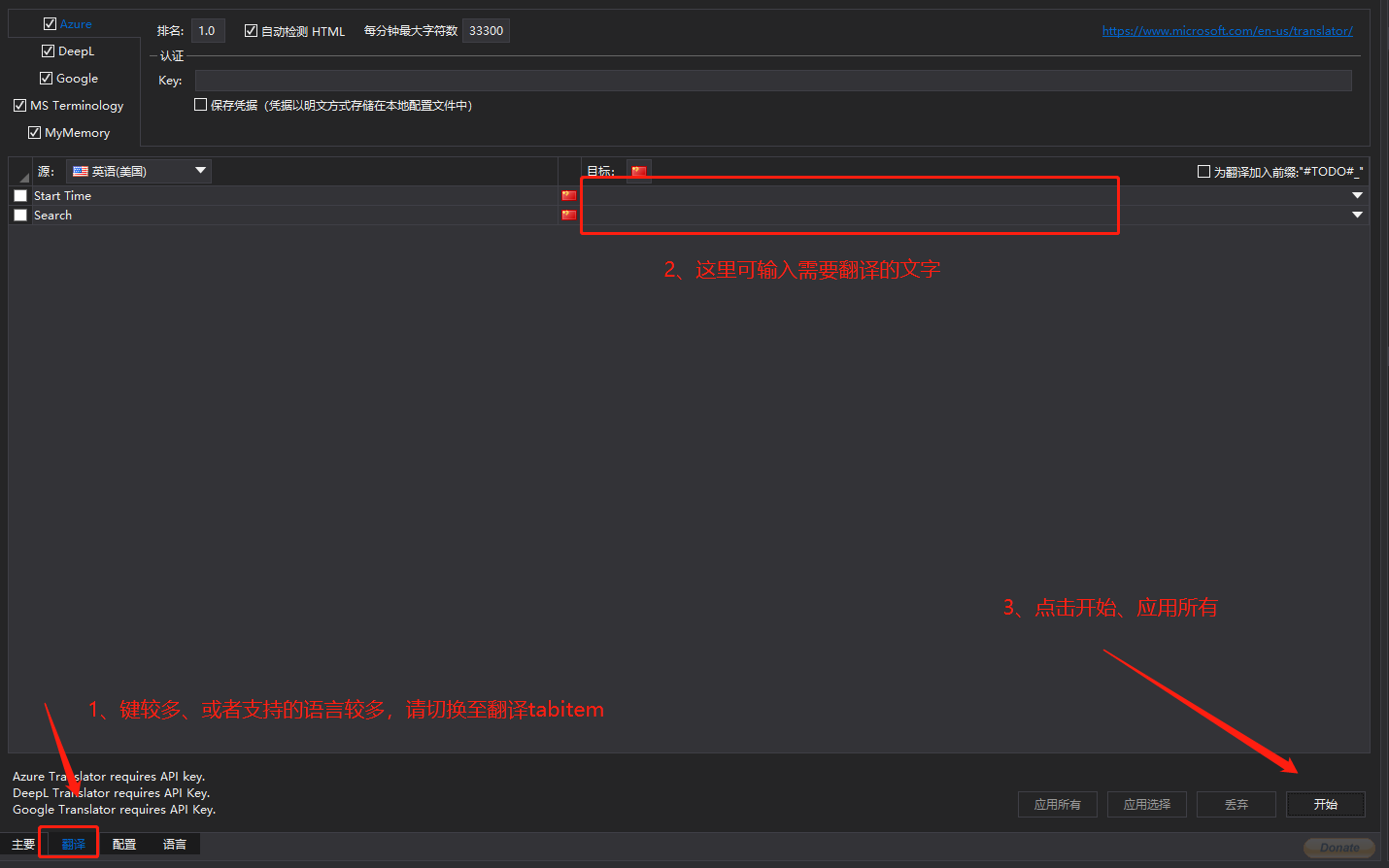
If there are many keys or many supported languages, you can click on the "Translate" tab below. Usually, I modify it directly in the interface above; I rarely use the interface below:
- Switch to the "Translate" tab.
- Enter the untranslated language.
- Click "Start" and "Apply All" to apply the modifications to the corresponding resource files.
Clear display of languages to be translated

2.3 Export and Import Excel Files
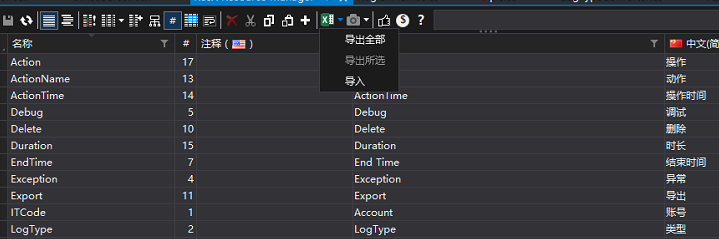
When the translation workload for multiple languages is large, or a specific language requires professional assistance, asking others to use Visual Studio to edit resource files is not reasonable. In this case, use the export function to export the specified resource files to Excel format, fill in the missing parts, and then import the completed Excel file to automatically update the resource files.

You can also select the keys of the resource files that need translation, choose "Export Selected", and the exported file will look like the one below. The red box shows the Simplified Chinese translation just entered.

As shown above, after completing the translations, simply import the file.
Isn't this extension convenient? Feel free to leave a comment and discuss.