
本文由网友
蓝创精英团队投稿,欢迎转载、分享原文作者:蓝创精英团队
原文链接:https://kesshei.blog.csdn.net/article/details/124955177
目的
一直想实现微信的群发功能,但是,没有实现,原因有一条是怕违法,记得某某公司因为破解了微信的接口巴拉巴拉,然后,被告了。罚了 N 多钱。
这个时候,我想,如果我基于 RPA 技术,那么,就不会对微信有任何影响啊,毕竟,我只是模拟我的电脑操作,微信公司也识别不到我的行为是非法的。
那么,这个行为可能就是基于安全的方式的技术了。
所以,我就尝试了一下,同时也借鉴了网络上的资料,给我了一些启发
一、FlaUI 是什么?
FlaUI 是一个基于微软 UIAutomation 技术 从 Windows Vista 开始推出的一套全新 UI 自动化测试技术, 简称 UIA。在最新的 Windows SDK 中,UIA 和 MSAA 等其他支持 UI 自动化技术的组件放在一起发布,叫做 Windows Automation API。
UIA 定义了全新的、针对 UI 自动化的接口和模式。 分别是支持对 UI 元素进行遍历和条件化查询的 TreeWalker/FindAll。定义了读写 UI 元素属性的 UIA Property, 包括 Name、 ID、Type、ClassName、Location、 Visibility 等等。定义了 UI 元素行为的 UIA Pattern, 比如 Select、Expand、Resize、 Check、Value 等等。 还引入了 UIA Event 接口,可以让测试程序在某些事件发生后得到通知,比如新窗口打开事件等
目前 FlaUI 所用的为 UIA2 和 UIA3 两种技术。 我这里主要用的是 UIA3
二、使用步骤
1.引入 NuGet 包
Install-Package FlaUI.UIA3 -Version 3.2.0
2.实现一个简单的给指定人发送消息
代码如下(示例):
Process[] processes = Process.GetProcessesByName("WeChat");
if (processes.Count() != 1)
{
	Console.WriteLine("微信未启动或启动多个微信");
}
else
{
	//1.附加到微信进程
	using (var app = Application.Attach(processes.First().Id))
	{
		using (var automation = new UIA3Automation())
		{
			//2.获取主界面
			var mainWindow = app.GetMainWindow(automation);
			Console.WriteLine("获取主界面");
			//3.切换到通讯录
			var elements = mainWindow.FindAll(FlaUI.Core.Definitions.TreeScope.Subtree, TrueCondition.Default);
			var addressBook = mainWindow.FindFirstDescendant(cf => cf.ByName("通讯录"));
			addressBook.DrawHighlight(System.Drawing.Color.Red);
			var path = Debug.GetXPathToElement(addressBook);
			Console.WriteLine("点击通讯录");
			addressBook.Click();

			//4.搜索
			string target = "文件传输助手";
			var searchTextBox = mainWindow.FindFirstDescendant(cf => cf.ByName("搜索")).AsTextBox();
			searchTextBox.Click();
			Keyboard.Type(target);
			Keyboard.Type(VirtualKeyShort.RETURN);
			Console.WriteLine("搜索目标对象");

			//5.切换到对话框
			Thread.Sleep(500);

			var searchList = mainWindow.FindFirstDescendant(cf => cf.ByName("搜索结果"));
			if (searchList != null)
			{
				var searchItem = searchList.FindAllDescendants().FirstOrDefault(cf => cf.Name == target && cf.ControlType == FlaUI.Core.Definitions.ControlType.ListItem);
				searchItem?.DrawHighlight(System.Drawing.Color.Red);
				searchItem?.AsListBoxItem().Click();
			}
			else
			{
				Console.WriteLine("没有搜索到内容");
			}
			Thread.Sleep(500);
			//6.输入文本
			string sendMsg = "这个是我微信的输入信息:" + DateTime.Now.ToString();
			var msgInput = mainWindow.FindFirstDescendant(cf => cf.ByName("输入")).AsTextBox();
			msgInput?.Click();
			System.Windows.Forms.Clipboard.SetText(sendMsg);
			Keyboard.TypeSimultaneously(new[] { VirtualKeyShort.CONTROL, VirtualKeyShort.KEY_V });
			var sendBtn = mainWindow.FindFirstDescendant(cf => cf.ByName("sendBtn"));
			sendBtn?.DrawHighlight(System.Drawing.Color.Red);
			sendBtn?.Click();
		}
	}
}
代码有注释也容易理解。
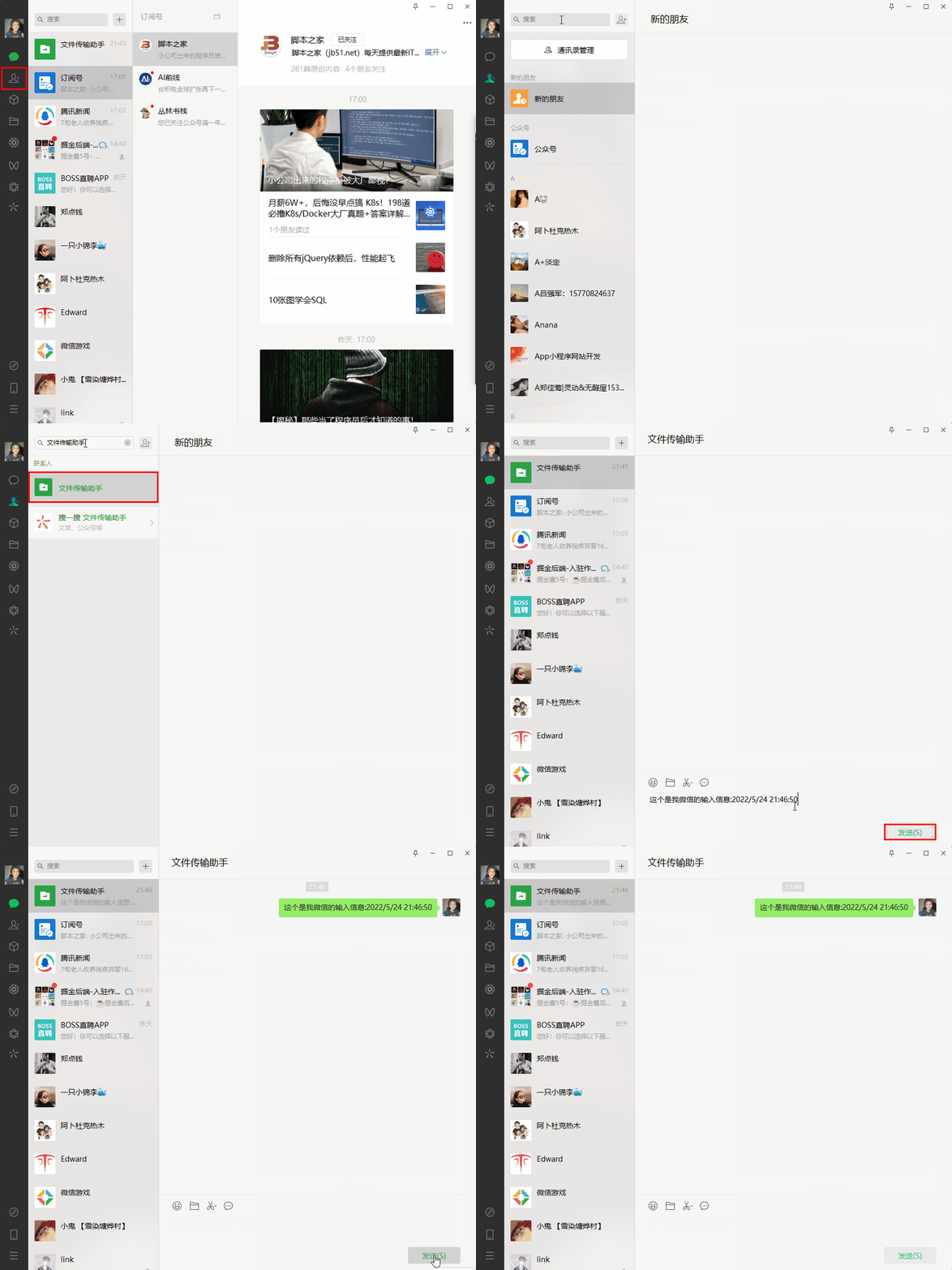
就是搜索指定人,然后,发送指定信息给他。搞定。
图示效果如下:
3.实现一个获取会话列表批量发送消息
代码如下(示例):
Process[] processes = Process.GetProcessesByName("WeChat");
if (processes.Count() != 1)
{
	Console.WriteLine("微信未启动或启动多个微信");
}
else
{
	//1.附加到微信进程
	using (var app = Application.Attach(processes.First().Id))
	{
		using (var automation = new UIA3Automation())
		{
			//2.获取主界面
			var mainWindow = app.GetMainWindow(automation);
			Console.WriteLine("获取主界面");
			//3.切换到聊天目录
			var elements = mainWindow.FindAll(TreeScope.Subtree, TrueCondition.Default);
			var addressBook = mainWindow.FindFirstDescendant(cf => cf.ByName("聊天"));
			addressBook.DrawHighlight(System.Drawing.Color.Red);
			var path = Debug.GetXPathToElement(addressBook);
			addressBook.Click();
			Console.WriteLine("切换到聊天");
			Thread.Sleep(2000);
			//4.获取聊天列表
			//只发前六个
			var count = 0;
			var searchTextBox = mainWindow.FindFirstDescendant(cf => cf.ByName("会话")).AsListBoxItem();
			while (searchTextBox != null)
			{
				var list = searchTextBox.FindAllChildren();
				foreach (var item in list)
				{
					count++;
					var name = item.Name;
					item.Click();
					var type = item.ControlType;
					item.DrawHighlight(System.Drawing.Color.Red);
					var MsgSend = mainWindow.FindFirstDescendant(cf => cf.ByName("输入")).AsTextBox();
					var MsgSendButton = mainWindow.FindFirstDescendant(cf => cf.ByName("sendBtn"));
					if (MsgSend != null && MsgSendButton != null)
					{
						MsgSend.Click();
						System.Windows.Forms.Clipboard.SetText($"群发消息,请忽略:{DateTime.Now}");
						Keyboard.TypeSimultaneously(new[] { VirtualKeyShort.CONTROL, VirtualKeyShort.KEY_V });
						MsgSendButton.Click();
						Console.WriteLine($"发送信息:{name}");
						Thread.Sleep(500);
					}
					if (count == 6)
					{
						break;
					}
				}
				if (count == 6)
				{
					break;
				}
				for (int i = 0; i < list.Length; i++)
				{
					searchTextBox.Focus();
					Keyboard.Press(VirtualKeyShort.DOWN);
					Thread.Sleep(100);
				}
				searchTextBox = mainWindow.FindFirstDescendant(cf => cf.ByName("会话")).AsListBoxItem();
				Thread.Sleep(2000);
			}
		}
	}
}
这个代码重要是群发给了前 6 个人,如果会话没有发送按钮,就不会发送,避免影响更多人。
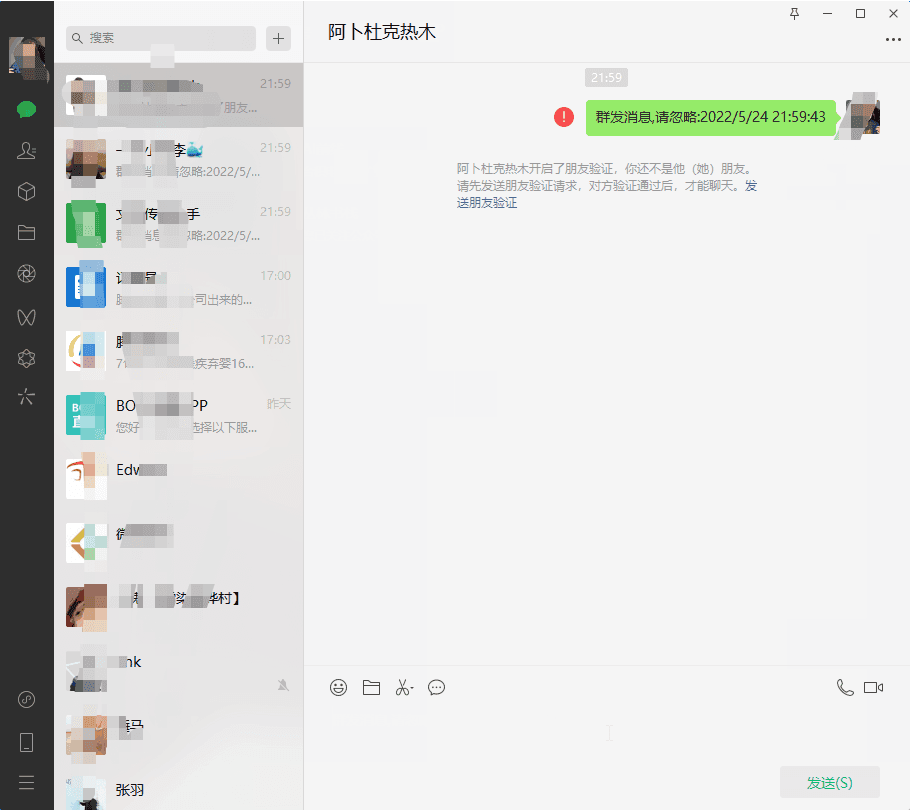
图示效果如下:
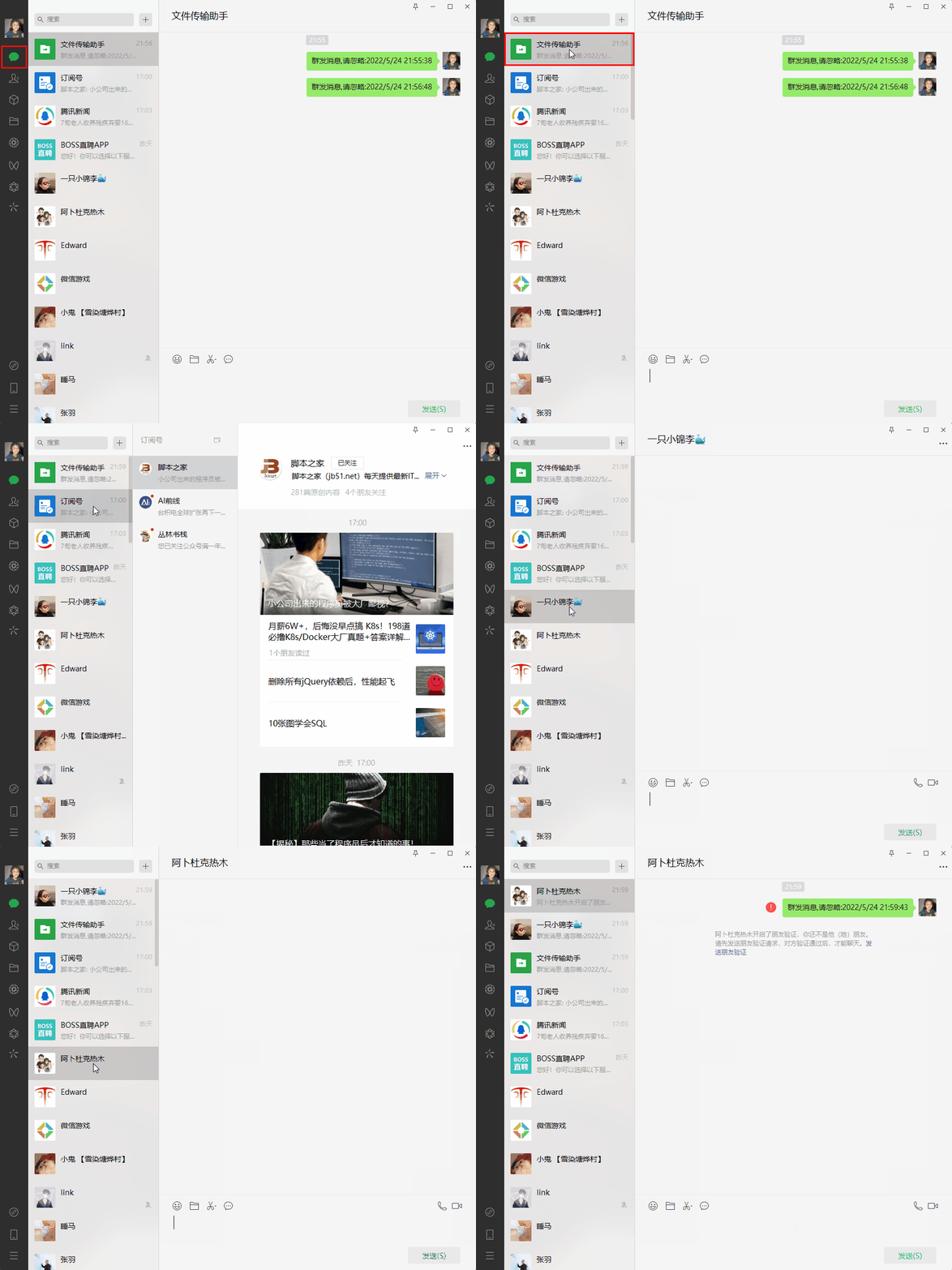
录了好几次。。最后还有人把我把我删掉了,尴尬。
4.FlaUI 如何获取页面的信息
打开这个 FlaUinspect 工具
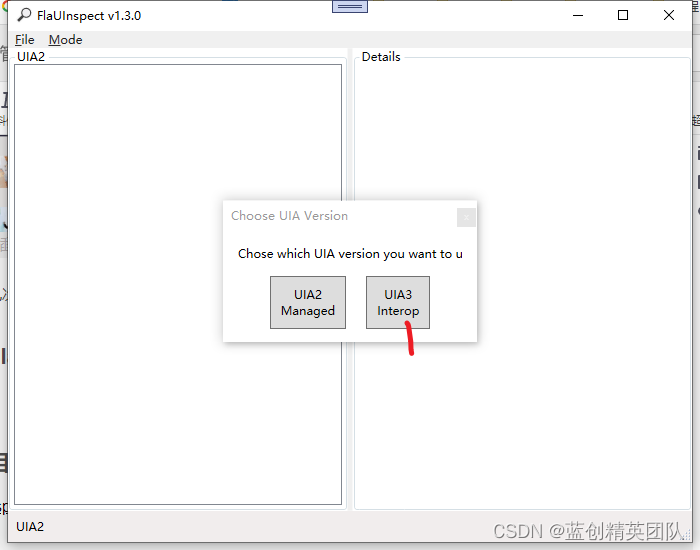
可以通过 以下看到 XPath 地址
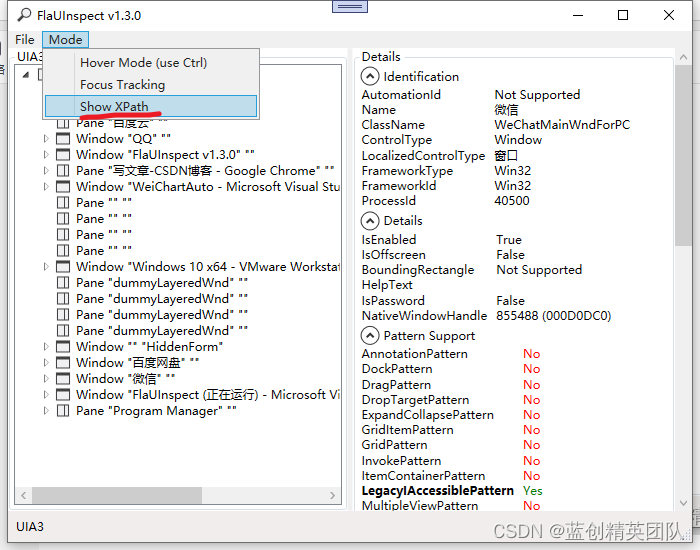
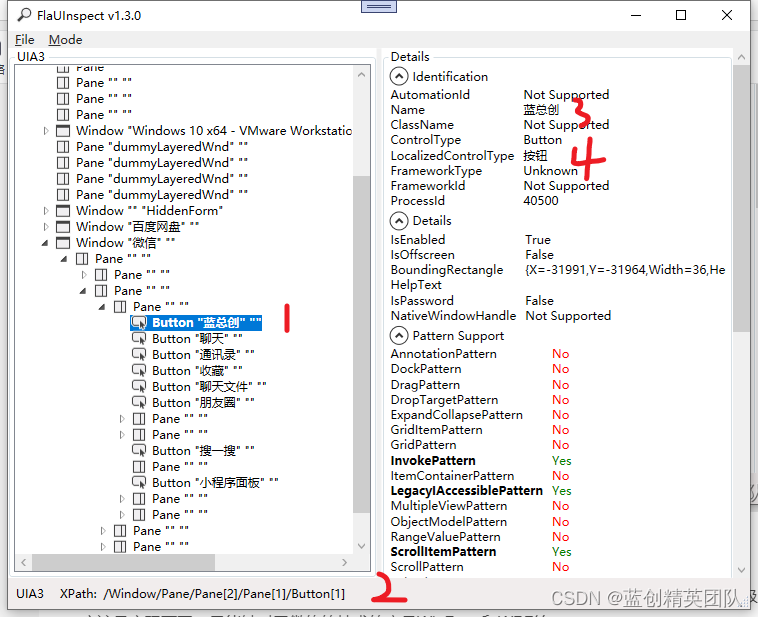
这个 FlaUinspect 项目是一个 WPF 项目,想深入研究的可以查看源码,跟踪调试一波。
这里主要的是可以通过以下两种方式来获取所需要的内容
第一种就像下面的一样,通过同一个页面独一无二的名字来获取到
var addressBook = mainWindow.FindFirstDescendant(cf => cf.ByName("聊天"));
第二种是这样的
可以通过 图上面的 2 的 XPath 地址来找到你想要的控件
var infoData = automationElement.FindAllByXPath("/Pane/Pane[1]");
总结
总的来说,这个技术还是很方便的,但是对于 QQ 这种底层是自绘技术的以及是使用 QT,JAVA 级的应用应该是实现不了。只能针对于微软的技术的产品 WinFrom 和 WPF 等。
大体来讲,还是降低了使用时候的难度的。
比如这个微信发送信息,你有功能了,你就可以自己扩展,比如,指定人发,群发,定时发,标签发送,实现完,对个人来讲,作用也是不错的。
2022 年 5 月 30 日修订
关于其他网友运行不起来的解决方案
如果是报这个错误。
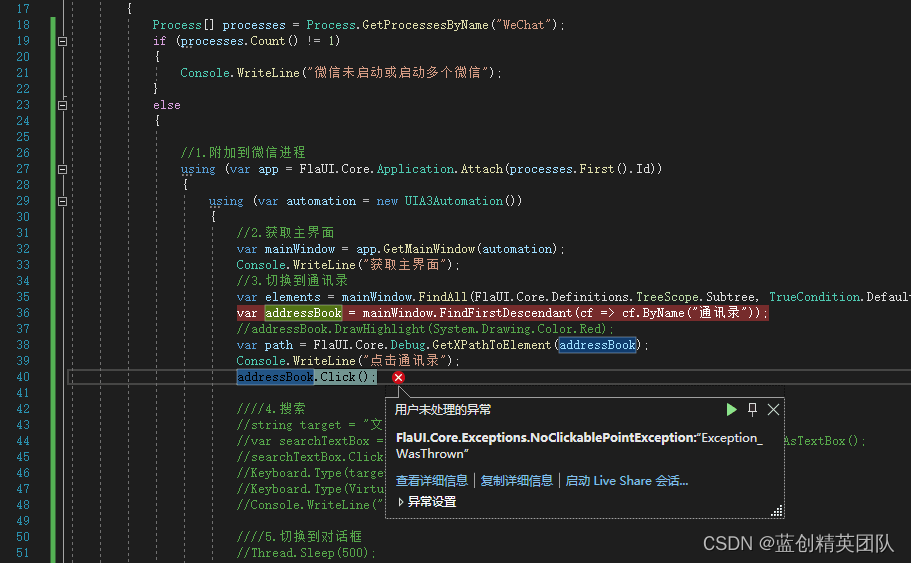
可以通过,下载 https://github.com/FlaUI/FlaUI 源码,直接引用,不通过 nuget 解决这个问题。
暂时没有深究是由于啥导致的。