
Blazor WebAssembly 加载优化方案
对于 Blazor WebAssembly 加载方案的优化是针对于 WebAssembly 首次加载,由于 Blazor WebAssembly 是在首次加载的时候会将.NET Core 的所有程序集都会加载到浏览器中,并且在使用的时候可能引用了很多第三方的 dll,导致加载缓慢。
优化方案 :
1. 压缩
发布 Blazor WebAssembly 应用时,将在发布过程中对输出内容进行静态压缩,从而减小应用的大小,并免去运行时压缩的开销。 使用以下压缩算法:
从 google/brotli GitHub repository 中获取 JavaScript Brotli 解码器。 缩小的解码器文件被命名为 decode.min.js,并且位于存储库的 js 文件夹中。
修改wwwroot/index.html 文件代码 ,添加autostart="false" ,阻止默认启动加载程序集
<script src="_framework/blazor.webassembly.js" autostart="false"></script>
在 Blazor 的 <script> 标记之后和结束 </body> 标记之前,添加以下 JavaScript 代码 <script> 块:
<script type="module">
  import { BrotliDecode } from './decode.min.js';
  Blazor.start({
    loadBootResource: function (type, name, defaultUri, integrity) {
    // 注意:这里使用localhost的时候不会启动压缩
      if (type !== 'dotnetjs' && location.hostname !== 'localhost') {
        return (async function () {
          const response = await fetch(defaultUri + '.br', { cache: 'no-cache' });
          if (!response.ok) {
            throw new Error(response.statusText);
          }
          const originalResponseBuffer = await response.arrayBuffer();
          const originalResponseArray = new Int8Array(originalResponseBuffer);
          const decompressedResponseArray = BrotliDecode(originalResponseArray);
          const contentType = type ===
            'dotnetwasm' ? 'application/wasm' : 'application/octet-stream';
          return new Response(decompressedResponseArray,
            { headers: { 'content-type': contentType } });
        })();
      }
    }
  });
</script>
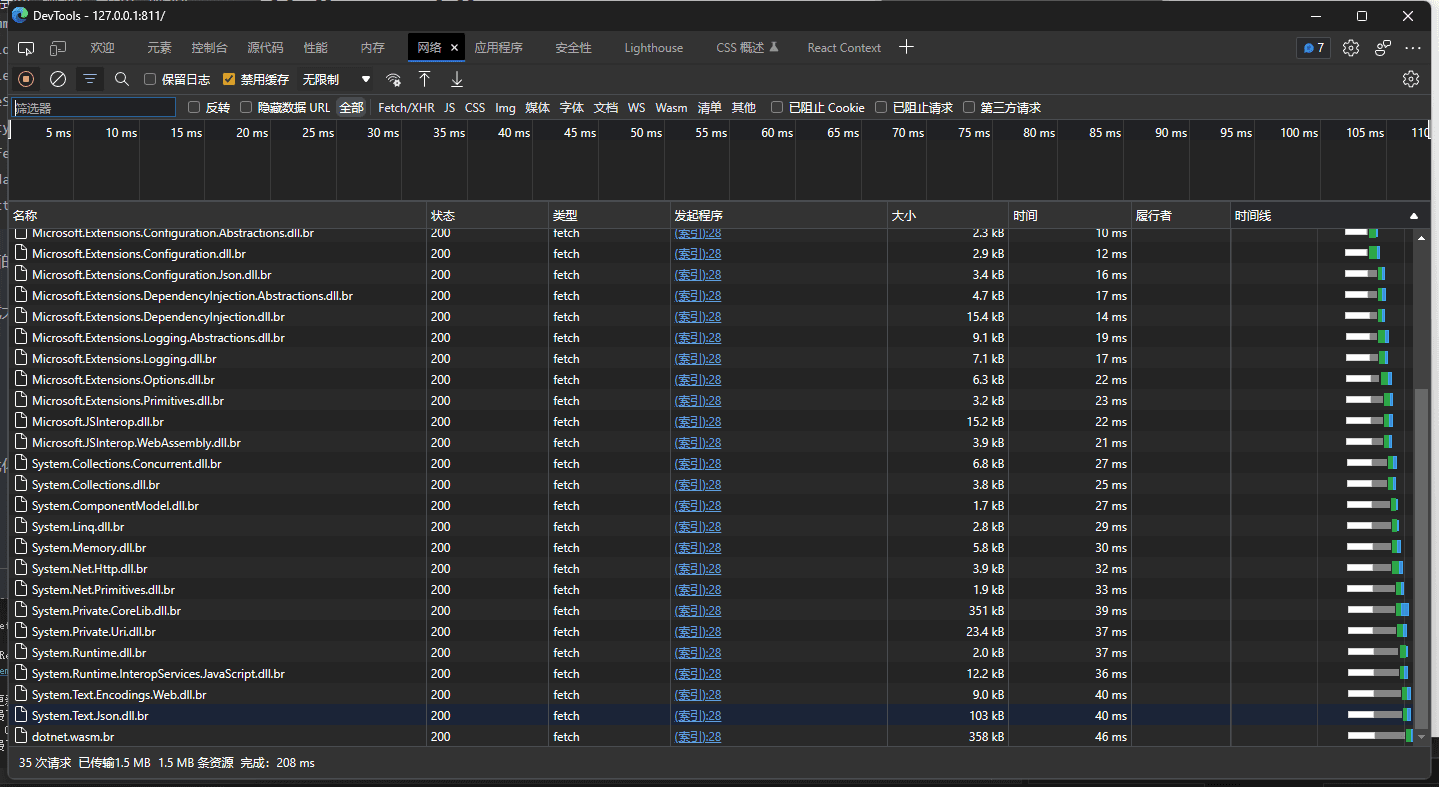
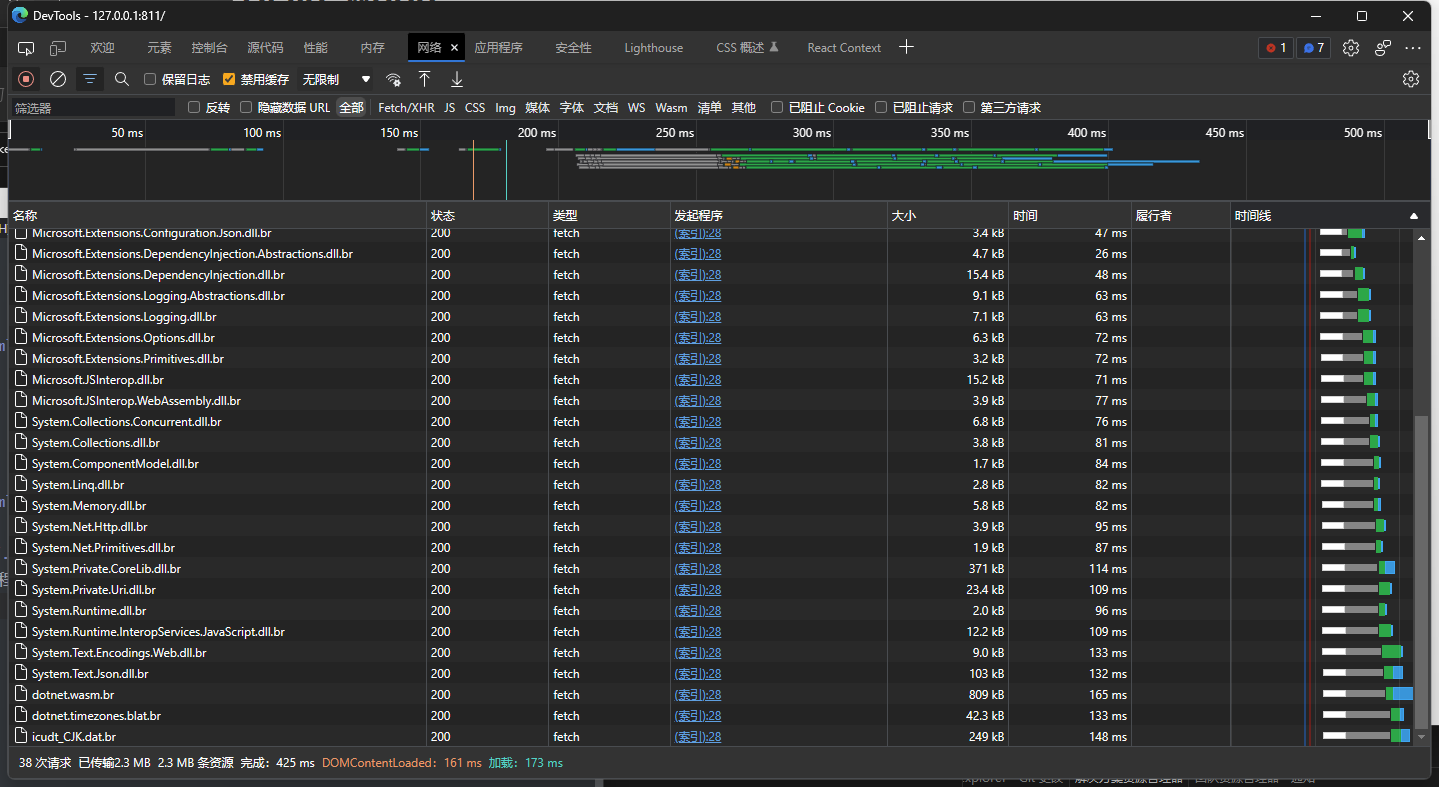
压缩方案将减少加载时间,大概是压缩 dll 的三分之一大小,效果如图

在使用autostart="false"标记以后不会启动就加载,加载程序集将在上面的代码块中执行,默认是加载 br。
2. 延迟加载程序集
通过等待应用程序集直到需要时才加载,提高 Blazor WebAssembly 应用启动性能,这种方式称为“延迟加载”。
将 Blazor WebAssembly 项目拆分细致,通过延迟加载程序集提升 Blazor WebAssembly 首次加载时间,我们将通过一个案例来讲解延迟加载程序集。
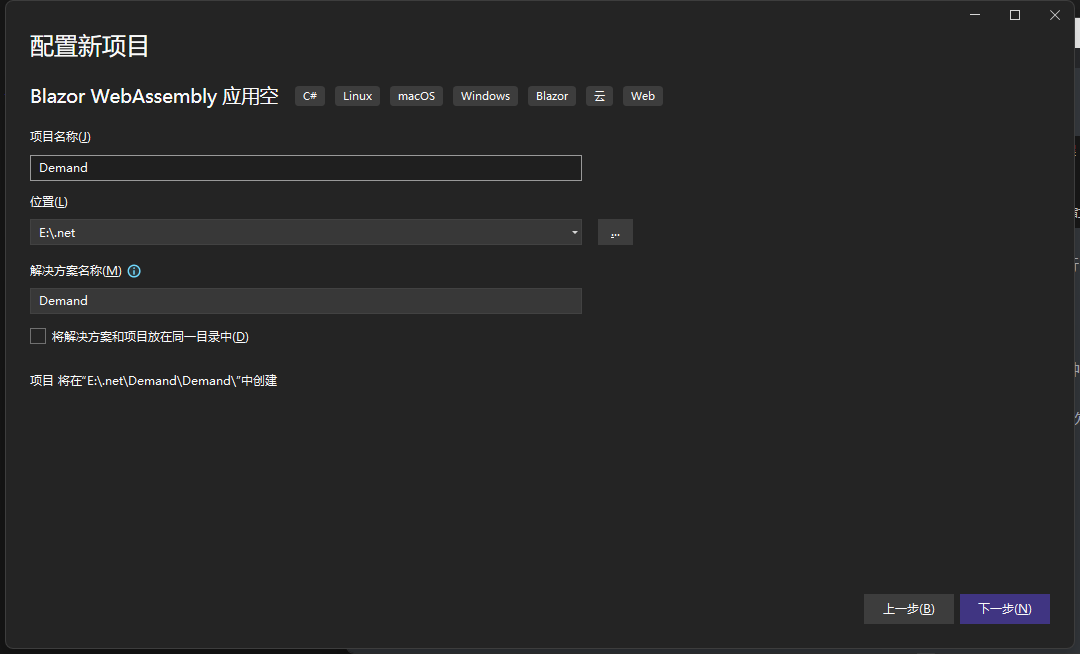
创建一个空的 Blazor WebAssembly 项目: 项目名称Demand:
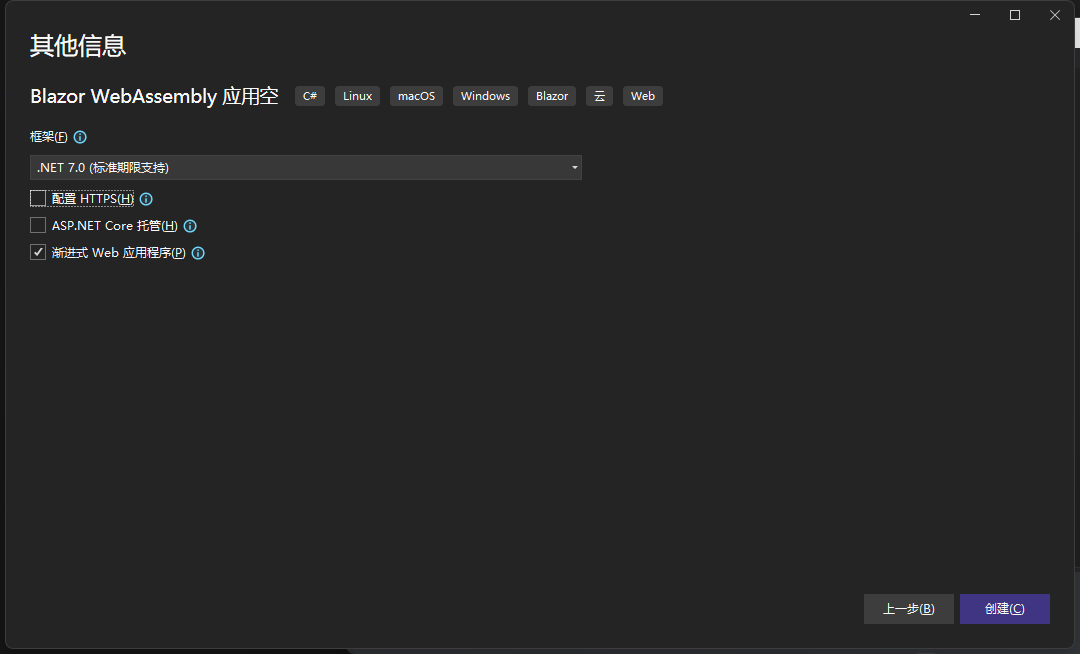
取消HTTPS 使用渐进式 Web 应用程序:
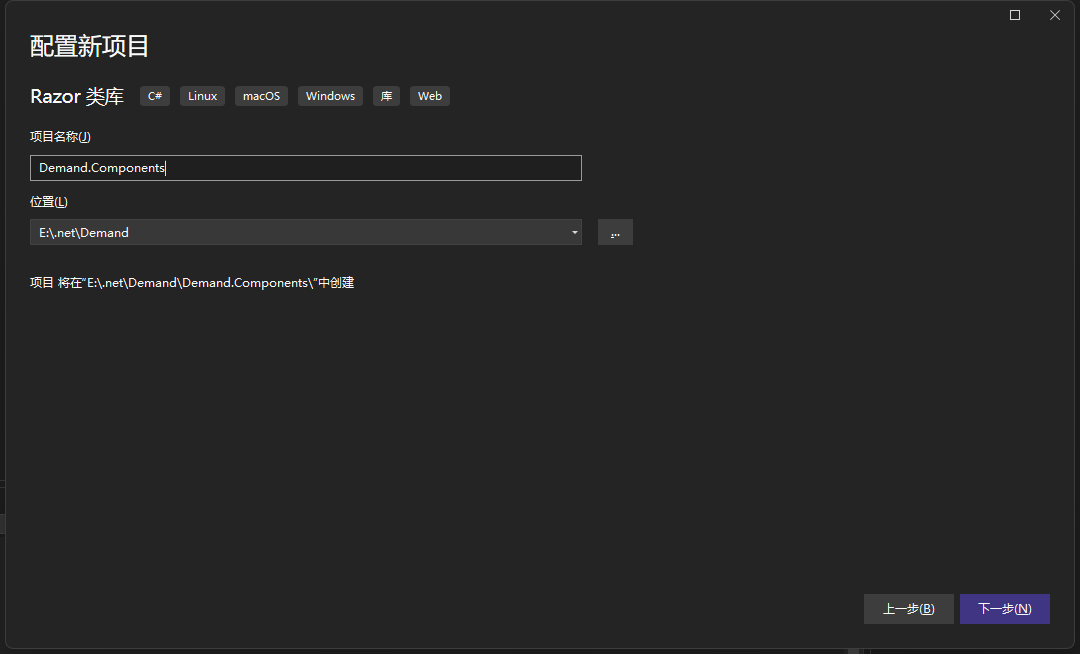
在创建 Razor 类库,项目名称:Demand.Components, 然后默认选项创建项目:
创建Components.razor文件,并且删除多余文件,效果如图:
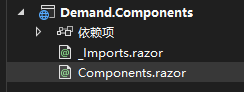
在Components.razor添加以下代码:
@inject NavigationManager NavigationManager @page "/components"

<div>
  <h1>Components</h1>
</div>
<button @onclick="Goto">跳转到首页</button>
@code { private void Goto() { NavigationManager.NavigateTo("/"); } }
在Demand项目中引用Demand.Components项目。
修改App.razor文件 ,代码如下:
@using System.Reflection @using
Microsoft.AspNetCore.Components.WebAssembly.Services @*
这里需要注意,WebAssembly是默认注入的,但是Server并没有注入 。
在Server中手动注入 builder.Services.AddScoped<LazyAssemblyLoader
  >(); *@ @inject LazyAssemblyLoader AssemblyLoader

  <Router
    AppAssembly="@typeof(App).Assembly"
    AdditionalAssemblies="@lazyLoadedAssemblies"
    OnNavigateAsync="@OnNavigateAsync"
  >
    <Found Context="routeData">
      <RouteView RouteData="@routeData" DefaultLayout="@typeof(MainLayout)" />
      <FocusOnNavigate RouteData="@routeData" Selector="h1" />
    </Found>
    <NotFound>
      <PageTitle>Not found</PageTitle>
      <LayoutView Layout="@typeof(MainLayout)">
        <p role="alert">Sorry, there's nothing at this address.</p>
      </LayoutView>
    </NotFound>
  </Router>

  @code { private List<Assembly>
    lazyLoadedAssemblies = new(); private async Task
    OnNavigateAsync(NavigationContext args) { try { if (args.Path ==
    "components") { // 这里自定义Demand.Components依赖的程序集, var assemblies
    = await AssemblyLoader.LoadAssembliesAsync(new[] { "Demand.Components.dll"
    }); // 添加到路由程序集扫描中 lazyLoadedAssemblies.AddRange(assemblies); } }
    catch (Exception ex) { } } }</Assembly
  ></LazyAssemblyLoader
>
处理指定路由组件需要加载的程序集。
打开Demand项目文件,如果在 Debug 模式下可以使用添加以下忽略列表:
<ItemGroup>
    <BlazorWebAssemblyLazyLoad Include="System.Xml.dll" />
    <BlazorWebAssemblyLazyLoad Include="System.Xml.XmlSerializer.dll" />
    <BlazorWebAssemblyLazyLoad Include="System.Xml.XmlDocument.dll" />
    <BlazorWebAssemblyLazyLoad Include="System.Xml.XPath.dll" />
    <BlazorWebAssemblyLazyLoad Include="System.Xml.XPath.XDocument.dll" />
    <BlazorWebAssemblyLazyLoad Include="System.Xml.XDocument.dll" />
    <BlazorWebAssemblyLazyLoad Include="System.Xml.Serialization.dll" />
    <BlazorWebAssemblyLazyLoad Include="System.Xml.ReaderWriter.dll" />
    <BlazorWebAssemblyLazyLoad Include="System.Xml.Linq.dll" />
    <BlazorWebAssemblyLazyLoad Include="System.Windows.dll" />
    <BlazorWebAssemblyLazyLoad Include="System.Net.Quic.dll" />
    <BlazorWebAssemblyLazyLoad Include="System.IO.Compression.ZipFile.dll" />
    <BlazorWebAssemblyLazyLoad Include="System.Runtime.Numerics.dll" />
    <BlazorWebAssemblyLazyLoad Include="System.Collections.Immutable.dll" />
    <BlazorWebAssemblyLazyLoad Include="Microsoft.Win32.Registry.dll" />
    <BlazorWebAssemblyLazyLoad Include="System.Web.HttpUtility.dll" />
    <BlazorWebAssemblyLazyLoad Include="System.ValueTuple.dll" />
    <BlazorWebAssemblyLazyLoad Include="System.Security.AccessControl.dll" />
    <BlazorWebAssemblyLazyLoad Include="System.Net.Mail.dll" />
    <BlazorWebAssemblyLazyLoad Include="System.Net.NameResolution.dll" />
    <BlazorWebAssemblyLazyLoad Include="System.IO.dll" />
    <BlazorWebAssemblyLazyLoad Include="System.IO.UnmanagedMemoryStream.dll" />
    <BlazorWebAssemblyLazyLoad Include="System.IO.Pipes.dll" />
    <BlazorWebAssemblyLazyLoad Include="System.IO.Pipes.AccessControl.dll" />
    <BlazorWebAssemblyLazyLoad Include="System.IO.Pipelines.dll" />
    <BlazorWebAssemblyLazyLoad Include="System.IO.FileSystem.dll" />
    <BlazorWebAssemblyLazyLoad Include="System.IO.FileSystem.Watcher.dll" />
    <BlazorWebAssemblyLazyLoad Include="System.IO.FileSystem.Primitives.dll" />
    <BlazorWebAssemblyLazyLoad Include="System.IO.FileSystem.DriveInfo.dll" />
    <BlazorWebAssemblyLazyLoad Include="System.IO.FileSystem.AccessControl.dll" />
    <BlazorWebAssemblyLazyLoad Include="System.Data.Common.dll" />
    <BlazorWebAssemblyLazyLoad Include="Microsoft.CSharp.dll" />
    <BlazorWebAssemblyLazyLoad Include="System.Console.dll" />
    <BlazorWebAssemblyLazyLoad Include="System.Core.dll" />
    <BlazorWebAssemblyLazyLoad Include="System.Data.dll" />
    <BlazorWebAssemblyLazyLoad Include="System.Data.DataSetExtensions.dll" />
    <BlazorWebAssemblyLazyLoad Include="System.Drawing.dll" />
    <BlazorWebAssemblyLazyLoad Include="System.Drawing.Primitives.dll" />
    <BlazorWebAssemblyLazyLoad Include="System.Diagnostics.TraceSource.dll" />
    <BlazorWebAssemblyLazyLoad Include="System.Diagnostics.Tools.dll" />
    <BlazorWebAssemblyLazyLoad Include="System.Diagnostics.TextWriterTraceListener.dll" />
    <BlazorWebAssemblyLazyLoad Include="System.Diagnostics.StackTrace.dll" />
    <BlazorWebAssemblyLazyLoad Include="System.Diagnostics.Process.dll" />
    <BlazorWebAssemblyLazyLoad Include="System.Diagnostics.FileVersionInfo.dll" />
    <BlazorWebAssemblyLazyLoad Include="System.Diagnostics.DiagnosticSource.dll" />
    <BlazorWebAssemblyLazyLoad Include="System.Diagnostics.Debug.dll" />
    <BlazorWebAssemblyLazyLoad Include="System.Diagnostics.Contracts.dll" />
    <BlazorWebAssemblyLazyLoad Include="Microsoft.AspNetCore.Authorization.dll" />
    <BlazorWebAssemblyLazyLoad Include="Microsoft.AspNetCore.Components.Forms.dll" />
    <BlazorWebAssemblyLazyLoad Include="Microsoft.AspNetCore.Metadata.dll" />
    <BlazorWebAssemblyLazyLoad Include="Microsoft.Extensions.Configuration.Binder.dll" />
    <BlazorWebAssemblyLazyLoad Include="Microsoft.Extensions.FileProviders.Abstractions.dll" />
    <BlazorWebAssemblyLazyLoad Include="Microsoft.Extensions.FileProviders.Physical.dll" />
    <BlazorWebAssemblyLazyLoad Include="Microsoft.Extensions.Configuration.FileExtensions.dll" />
    <BlazorWebAssemblyLazyLoad Include="Microsoft.Extensions.FileSystemGlobbing.dll" />
    <BlazorWebAssemblyLazyLoad Include="System.IO.MemoryMappedFiles.dll" />
    <BlazorWebAssemblyLazyLoad Include="System.IO.IsolatedStorage.dll" />
    <BlazorWebAssemblyLazyLoad Include="System.IO.Compression.dll" />
    <BlazorWebAssemblyLazyLoad Include="System.IO.Compression.FileSystem.dll" />
    <BlazorWebAssemblyLazyLoad Include="System.IO.Compression.Brotli.dll" />
    <BlazorWebAssemblyLazyLoad Include="System.Formats.Tar.dll" />
    <BlazorWebAssemblyLazyLoad Include="System.Formats.Asn1.dll" />
    <BlazorWebAssemblyLazyLoad Include="System.Net.WebSockets.dll" />
    <BlazorWebAssemblyLazyLoad Include="System.Private.DataContractSerialization.dll" />
    <BlazorWebAssemblyLazyLoad Include="System.Private.Xml.dll" />
    <BlazorWebAssemblyLazyLoad Include="System.Security.Cryptography.dll" />
    <BlazorWebAssemblyLazyLoad Include="Microsoft.VisualBasic.dll" />
    <BlazorWebAssemblyLazyLoad Include="Microsoft.VisualBasic.Core.dll" />
    <BlazorWebAssemblyLazyLoad Include="System.Threading.Tasks.Dataflow.dll" />
    <BlazorWebAssemblyLazyLoad Include="System.Text.Encoding.CodePages.dll" />
    <BlazorWebAssemblyLazyLoad Include="System.Net.WebSockets.Client.dll" />
    <BlazorWebAssemblyLazyLoad Include="System.Private.Xml.Linq.dll" />
    <BlazorWebAssemblyLazyLoad Include="System.Text.RegularExpressions.dll" />
    <BlazorWebAssemblyLazyLoad Include="System.Net.Sockets.dll" />
    <BlazorWebAssemblyLazyLoad Include="System.Net.WebClient.dll" />
    <BlazorWebAssemblyLazyLoad Include="System.Net.WebProxy.dll" />
    <BlazorWebAssemblyLazyLoad Include="System.Net.Ping.dll" />
    <BlazorWebAssemblyLazyLoad Include="System.Security.Cryptography.X509Certificates.dll" />
    <BlazorWebAssemblyLazyLoad Include="System.Net.WebHeaderCollection.dll" />
    <BlazorWebAssemblyLazyLoad Include="System.Security.Cryptography.OpenSsl.dll" />
    <BlazorWebAssemblyLazyLoad Include="System.Security.Cryptography.Encoding.dll" />
    <BlazorWebAssemblyLazyLoad Include="System.Security.Cryptography.Csp.dll" />
    <BlazorWebAssemblyLazyLoad Include="System.Security.Cryptography.Cng.dll" />
    <BlazorWebAssemblyLazyLoad Include="System.Security.Claims.dll" />
    <BlazorWebAssemblyLazyLoad Include="System.Security.Cryptography.Algorithms.dll" />
    <BlazorWebAssemblyLazyLoad Include="Microsoft.Win32.Primitives.dll" />
    <BlazorWebAssemblyLazyLoad Include="System.Net.HttpListener.dll" />
    <BlazorWebAssemblyLazyLoad Include="System.AppContext.dll" />
    <BlazorWebAssemblyLazyLoad Include="System.Net.NetworkInformation.dll" />
    <BlazorWebAssemblyLazyLoad Include="System.Net.Requests.dll" />
    <BlazorWebAssemblyLazyLoad Include="System.Net.Primitives.dll" />
    <BlazorWebAssemblyLazyLoad Include="System.Net.Security.dll" />
    <BlazorWebAssemblyLazyLoad Include="System.Net.dll" />
    <BlazorWebAssemblyLazyLoad Include="System.Net.ServicePoint.dll" />
    <BlazorWebAssemblyLazyLoad Include="System.Net.Http.dll" />
    <BlazorWebAssemblyLazyLoad Include="System.Globalization.dll" />
    <BlazorWebAssemblyLazyLoad Include="System.Globalization.Calendars.dll" />
    <BlazorWebAssemblyLazyLoad Include="System.Globalization.Extensions.dll" />
    <BlazorWebAssemblyLazyLoad Include="System.Net.Http.Json.dll" />
    <BlazorWebAssemblyLazyLoad Include="System.Web.dll" />
    <BlazorWebAssemblyLazyLoad Include="WindowsBase.dll" />
    <BlazorWebAssemblyLazyLoad Include="System.Resources.Writer.dll" />
    <BlazorWebAssemblyLazyLoad Include="System.Resources.ResourceManager.dll" />
    <BlazorWebAssemblyLazyLoad Include="System.Resources.Reader.dll" />
</ItemGroup>
这些是不常用的一些程序集,如果出现以下错误,请将找不到的程序集删除按需加载配置,

但是如果使用了上面的按需加载配置,在发布的时候会出现异常比如下面这个图这样;错误原因是 Blazor WebAssembly 在发布的时候默认使用裁剪,由于以下程序集刚刚好是没有使用的,在裁剪以后会配置按需加载,但是它已经被裁剪了,所以导致无法找到按需加载的程序集;只要删除报错的程序集即可;这个只有在发布的时候才会出现,Debug 还是可以继续使用上面的按需加载的配置,可以在调试的时候响应更快:

然后下一步.
添加指定项目的按需加载配置, 我们将Demand.Components项目配置上去,
<ItemGroup>
    <BlazorWebAssemblyLazyLoad Include="Demand.Components.dll" />
</ItemGroup>
修改Pages/Index.razor文件代码:
@page "/" @inject NavigationManager NavigationManager
<h1>Hello, world!</h1>

<button @onclick="Goto">跳转到components</button>
@code { private void Goto() { NavigationManager.NavigateTo("/components"); } }
然后启动项目,打开 F12 开发者调试工具,点击应用程序,找到存储,点击清除网站数据(第一次加载以后程序集会缓存起来):
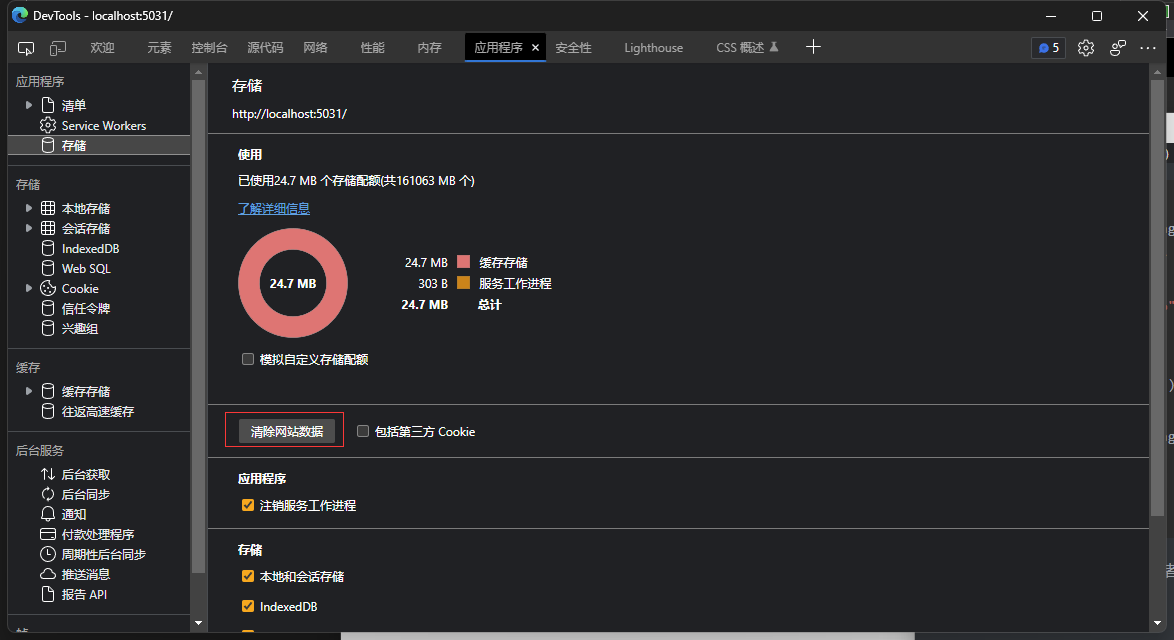
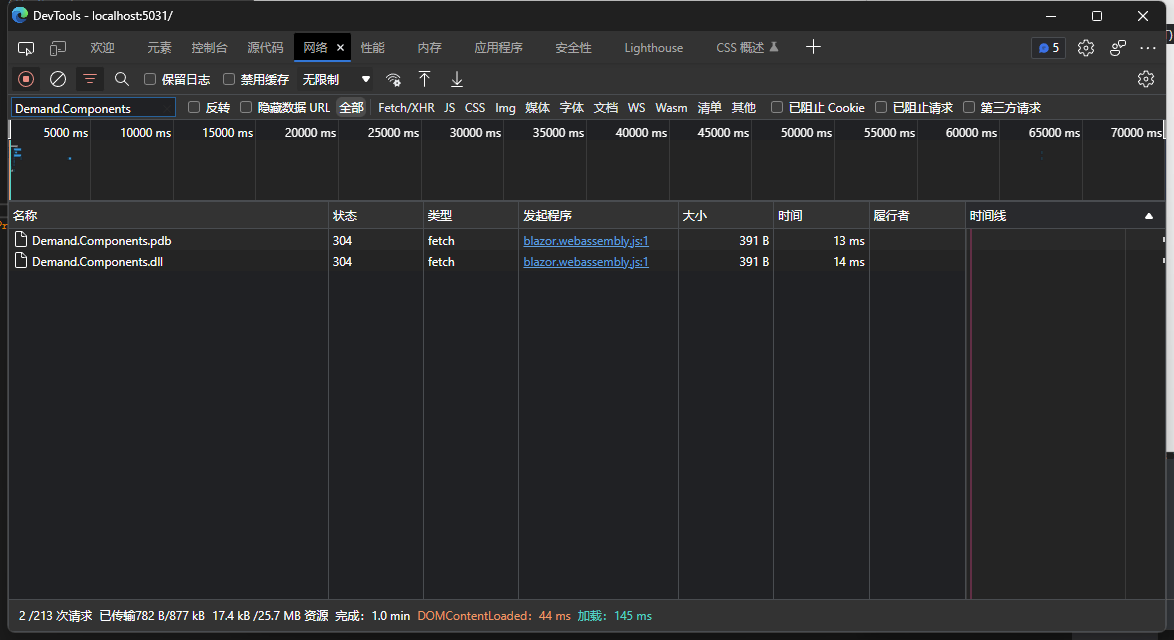
点击网络,然后刷新界面,我们看到这里并不会加载Demand.Components.dll,但是这里的程序集:

然后点击界面的按钮:

这个时候在来到调试工具的网络, 我们看到Demand.Components.dll已经被加载了,当我们使用的时候这个程序集才会加载,并且第二次加入界面的时候不会重复加载程序集:
然后我们将项目发布(发布的时候记得上面提到的裁剪导致程序集丢失无法使用按需加载的问题,只要在按需加载的配置中清理掉被裁剪的程序集即可):

然后使用 docker compose 部署一个 nginx 代理查看效果:
创建docker-compose.yml文件,并且添加以下代码,在docker-compose.yml的当前目录下创建 conf.d和wwwroot俩个文件夹:
services:
  nginx:
    image: nginx:stable-alpine
    container_name: nginx
    volumes:
      - ./conf.d:/etc/nginx/conf.d
      - ./wwwroot:/wwwroot
    ports:
      - 811:80
在conf.d中创建webassembly.conf,并且添加以下代码:
server {
    listen 80;
    server_name http://localhost;

    location / {
        root /wwwroot;
        index index.html;
    }

}
然后在docker-compose.yml所属目录中使用docker-compose up -d启动 nginx 服务
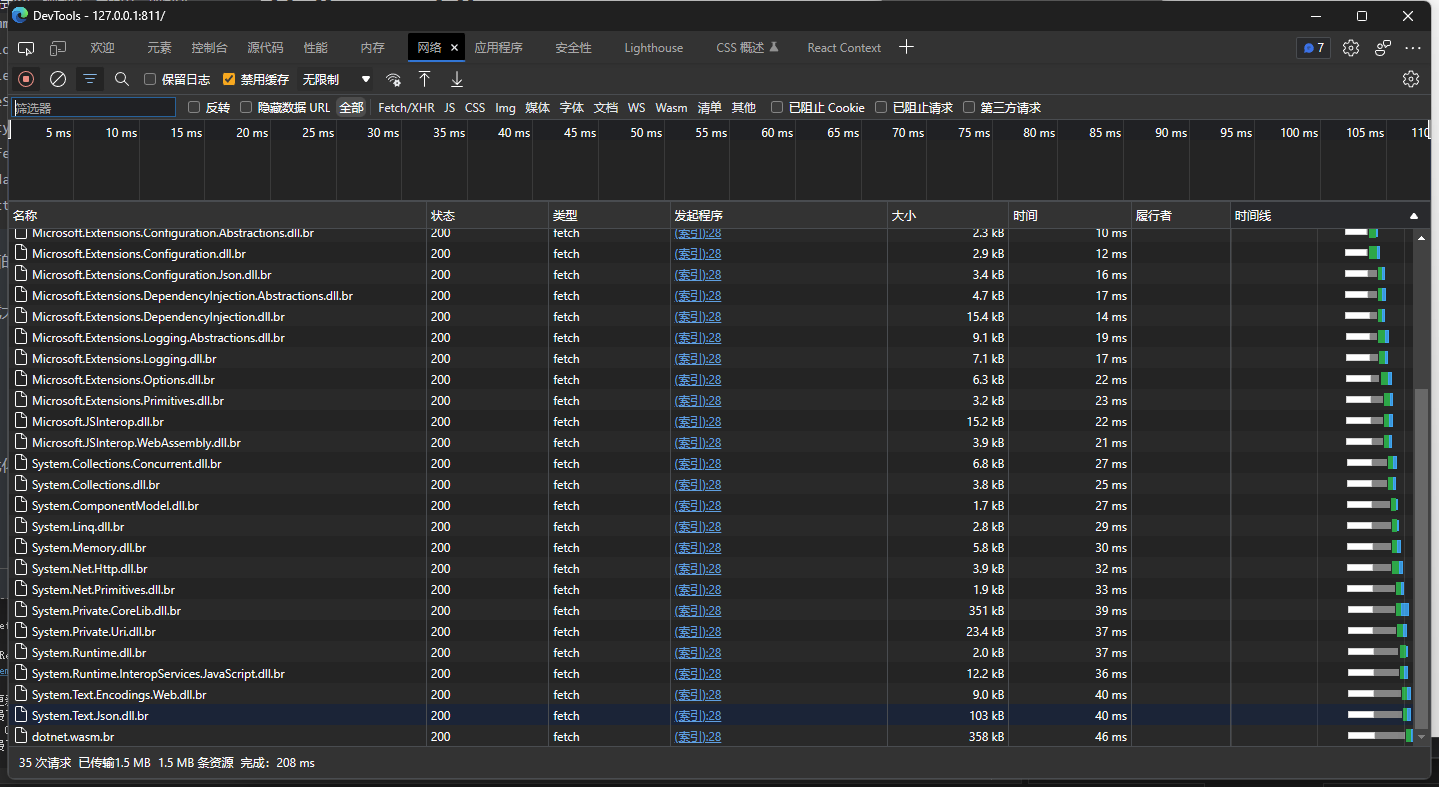
打开浏览器访问http://127.0.0.1:811/ (不要使用 localhost 访问,默认不会启动压缩的)然后打开 f12 调试工具,并且在应用程序中清理掉存储,在打开网络选项,刷新浏览器,加载完成,优化到了 2.3MB,启动压缩,并且在发布的时候裁剪了未使用的程序集:
极致优化 到 1MB
在Demand项目文件中添加以下配置, 以下配置禁用了一些功能,比如全球化等
<PublishTrimmed>true</PublishTrimmed>
<InvariantGlobalization>true</InvariantGlobalization>
<BlazorEnableTimeZoneSupport>false</BlazorEnableTimeZoneSupport>
<EventSourceSupport>false</EventSourceSupport>
<HttpActivityPropagationSupport>false</HttpActivityPropagationSupport>
<EnableUnsafeBinaryFormatterSerialization>false</EnableUnsafeBinaryFormatterSerialization>
<MetadataUpdaterSupport>false</MetadataUpdaterSupport>
<UseNativeHttpHandler>true</UseNativeHttpHandler>
然后我们继续上面的操作将其发布,并且部署到 nginx 中。
在网络中查看加载大小,我们看到已经来到了 1MB,去掉一些 js 其实应该更小,这样它的加载问题得到了很大的解决(来自小夜鲲大佬的建议)
结尾
如果您有更好的优化方案可以联系我.
来自 token 的分享。
- demo 在线访问: http://webassembly.tokengo.top
- GitHub: https://github.com/239573049/demand
- Gitee: https://gitee.com/hejiale010426/demand
blazor 交流群:452761192
本文来自转载。
作者:Token
原文标题:如何将 WebAssembly 优化到 1MB?
原文链接:https://www.cnblogs.com/hejiale010426/p/17076817.html