
1、前言 ✨
在做 Winform 开发的过程中,经常需要做数据展示的功能,之前一直使用的是 GridControl 控件,今天想通过一个示例,跟大家介绍一下如何在 Winform Blazor Hybrid 中使用 Ant Design Blazor 中的 Table 组件做数据展示。
2、效果 ✨
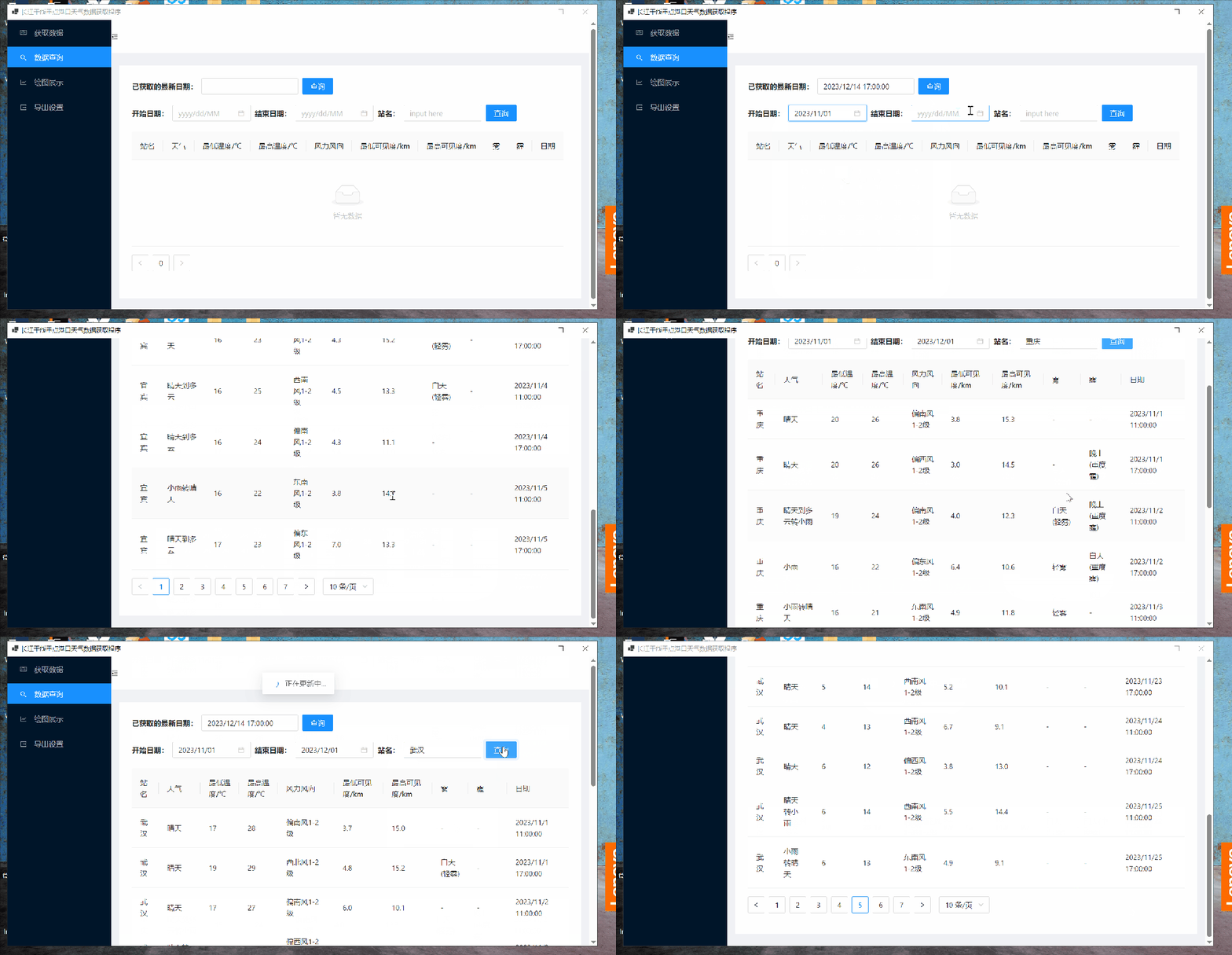
先来看看实现的效果:

3、具体实现 ✨
怎么在 Winform Blazor Hybrid 项目中使用 Ant Design Blazor 可以看我上篇文章。
引入 Ant Design Blazor 的 Table 组件:
<table
  TItem="IData"
  DataSource="@datas"
  OnRowClick="OnRowClick"
  @ref="antTableRef"
>
  <PropertyColumn Property="c=>c.StationName"> </PropertyColumn>
  <PropertyColumn Property="c=>c.Weather"> </PropertyColumn>
  <PropertyColumn Property="c=>c.Tem_Low"> </PropertyColumn>
  <PropertyColumn Property="c=>c.Tem_High"> </PropertyColumn>
  <PropertyColumn Property="c=>c.Wind"> </PropertyColumn>
  <PropertyColumn Property="c=>c.Visibility_Low"> </PropertyColumn>
  <PropertyColumn Property="c=>c.Visibility_High"> </PropertyColumn>
  <PropertyColumn Property="c=>c.Fog"> </PropertyColumn>
  <PropertyColumn Property="c=>c.Haze"> </PropertyColumn>
  <PropertyColumn Property="c=>c.Date"> </PropertyColumn>
</table>
其中:
TItem表示DataSource中单个项的类型,从 0.16.0 开始,Table 已支持普通类、record、接口和抽象类作为 DataSource 的类型。
这里我的TItem设置为一个叫做IData的接口,它的定义如下:
public interface IData
{
    [DisplayName("站名")]
    public string? StationName { get; set; }
    [DisplayName("天气")]
    public string? Weather { get; set; }
    [DisplayName("最低温度/℃")]
    public string? Tem_Low { get; set; }
    [DisplayName("最高温度/℃")]
    public string? Tem_High { get; set; }
    [DisplayName("风力风向")]
    public string? Wind { get; set; }
    [DisplayName("最低可见度/km")]
    public string? Visibility_Low { get; set; }
    [DisplayName("最高可见度/km")]
    public string? Visibility_High { get; set; }
    [DisplayName("雾")]
    public string? Fog { get; set; }
    [DisplayName("霾")]
    public string? Haze { get; set; }
    [DisplayName("日期")]
    public DateTime? Date { get; set; }
}
其中的[DisplayName("站名")]是一个属性或成员的元数据注解,用于提供一个更友好的显示名称。Ant Design Blazor 会自动使用这个来显示名称。
DataSource表示表格的数据源,类型为IEnumerable:

这里DataSource="@datas" 表示我将一个名为 datas 的数据源分配给 Table 组件的 DataSource 属性。
datas的定义如下:
WeatherData[] datas = Array.Empty<WeatherData>();
WeatherData是自定义类,实现了IData接口:
   public class WeatherData : IData
    {
        [SugarColumn(IsPrimaryKey = true, IsIdentity = true)]
        public int Id { get; set; }
        public string? StationName { get; set; }
        public string? Weather { get; set; }
        public string? Tem_Low { get; set; }
        public string? Tem_High { get; set; }
        public string? Wind { get; set; }
        public string? Visibility_Low { get; set; }
        public string? Visibility_High { get; set; }
        public string? Fog { get; set; }
        public string? Haze { get; set; }
        public DateTime? Date { get; set; }
    }
}
看到这里大家可能会有个疑问,那就是刚刚的TItem表示DataSource中单个项的类型,但是现在这里DataSource是WeatherData[],那么单个项的类型是WeatherData而不是刚刚设置的IData,这样可以吗?
通过以下这个简单的例子,可能你就会解开疑惑:
public interface IFlyable
{
    void Fly();
}
public class Bird : IFlyable
{
    public void Fly()
    {
        Console.WriteLine("The bird is flying.");
    }

}
class Program
{
    // 主方法
    static void Main()
    {
       Bird myBird = new Bird();
       IFlyable flyableObject = myBird; // 类型转换

        // 调用接口方法
        flyableObject.Fly();
    }
}
定义了一个IFlyable接口、一个Bird类,该类实现了IFlyable接口,在 Main 函数中,实例化了一个 Bird 类,然后该对象隐式转换为接口类型,再通过接口调用实现类的方法,输出结果为:
The bird is flying.
这说明 C# 中当一个类实现了一个接口时,该类的实例可以被隐式转换为该接口类型。这里就是WeatherData会被隐式转化为了IData。
DataSource也是一样,虽然官方文档上写的类型是IEnumerable,但是我们这里确是WeatherData[]这样也可以,也是因为Array实现了IEnumerable接口,如下所示:

OnRowClick表示行点击事件,类型为EventCallback<RowData>,本例中实际上没有用到。
在 Blazor 中,@ref 是一个用于在 Blazor 组件中引用 HTML 元素或组件实例的指令。通过使用 @ref,你可以在 Blazor 组件中获取对 DOM 元素或子组件的引用,然后在代码中进行操作或访问其属性和方法。
这里我在 Table 组件上添加了@ref="antTableRef",在代码区域添加了:
Table<IData>? antTableRef;
就成功引用了 Table 组件实例。
<PropertyColumn>表示属性列,也就是要展示的列。它的Property属性指定要绑定的属性,类型为Expression<Func<TItem, TProp>>。
这里大家可能会有疑问,Expression<Func<TItem, TProp>>到底是啥呀?
Expression<Func<TItem, TProp>> 是 C#中的一个表达式树,用于表示一个参数为 TItem 类型且返回值为 TProp 类型的 lambda 表达式。
拆开来看,Expression<T> 是一个表示 lambda 表达式的树状结构的类,其中 T 是委托类型。详细学习,可以查看官方文档:

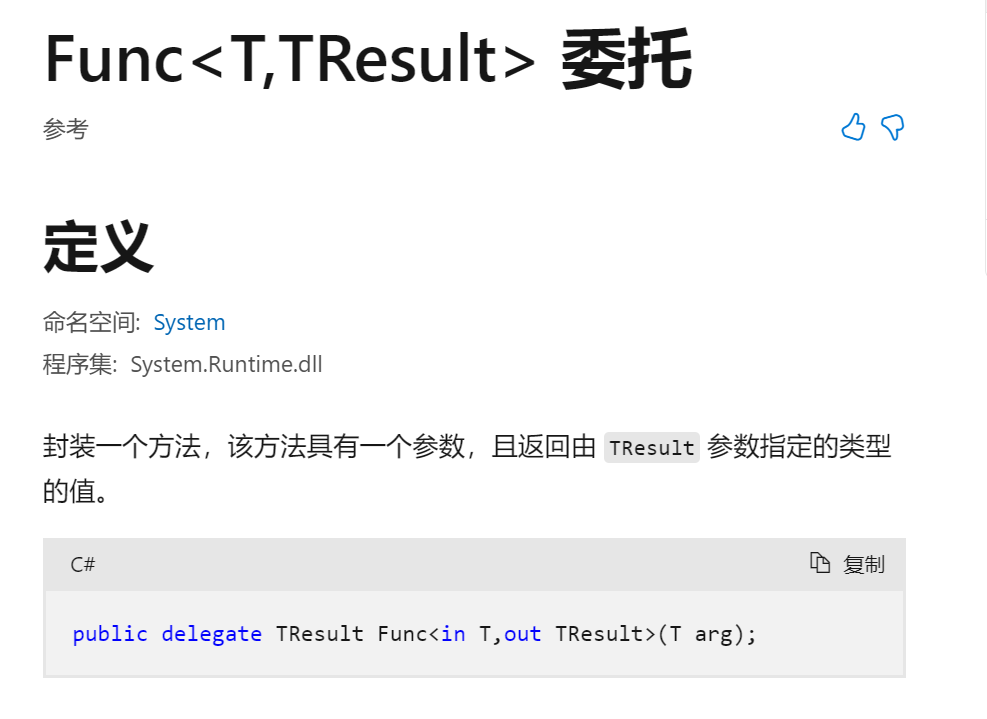
Func<TItem, TProp> 是一个泛型委托类型,表示一个带有一个输入参数和一个输出参数的方法,详细学习,也可以查看官方文档:
这里也通过一个简单的例子进行说明:
Expression<Func<Person, string>> getNameExpression = person => person.Name;
getNameExpression表示一个 Lambda 表达式,一个什么样的 Lambda 表达式呢?一个输入参数类型为Person对应这里的person、输出类型为string对应这里的person.Name的一个 Lambda 表达式。
所以代码:
<PropertyColumn Property="c=>c.StationName"> </PropertyColumn>
就可以理解了,Property的类型是一个输入参数类型为TItem这里TItem的类型就是IData、输出类型为TProp这里TProp类型就是string的一个 Lamda 表达式c=>c.StationName。
理解了以上之后,我们看看这部分的代码:

代码如下:
<GridRow>
  <Space>
    <SpaceItem>
      <Text Strong>开始日期:</Text>
    </SpaceItem>
    <SpaceItem>
      <DatePicker TValue="DateTime?" Format="yyyy/MM/dd" Mask="yyyy/dd/MM"
      Placeholder="@("yyyy/dd/MM")" @bind-Value = "Date1"/>
    </SpaceItem>
    <SpaceItem>
      <Text Strong>结束日期:</Text>
    </SpaceItem>
    <SpaceItem>
      <DatePicker TValue="DateTime?" Format="yyyy/MM/dd" Mask="yyyy/dd/MM"
      Placeholder="@("yyyy/dd/MM")" @bind-Value = "Date2"/>
    </SpaceItem>
    <SpaceItem>
      <Text Strong>站名:</Text>
    </SpaceItem>
    <SpaceItem>
      <AutoComplete
        @bind-Value="@value"
        Options="@options"
        OnSelectionChange="OnSelectionChange"
        OnActiveChange="OnActiveChange"
        Placeholder="input here"
        Style="width:150px"
      />
    </SpaceItem>
    <SpaceItem>
      <button type="@ButtonType.Primary" OnClick="QueryButton_Clicked">
        查询
      </button>
    </SpaceItem>
  </Space>
</GridRow>
站名自动填充:
<AutoComplete
  @bind-Value="@value"
  Options="@options"
  OnSelectionChange="OnSelectionChange"
  OnActiveChange="OnActiveChange"
  Placeholder="input here"
  Style="width:150px"
/>
这个的实现,在上篇文章中已经介绍了,这里就不再重复讲了。
两个日期选择组件都使用了数据绑定:
<SpaceItem>
  <DatePicker TValue="DateTime?" Format="yyyy/MM/dd" Mask="yyyy/dd/MM"
  Placeholder="@("yyyy/dd/MM")" @bind-Value = "Date1"/>
</SpaceItem>

<SpaceItem>
  <DatePicker TValue="DateTime?" Format="yyyy/MM/dd" Mask="yyyy/dd/MM"
  Placeholder="@("yyyy/dd/MM")" @bind-Value = "Date2"/>
</SpaceItem>
其中:
TValue表示值的类型,这里设置为DateTime?。
@bind-Value进行数据绑定,将日期选择组件的值与 Date1 和 Date2 绑定起来:
DateTime? Date1;
 DateTime? Date2;
查询按钮:
<button type="@ButtonType.Primary" OnClick="QueryButton_Clicked">查询</button>
点击事件代码:
async void QueryButton_Clicked()
{
    if (Date1 != null && Date2 != null && value != null)
    {
        var cofig = new MessageConfig()
            {
                Content = "正在更新中...",
                Duration = 0
            };
        var task = _message.Loading(cofig);
        var condition = new Condition();
        condition.StartDate = (DateTime)Date1;
        condition.EndDate = (DateTime)Date2;
        condition.StationName = value;
        datas = weatherServer.GetDataByCondition(condition).ToArray();
        StateHasChanged();
        task.Start();
    }
    else
    {
        await _message.Error("请查看开始日期、结束日期与站名是否都已选择!!!");
    }
}
当条件成立时,创建 Condition 类型,写入开始日期、结束日期和站名,Condition 类的定义如下:
public class Condition
 {
     public DateTime StartDate{ get; set; }
     public DateTime EndDate { get; set; }
     public string? StationName { get; set; }
 }
然后调用业务逻辑层的 weatherServer 中的 GetDataByCondition 方法:
datas = weatherServer.GetDataByCondition(condition).ToArray();
weatherServer 中的 GetDataByCondition 方法如下:
public List<WeatherData> GetDataByCondition(Condition condition)
 {
     return dataService.GetDataByCondition(condition);
 }
因为涉及到数据库的读写,因此调用了数据库访问层中的 dataService 的 GetDataByCondition 方法。
数据库访问层中的 dataService 的 GetDataByCondition 方法如下:
 public List<WeatherData> GetDataByCondition(Condition condition)
  {
      return db.Queryable<WeatherData>()
               .Where(x => x.Date >= condition.StartDate &&
                           x.Date < condition.EndDate.AddDays(1) &&
                           x.StationName == condition.StationName).ToList();
  }
当重新查询时:
StateHasChanged();
调用这个方法组件会进行更新。在 Blazor 中,StateHasChanged 是一个方法,用于通知 Blazor 框架重新渲染组件及其子组件。Blazor 组件的 UI 渲染是基于组件的状态(state)的,当组件的状态发生变化时,需要调用 StateHasChanged 方法来通知框架进行重新渲染。
var cofig = new MessageConfig()
            {
                Content = "正在更新中...",
                Duration = 0
            };
 var task = _message.Loading(cofig);
 task.Start();
是给用户信息提示。
4、总结 ✨
以上通过一个完整的例子,说明了在 winform 中除了可以用 girdcontrol 做数据展示外也可以使用 Ant Design Blazor 中的 Table 做数据展示。