Preparation
Download the Visual Studio 2022 Preview bootstrapper
- Visit the Visual Studio Preview download page
- Select and download the bootstrapper for the Enterprise/Professional/Community edition
Prepare storage space
- It is recommended to reserve at least 200 GB of hard disk space
- Choose an environment with good network access
Creating an Offline Installation Package
1. Download via Command Line
Open a command prompt (as Administrator) and run the following command:
VisualStudioSetup.exe --layout D:\2022 --noweb --add Microsoft.VisualStudio.Workload.NetWeb Microsoft.VisualStudio.Workload.NetDesktop --includeRecommended --lang Zh-cn en-US
Parameter description:
--add: Used to specify workload or component IDs. If--addis used, only the workloads and components specified by--addwill be downloaded. If--addis not used, all workloads and components will be downloaded.--includeRecommended: Adds all recommended components for the specified workload IDs.--includeOptional: Adds all optional components for the specified workload IDs.--config: Uses a*.vsconfigfile to specify workloads, components, or extensions that should be included in or referenced by the layout. Ensure to specify the full path to the configuration file.--lang: Used to specify language locales.
Common workload IDs
- .NET desktop development:
Microsoft.VisualStudio.Workload.NetDesktop - ASP.NET and web development:
Microsoft.VisualStudio.Workload.NetWeb - .NET cross-platform development:
Microsoft.VisualStudio.Workload.NetCrossPlat - Azure development:
Microsoft.VisualStudio.Workload.Azure - Data storage and processing:
Microsoft.VisualStudio.Workload.Data
The above are parameter examples based on official documentation, but we can actually use a simpler command:
VisualStudioSetup.exe --layout D:\2022
Advantages of this simplified command:
- Downloads all available components, ensuring no required functionality is missed
- Includes all language packs, suitable for multilingual development teams
- Avoids component omissions caused by incorrect parameter configuration
Although this method uses more storage space (about 80 GB, ~66 GB compressed), it is the most hassle-free approach if network conditions permit.
Note: To create a layout of the entire product and use the latest and best installer, run
VisualStudioSetup.exe --layout D:\2022 --useLatestInstaller
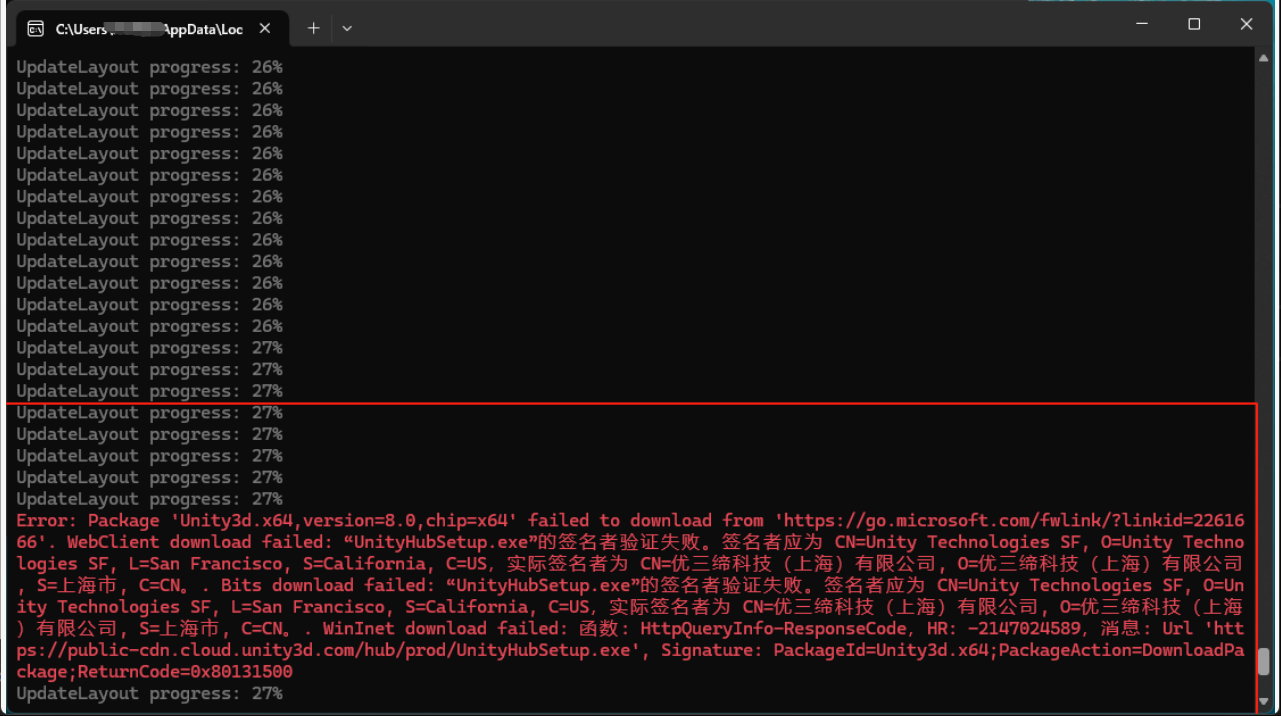
During the process, some packages may fail to download:

In the example above, Unity3d failed to download due to a signature issue. However, since I do not do related development, this can be ignored. The resulting installation package can still be installed normally. If the corresponding package is needed, further investigation may be required.
2. Offline Installation
On the target machine, simply double-click the VisualStudioSetup.exe in the directory to install.
Important Notes
- Ensure network stability during the download
- After downloading, compress and transfer to the target machine, e.g., via FTP
- To update the layout, run the same command to perform an incremental update
- It is recommended to regularly update the offline package to obtain the latest security patches
Common Problem Solving
Download interruption
- Re-run the same command; it will resume the incomplete download
Installation failure
- Check that certificates are properly installed
- Confirm the target machine meets system requirements
- Review log files to pinpoint the specific cause
Missing components
- Verify that workloads are correctly specified
- Confirm the use of
--includeRecommendedand--includeOptionalparameters
Summary
Through the steps above, we can create a complete offline installation package for Visual Studio 2022 Preview. This is especially useful in network-restricted environments, ensuring that the development team uses a consistent development environment. Remember to regularly update the offline package to get the latest features and security updates.
References: