
本文由网友投稿,.NET 是免费、开源、跨平台的。
作者:傲慢与偏见
原文标题:利用 Inno Setup 在 VS 编译时自动构建安装包
原文链接:https://www.cnblogs.com/chonglu/p/17566940.html
欢迎网友们投稿技术类文章,题材不限,没有稿费...

1. 摘要
很多 C/S 开发领域的同学或多或少都可能会遇到需要制作安装包的场景,打包的工具也是五花八门,例如有 NSIS、InstallShield、Wix Toolset、ClickOnce 等等,这里以 Inno Setup 为例简单演示下如何构建安装包,以及在 Visual Studio 中编译程序时自动去构建这个安装包。
2. 操作演示
Tips:如果是想自动化构建,建议先从文章尾部开始看起,前面只是简单演示如何手动构建
2.1. 去官网下载 Inno Setup 打包工具
点击 Inno Setup Downloads 下载:

如果有中文需求,则需下载中文包,下载地址:Inno Setup Translations
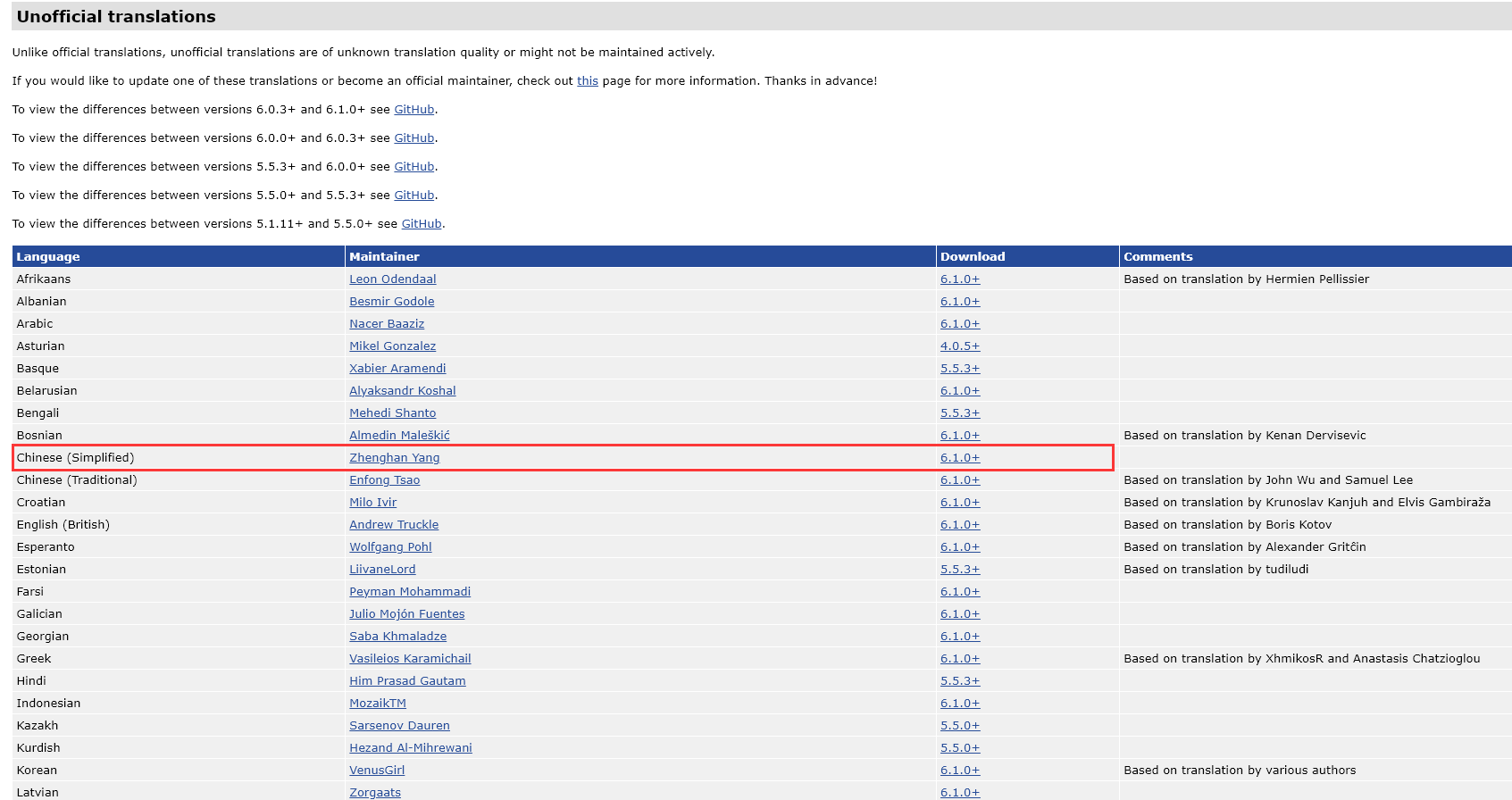
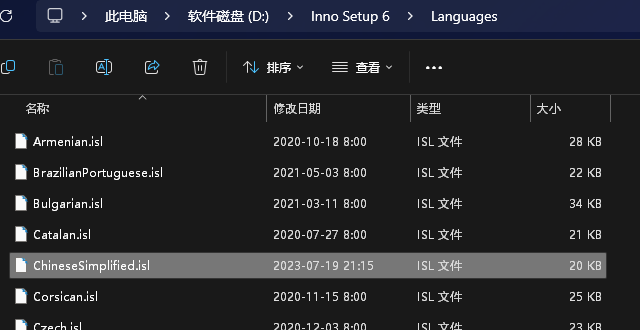
下载完手动放进 Inno Setup 安装目录下的 Languages 目录下即可
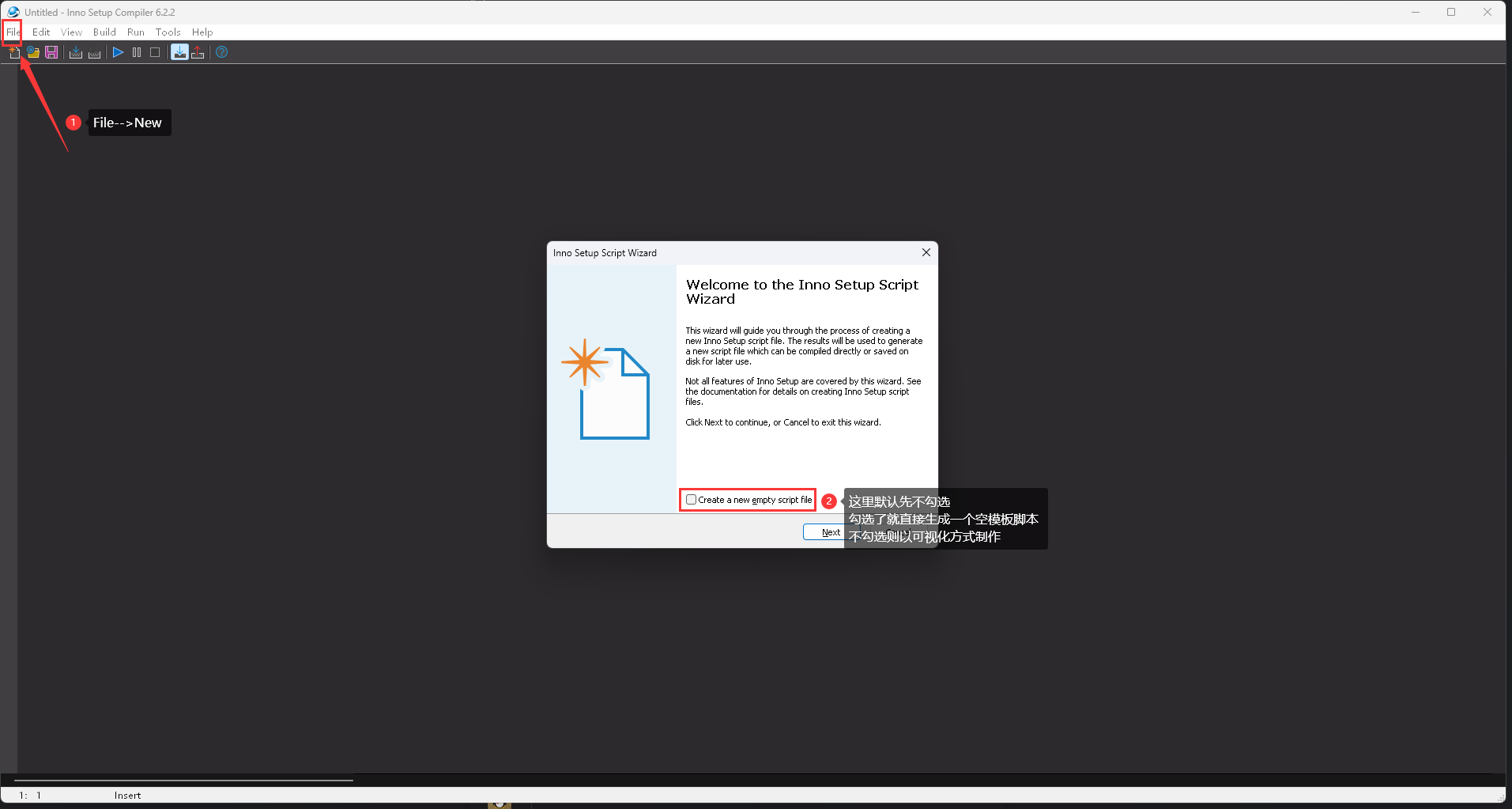
2.2. 创建打包项目
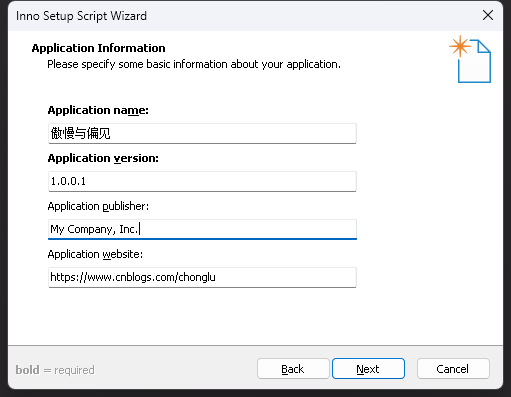
2.3. 填写应用基本信息
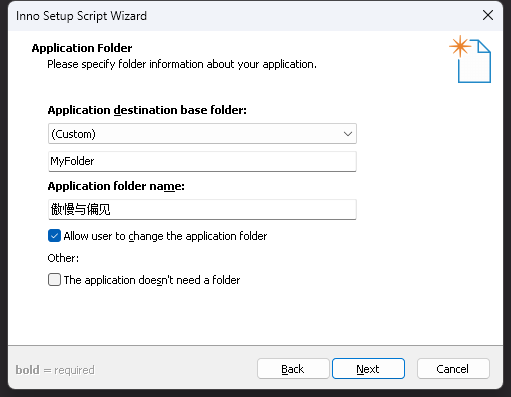
2.4. 填写应用安装目录
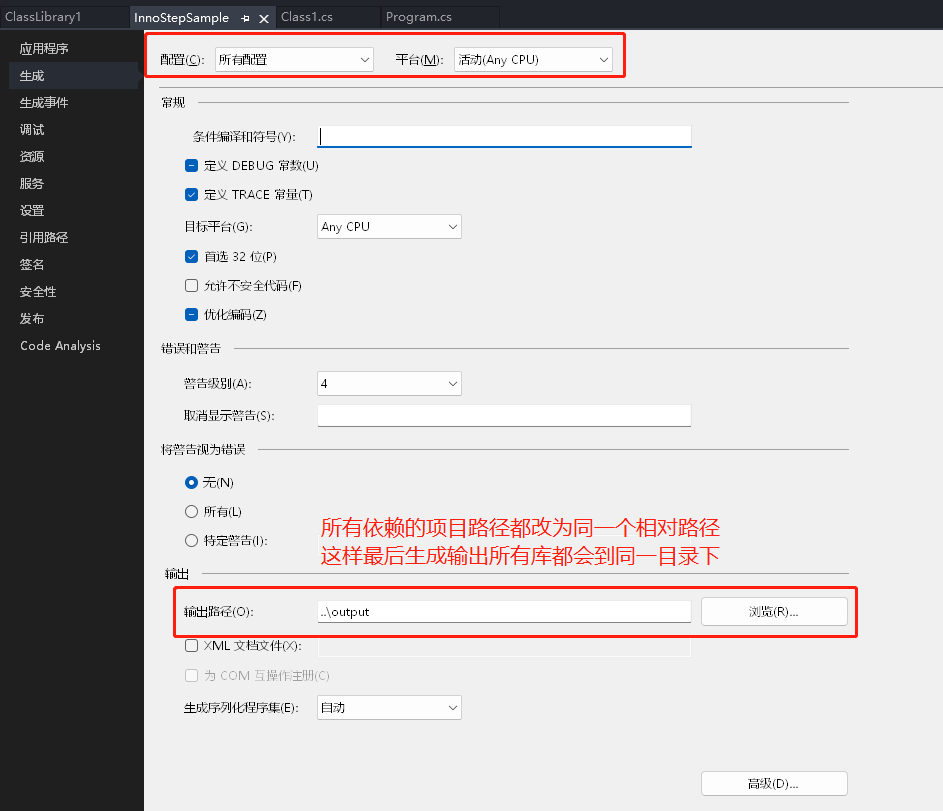
2.5. 在 VS 中右键项目属性,更改项目输出路径,有多个项目则都改为同一个
2.6. 选择应用需要打包的文件
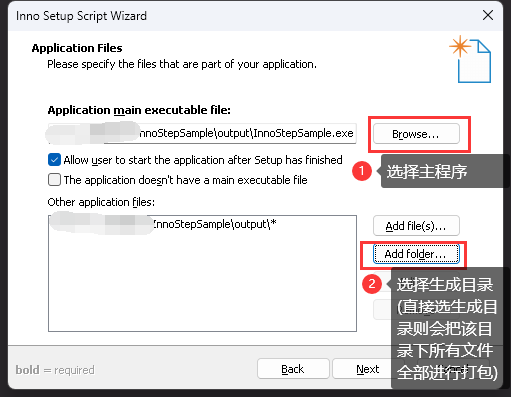
Application main executable file: 应用程序主程序
Other application files: 主程序所依赖的项目或第三方依赖等,这里建议直接选择输出目录
2.7. 应用文件类型关联
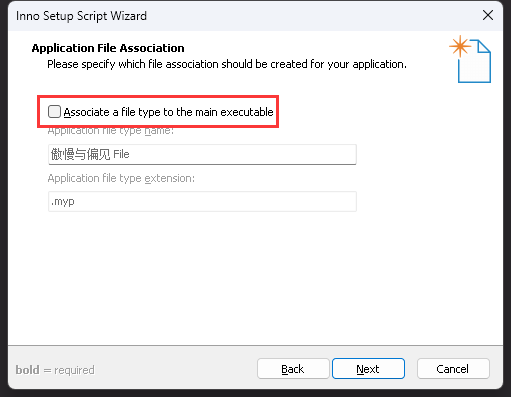
若你程序用不上这个功能一般不用勾选。
2.8. 应用程序快捷方式创建
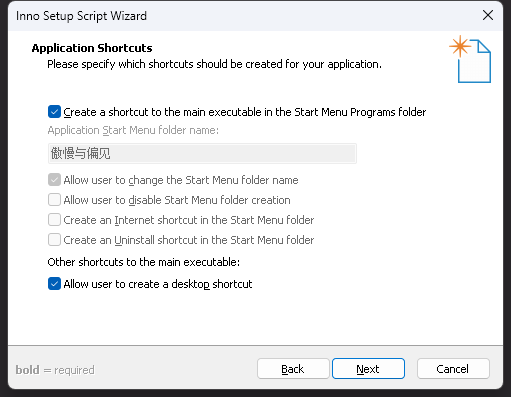
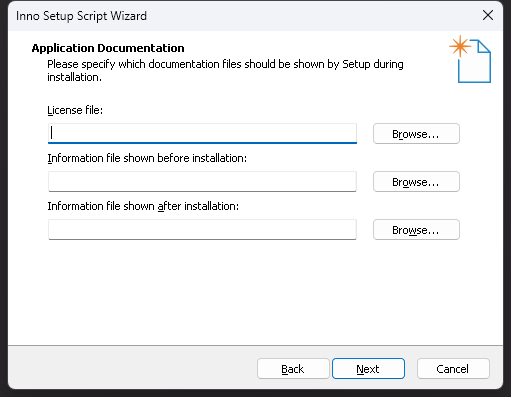
2.9. 应用协议许可文件
2.10. 安装模式选择
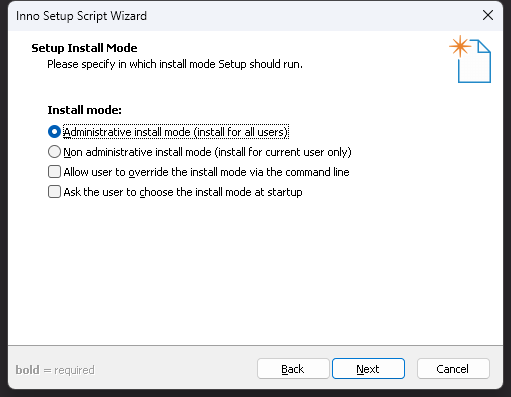
2.11. 安装包语言选择
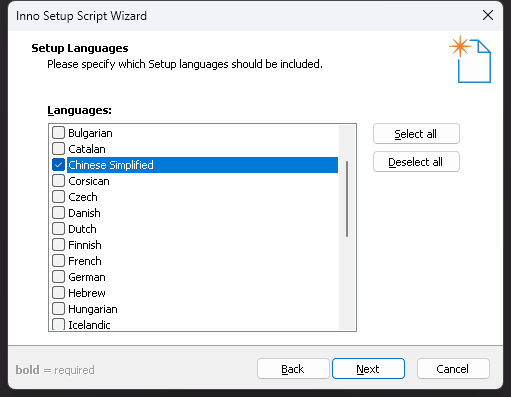
官方默认是不提供中文语言包的,但官网上有第三方用户提供和维护了中文包,有需要的可以在 Inno Setup Translations下载,然后手动放进 Inno Setup 安装目录下的 Languages 下即可,链接前面也提到过。
2.12. 安装包设置
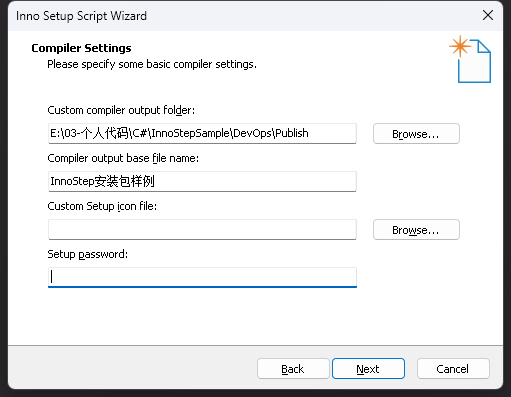
2.13. 设置完了就会生成一个脚本
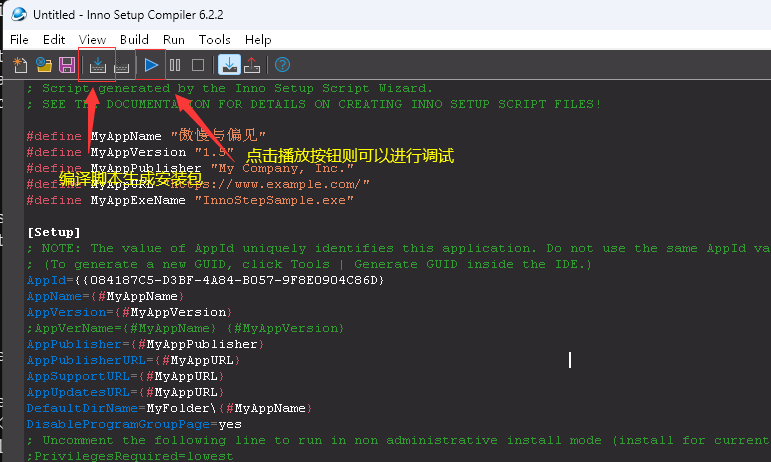
2.14. 编译完成,则会在目录生成一个 exe 文件,双击就可以进行安装
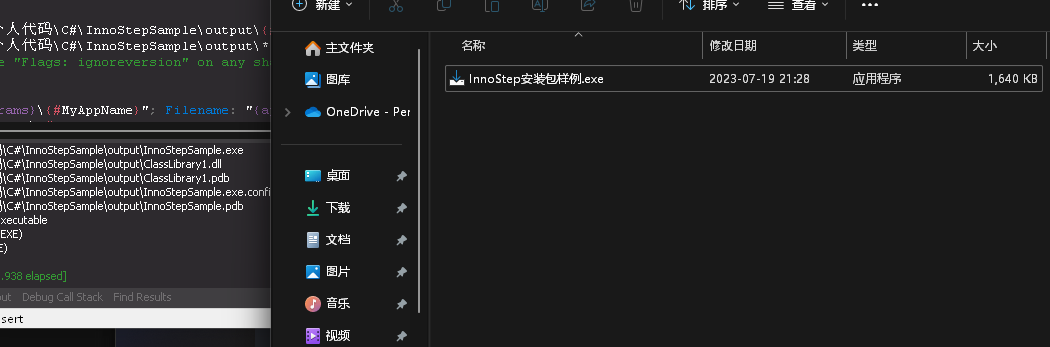
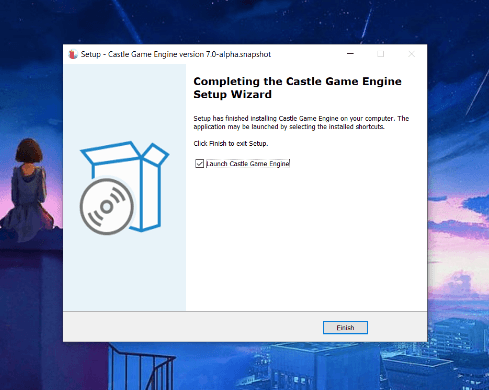
2.15. 安装效果

至此,一个简易的安装包制作完成。
但....这并不是本篇的主题。显而易见,如果每次程序有改动,就需要去 Inno Setup 的编辑器手动执行编译一下生成安装包,有些繁琐。
3. 自动化构建安装包
3.1. 修改刚才创建安装包时生成的脚本文件
主要是将绝对路径改为相对路径以及自动获取主程序文件版本等,避免其他同事/电脑编译时报错,可以参考下我的脚本
; Script generated by the Inno Setup Script Wizard.
; SEE THE DOCUMENTATION FOR DETAILS ON CREATING INNO SETUP SCRIPT FILES!

#define MyAppName "傲慢与偏见"
#define MyAppPublisher "版权信息"
#define MyAppURL "https://www.cnblogs.com/chonglu"
#define MyAppExeName "Inno SetupSample.exe"
#define MyAppVersion GetVersionNumbersString("..\output\Inno SetupSample.exe")

[Setup]
; #define MyAppVersion GetVersionNumbersString("E:\01-项目代码\YZS\KJT\trunk\KJT\bin\KJT.exe")
; NOTE: The value of AppId uniquely identifies this application. Do not use the same AppId value in installers for other applications.
; (To generate a new GUID, click Tools | Generate GUID inside the IDE.)
AppId={{72EC6D66-B10E-4E61-920F-86852D3FFA91}
AppName={#MyAppName}
AppVersion={#MyAppVersion}
;AppVerName={#MyAppName} {#MyAppVersion}
AppPublisher={#MyAppPublisher}
AppPublisherURL={#MyAppURL}
AppSupportURL={#MyAppURL}
AppUpdatesURL={#MyAppURL}
DefaultDirName={autopf}\KJT
DefaultGroupName={#MyAppName}
DisableProgramGroupPage=yes
; Uncomment the following line to run in non administrative install mode (install for current user only.)
;PrivilegesRequired=lowest
OutputBaseFilename=KJTStep
SetupIconFile=AppICon.ico
Compression=lzma
SolidCompression=yes
WizardStyle=modern
OutputDir=..\Publish

[Languages]
Name: "Chinese"; MessagesFile: "compiler:Languages\中文简体.isl"

[Files]
Source: "..\bin\{#MyAppExeName}"; DestDir: "{app}"; Flags: ignoreversion
Source: "..\bin\*"; DestDir: "{app}"; Flags: ignoreversion recursesubdirs createallsubdirs
; NOTE: Don't use "Flags: ignoreversion" on any shared system files

[Icons]
Name: "{group}\{#MyAppName}"; Filename: "{app}\{#MyAppExeName}"

[Run]
Filename: "{app}\{#MyAppExeName}"; Description: "{cm:LaunchProgram,{#StringChange(MyAppName, '&', '&&')}}"; Flags: nowait postinstall skipifsilent
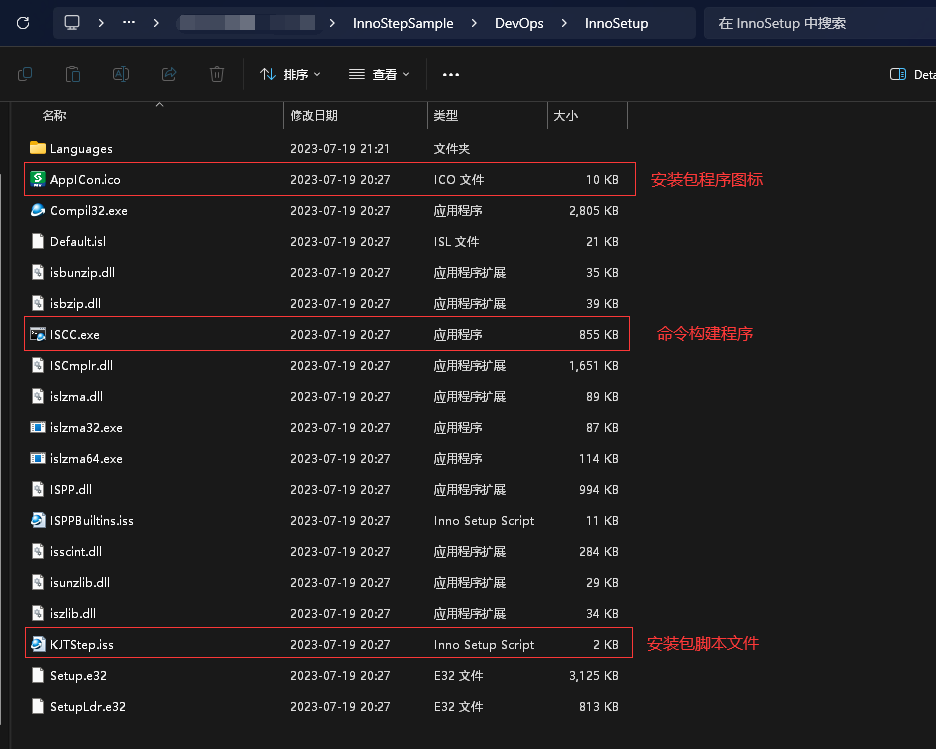
3.2. 把 Inno Setup 的安装目录拷贝一下放到工程目录
里面有些无用的可以删掉,减小体积,可以参考以下
3.3. 设置项目主程序生成后事件
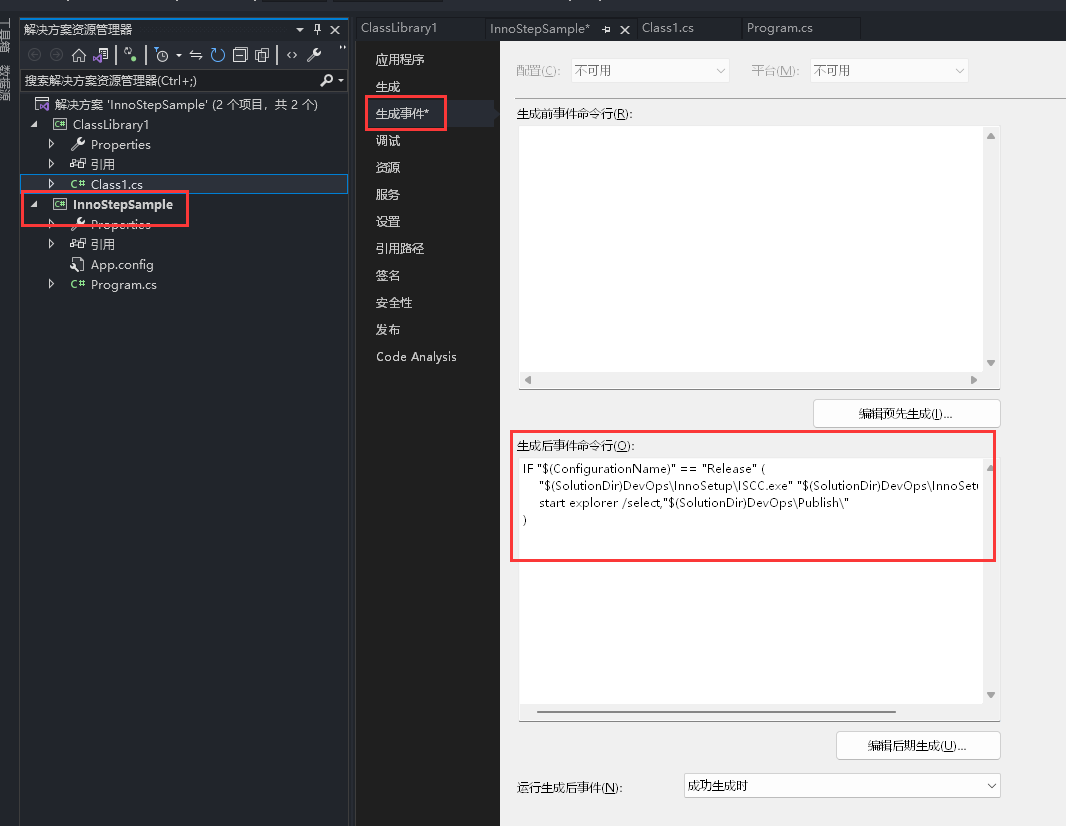
参考命令:
IF "$(ConfigurationName)" == "Release" (
    "$(SolutionDir)DevOps\InnoSetup\ISCC.exe" "$(SolutionDir)DevOps\InnoSetup\KJTStep.iss"
    start explorer /select,"$(SolutionDir)DevOps\Publish\"
)
为防止影响调试,可以加个判断,只有 Release 模式编译项目则执行命令,该命令的意思就是通过调用解决方案下的 ISCC 程序传入安装包脚本从而构建编译出一个最新的安装包,最后再调起文件资源管理器打开安装包目录。
4. 效果演示

每次需要发布新版本时,将解决方案切换为 Release 模式编译,F6 Build 一下,安装包就自动生成出来了,这里只是抛砖引玉给个思路,可以多阅读下官方文档实现出更为完美的安装包。
Tips:为避免编写代码调试时编译速度过慢,最好还是要在生成后事件中加上 Release 模式的判断,当解决方案中有很多个项目时,或编译目录依赖文件过多的情况下,Inno Setup 构建的会有点慢。
5. 结语
Visual Studio 中的生成事件其实是一个很实用的东西,可以在编译前、编译后自动化执行一些经常需要人为手工操作的事,比如还可以利用生成后事件进行代码混淆,本篇文章就暂时不展开细说了。
如果在实际操作中遇到错误或有疑问,以及更好的建议可以在评论中交流..
6. 附录
Inno Setup 官网:https://jrsoftware.org/
Inno Setup 编辑器:https://jrsoftware.org/isdl.php
Inno Setup 语言包:https://jrsoftware.org/files/istrans/
Inno Setup 文档:https://jrsoftware.org/ishelp/