C# Open Source Project: SiMay Remote Control Management System

C# Open Source Project: SiMay Remote Control Management System

A Windows remote control system based on IOCP asynchronous communication model

Last updated 12/4/2020 8:33 AM
dWwwang
9 min read
Category
Winform
Topic
Winform Open Source Project C# Open Source Project
Tags
.NET C# Winform Winform Open Source Project Open Source Project

This project is a Windows remote control system, fully developed using C#.NET. It implements remote desktop based on line-by-line scanning algorithm, desktop view wall, file management, real-time voice and video surveillance, registry management, real-time process management, etc. Each module uses independent connections and supports reconnection in case of exceptions. It implements an intermediate session server, supports simultaneous monitoring by multiple master control terminals, and supports Web client. Welcome to click Star to follow. The project is updated irregularly. The source code is for reference only. Do not use for illegal purposes, otherwise all consequences are your own responsibility.

Gitee repository screenshot

Gitee repository screenshot

The following is based on the original project repository's README

System Introduction

  • SiMay Remote Control Management System is a Windows remote control system, based on the IOCP asynchronous communication model at the bottom layer, capable of real-time monitoring of a large number of clients. Currently implemented features include: line-by-line scanning remote desktop classic file management, real-time remote voice, real-time camera, classic registry management, command line terminal, real-time system process management, user desktop view wall carousel, etc. It can also capture UAC and WinLogon desktops. The system implements an intermediate session server, supporting simultaneous monitoring of the same controlled terminal by multiple master control terminals from different platforms. The controlled server supports green startup and installation as a system service. The project is fully developed in C#.NET. The code is for reference only. The project is updated irregularly. Welcome to follow, star, and fork. Welcome to join the technical exchange group: 905958449 :laughing: :blush:

Enterprise Feature Customization

  • Remote desktop upgrade (overall performance improved by 50%, lower bandwidth usage), Web version remote desktop, (camera, voice, screen broadcasting), file distribution, support for remote server desktop, etc. Welcome to join the group and consult the group owner.

Disclaimer

  • As the creator, I do not assume any responsibility for any behavior and/or damages caused by this software. You bear full responsibility for your own actions and acknowledge that this software is for educational and research purposes only. It must not be used on any system that you do not own or have the right to use. By using this software, you automatically agree to the above. Thank you for your support.

Background

  • This project is a personal project. After several refactorings, the system is relatively mature. It was decided to open source and give back to the open source community. I hope more people can progress together with me. Criticism and improvements are welcome.

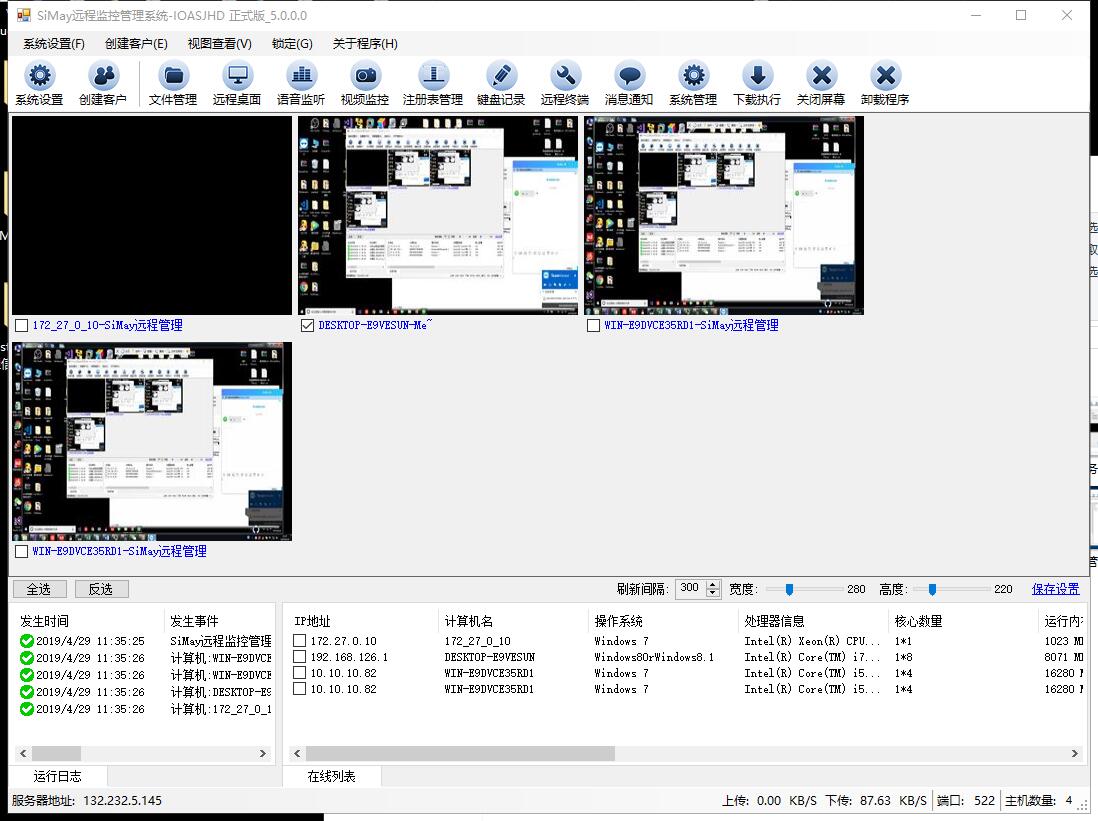
Master Control Interface

Master Control Interface

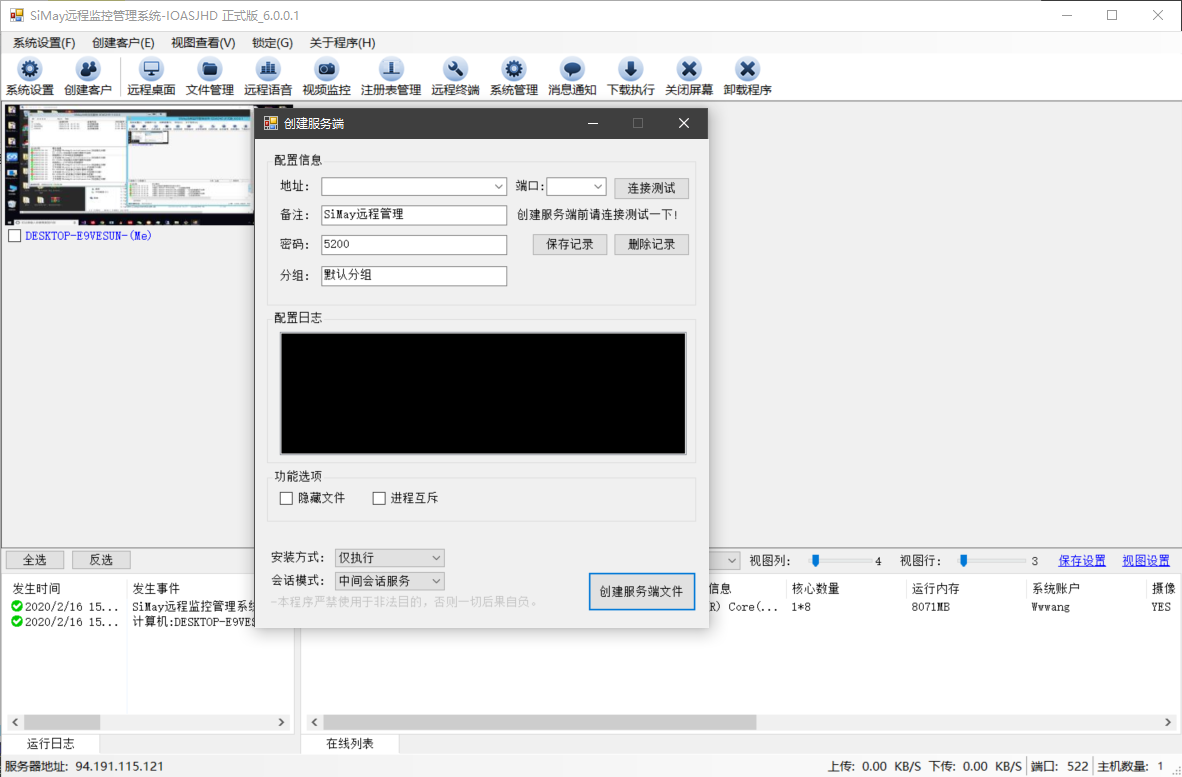
Create Server

Create Server

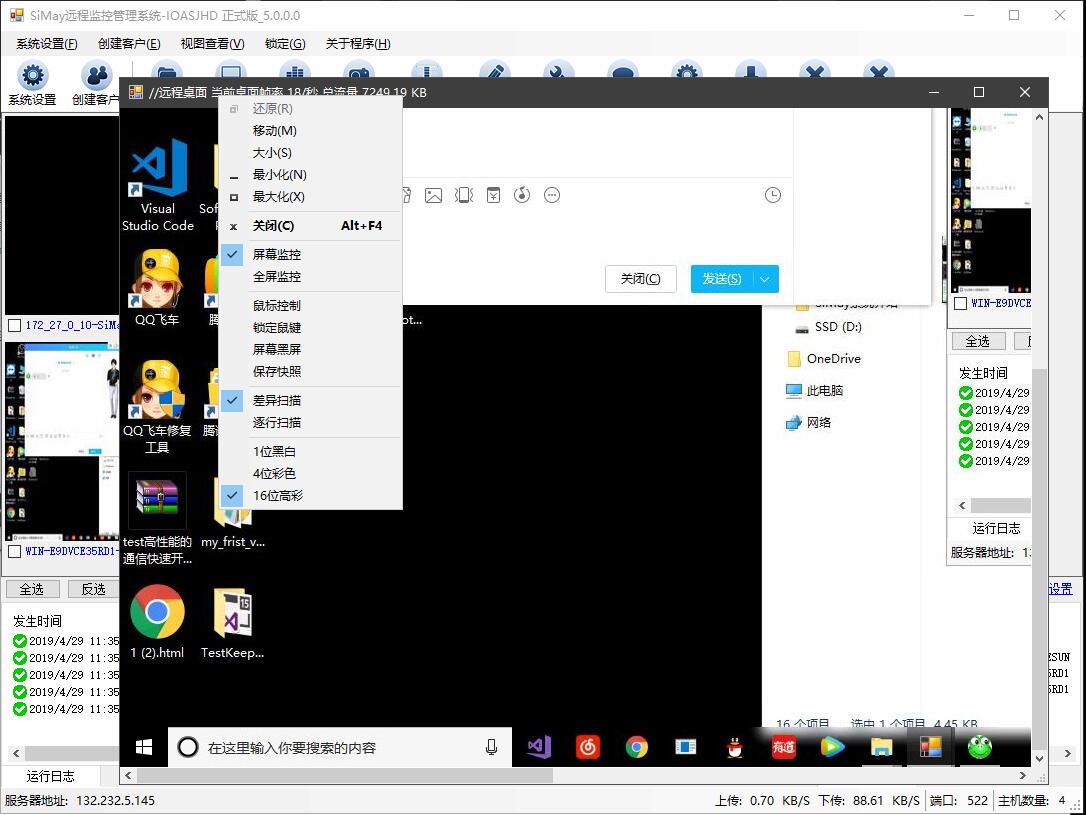
Remote Desktop

Remote Desktop

File Management

File Management

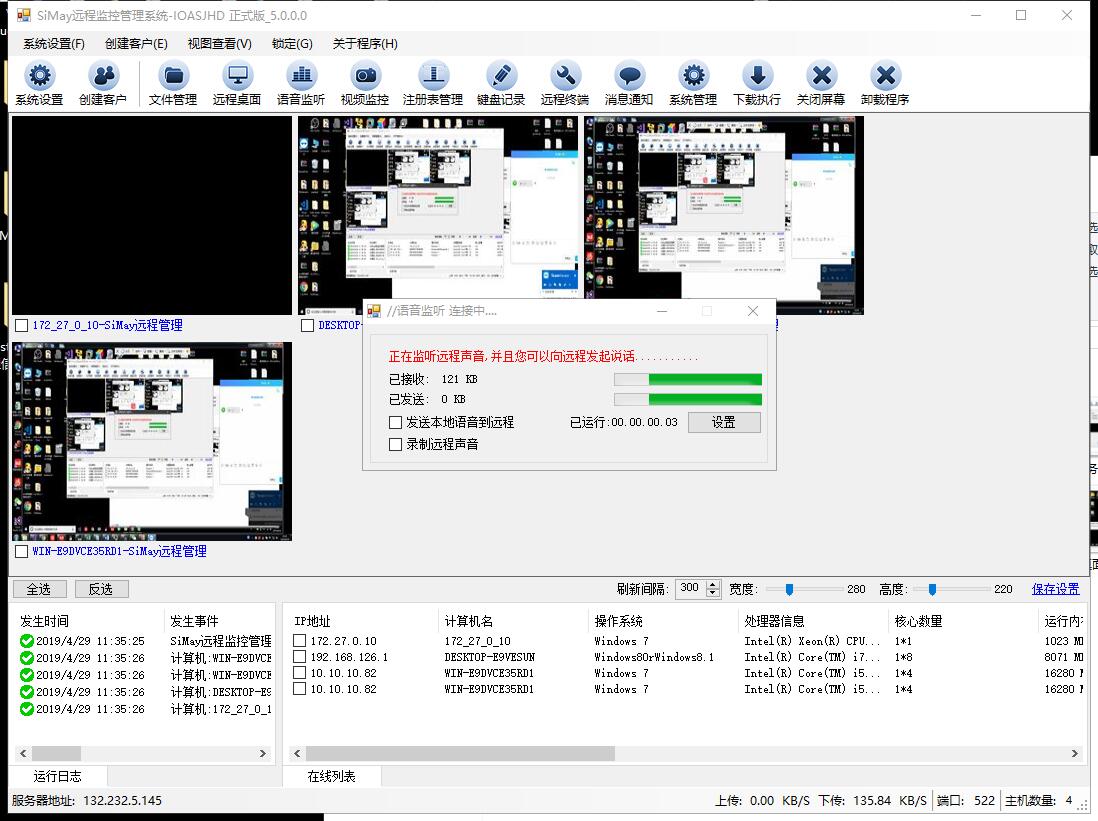
Voice Transmission

Voice Transmission

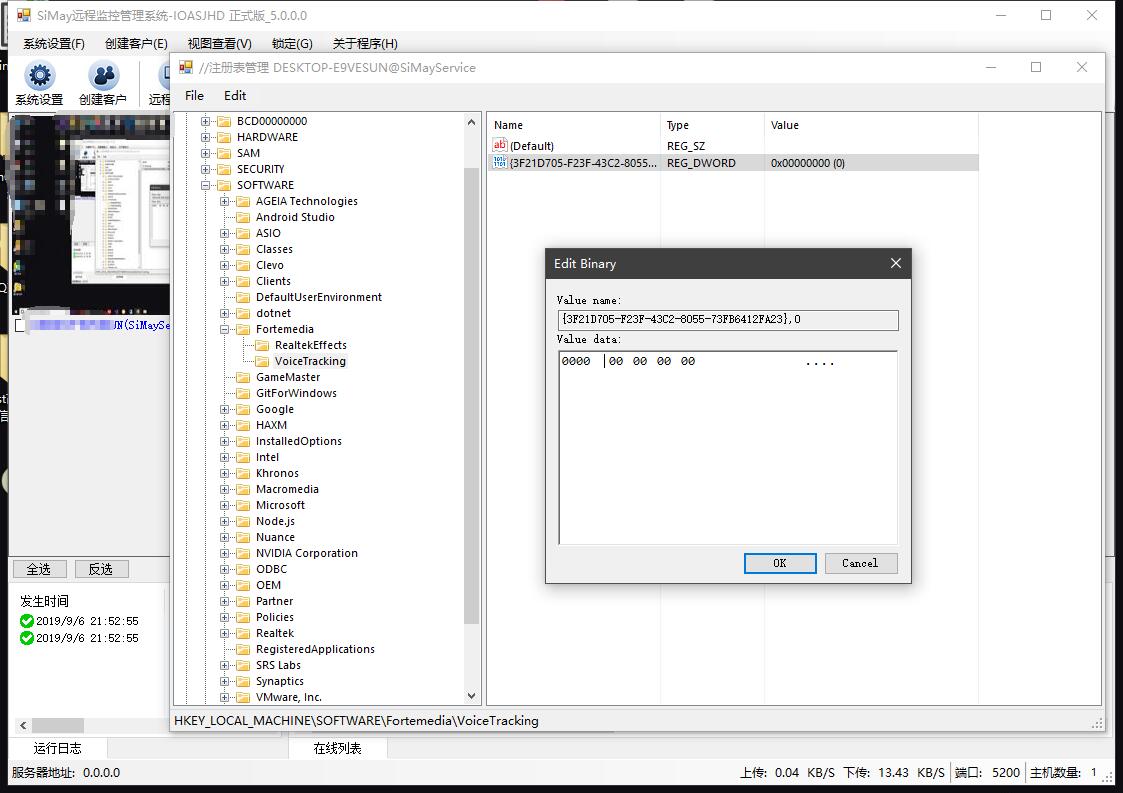
Registry Management

Registry Management

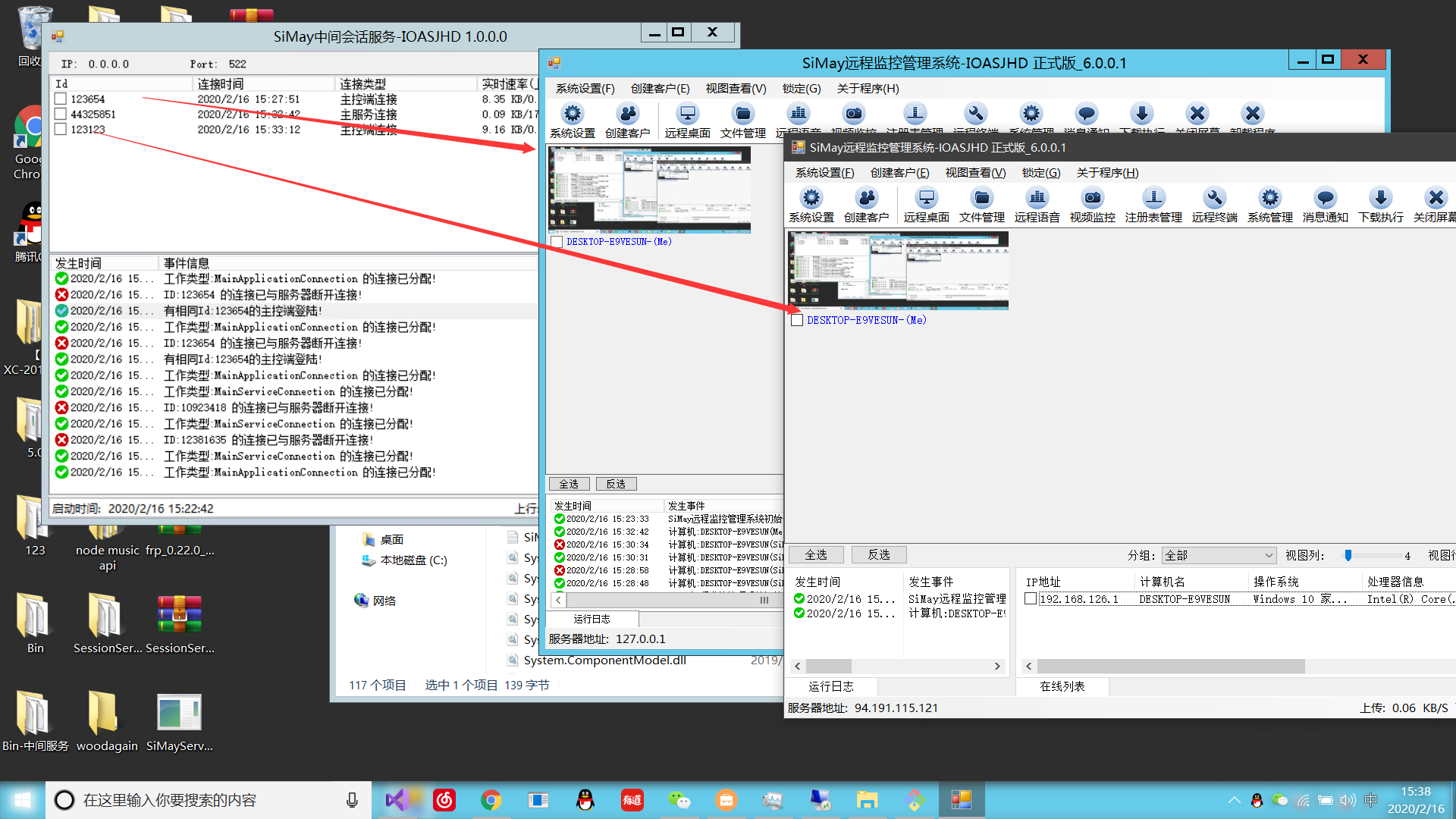
Intermediate Server

Intermediate Server

System Project Structure

SiMay.Core [Public Core Features]

  1. SiMay.Basic -- Basic common library
  2. SiMay.Core.Standard -- System core unified common library [unified communication commands, common components, communication data entities, etc.]
  3. SiMay.Serialize.Standard -- Lightweight high-performance binary serialization library [purpose: serialize communication data entities]
  4. SiMay.ModelBinder -- Call binder

SiMay.RemoteMonitor [Master Control Terminal]

  1. SiMay.RemoteControls.Core -- Master control terminal core library
  2. SiMay.RemoteMonitor.Windows -- Windows master control management terminal
  3. SiMay.RemoteMonitor.Web -- Web master control terminal
  4. SiMay.RemoteMonitorForWebSite -- Web monitoring frontend

SiMay.Platform [Platform Implementation]

  1. SiMay.Platform.Windows -- Windows-based functionality implementation

SiMay.RemoteService [Remote Controlled Server]

  1. SiMay.RemoteService.Loader -- In-memory loading Loader, implements remote memory loading of controlled terminal core library
  2. SiMay.ServiceCore -- Controlled terminal core library

SiMay.SessionProvider [Session Provider Layer]

  1. SiMay.Net.SessionProvider -- Session provider library [purpose: provide server listening mode or intermediate session proxy protocol]
  2. SiMay.Net.SessionProvider.Core -- Proxy protocol unified common library [purpose: unify communication commands and serialization between intermediate library and server]
  3. SiMay.Net.SessionProviderServiceCore -- Intermediate service core library
  4. SiMay.Net.SessionProviderService -- Intermediate session proxy server [purpose: provide session maintenance and data forwarding for server, enabling multi-platform terminal monitoring]

SiMay.Sockets [Communication Layer]

  1. SiMay.Socket.Standard -- Lightweight communication engine
  2. SiMaySocketTestApp -- Communication engine test program

Compilation

Bin is the compilation directory. After rebuilding, the master control program will be compiled to this directory. The Bin->dat directory is the controlled server directory, where the controlled server is compiled. (If the directory does not exist, create one.)

Running

  1. LAN

Master control terminal: Open the master control program SiMayRemoteMonitor.exe located in the Bin directory. Confirm that the system settings server address is 0.0.0.0 (listening on all network cards of the local machine), port default 5200, session mode = local server, then save the configuration and restart the program. After restart, if the log outputs "listening successful", the master control terminal is configured correctly.

Controlled server creation: Open the master control terminal -> Create client -> Enter the local machine's physical address (or 127.0.0.1) for the address, set the port to the server listening port (default 5200) -> Click "Test Connection" to check if the configuration is correct -> Create server file. The server file is the configured controlled terminal program (if prompted that the file cannot be found, please check whether the controlled service program exists [whether the compilation steps are correct]). Double-click to run the controlled service program, and the online information of the service will appear on the master control terminal. If no online information appears on the master control terminal, check whether the above steps are configured correctly.

  1. WAN

Prerequisites: The master control terminal must be in a public network environment (or set up routing intranet mapping, use intranet mapping tools [such as Peanut Hull, Intranet Tunnel]), and open the master control terminal's listening port (check whether the port is open and firewall rules are set). When creating a client, the controlled server connects to the master control terminal's public network address and port.

  1. Intermediate Server Deployment

Prerequisites: The intermediate server must be in a public network environment (recommended to deploy on a public network server, or set up routing intranet mapping), and open the intermediate server's listening port (default 522 port; check whether the port is open and firewall rules are set).

Master control terminal settings: System settings -> Session server address: enter the intermediate server's public network address and port. -> Set session mode to "Intermediate session mode" -> Confirm that the AccessKey matches the intermediate server's AccessKey. (The intermediate session server system settings are located in the title bar system menu, right-click) -> Create a client and select session mode as "Intermediate session mode", enter the IP and port as the intermediate server's public network address.

  1. Web Monitoring

Compile SiMay.RemoteMonitor.Web.exe. The Web service runs as a console application without a system settings interface. You can directly use the system configuration file SiMayConfig.ini saved by the Windows control terminal. The session mode can be started using server mode or intermediate session mode. After successful startup, the console will print "listening successful" or "initialization successful" (server mode prints "listening successful", intermediate session mode prints "initialization successful" and "WebSocket port listening successful"). If a controlled terminal connects successfully, the console will print online connection information in real time. Web service setup is complete.

After the above Web service setup, the next step is to deploy the Web site SiMay.WebRemoteMonitor. First, open the Index.html file and edit the WebSocket connection address to point to the public network address and port of the Web service.

Use a browser to access the SiMay.WebRemoteMonitor website. The page will pop up Id and Key input boxes, indicating a successful connection to the Web service. Enter the account and password configured in SiMay.RemoteMonitorFor.Web.exe to log in. After successful connection, the page will display the computer desktop view of the controlled server. Long press the view to open more functions.

Technology

  1. Component-based system architecture design
  2. Remote synchronous call
  3. Entity message transfer protocol
  4. Application multi-connection session support
  5. Remote desktop with visible area line-by-line scanning algorithm
  6. Intermediate session service forwarding, supporting simultaneous real-time monitoring by multiple master control terminals
  7. HOOK technology
  8. WebSocket Web monitoring
  9. IOCP asynchronous Socket high-performance communication model
  10. Voice communication based on Windows WaInXX series
  11. Camera capture based on Dx components

Development Environment

  1. Recommend Visual Studio 2019 Enterprise Edition

Contribution

  1. Fork this repository
  2. Create a Feat_xxx branch
  3. Commit code
  4. Create a Pull Request

Future Ideas

  1. Mobile Web monitoring client
  2. Cross-platform system management and monitoring
Keep Exploring

Related Reading

More Articles
Same category / Same tag 2/29/2024

Data Display Can Also Be Done Like This in Winform

In the process of developing Winform, data display functionality is often required. Previously, the gridcontrol control was commonly used. Today, through an example, I would like to introduce how to use the table component from Ant Design Blazor for data display in a Winform Blazor Hybrid application.

Continue Reading
Same category / Same tag 2/29/2024

Can the Winform interface also look good?

A few days ago, I introduced using Blazor Hybrid in Winform, and mentioned that with the Blazor UI, our Winform programs can be designed to look better. Next, I will illustrate with an example of drawing in Winform Blazor Hybrid, hoping it helps you.

Continue Reading
Same category / Same tag 11/21/2021

Open Source Winform Control Library: Mulan Control Library

This project can be compiled. Except for the animation functions extracted from Silverlight and the ColorEditorExt.cs color panel view designer extension modified from online examples, all other controls are written based on native controls without using any third-party libraries, so feel free to use it without any copyright infringement issues.

Continue Reading