
1. 火热的 MVVM 框架
最近几年最热门的技术之一就是前端技术了,各种前端框架,前端标准和前端设计风格层出不穷,而在众多前端框架中具有 MVC,MVVM 功能的框架成为耀眼新星,比如 GitHub 关注度很高的 Vue.js ,由于是国人作品,其设计风格和文档友好度对国人而言更胜一筹,因此我也将它推荐到公司采用,其中我推荐都理由就是它非常优秀的 MVVM 功能,面向数据而不是面向 DOM 细节相比 jQuery 等更加节省代码,更符合后端程序员的胃口,也更有利于 UI 设计人员跟程序员都分工配合。
下面是 Vue.js 实现 MVVM 功能的原理图:
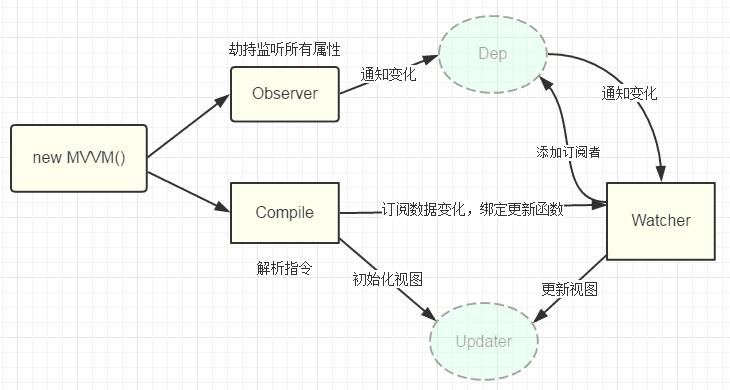
前面说的 Vue.js 框架这些优点的是否很眼熟?没错,这就是早些年流行于 WPF 的 MVVM 技术,相比 WinForms 技术,WPF 可以提供给 UI 设计人员更加强大的设计能力,做出更炫更好看的界面。只不过 MS 的很多技术总是很超前技术更新很快,WPF 新推出的时候 WinForms 还占据桌面开发主要领域,随后还没有火起来移动开发时代已经来临,基于 Web 的前端技术大大发展,从而风头盖过了 WPF,但是 WPF 引入的 MVVM 思想却在 Web 前端得到了发扬光大,现在各种基于 MVVM 的前端框架犹如雨后春笋。
2. WinForms 上的 MVVM 需求
Web 前端技术的大力发展,各种跨平台的基于 HTML5 的移动前端开发技术逐渐成熟,各种应用逐步由传统的 C/S 转换到 B/S ,APP 模式,基于 C/S 模式的前端技术比如 WPF 的关注度逐渐下降,因此 WPF 上的 MVVM 并不是应用得很广,目前很多遗留的或者新的 C/S 系统仍然采用 WinForms 技术开发维护,然而 WinForms 上却没有良好的 MVVM 框架,WinForms 的 UI 效果和整体开发质量,开发效率没有得到有效提高,要过度到 WPF 开发这种不同开发风格的技术难度又比较大,所以,如果有一种能够在 WinForms 上的 MVVM 框架,无疑是广大后端.NET 程序员的福音。
笔者一直是一个奋斗在一线的.NET 开发人员,架构师,对于 Web 和桌面,后端开发技术都有广泛的涉及,深刻理解开发人员自嘲自己为“码农”的心理的,工作辛苦又没有时间陪女朋友陪家人,所以我一直总结整理如何提高开发效率,改善开发质量的方法,经过近 10 年的时间,发展完善了一套开发框架—SOD 框架。最近研究改善 Web 前端开发的技术,Vue.js 框架的 MVVM 思想再一次让我觉得 WinForms 上 MVVM 技术的必要性,发现要实现 MVVM 框架其实并不难,关键在于模型(Model)和视图(View)的双向绑定,即模型的改变引起视图内容的改变,而视图的改变也能够引起模型的改变。
3. SOD WinForms MVVM 实现原理
要实现这种改变,对于被绑定方,必须具有属性改变通知功能,当绑定方改变的时候,通知被绑定方让它做相应的处理。在.NET 中,实现这种通知功能的接口就是:
INotifyPropertyChanged
它的定义在 System.dll 中,早在 .NET 2.0 就已经支持。下面是该接口的具体定义:
namespace System.ComponentModel
{
    // 摘要:
    //     向客户端发出某一属性值已更改的通知。
    public interface INotifyPropertyChanged
    {
        // 摘要:
        //     在更改属性值时发生。
        event PropertyChangedEventHandler PropertyChanged;
    }
}
SOD 框架的实体类基类 EntityBase 实现了此接口:
public abstract class EntityBase : INotifyPropertyChanged, ICloneable, PWMIS.Common.IEntity
{
    /// <summary>
    /// 属性改变事件
    /// </summary>
    public event PropertyChangedEventHandler PropertyChanged;
    /// <summary>
    /// 触发属性改变事件
    /// </summary>
    /// <param name="propertyFieldName">属性改变事件对象</param>
    protected virtual void OnPropertyChanged(string propertyFieldName)
    {
        if (this.PropertyChanged != null)
        {
            string currPropName = EntityFieldsCache.Item(this.GetType()).GetPropertyName(propertyFieldName);
            this.PropertyChanged(this, new PropertyChangedEventArgs(currPropName));
        }
    }
    // 其他代码略… …
}
所以 SOD 框架的实体类可以直接用来作为 MVVM 上的 Model 提供给 View 作为被绑定对象,因此要我们只需要解决 WinForms 形式的 View 元素如何实现绑定操作,那么我们的 WinForms 应用即可实现 MVVM 功能了。在 WinForms 上,控件基本上都已经实现了绑定功能,它就是控件的 DataBindings,向它添加绑定即可,例如下面的例子:
this.textbox1.DataBindings.Add("Text", userEntity, "Name");
这样当文本框架输入的内容改变后,实体类对象 userEntity.Name 属性的值也会改变。如果 userEntity 是 SOD 实体类,所以 userEntity.Name 改变,文本框的 Text 属性也会同步改变。
SOD 框架的数据控件(WinForms,WebForms)都实现了 IDataControl 接口,它定义了几个重要的属性 LinkObject,LinkProperty :
/// <summary>
/// 数据映射控件接口
/// </summary>
public interface IDataControl
{

    /// <summary>
    /// 与数据库数据项相关联的数据
    /// </summary>
    string LinkProperty
    {
        get;
        set;
    }

    /// <summary>
    /// 与数据关联的表名
    /// </summary>
    string LinkObject
    {
        get;
        set;
    }
    // 其他接口方法内容略… …
我们可以使用 LinkObject 来指定要绑定的实体类对象,而 LinkProperty 来指定要绑定的对象的属性,因此可以通过下面的代码实现 WinForms 控件与 SOD 实体类的双向绑定:
public void BindDataControls(Control.ControlCollection controls)
{
    var dataControls = MyWinForm.GetIBControls(controls);
    foreach (IDataControl control in dataControls)
    {
        //control.LinkObject 这里都是 "DataContext"
        object dataSource = GetInstanceByMemberName(control.LinkObject);
        if (control is TextBox)
        {
            ((TextBox)control).DataBindings.Add("Text", dataSource, control.LinkProperty);
        }
        if (control is Label)
        {
            ((Label)control).DataBindings.Add("Text", dataSource, control.LinkProperty);
        }
        if (control is ListBox)
        {
            ((ListBox)control).DataBindings.Add("SelectedValue", dataSource, control.LinkProperty, false, DataSourceUpdateMode.OnPropertyChanged);
        }
    }
}
另外,我们可能还需要将 一些命令绑定到视图上,而要实现此功能也比较简单:
private Dictionary<object, CommandMethod> dictCommand;
public delegate void CommandMethod();

public void BindCommandControls(Control control,CommandMethod command)
{
    if (control is Button)
    {
        dictCommand.Add(control, command);
        ((Button)control).Click += (sender, e) => {
            dictCommand[sender]();
        };
    }
}
经过这样的过程后,我们仅需要在窗体加载事件上写下面的几行代码就行了:
SubmitedUsersViewModel DataContext{get;set;}

private void Form1_Load(object sender, EventArgs e)
{
    base.BindDataControls(this.Controls);
    base.BindCommandControls(this.button1, DataContext.SubmitCurrentUsers);
    base.BindCommandControls(this.button2, DataContext.UpdateUser);
    base.BindCommandControls(this.button3, DataContext.RemoveUser);
}
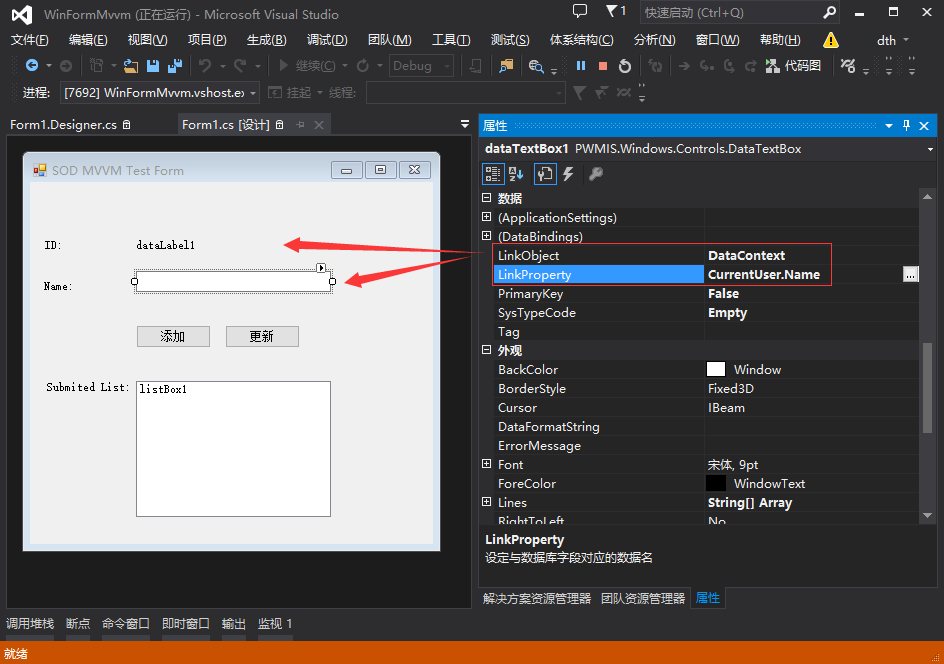
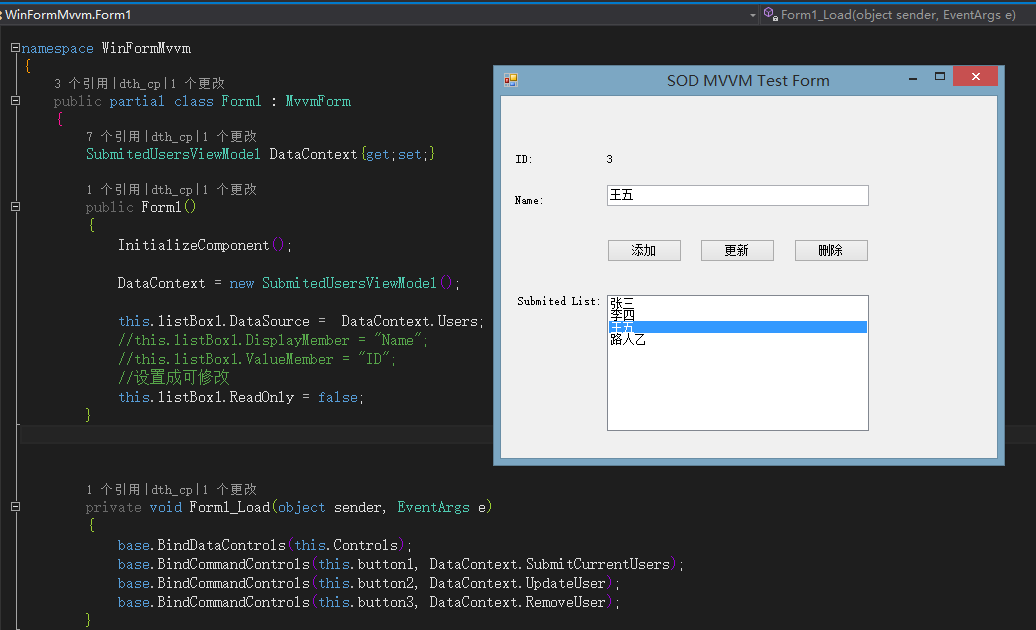
上面的代码中,首先定义了一个视图模型对象 DataContext,在方法 BindDataControls 里面作为绑定到视图控件上的对象,它里面的 CurrentUser 属性的 Name 属性绑定到了文本框控件上,所以 CurrentUser.Name 是作为复合属性来绑定的,对于标签控件和列表框控件,也是类似的过程,如下图:

这样,在视图上做简单的数据属性设置和写少量的 code behind 绑定代码,一个具有双向绑定功能的程序就好了。
4. MVVM 示例解决方案
4.1 解决方案概览
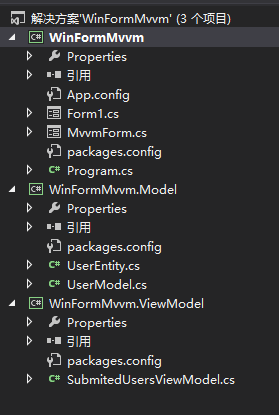
为了向大家演示 SOD 框架对于 MVVM 的支持,我们搭建一个简单的解决方案,一共分为三个项目程序集,分别对应 MVVM 的三大部分:
- WinFormMvvm: WinForm 示例程序主程序,视图类所在程序集
- WinFormMvvm.Model: 模型类程序集
- WinFormMvvm.ViewModel: 视图模型程序集
搭建好的解决方案图如下:
注意:此解决方案是使用 SOD Ver 5.5.5.1019 做的,因为这是目前 nuget 上 SOD 的版本,最新的 SOD 框架已经把 WinFormMvvm 项目的 MvvmForm.cs 文件纳入到框架之内了。
程序在 App.config 中指定了本次附加测试的数据库,数据库类型为 Access,默认的连接字符串可能要求 Office 2007 以上版本支持。
下面是 App.config 的内容:
<?xml version="1.0" encoding="utf-8"?>
<configuration>
  <connectionStrings>
    <add name ="default" connectionString ="Provider=Microsoft.ACE.OLEDB.12.0;Jet OLEDB:Engine Type=6;Data Source=testdb.accdb" providerName="Access"/>
  </connectionStrings>
    <startup>
        <supportedRuntime version="v4.0" sku=".NETFramework,Version=v4.5" />
    </startup>
  <runtime>
    <assemblyBinding xmlns="urn:schemas-microsoft-com:asm.v1">
      <dependentAssembly>
        <assemblyIdentity name="PWMIS.Core" publicKeyToken="17ba13a12b9fd814" culture="neutral" />
        <bindingRedirect oldVersion="0.0.0.0-5.5.5.1019" newVersion="5.5.5.1019" />
      </dependentAssembly>
    </assemblyBinding>
  </runtime>
</configuration>
如果你需要更低版本的 Access 数据库支持,或者换用其他数据库(比如 SqlServer),请阅读参考下面步骤提供的信息:
- 打开下面链接:
看到内容章节“3,修改下 App.config 文件的连接配置”;
点击本节下的链接“2.2.3 扩展数据访问类配置”。
4.2 创建 MVVM 的 WinForm 视图
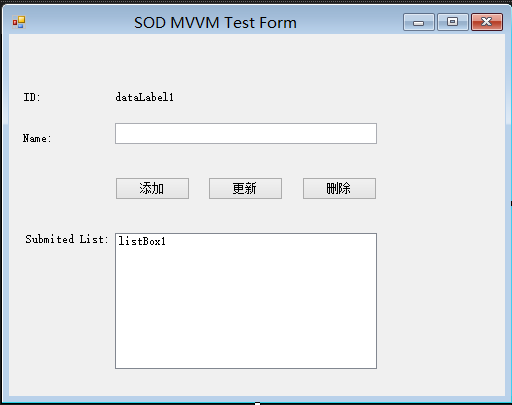
这是一个简单的 WinForm 窗体,有三个 SOD“数据控件”,包括:一个标签控件显示用户的 ID,文本框控件显示用户名,一个列表框控件显示已经有用户列表,三个按钮分别用来向列表添加,修改和删除数据。
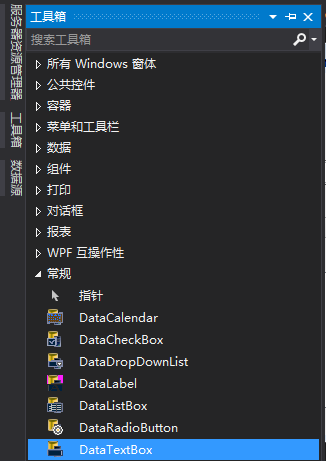
对于数据控件,可以在此窗体设计器界面,打开“工具箱”,在“常规”选项卡里面,选择上下文菜单“选择项”,浏览到 packages\PDF.NET.SOD.WinForm.Extensions.5.5.5.1020\lib 目录,选择“Pwmis.Windows.dll” ,即可看到 SOD 的数据控件,然后拖拽到窗体上即可。
注意我们不会给这三个按钮控件直接设置单击事件,而是通过命令绑定的形式。例如对应添加按钮,我们如下绑定命令(视图模型的一个方法):
base.BindCommandControls(this.button1, DataContext.SubmitCurrentUsers);
这会将添加用户的按钮控件的单击事件,绑定到 DataContext 的 SubmitCurrentUsers 方法上。
而对于数据控件的绑定,只需要下面的一行代码:
base.BindDataControls(this.Controls);
前面已经说过,该方法会遍历方法上第一个参数里面的所有数据控件,找到 LinkObject 和 LinkProperty 属性,实现数据控件和视图模型对象的绑定,这里绑定的是 DataContext 对象的 CurrentUser 对象的属性。
单击属性浏览器中数据控件的 LinkProperty 属性旁边的“…”按钮,会弹出下面的“数据控件属性选择器”窗体:
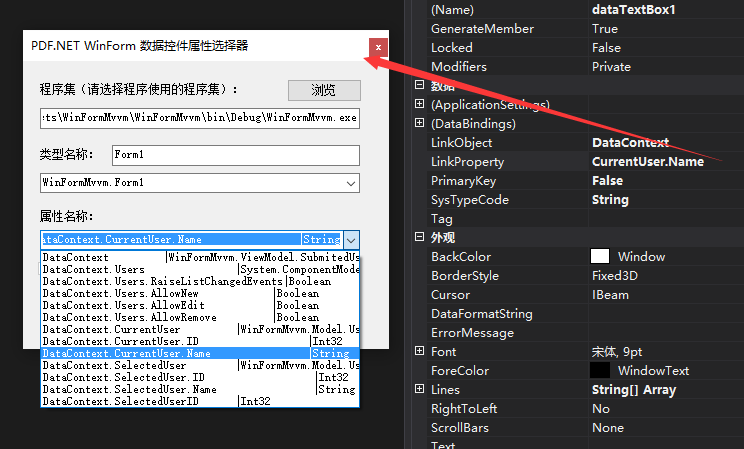
由于这里我们要绑定的对象是当前窗体的 DataContext 对象,所以需要浏览选择到主程序集,这样在属性名称一栏,会显示此对象所有的属性和子属性。注意如果 DataContext 对象没有出现在列表里面,需要检查 Form 窗体是否声明了 DataContext 对象,并且需要首先编译一次程序集。最后,单击确定,我们就设置好了数据控件要绑定的信息。
4.3 创建 MVVM 的模型
我们的模型很简单,就是负责创建新用户,加载已有用户,添加,修改或者删除用户,并且这些操作都是针对数据库的,也就是我们通常的 CRUD 操作。由于是示例没有太多逻辑,我们直接看代码即可:
public class UserModel
{
    private static int index = 0;
    private LocalDbContext context;
    public UserModel()
    {
        context = new LocalDbContext();
    }

    public List<UserEntity> GetAllUsers()
    {
        var list= OQL.From<UserEntity>().ToList(context.CurrentDataBase);
        int max = list.Max(p => p.ID);
        index = ++max;
        return list;
    }
    public void UpdateUser(UserEntity user)
    {
        int count= context.Update<UserEntity>(user);
    }

    public void AddUsers(IList<UserEntity> users)
    {
        int count = context.AddList(users);
    }

    public void SubmitUser(UserEntity user)
    {
        int count = context.Add(user);
    }

    public void RemoveUser(UserEntity user)
    {
        int count = context.Remove(user);
    }

    public UserEntity CreateNewUser(string userName="NoName")
    {
        return new UserEntity()
        {
              ID= ++index,
              Name =userName
        };
    }
}
用户模型类会使用用户实体类,它也很简单,只有一个 ID 属性和一个 Name 属性,详细内容如下:
public class UserEntity:EntityBase
{
    public UserEntity()
    {
        TableName = "Tb_User";
        PrimaryKeys.Add("UserID");
    }
    public int ID {
        get { return getProperty<int>("UserID"); }
        set { setProperty("UserID", value); }
    }

    public string Name
    {
        get { return getProperty<string>("UserName"); }
        set { setProperty("UserName", value); }
    }

}
该用户实体类虽然很简单,却可以直接提供给视图作为模型绑定的元素,因为 SOD 实体类都实现了“属性修改通知”接口,前面已经详细说明。
接下来就是操作此用户实体类的数据上下文了,用户模型类展示了如何使用它,但是它的定义却很简单:
class LocalDbContext : DbContext
{
    public LocalDbContext()
        : base("default")
    {
        //local 是连接字符串名字
    }

    protected override bool CheckAllTableExists()
    {
        //创建用户表
        CheckTableExists<UserEntity>();
        return true;
    }
}
至此,一个简单的 MVVM 模型类的全部定义就完成了。
4.4 创建 MVVM 的视图模型
视图模型是对视图的一个抽象,它封装了主要的视图处理逻辑,与 MVP 的 Presenter 不同,视图模型并不会包含详细视图元素的抽象,比如一个抽象的列表控件,而是对视图可能用到的数据进行封装,并且可能包含对后端 MVVM 的模型对象调用。
在本例中,我们的用户视图模型的功能也很简单,就是提供视图需要的用户列表和响应视图的增加,修改,删除用户的命令,详细代码如下
public class SubmitedUsersViewModel
{

    private UserModel model = new UserModel();
    public BindingList<UserEntity> Users { get; private set; }
    public UserEntity CurrentUser { get; private set; }


    UserEntity _selectUser;
    /// <summary>
    /// 当前选择的用户,如果设置,则会设置当前用户
    /// </summary>
    public UserEntity SelectedUser {
        get { return _selectUser; }
        set {
            _selectUser = value;
            this.CurrentUser.ID = value.ID;
            this.CurrentUser.Name = value.Name;
        }

    }

    int _selectedUserID;
    public int SelectedUserID
    {
        get { return _selectedUserID; }
        set {
            _selectedUserID = value;
            var obj = this.Users.FirstOrDefault(p=>p.ID==value);
            if (obj != null)
            {
                this.CurrentUser.ID = obj.ID;
                this.CurrentUser.Name = obj.Name;
                _selectUser = this.CurrentUser;
            }

        }
    }

    public SubmitedUsersViewModel()
    {
        var data = model.GetAllUsers();
        Users = new BindingList<UserEntity>(data);
        CurrentUser = new UserEntity();

    }

    public void UpdateUser()
    {
        var obj = this.Users.FirstOrDefault(p => p.ID == this.CurrentUser.ID);
        if (obj != null)
        {
            obj.Name = this.CurrentUser.Name;
            //更新后必须调用 ResetBindings 方法,否则控件上的数据会丢失一行
            this.Users.ResetBindings();

            model.UpdateUser(obj);
        }

    }
    public void UpdateUser(int id,string name)
    {
        var obj = this.Users.FirstOrDefault(p => p.ID == id);
        if (obj != null)
        {
            obj.Name = name;
            //更新后必须调用 ResetBindings 方法,否则控件上的数据会丢失一行
            this.Users.ResetBindings();

            model.UpdateUser(obj);
        }
    }

    public void SubmitUsers(UserEntity user)
    {
        //UserEntity newUser = new UserEntity();
        //newUser.ID = user.ID;
        //newUser.Name = user.Name;
        //Users.Add(newUser);
        if (!Users.Contains(user))
        {
            Users.Add(user);
            model.SubmitUser(user);
        }
    }
    public void SubmitCurrentUsers()
    {
        UserEntity newUser = model.CreateNewUser(CurrentUser.Name);
        SubmitUsers(newUser);
        CurrentUser.ID = newUser.ID;
    }

    public void RemoveUser()
    {
        if (SelectedUser == null)
        {

            return;
        }
        var obj = this.Users.FirstOrDefault(p => p.ID == SelectedUser.ID);
        if (obj != null)
        {
            this.Users.Remove(obj);
            //更新后必须调用 ResetBindings 方法,否则控件上的数据会丢失一行
            this.Users.ResetBindings();

            model.RemoveUser(obj);
        }
    }
}
4.5 添加 NuGet 包引用
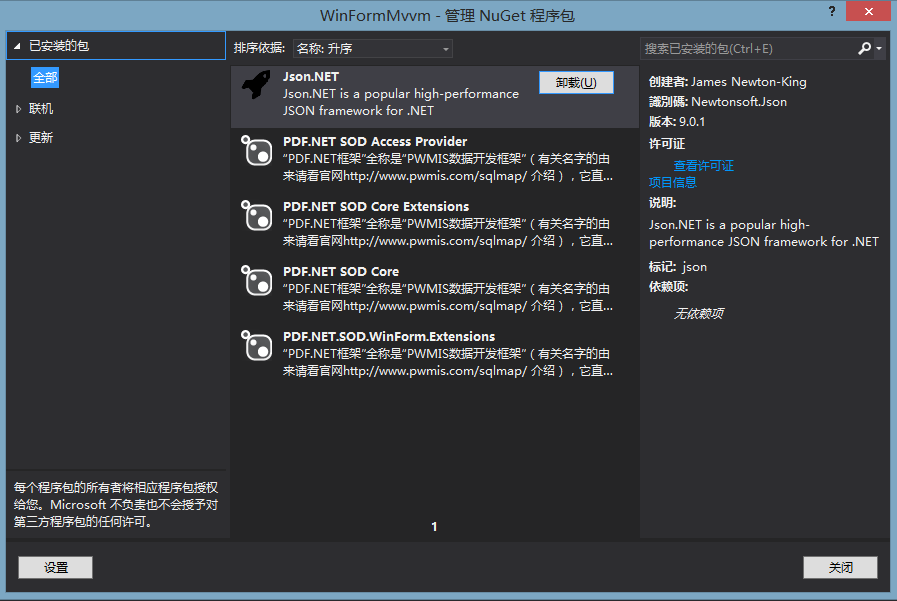
对于整个解决方案,我们都需要添加 PDF.NET Core 包,但是对于我们的 WinForms 主程序,需要额外添加 2 个相关的包,一个 SOD WinForm 扩展和一个 SOD Access 扩展,下面是解决方案安装的全部包示意图:
4.6 运行解决方案
经过上面的过程,我们添加了视图元素,设置好了视图元素的数据绑定,创建了模型和视图模型对象,一个简单的 MVVM 示例程序就好了,下面是运行效果图:
5. MVVM 模式总结
通过运行此示例,相信你已经体验了 MVVM 的一些特点,但可能难以表述贴切,正好我跟几个 WPF 资深专家交流后,他们总结出了 MVVM 的几个核心特点(卖点):
视图逻辑(视图模型)和视图(视图元素,样式)的解除耦合;
视图和视图模型或者模型的双向数据绑定,面向数据驱动视图而不是视图驱动数据;
视图和视图模型的分离将界面功能全部代码化,并提供 TDD 可能性。
6. SOD WinForms MVVM 支持
自 SOD 框架版本 5.6.0.1111 发布的这个“光棍节“版本中,您已经可以在此以后的版本中获得直接的 WinForms MVVM 支持,如果是之前的版本,那么需要本示例程序一样稍微多做一点工作,但这对于你现有的 SOD 支持的解决方案来说不会造成任何影响。
本示例方案将会放到框架的开源网站 http://pwmis.codeplex.com 上提供直接的下载,并且源码已经全部提交,可以通过下面地址查看详细的代码说明:
http://pwmis.codeplex.com/SourceControl/latest#SOD/Example/WinFormMvvm/WinFormMvvm/Readme.txt
了解更多信息或者加入社区 QQ 群讨论,或者捐助本框架,请移步框架官网:
感谢你选择 SOD 框架,相信它能够为你的开发带来很大的便利!
SOD 开发团队
深蓝医生
2016.11.13
------------PS---------------
感谢 SOD 开发团队的 @广州-银古 同学,他已经及时将 SOD 框架的 nuget 包更新到了最新版本,没有前面说的 nuget 包问题了。
最后附上 SOD 库仓库地址及截图信息:
- SOD 库仓库地址:https://github.com/znlgis/sod
