Getting Started Guide for Blazor Server and WebAssembly Applications

Getting Started Guide for Blazor Server and WebAssembly Applications

If you've been keeping up with the latest trends in the .NET world, then you must have heard of Blazor by now.

Last updated 12/9/2021 9:25 PM
技术译民
17 min read
Category
Blazor
Tags
.NET C# Blazor

Translated from Waqas Anwar's article on March 12, 2021, 《A Beginner’s Guide To Blazor Server and WebAssembly Applications》

A-Beginner-Guide-To-Blazor-Server-and-WebAssembly-Applications

If you've been keeping up with the latest trends in the .NET world, you've probably heard of Blazor by now. There's a lot of buzz about Blazor in the .NET community, and the most common reason for this buzz is that it introduces something most .NET developers have dreamed of for over a decade: the ability to run C# both on the server and in the browser. Blazor allows us to build interactive web applications using HTML, CSS, and C# instead of JavaScript. In this tutorial, I'll cover the basic concepts of Blazor and provide an overview of the different hosting models available for Blazor. I'll also discuss the pros and cons of each hosting model so you can make the best decision for your next Blazor project.

What is Blazor?

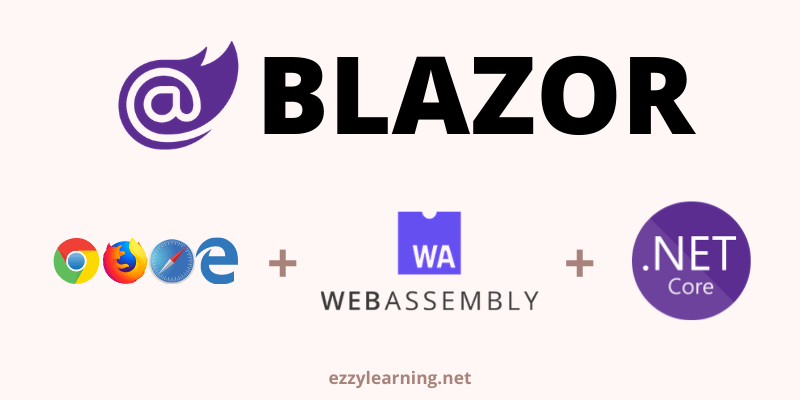
Blazor is a free, open-source single-page application (SPA) development framework that enables developers to build interactive web applications using C# on both the server and client sides. Blazor doesn't require any plugins on the client to execute C#/.NET code in the browser. It uses WebAssembly to execute .NET code, which is a web standard supported by all major browsers. Blazor can also run .NET code on the server, build the UI, and then transmit only the updated DOM to the client via a SignalR connection.

BLAZOR

What is WebAssembly?

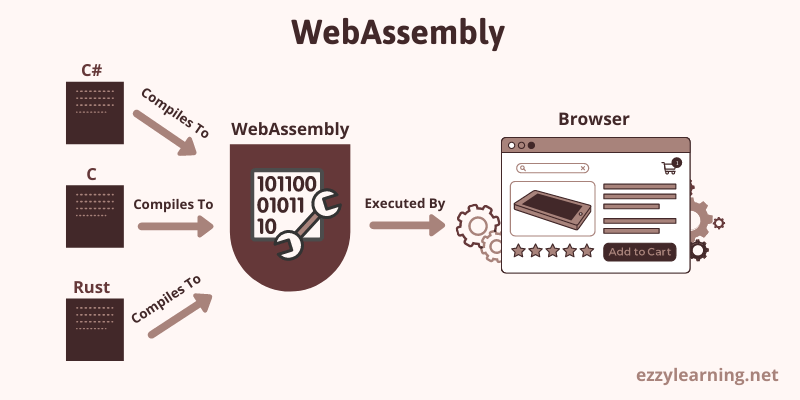
WebAssembly (sometimes abbreviated as Wasm) is a portable binary format (low-level instruction set) designed to run on any host capable of interpreting these instructions. The primary goal of WebAssembly is to allow developers to build high-performance web applications, but its format is also designed to be executed and integrated into other environments. WebAssembly is currently supported by all major browsers, such as Chrome, Chrome for Android, Edge, Firefox, Safari, Opera, etc.

WebAssembly

Blazor Hosting Models

The Blazor component model is the core of Blazor, and it is designed in a way that separates the computation of UI changes from the rendering of the UI. This is why the basic component model remains the same regardless of how you render your application. At the time of writing, there are four rendering/hosting models available, each at a different stage of development.

  1. Blazor Server
  2. Blazor WebAssembly
  3. Blazor Electron
  4. Mobile Blazor Bindings

Blazor Electron and Mobile Blazor Bindings are currently experimental, and Microsoft has not yet committed to releasing these hosting models, so I won't discuss them in this article.

What is a Blazor Server App?

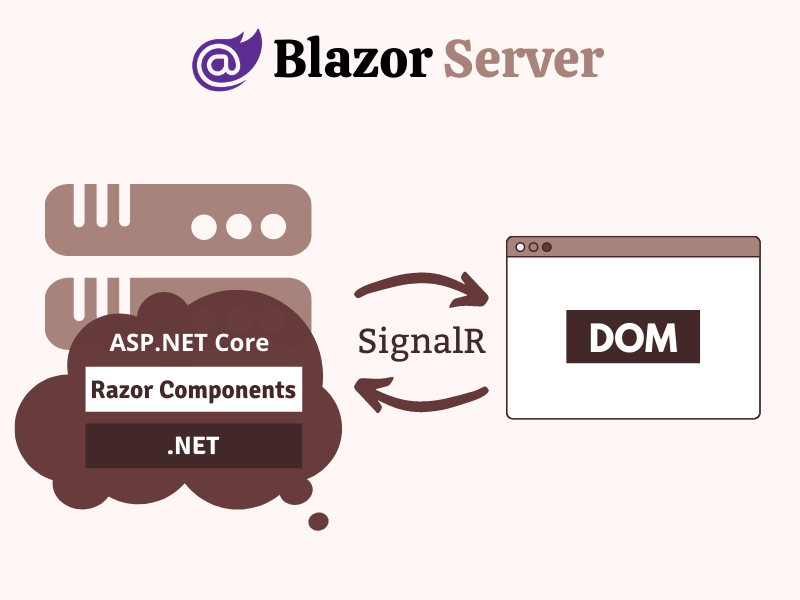
Blazor Server applications run on the server and enjoy full .NET Core runtime support. All processing is done on the server, and UI/DOM changes are sent back to the client via a SignalR connection. This bidirectional SignalR connection is established when the user first loads the application from the browser. Since .NET code already runs on the server, you don't need to create APIs for the front end. You can directly access services, databases, etc., and do anything you would do on traditional server-side technology.

Blazor-Server-Apps

§When to use Blazor Server

  1. When you want to run your application on the full .NET Core runtime
  2. When you want to keep the initial download size of the application very small
  3. When you want the application startup time to be very fast
  4. When you want to keep your application code on the server and not have it downloaded to the client
  5. When you want a rapid application development cycle with little learning curve for existing .NET developers
  6. When you want your application to be search engine friendly
  7. When you want the application to run on older browsers without relying on WebAssembly
  8. When you want to debug .NET code in Visual Studio like a normal .NET application
  9. When you want to build intranet or low-demand public-facing applications

§When not to use Blazor Server

  1. When your application runs in a high-latency environment
  2. When you want your application to work offline without a constant SignalR connection to the server
  3. When you don't want to increase server resources to handle a large number of connected SignalR clients

What is a Blazor WebAssembly App?

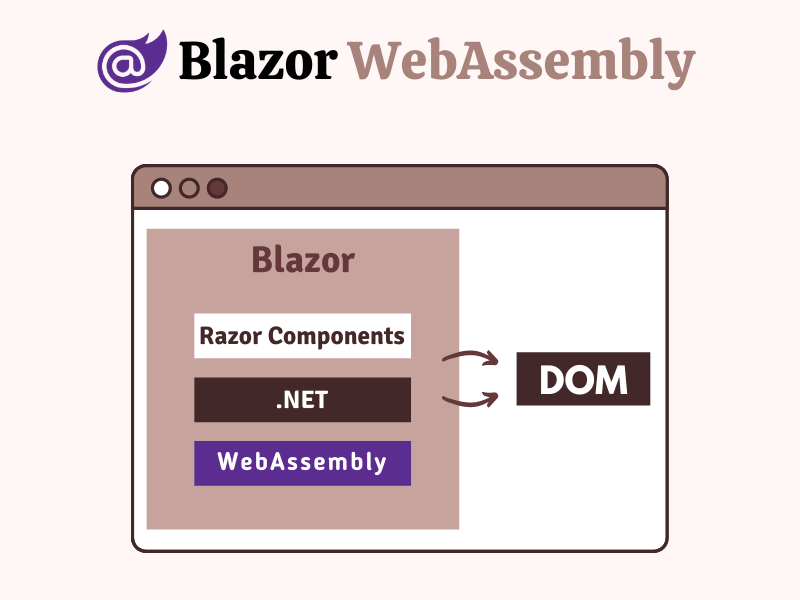
This hosting model is a direct competitor to modern popular SPA frameworks like Angular, Vue, and React, and it's the main reason many developers are interested in learning Blazor. It allows developers to write all front-end UI logic using C# instead of JavaScript. In this hosting model, on the first request, the application's DLLs along with their dependencies and a small Mono .NET runtime are downloaded to the client. Then, the Mono runtime in the client loads and executes the application code. Blazor WebAssembly programs can be written in languages like C, C#, etc., and then compiled into WebAssembly bytecode.

Blazor-WebAssembly-Apps

§When to use Blazor WebAssembly

  1. When you want to compile the entire application into static files and serve them to the client without requiring a .NET runtime on the server. This means your backend can be written in PHP, Node, or Rails and serve a front-end application written in Blazor.
  2. When you want to build applications that can run offline on the client without a continuous connection to the server.
  3. When you want to offload processing to the client and reduce server load.
  4. When you want to share code and libraries between client and server.

§When not to use Blazor WebAssembly

  1. When you cannot compromise on payload size due to too many files/DLLs downloaded to the client.
  2. When you cannot compromise on slow startup time, especially on poor network connections.
  3. When you cannot compromise on the application running in a browser sandbox environment with full security restrictions.

To better understand the Blazor hosting models, let's create a Blazor Server and a Blazor WebAssembly application in Visual Studio 2019.

Creating a Blazor Server App in Visual Studio 2019

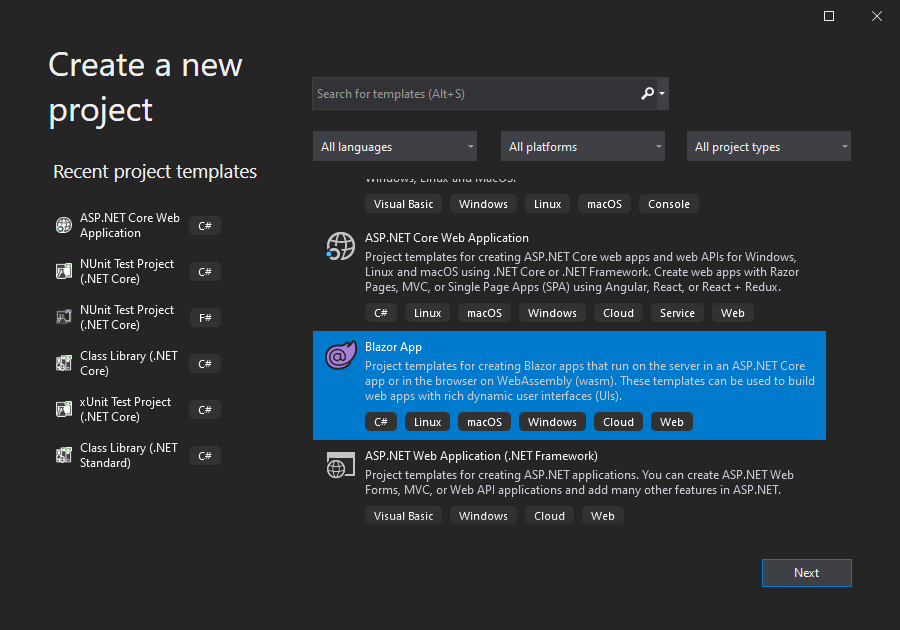
Open Visual Studio 2019 and click Create a new project. Select the Blazor App template from the list of available templates and click Next.

Create-New-Blazor-App-Project-in-Visual-Studio-2019

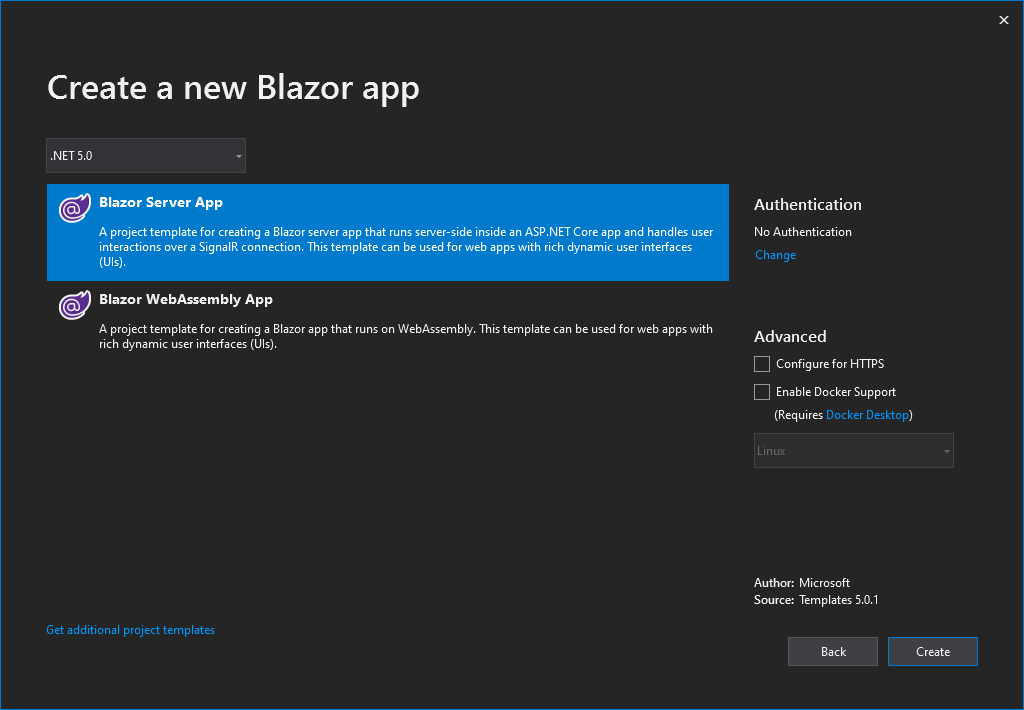
Specify the project name (e.g. BlazorServerApp) and click Next. You will see the following dialog asking you to choose the type of Blazor application to create. We want to create a Blazor Server app, so select Blazor Server App and click the Create button.

Blazor-Server-App-in-Visual-Studio-2019

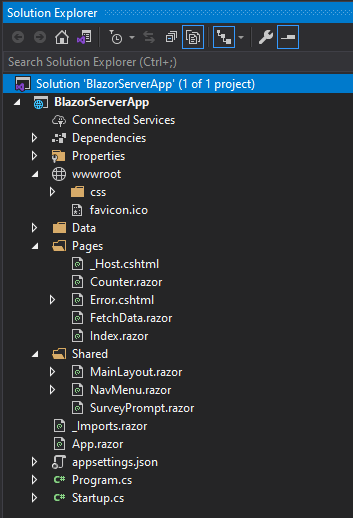
Visual Studio will create a Blazor Server application for us, containing the following folders and files in Solution Explorer.

Blazor-Server-App-in-Solution-Explorer

Let's discuss some important files and folders available in a Blazor Server App.

§Program.cs

This file contains the Main method, which is the entry point of the project. The Main method calls the CreateHostBuilder method, which configures the default ASP.NET Core host for us.

public class Program
{
    public static void Main(string[] args)
    {
        CreateHostBuilder(args).Build().Run();
    }

    public static IHostBuilder CreateHostBuilder(string[] args) =>
        Host.CreateDefaultBuilder(args)
            .ConfigureWebHostDefaults(webBuilder =>
            {
                webBuilder.UseStartup<startup>();
            });
}

§Startup.cs

This is the same file we use in standard ASP.NET Core projects. One important thing to note is the call to AddServerSideBlazor in the ConfigureServices method, which adds the services related to Blazor Server App.

public void ConfigureServices(IServiceCollection services)
{
    services.AddRazorPages();
    services.AddServerSideBlazor();
    services.AddSingleton<weatherforecastservice>();
}

In the Configure method of this file, we also have the following two important lines of code. The MapBlazorHub method configures the SignalR Hub Endpoints required by a Blazor Server App. The MapFallbackToPage method maps all requests that don't match any controller, Razor page, etc. to the _Host page, which allows all dynamic content requests to be routed to the SPA framework instead of throwing a 404 Not Found.

app.UseEndpoints(endpoints =>
{
    endpoints.MapBlazorHub();
    endpoints.MapFallbackToPage("/_Host");
});

§_Host.cshtml

This is the root page of the application, where every Razor component/page will be rendered. It contains basic HTML elements like html, head, and body, as well as some special elements. Note that Blazor is a component-based framework, and everything in Blazor is a component. The <component> element specifies where we want the application's root component to be rendered.

<component type="typeof(App)" render-mode="ServerPrerendered"></component>

This file also injects the blazor.server.js file at the end. This JavaScript file contains code to set up the SignalR connection to the server. This connection is established as soon as the browser loads the application and is then used for real-time communication between the server and the client browser. If you want to learn more about SignalR, read my article Display Live Sports Updates using ASP.NET Core SignalR.

<script src="_framework/blazor.server.js"></script>

§App.razor

This is the main component of the Blazor App. Its main job is to intercept routing and render the Found or NotFound component. If a component matching the route is found, it renders the Found component; if no matching component is found, it renders the NotFound component.

<Router AppAssembly="@typeof(Program).Assembly" PreferExactMatches="@true">
  <Found Context="routeData">
    <RouteView RouteData="@routeData" DefaultLayout="@typeof(MainLayout)" />
  </Found>
  <NotFound>
    <LayoutView Layout="@typeof(MainLayout)">
      <p>Sorry, there's nothing at this address.</p>
    </LayoutView>
  </NotFound>
</Router>

§MainLayout.cshtml

The MainLayout file contains the main layout of the application, whose markup can be shared by multiple Razor components. This layout component typically contains common UI elements of the application, such as header, menu, footer, sidebar, etc. The default MainLayout generated for us has a sidebar that renders the NavMenu component, and it also uses the Razor syntax @Body to specify where the content of other components will be rendered within the layout markup.

@inherits LayoutComponentBase

<div class="page">
  <div class="sidebar">
    <NavMenu />
  </div>

  <div class="main">
    <div class="top-row px-4">
      <a href="https://docs.microsoft.com/aspnet/" target="_blank">About</a>
    </div>

    <div class="content px-4">@Body</div>
  </div>
</div>

§wwwroot folder

This folder contains static files such as images, fonts, icons, CSS, and JavaScript files.

§Pages and Shared folders

These folders contain the _Host.cshtml file we discussed earlier, as well as some Razor components. A Blazor application is a collection of Razor components with the .razor extension. Some of these components are called routable components because they can be accessed using their routes. For example, when we navigate to the root URL of the application, the following Index.razor component will be rendered. The URL is specified using the @page directive at the top of the Index.razor component.

§Index.razor

@page "/"

<h1>Hello, world!</h1>

Welcome to your new app.

<SurveyPrompt Title="How is Blazor working for you?" />

Note that the above page also uses a child component SurveyPrompt. It is called a child component because it does not have a @page directive and can be embedded in other components.

There are other Razor components in the Pages folder, which can be accessed using the paths specified at the top of each file. For example, when we navigate to the /counter path, the Counter component will be rendered. Similarly, the FetchData component will be rendered using the /fetchdata path.

The Razor Server application also has a Shared folder containing shared components. These components can be used by any component throughout the application, like the SurveyPrompt component we saw earlier. Another interesting shared component in the Shared folder is the NavMenu component, which renders the top navigation bar of the Blazor Server application.

§_Imports.razor

This file is similar to the _ViewImports.cshtml file in ASP.NET MVC web applications. It contains a list of namespaces that we can use in different Razor components. The advantage of declaring all these namespaces in the _Imports.razor file is that we don't need to repeat them in every Razor component.

@using System.Net.Http @using Microsoft.AspNetCore.Authorization @using
Microsoft.AspNetCore.Components.Authorization @using
Microsoft.AspNetCore.Components.Forms @using
Microsoft.AspNetCore.Components.Routing @using
Microsoft.AspNetCore.Components.Web @using
Microsoft.AspNetCore.Components.Web.Virtualization @using Microsoft.JSInterop

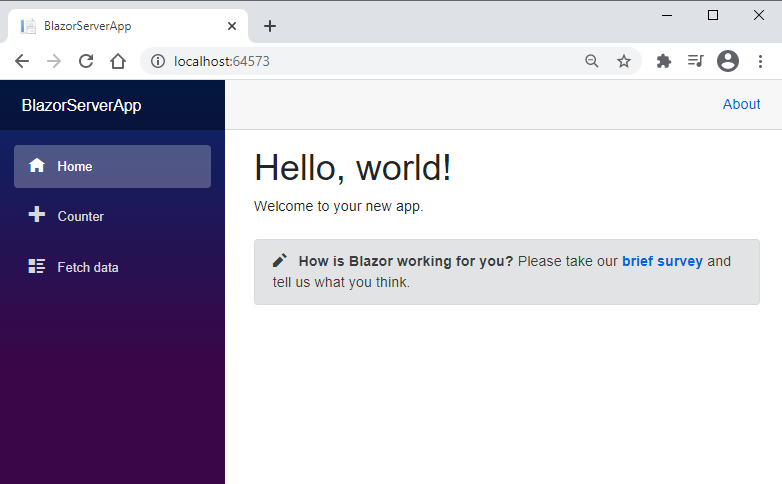
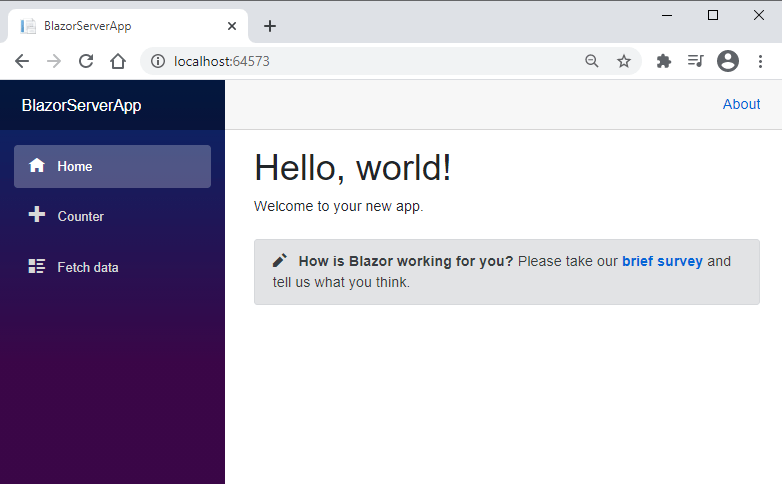
Now it's time to run our Blazor Server application and see it in action in the browser. Press F5 in Visual Studio, and you will see a beautiful default Blazor Server application. Try navigating to different pages from the sidebar and try using the counter on the Counter page. You'll notice no page refresh or postback to the server. Everything is smooth and fast like a classic SPA, and all communication between the browser and server is done using a SignalR connection.

Default-Blazor-Server-App-Running-in-Browser

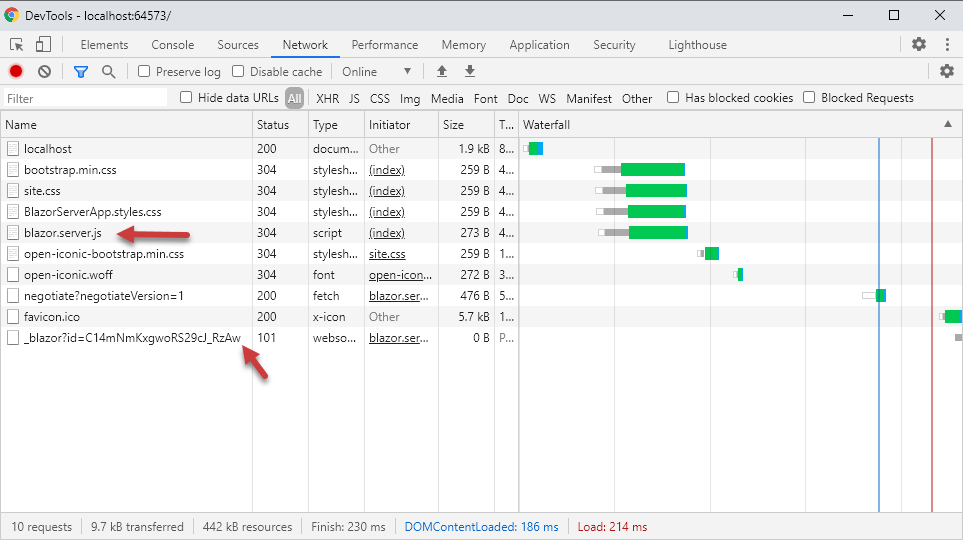
You can also open the browser developer tools, and you'll notice that all standard CSS and JavaScript files, including the blazor.server.js file, have been downloaded to the client, and a SignalR connection over Web Sockets has been established.

Blazor-Server-App-Files-in-Browser-Developer-Tools

Creating a Blazor WebAssembly App in Visual Studio 2019

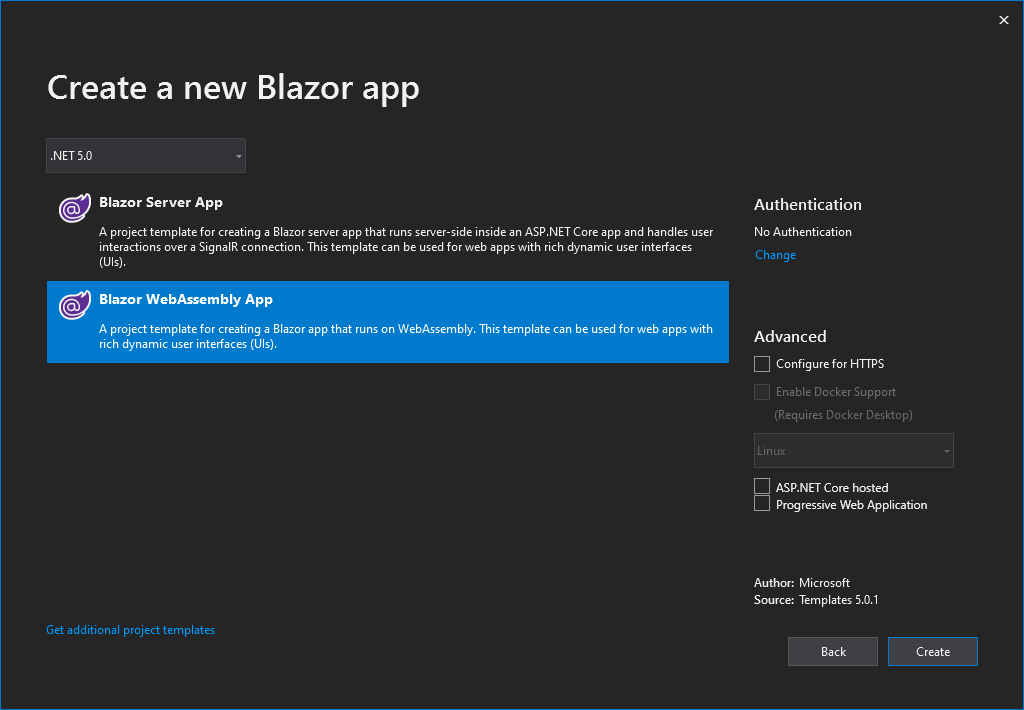
We have already learned the basics of Blazor Server App and seen it running in the browser. Now let's create a Blazor WebAssembly App so we can understand the differences between them. Follow the same steps mentioned above and create a new Blazor application in Visual Studio using the Blazor App template. When asked to choose the type of Blazor App, this time select Blazor WebAssembly App.

Create-Blazor-WebAssembly-App-in-Visual-Studio-2019

Visual Studio will create a Blazor WebAssembly application for us, containing the following folders and files in Solution Explorer.

Blazor-Client-App-in-Solution-Explorer

You can easily notice some differences between the two types of applications. For example, the following files are not present in a Blazor WebAssembly application:

  1. _Host.cshtml
  2. Error.cshtml
  3. Startup.cs
  4. appsettings.json

§index.html

In a Blazor WebAssembly application, we have an index.html file in the wwwroot folder as the main page. This file injects the blazor.webassembly.js file at the end. This file is provided by the framework to handle downloading the .NET runtime, the Blazor application, and all its dependencies. It also contains code to initialize the runtime for running the application.

§Program.cs

In a Blazor WebAssembly application, the root component of the application is specified in the Main method of the Program.cs file. The root component of the application is App.razor, and you can see how it is added to the RootComponents collection.

public class Program
{
    public static async Task Main(string[] args)
    {
        var builder = WebAssemblyHostBuilder.CreateDefault(args);
        builder.RootComponents.Add<app>("#app");

        builder.Services.AddScoped(sp => new HttpClient { BaseAddress = new Uri(builder.HostEnvironment.BaseAddress) });

        await builder.Build().RunAsync();
    }
}

Press F5 in Visual Studio, and you will see a similar Blazor WebAssembly application. Try navigating to different pages from the sidebar and try using the counter on the Counter page as you did in the Blazor Server App. Everything looks and feels exactly the same, and there is no server-side postback.

Default-Blazor-Server-App-Running-in-Browser

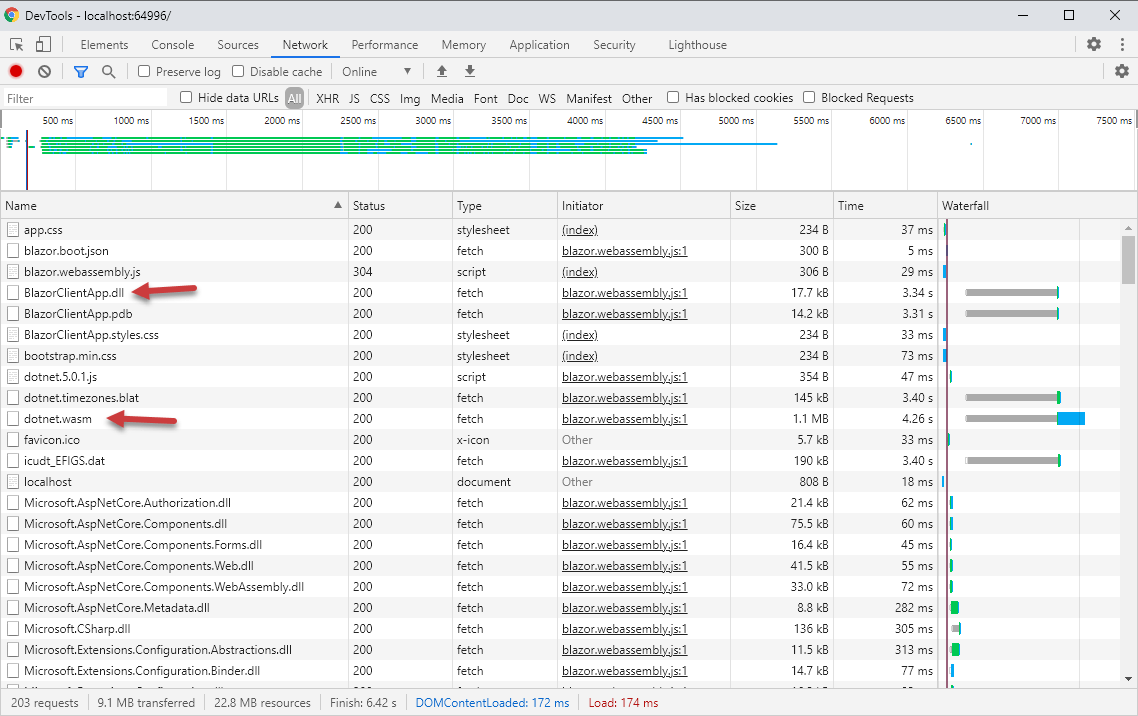
As we already know, a Blazor WebAssembly application downloads the application and all its dependencies to the client. So if you open the browser developer tools, you will see a large number of DLLs downloaded on the client (only on the first visit).

Blazor-Client-App-Files-in-Browser-Developer-Tools

All the above files are downloaded only on the first request and then cached in the browser. If you refresh the page again, you will see that far fewer files are downloaded this time.

Blazor-Client-App-Files-in-Browser-Developer-Tools-Second-Request

Conclusion

In this article, I've tried to introduce you to the basic concepts of the Blazor SPA framework, and we looked at two Blazor applications hosted using two different hosting models. Because the Blazor framework heavily relies on Razor components, most of the code and files in both projects are the same. These components are the building blocks of a Blazor application, and we can build them in a similar way regardless of the hosting model used. If you liked this article, please share it and spread the knowledge.

Author: Waqas Anwar

Translation: 技术译站

Link: English Original

Keep Exploring

Related Reading

More Articles
Same category / Same tag 11/6/2024

Why My Blog Website Returned to Blazor

The development of the blog website has gone through many hardships, with nearly 10 versions including MVC, Vue, Go, etc. Now it has returned to Blazor and adopted static SSR, resulting in a significant speed increase and successful launch.

Continue Reading
Same category / Same tag 2/29/2024

Data Display Can Also Be Done Like This in Winform

In the process of developing Winform, data display functionality is often required. Previously, the gridcontrol control was commonly used. Today, through an example, I would like to introduce how to use the table component from Ant Design Blazor for data display in a Winform Blazor Hybrid application.

Continue Reading
Same category / Same tag 2/29/2024

Can the Winform interface also look good?

A few days ago, I introduced using Blazor Hybrid in Winform, and mentioned that with the Blazor UI, our Winform programs can be designed to look better. Next, I will illustrate with an example of drawing in Winform Blazor Hybrid, hoping it helps you.

Continue Reading