
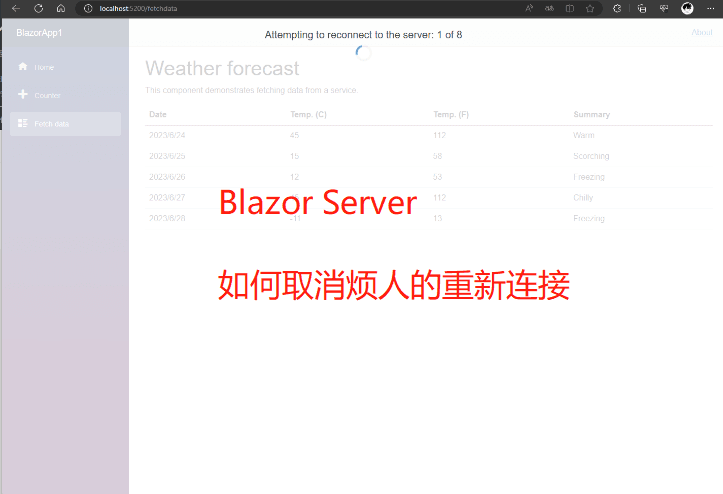
本文来自转载
原文作者:Token
原文标题:如何取消 Blazor Server 烦人的重新连接?
原文链接:https://www.cnblogs.com/hejiale010426/p/17498629.html
相信很多 Blazor 的用户在开发内部系统上基本上都选择速度更快,加载更快的Blazor Server模式。
但是Blazor Server由于是SignalR实现,所以在访问的时候会建立WebSocket通道,用于js交互和界面渲染,但是由于WebSocket是长连接,这样就会导致用户在界面的时候会一直建立连接,导致服务器宽带占用,所以微软默认会在无操作的情况下自动断开连接,然后会加上该死的重新连接的一个 ui,很难看,导致很多用户看到灰色的效果。当然,微软也提供了如何处理这个情况的方案,下面我们会使用微软提供的方案解决这个问题。
创建Blazor Server的空项目
下面的刚刚创建的Blazor Server的空项目。
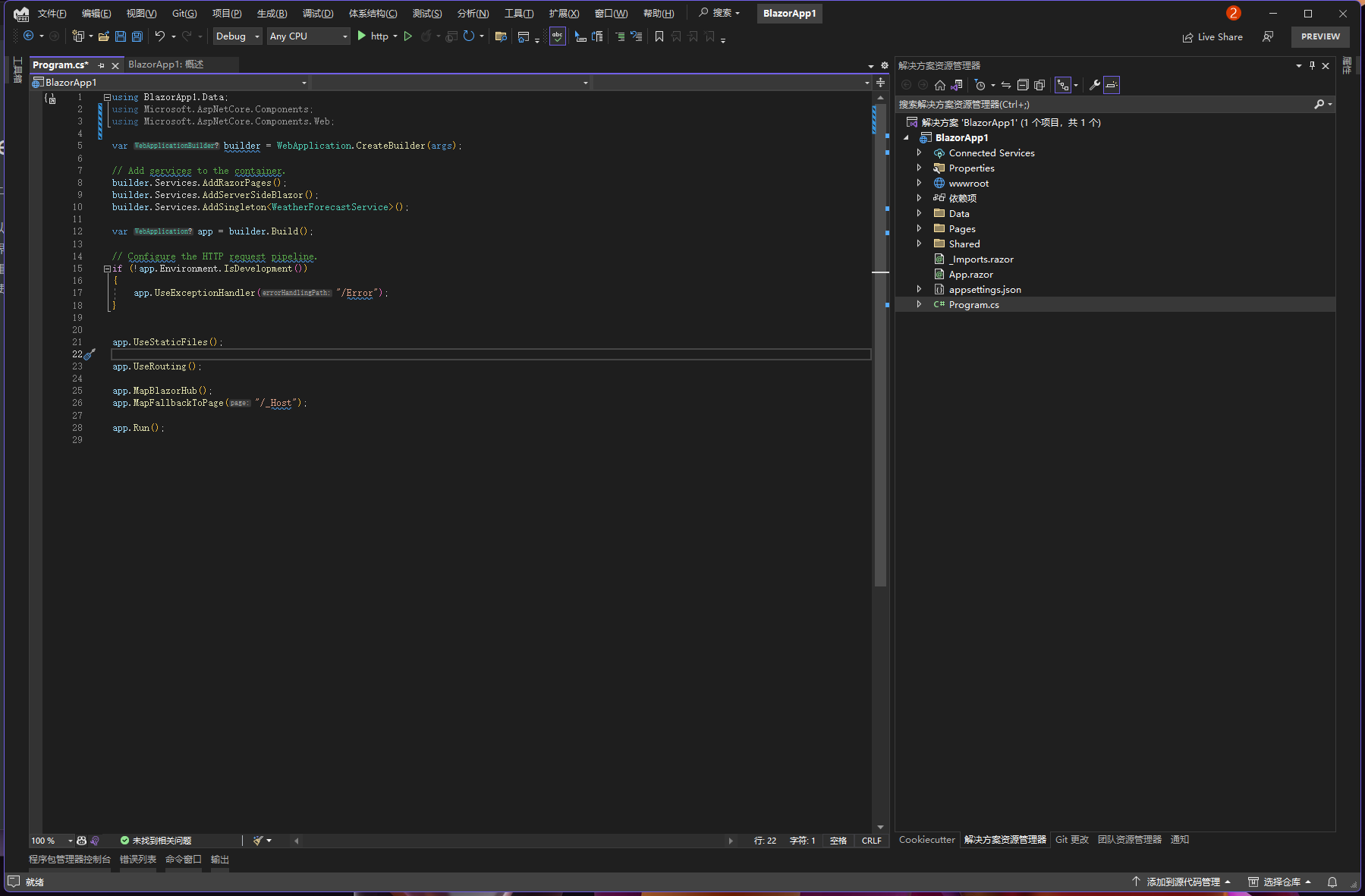
然后长时间挂着就会出现下面这个情况。
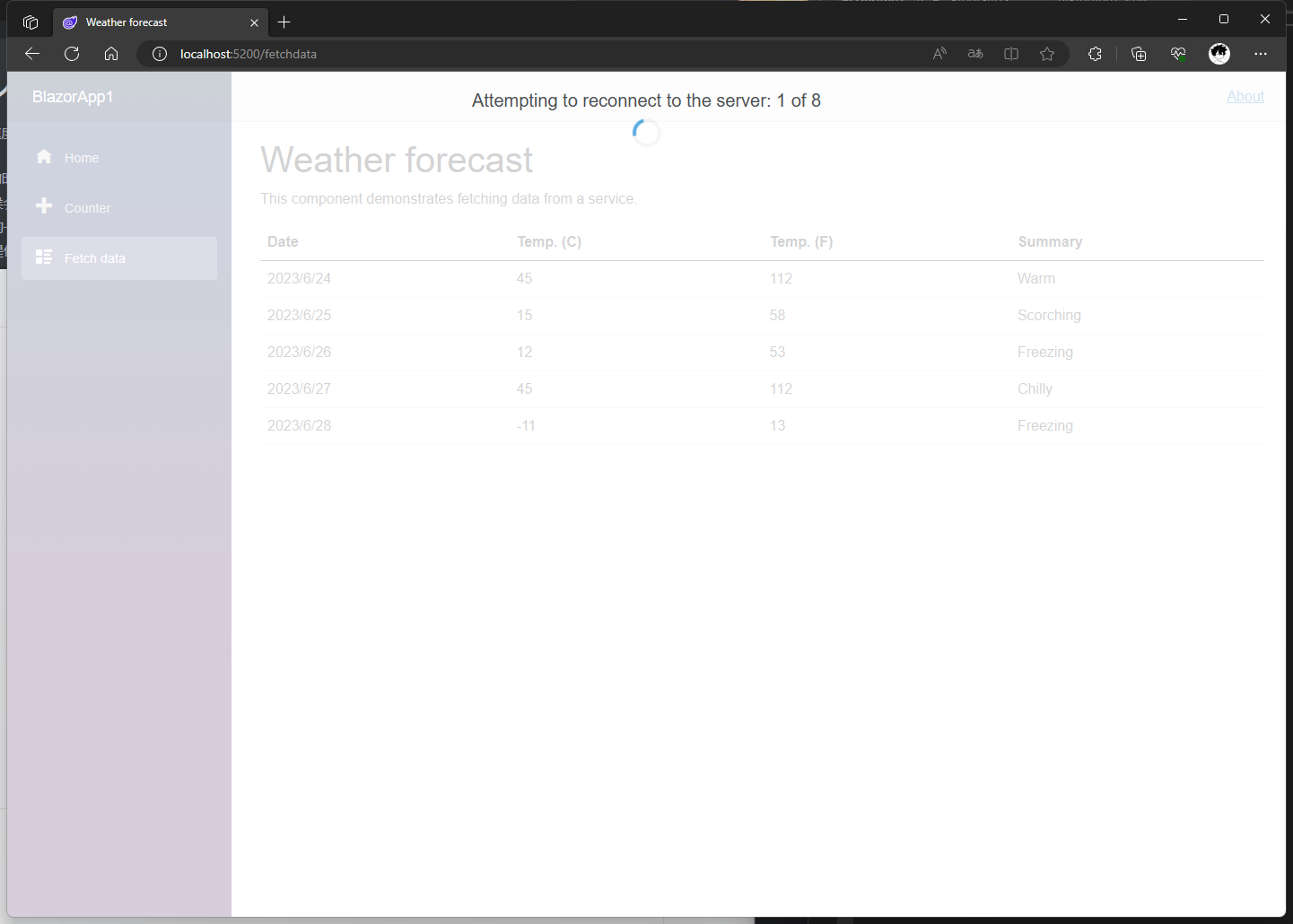
很丑的加载ui,灰色的全面覆盖样式,下面就得干掉这个。
去掉灰色加载样式。
新增boot.jsjs 脚本,用于处理重新连接
boot.js 用于自定义重新连接的操作,并且接管重新连接的程序。
(() => {
  // 重试次数
  const maximumRetryCount = 10000;

  // 重试间隔
  const retryIntervalMilliseconds = 1000;

  const startReconnectionProcess = () => {
    let isCanceled = false;

    (async () => {
      for (let i = 0; i < maximumRetryCount; i++) {
        console.log(`试图重新连接: ${i + 1} of ${maximumRetryCount}`);
        await new Promise((resolve) =>
          setTimeout(resolve, retryIntervalMilliseconds)
        );

        if (isCanceled) {
          return;
        }

        try {
          const result = await Blazor.reconnect();
          if (!result) {
            // 已到达服务器,但连接被拒绝;重新加载页面。
            location.reload();
            return;
          }

          // 成功重新连接到服务器。
          return;
        } catch {
          //没有到达服务器;再试一次。
        }
      }

      // 重试次数太多;重新加载页面。
      location.reload();
    })();

    return {
      cancel: () => {
        isCanceled = true;
      },
    };
  };

  let currentReconnectionProcess = null;

  Blazor.start({
    configureSignalR: function (builder) {
      let c = builder.build();
      c.serverTimeoutInMilliseconds = 30000;
      c.keepAliveIntervalInMilliseconds = 15000;
      builder.build = () => {
        return c;
      };
    },
    reconnectionHandler: {
      onConnectionDown: () =>
        (currentReconnectionProcess ??= startReconnectionProcess()),
      onConnectionUp: () => {
        currentReconnectionProcess?.cancel();
        currentReconnectionProcess = null;
      },
    },
  });
})();
修改Pages/_Host.cshtml
@page "/" @using Microsoft.AspNetCore.Components.Web @namespace BlazorApp1.Pages
@addTagHelper *, Microsoft.AspNetCore.Mvc.TagHelpers

<!DOCTYPE html>
<html lang="en">
  <head>
    <meta charset="utf-8" />
    <meta name="viewport" content="width=device-width, initial-scale=1.0" />
    <base href="~/" />
    <link rel="stylesheet" href="css/bootstrap/bootstrap.min.css" />
    <link href="css/site.css" rel="stylesheet" />
    <link href="BlazorApp1.styles.css" rel="stylesheet" />
    <link rel="icon" type="image/png" href="favicon.png" />
    <component type="typeof(HeadOutlet)" render-mode="ServerPrerendered" />
  </head>
  <body>
    <component type="typeof(App)" render-mode="ServerPrerendered" />

    <div id="blazor-error-ui">
      <environment include="Staging,Production">
        发生错误。此应用程序在重新加载之前可能不再响应。
      </environment>
      <environment include="Development">
        发生了一个未处理的异常。详细信息请参见浏览器开发工具。
      </environment>
      <a href="" class="reload">重新加载</a>
      <a class="dismiss">🗙</a>
    </div>

    <script src="_framework/blazor.server.js" autostart="false"></script>
    <script src="/boot.js"></script>
  </body>
</html>
我们修改了blazor.server.js的引用。
由<script src="_framework/blazor.server.js"></script>改成<script src="_framework/blazor.server.js" autostart="false"></script>
说一下为什么要改这个,实现我们需要自定义处理程序,但是引用了blazor.server.js,它就会直接执行,并不会等我们的处理程序,所以需要增加autostart="false"阻止默认的启动程序。
然后在下面的脚本中自定义自动程序,在上面还引用了 <script src="/boot.js"></script>,然后下面的自定义处理启动Blazor Server程序。
   <script>
        Blazor.start({
            configureSignalR: function (builder) {
                let c = builder.build();
                c.serverTimeoutInMilliseconds = 30000;
                c.keepAliveIntervalInMilliseconds = 15000;
                builder.build = () => {
                    return c;
                };
            }
        });
    </script>
serverTimeoutInMilliseconds:服务器超时(以毫秒为单位)。 如果此超时已过但未从服务器接收任何消息,连接将终止并出现错误。 默认超时值为 30 秒。 服务器超时应至少是分配给 Keep-Alive 间隔 (keepAliveIntervalInMilliseconds) 的值的两倍。keepAliveIntervalInMilliseconds:ping 服务器时采用的默认间隔。 使用此设置,服务器可以检测强行断开连接的情况,例如客户断开其计算机的网络连接。 此 ping 的发生频率最多与服务器 ping 的频率一样。 如果服务器每 5 秒 ping 一次,则分配的值低于5000(5 秒)时,将会每 5 秒 ping 一次。 默认值为 15 秒。 Keep-Alive 间隔应小于或等于分配给服务器超时 (serverTimeoutInMilliseconds) 的值的一半。
写完以后启动程序,然后将后端服务关闭,然后我们的界面并没有在出现上面的 ui 了。
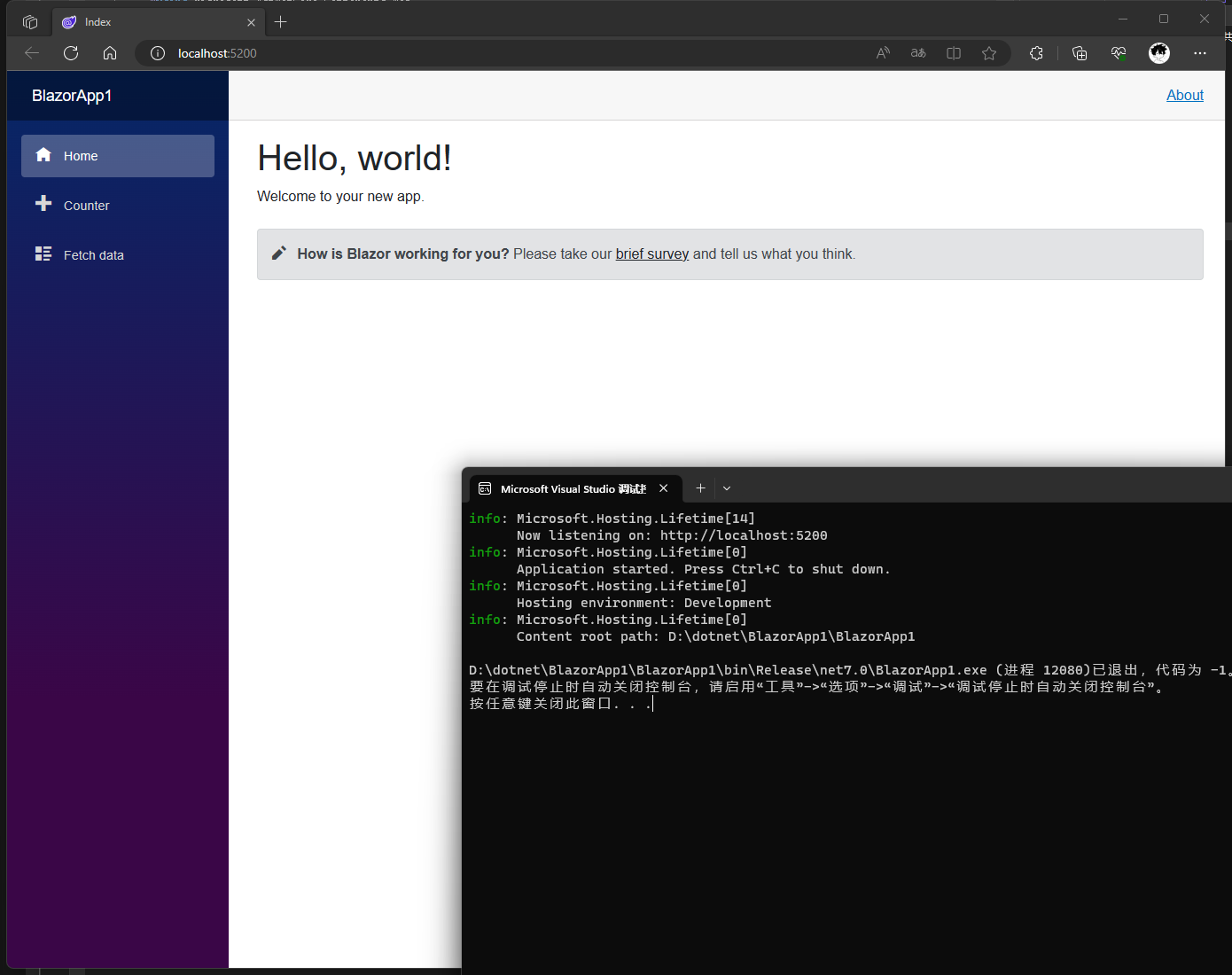
当我们的后端启动就会和前端自动连接,并且不会对于前端有影响。
结尾
来自 token 的分享
Blazor 技术交流群:452761192