After working at a big company, I truly realized it is a universe-class editor

After working at a big company, I truly realized it is a universe-class editor

VS Code usage tips sharing

Last updated 4/17/2024 7:39 AM
React777
11 min read
Category
Sharing
Tags
Visual Studio VS Code

Appetizer

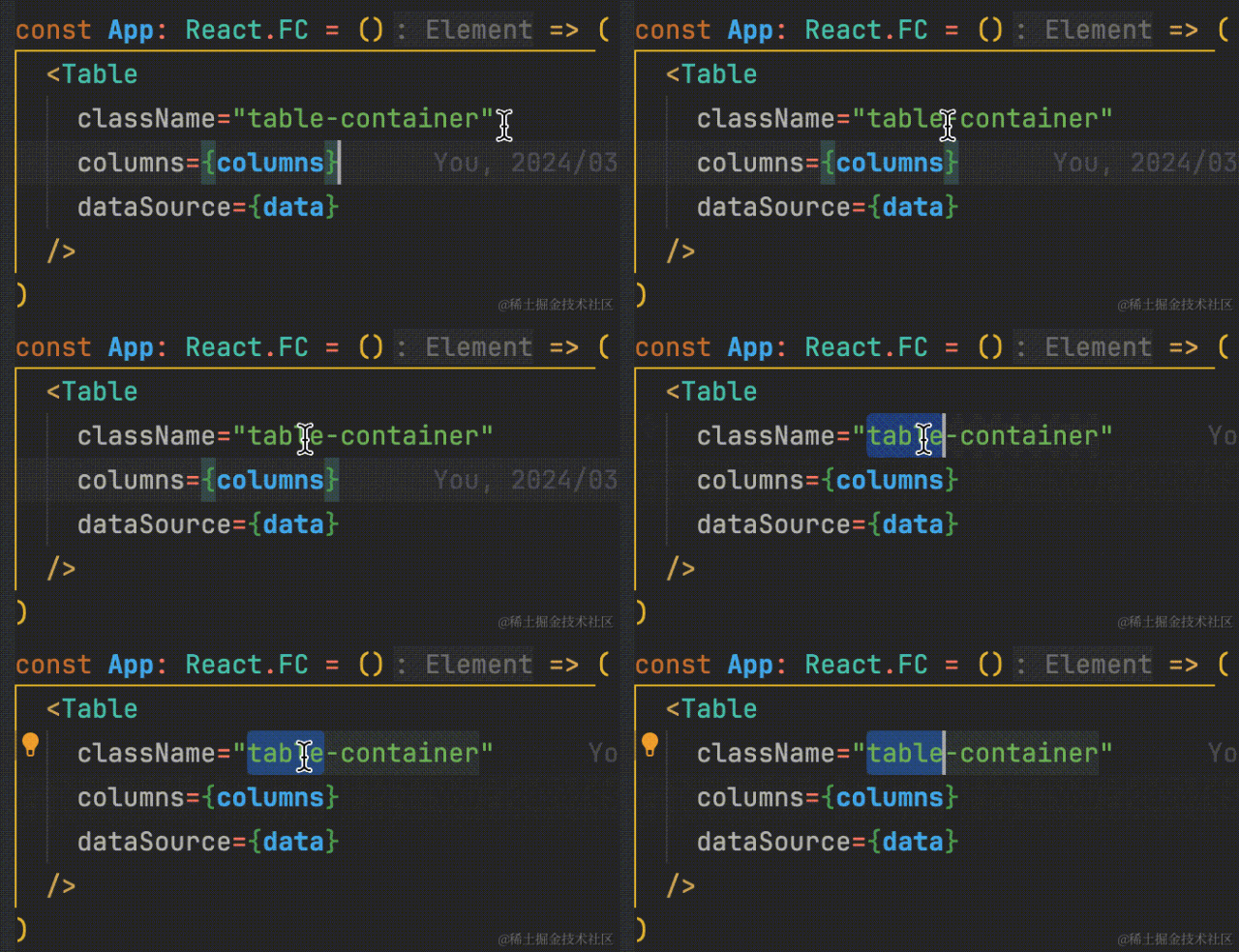
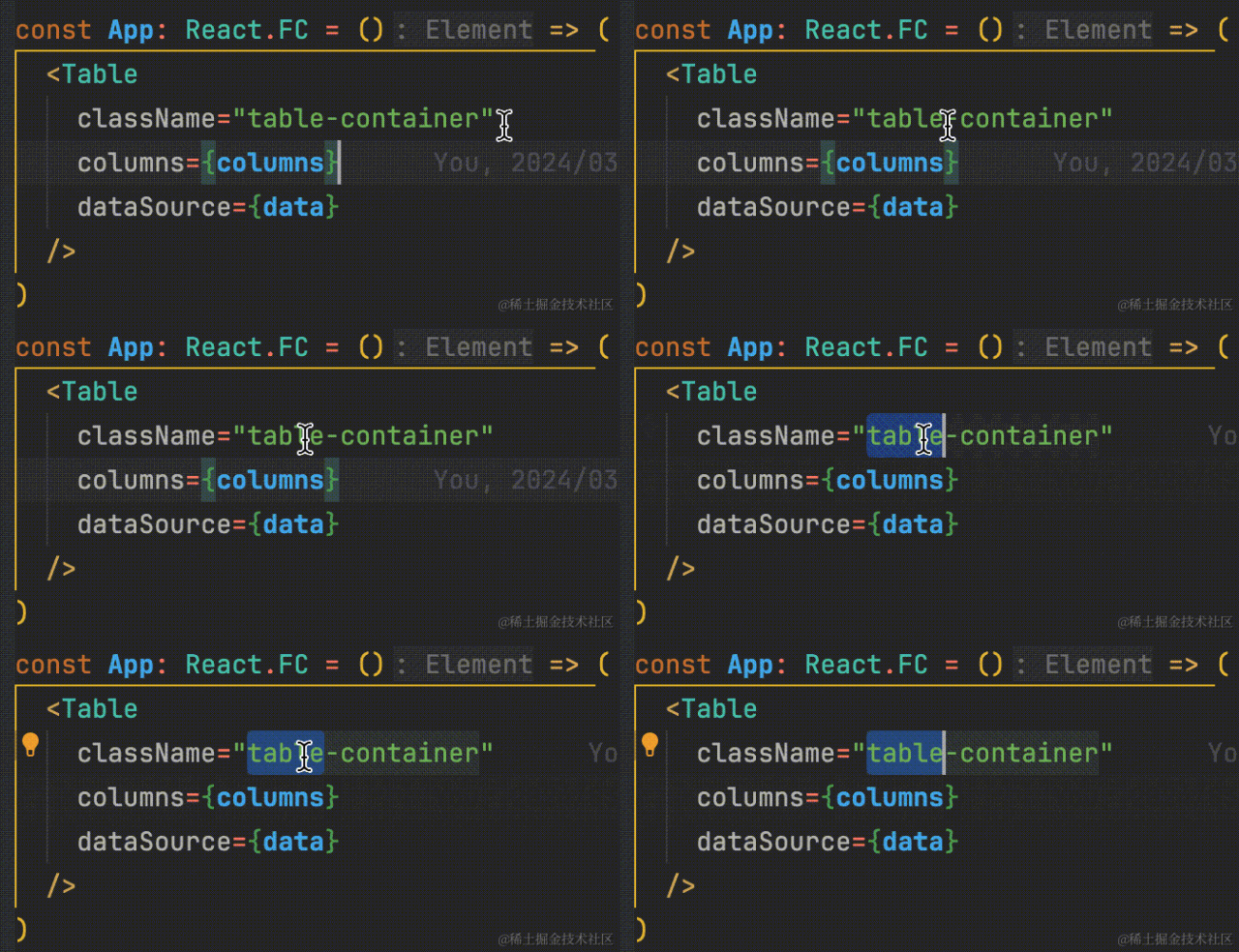
When writing code in VSCode, we often need to select text, as shown below:

Image

But in most cases, we actually want to select the entire class name, like this:

Image

In fact, this involves VSCode's word segmentation mechanism. It treats - as a delimiter that should split the text.

It's not just -; other characters are also considered delimiters by VSCode.

So VSCode kindly provides the following configuration:

{
  // The characters below are treated as word separators by VSCode.
  // Search for editor.wordSeparators in settings,
  // then remove any delimiter you don't want.
  // For example, remove @ so you can directly select less variables and decorators like @xxx.
  "editor.wordSeparators": "`~#!@$%^&*()-=+[{]}\\|;:'\",<>/?."
}

I looked through all the preferences in WebStorm but couldn't find a similar setting. If any expert knows how to configure this in WebStorm, please leave a comment to guide me.

If you think these small tweaks can improve your coding efficiency and happiness, read on – you won't be disappointed >_<

An Unbeautiful Encounter with VSCode

I started programming with Java, and my first editor was Eclipse. Later, IntelliJ IDEA became increasingly popular, and I got my first taste of JetBrains editors. When I first used IDEA, I was deeply impressed – there really is a difference between editors. Later, by chance, I became a frontend developer and encountered WebStorm, another JetBrains product specifically for frontend. Since I was already very familiar with IDEA, the transition was almost seamless.

I've always been interested in mathematics – I participated in math Olympiads as a child and dabbled in algorithm problems. Combined with my Java development experience, I quickly picked up TypeScript and became very interested in it. Because I'm good at these two things, even though I have a mediocre educational background and didn't even major in computer science, I still managed to earn the recognition of interviewers at JZ and LA and become their colleague.

I still remember when I first joined JZ. The company provided licensed JetBrains development tools, but I noticed that all my colleagues were using the free VSCode. I was puzzled – why use VSCode when WebStorm is available? Paid tools must be better! So I was the only one in the group using WebStorm. Later, due to security reasons, our team had to install a plugin that initially only had a VSCode version, meaning we had to use VSCode. I tried it, but it felt like a blank slate and made me very uncomfortable. I refused to use it and even had an argument with my mentor.

Thinking back now, I probably had been brainwashed by the fact that I paid for it, convincing myself that I wasn't a fool, and subconsciously hypnotizing myself. I must thank that mentor. At that time, I was probably obsessed, but she didn't give up on me. She even found colleagues from the psychology department to give me counseling and colleagues from the plugin development team to explain VSCode’s configurations to me, making development more efficient. Here, I want to say thank you to everyone who has helped me in my life – the world isn't always gentle, but some people truly are _

Without further ado, let's get to the point. Since frontend development varies from person to person, I'll categorize the tips.

General

Quickly Jump to Files from File Paths in Strings

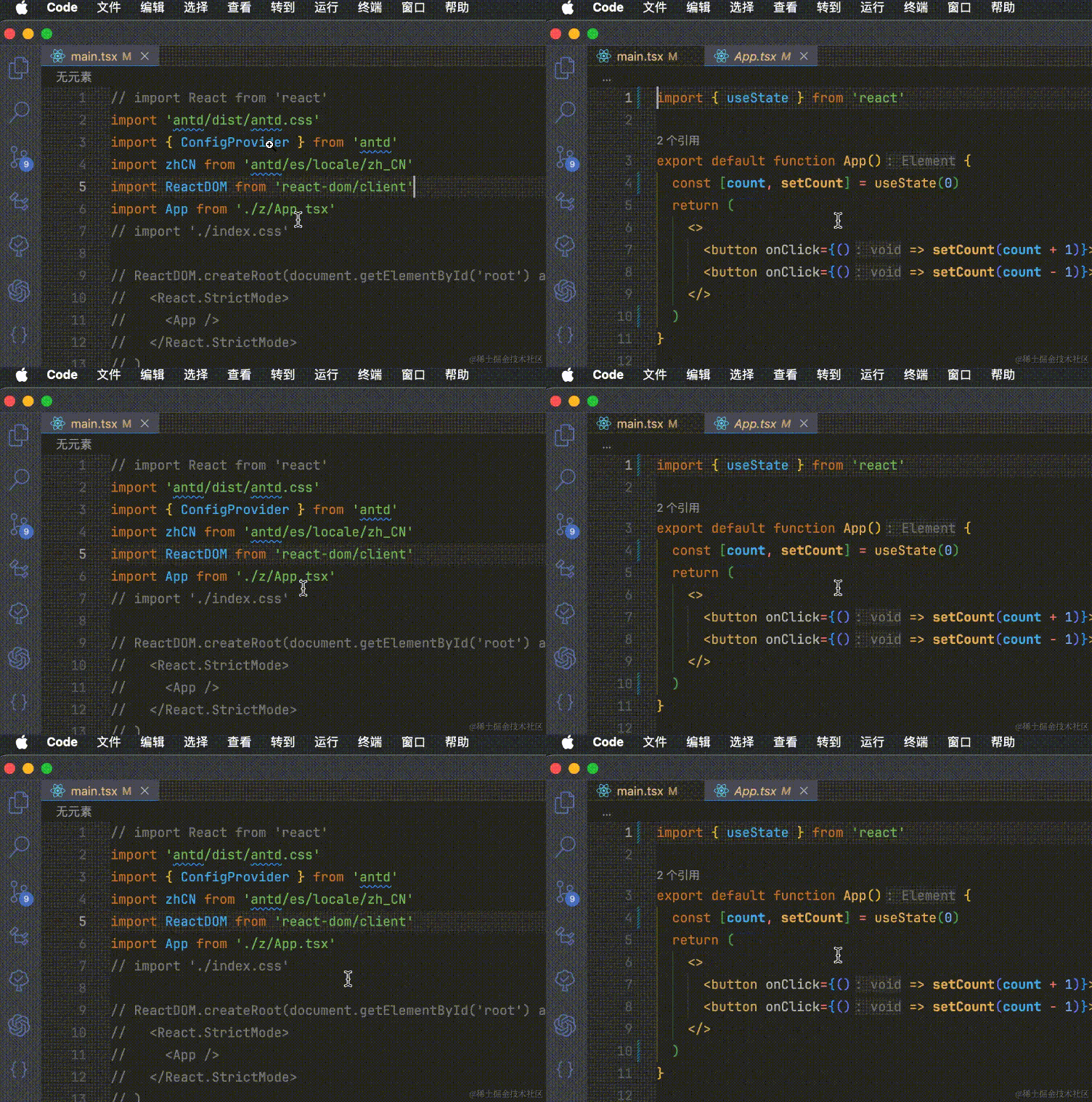
Some file paths inside strings support Cmd+click to jump to the corresponding file, like most import statements, as shown below:

Image

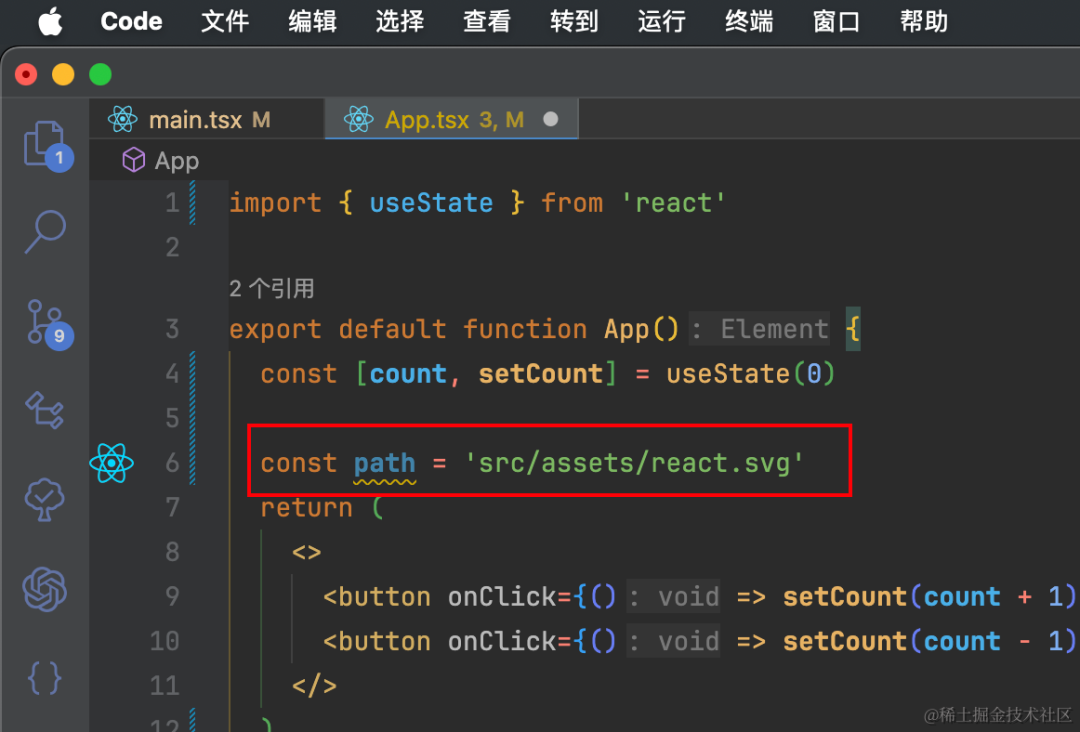
But file paths in other strings often don't support jumping, as shown:

Image

Install the plugin:

https://marketplace.visualstudio.com/items?itemName=duXing.quick-go-to-selected-file-path

Place the cursor on the string containing the file path and use Cmd+E (Ctrl+E on Windows).

The most likely matching file will appear. From my experience, the first result is always the best match.

If the default behavior doesn't suit you, you can manually select the string, and it will perform an exact search based on your selection.

If this shortcut doesn't meet your needs, you can customize it.

Image

Faster and Clearer Debug Logging

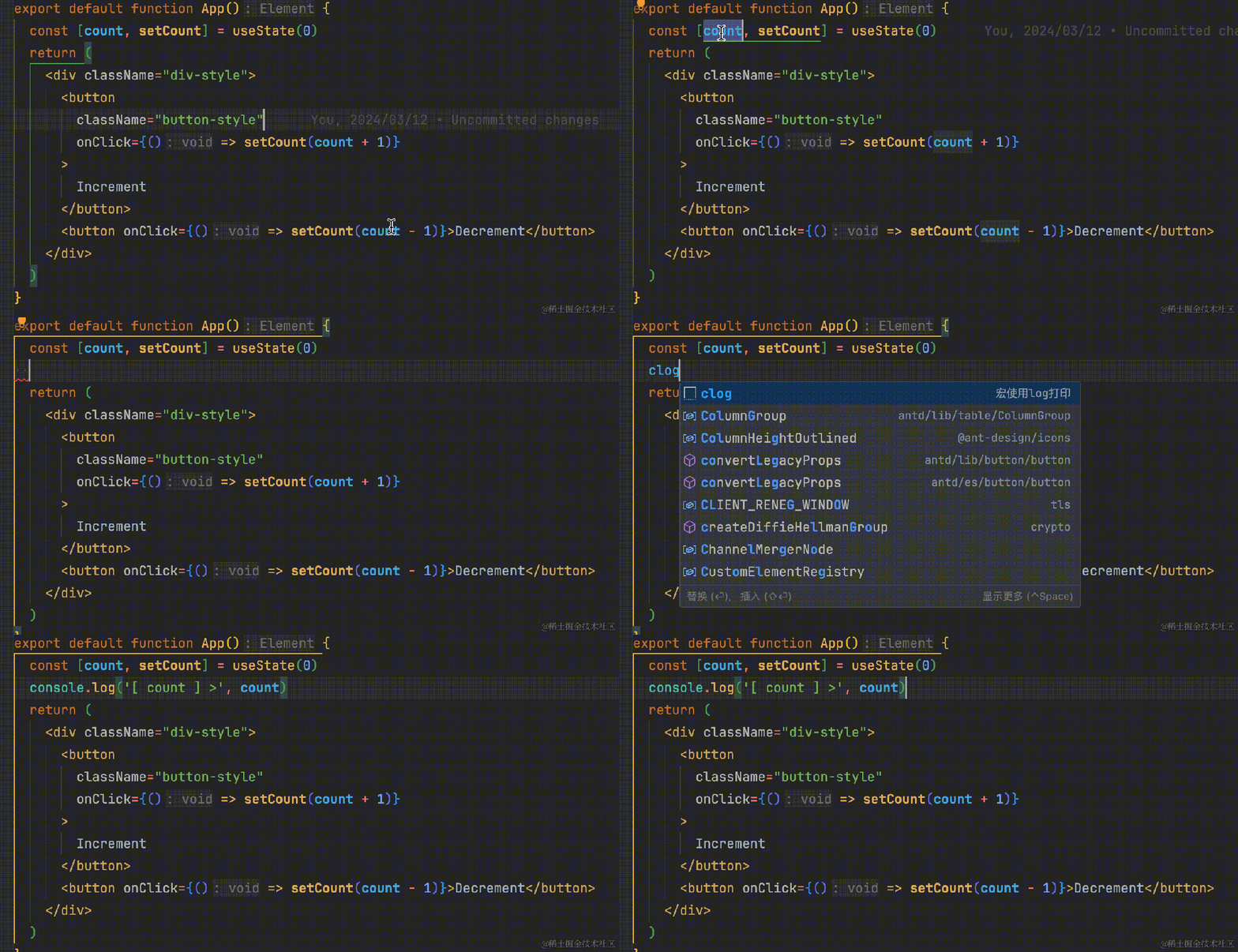
Sometimes we need to print something to debug, and it's mostly a repetitive operation.

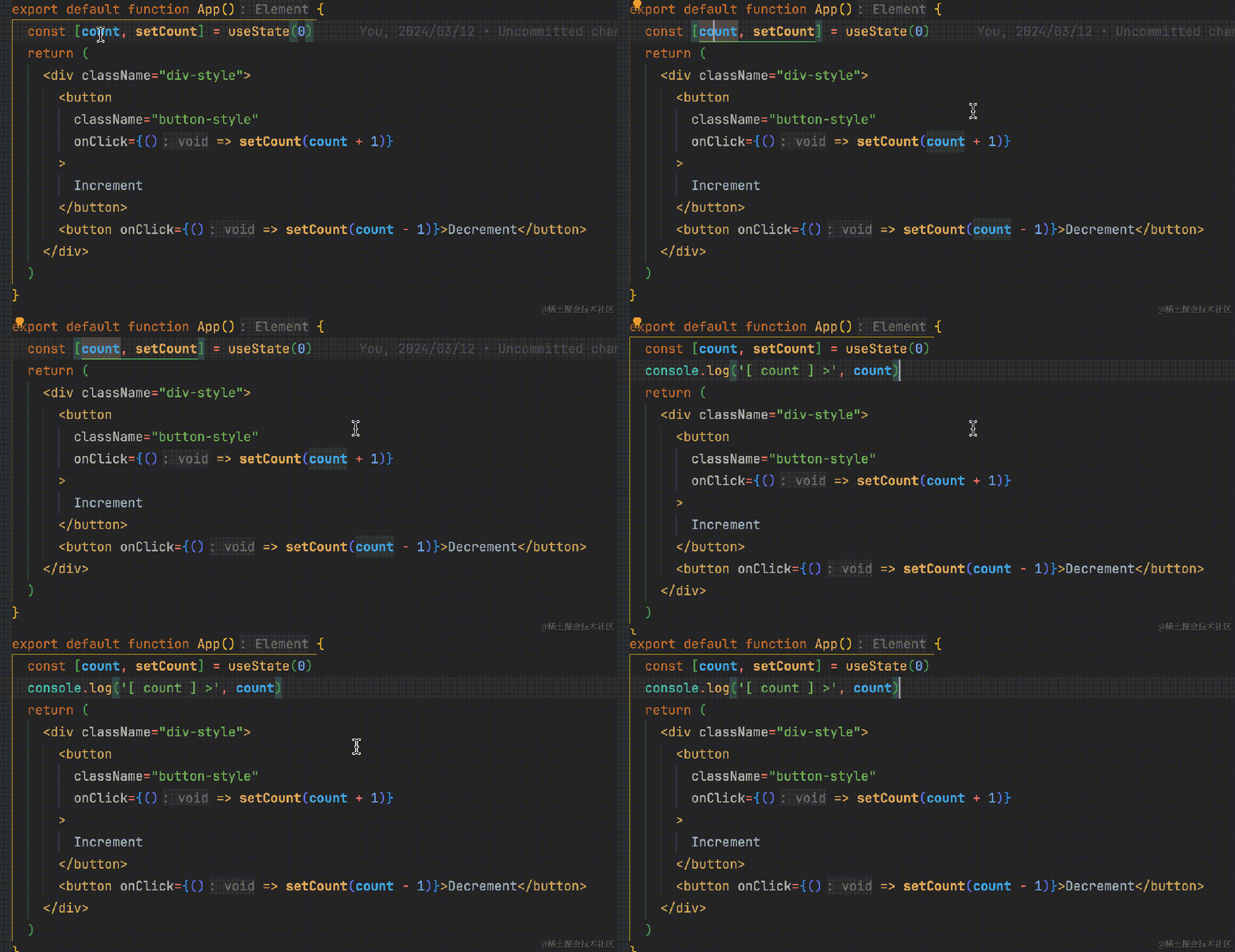
For example, copy the variable you want to print, then type a custom code snippet:

"log打印": {
  "prefix": "clog",
  "body": ["console.log('[ $CLIPBOARD ] >', $CLIPBOARD)$0"],
  "description": "log打印",
  "scope": "typescript,typescriptreact,javascript,javascriptreact"
},
Image

You can also accomplish this with a single macro step:

Image

Or install a plugin – there are many similar plugins.

Here's one example. If you're interested, just search for the keyword "console".

https://marketplace.visualstudio.com/items?itemName=ChakrounAnas.turbo-console-log

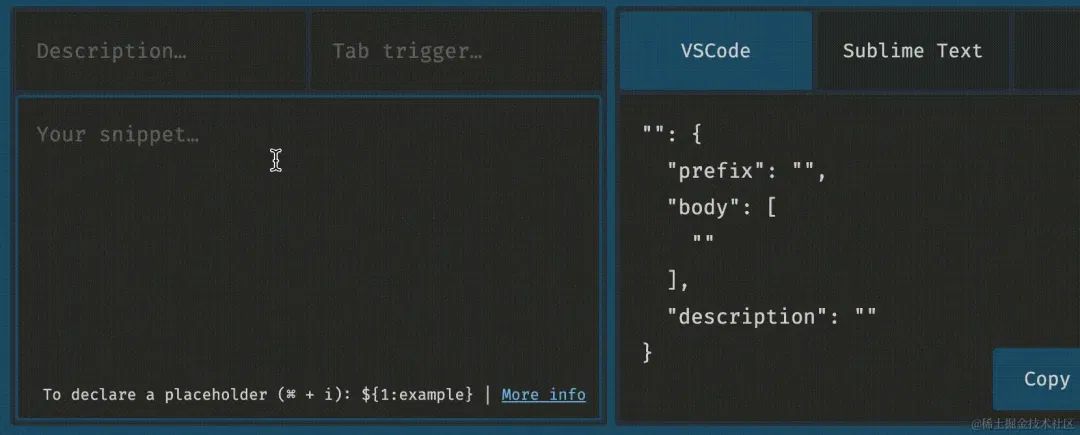
I also recommend a very useful VSCode snippet generator:

https://snippet-generator.app/?description=&tabtrigger=&snippet=&mode=vscode

For instance, you can transfer your commonly used code snippets or good ones from WebStorm to VSCode:

Image

Clear Code Highlighting

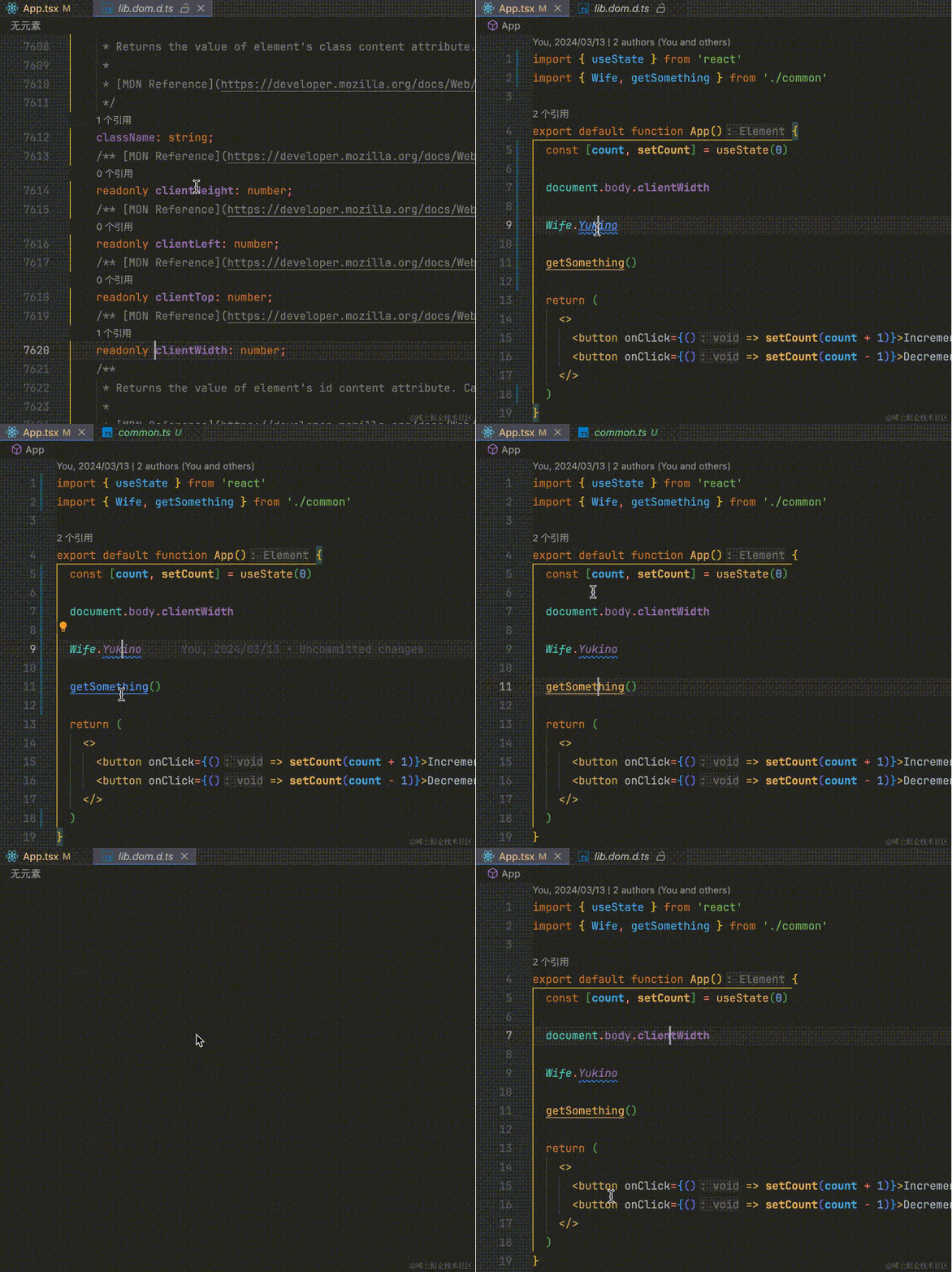
When reading code, you don't need to open the file or even hover the mouse to know what type a piece of code is.

When I see a bold purple property, I know it's read-only.

When I see green italic, I know it's an enum; purple italic indicates an enum value.

When I see a yellow underline, I know it's a method decorated with async. I instinctively consider whether to use await when calling it. Although ESLint can detect this, it warns about everything uniformly. Is it always good to warn about everything? Useless or even incorrect warnings only spoil the mood when writing code. It should convey semantics – using different colors like this, distinct from variables and properties, works well.

Image

Quicker Access to Features

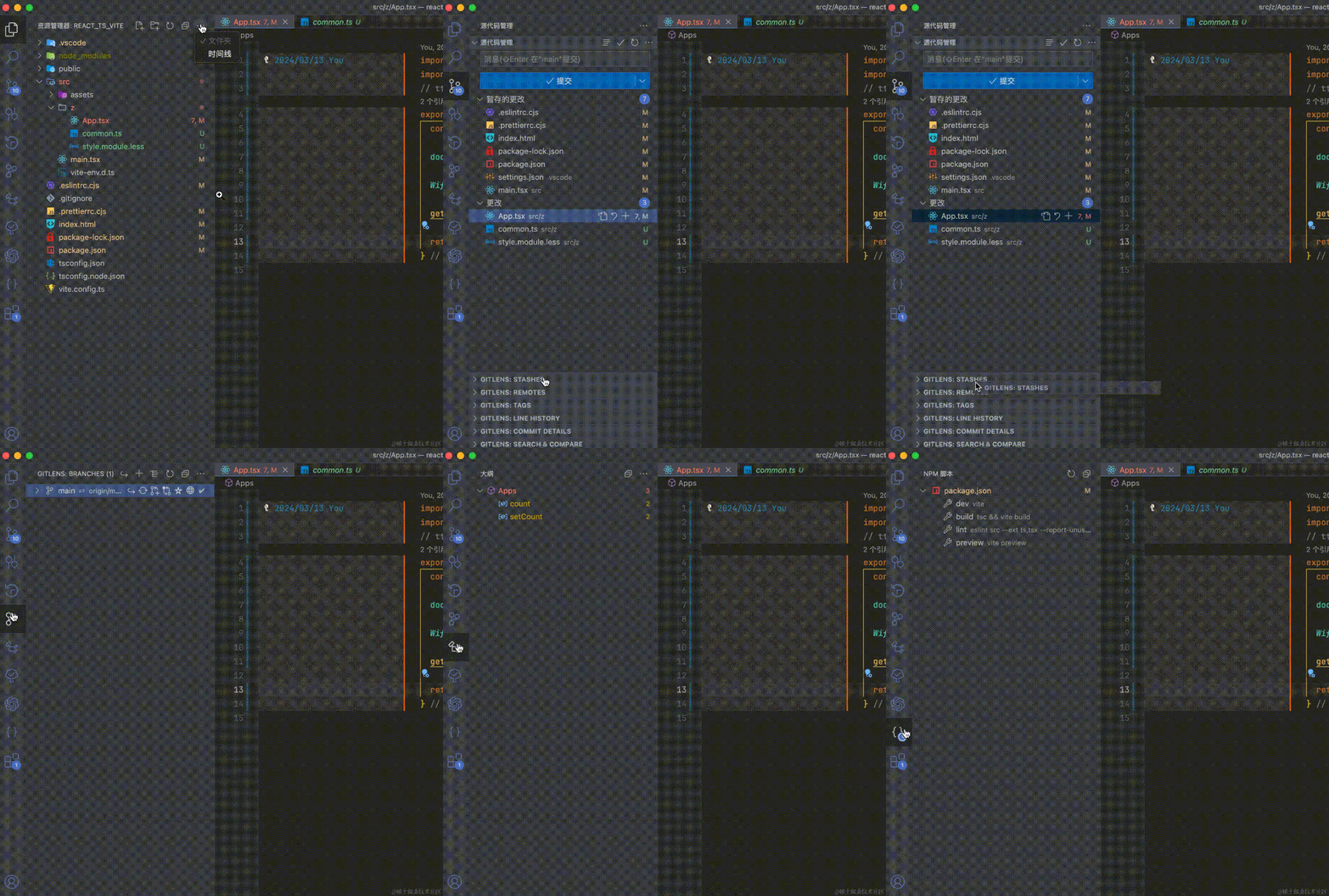
The tabs in the Explorer and Source Control panels can be dragged or hidden.

You can hide unwanted tabs to make the Explorer cleaner.

You can also drag out commonly used GitLens tabs to give the Git view more space and clarity.

Image

Make Folder Hierarchy Clearer

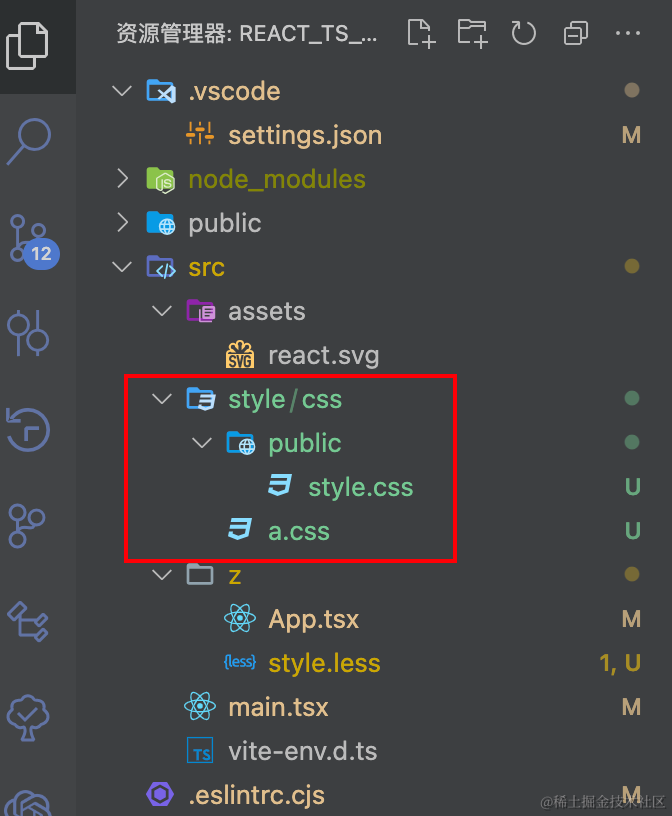
By default, if a folder contains only one subfolder, they are displayed merged.

For example, is the folder under style called public?

No, it's actually css. This inconsistent display can be confusing.

Image

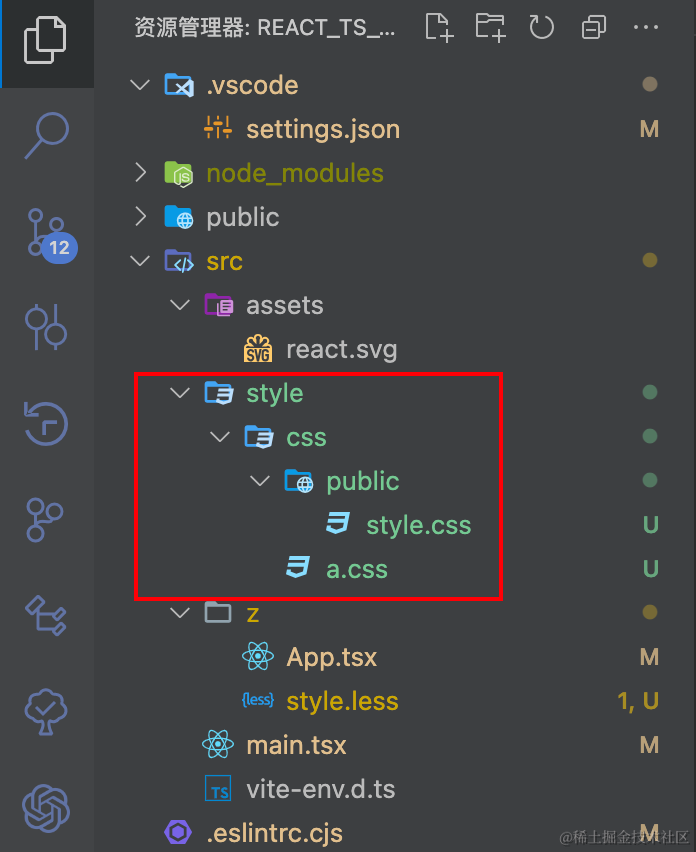
Change the following setting to show it as in the next image:

"explorer.compactFolders": false

Image

Quickly Open and Modify Non-Project Files Using VSCode's Powerful Features

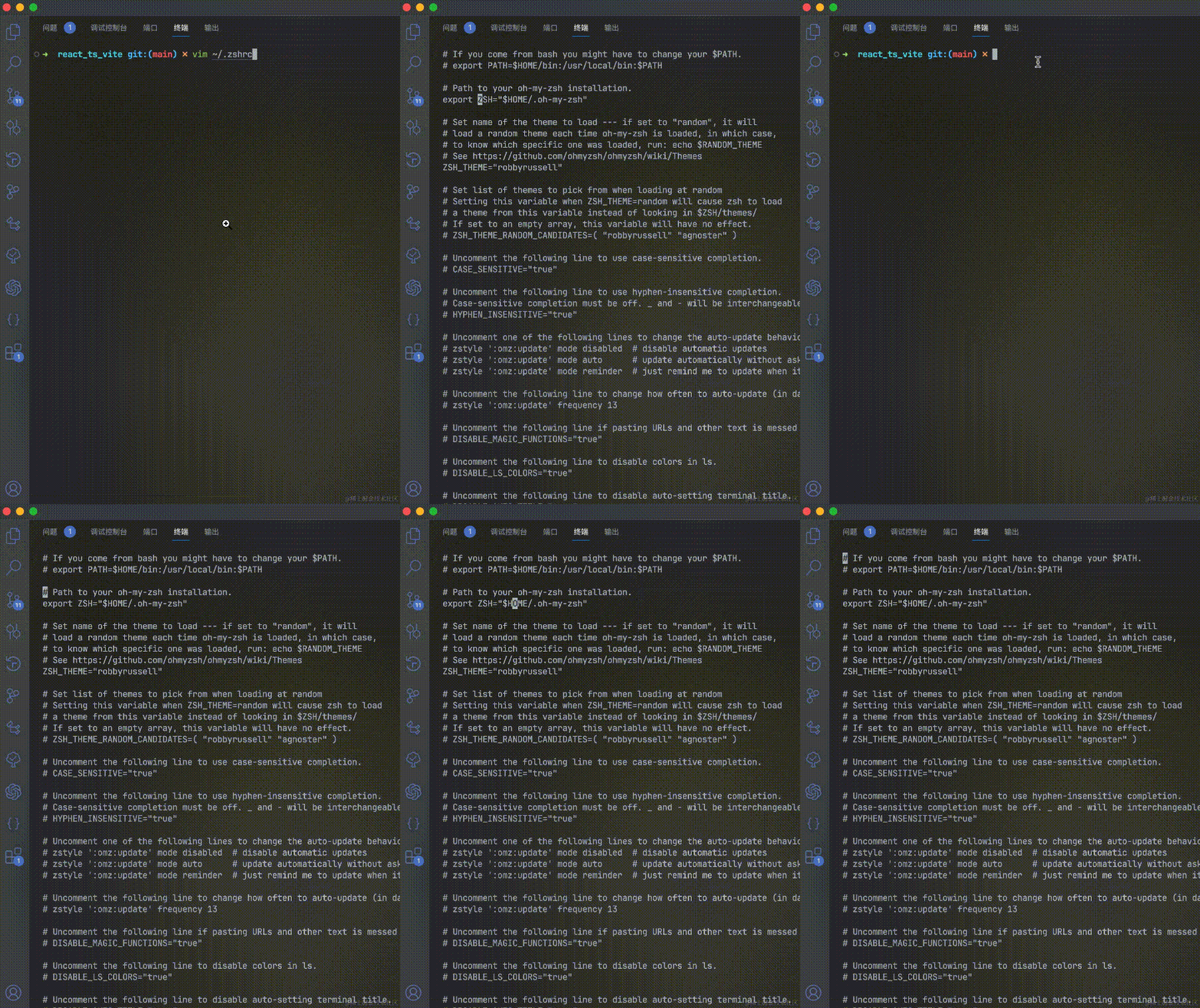
Sometimes, when installing and using tools, you need to modify configuration files or the hosts file. Articles often tell you to use commands like vim, which are really inconvenient – not clear to read and hard to edit. As shown below:

Image

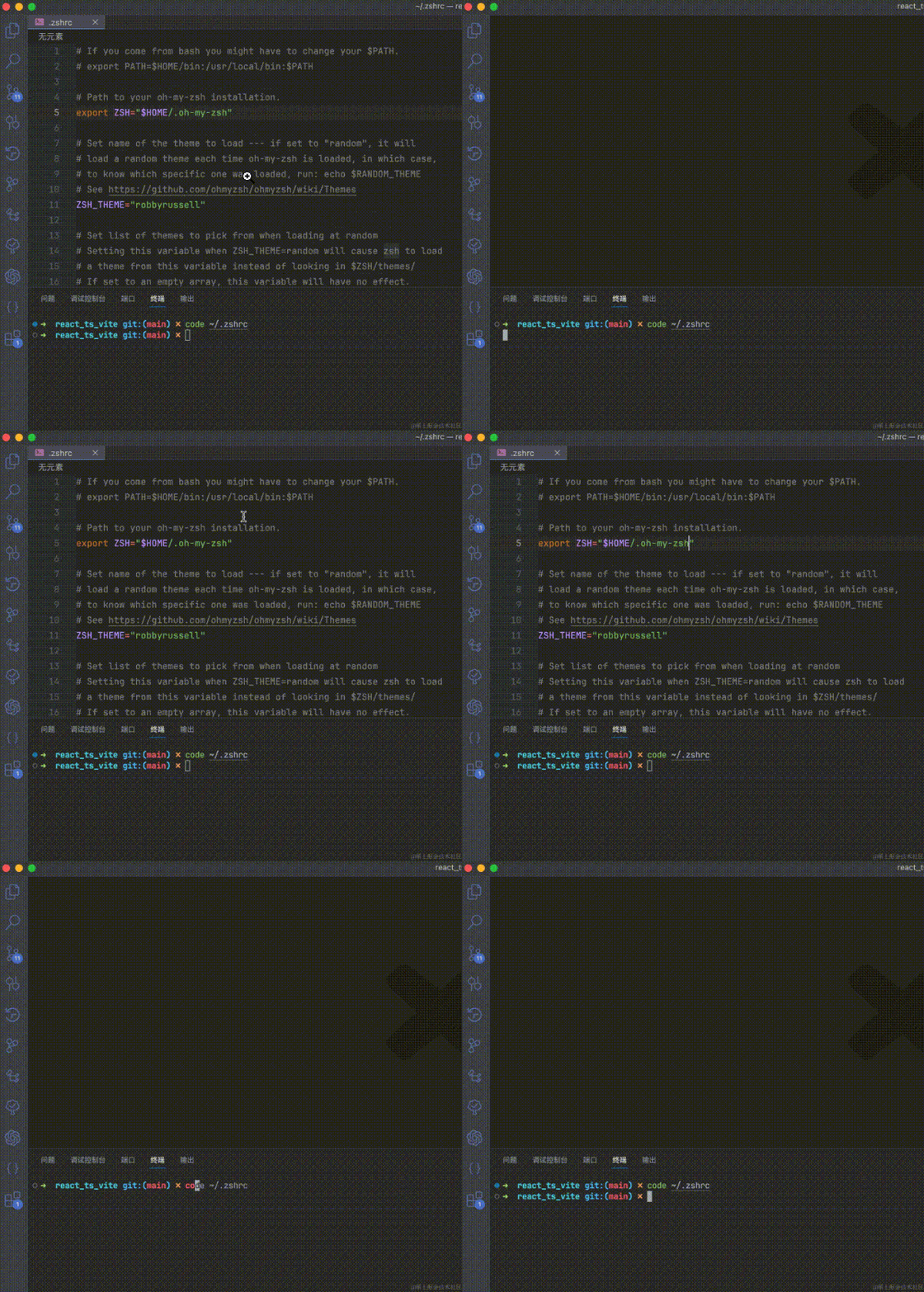
In fact, VSCode provides the code command, which makes it easy to open files or folders. The same modification as above:

Image

Automatically Copy Selected Text in Terminal

Sometimes when starting a project, errors appear that require searching online for solutions.

If you need to search for keywords printed in the terminal, configuring auto-copy saves you from manually copying.

"terminal.integrated.copyOnSelection": true

Prevent Moving Selected Content by Dragging

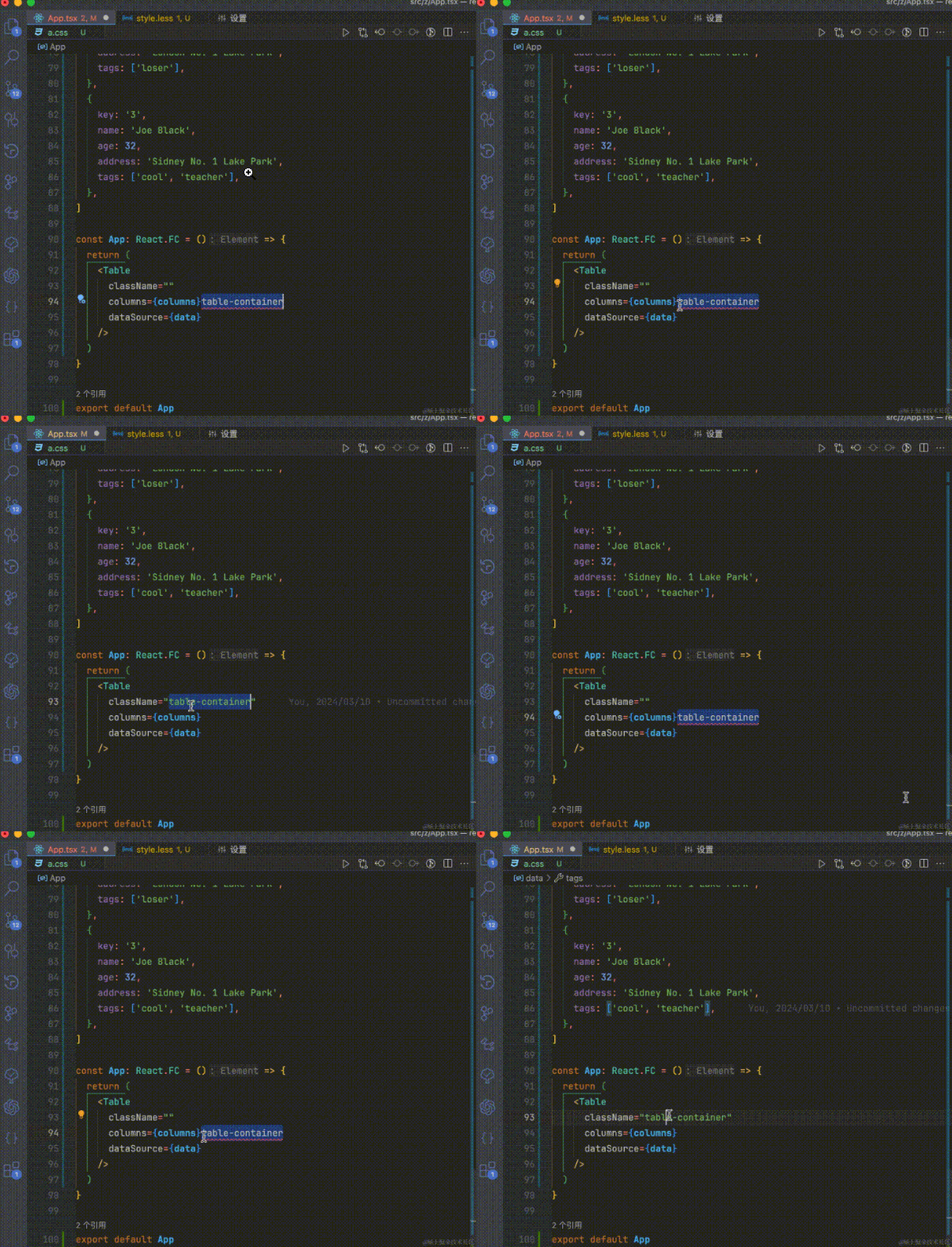
Sometimes you accidentally drag code to another location when selecting text, as shown:

Image

This varies by person. I don't need this feature, and accidental drags can be confusing. Configure as follows:

// Set to false to disable dragging
"editor.dragAndDrop": false

Code Suggestions and Navigation

package.json

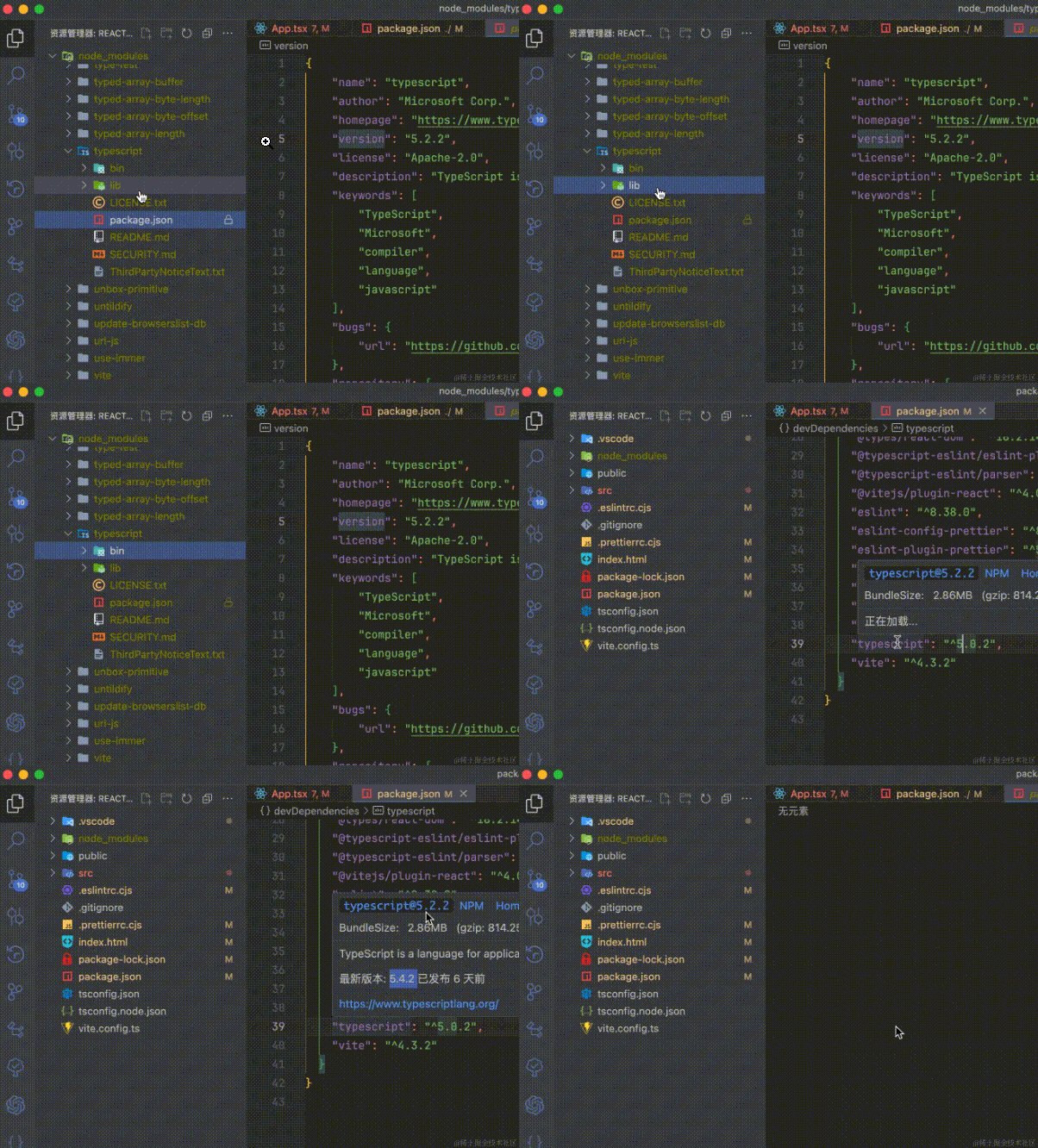
Some package versions use ^, which means the version isn't fully locked. Occasionally, a minor version issue may require investigation.

You need to know exactly which version is installed.

The image below shows the installed version, the latest version, and also allows you to view details directly.

Image

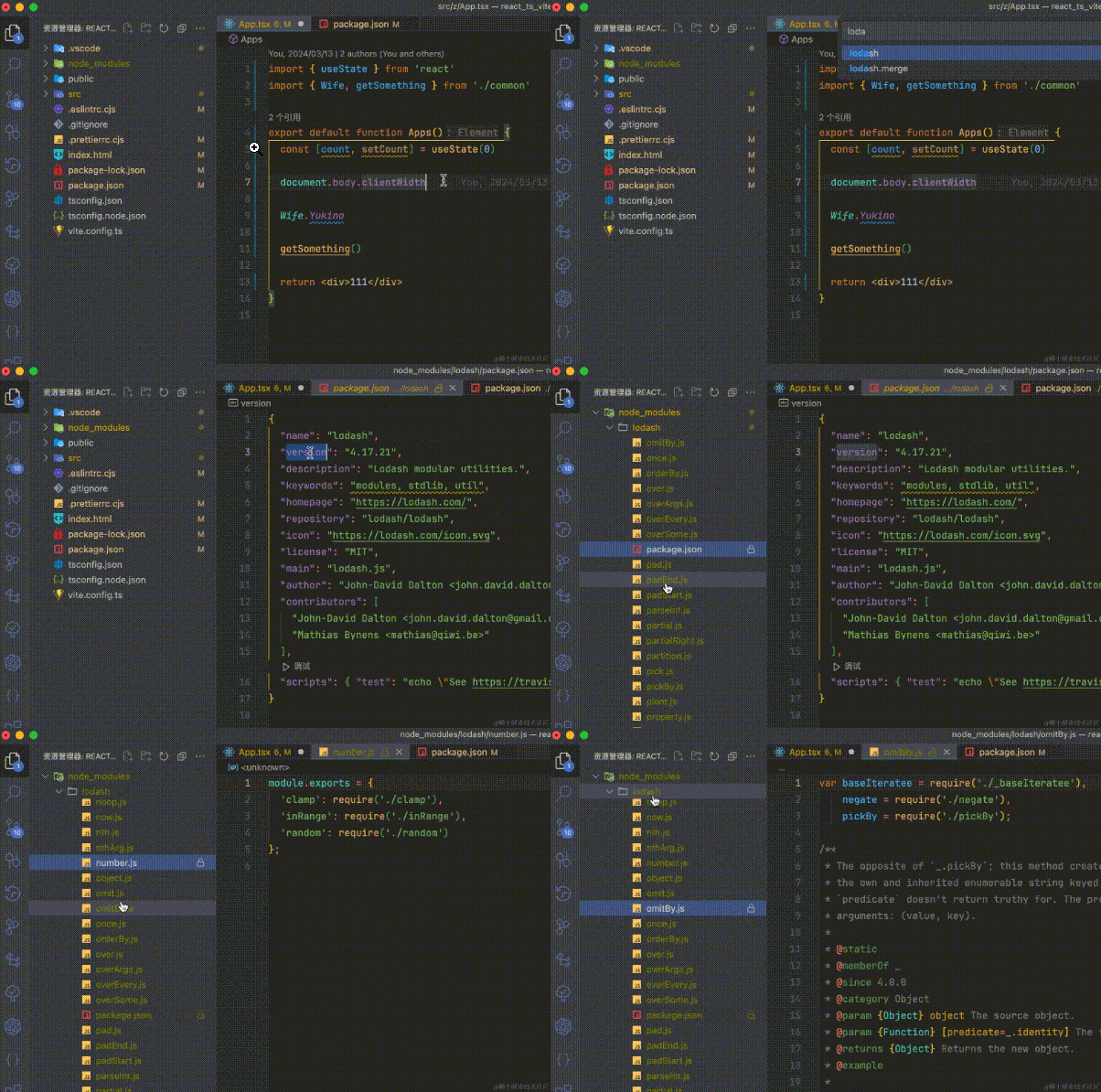
Some packages are transitive dependencies and aren't listed in package.json. To check if they exist in node_modules, you can directly search. For example, with lodash:

Image

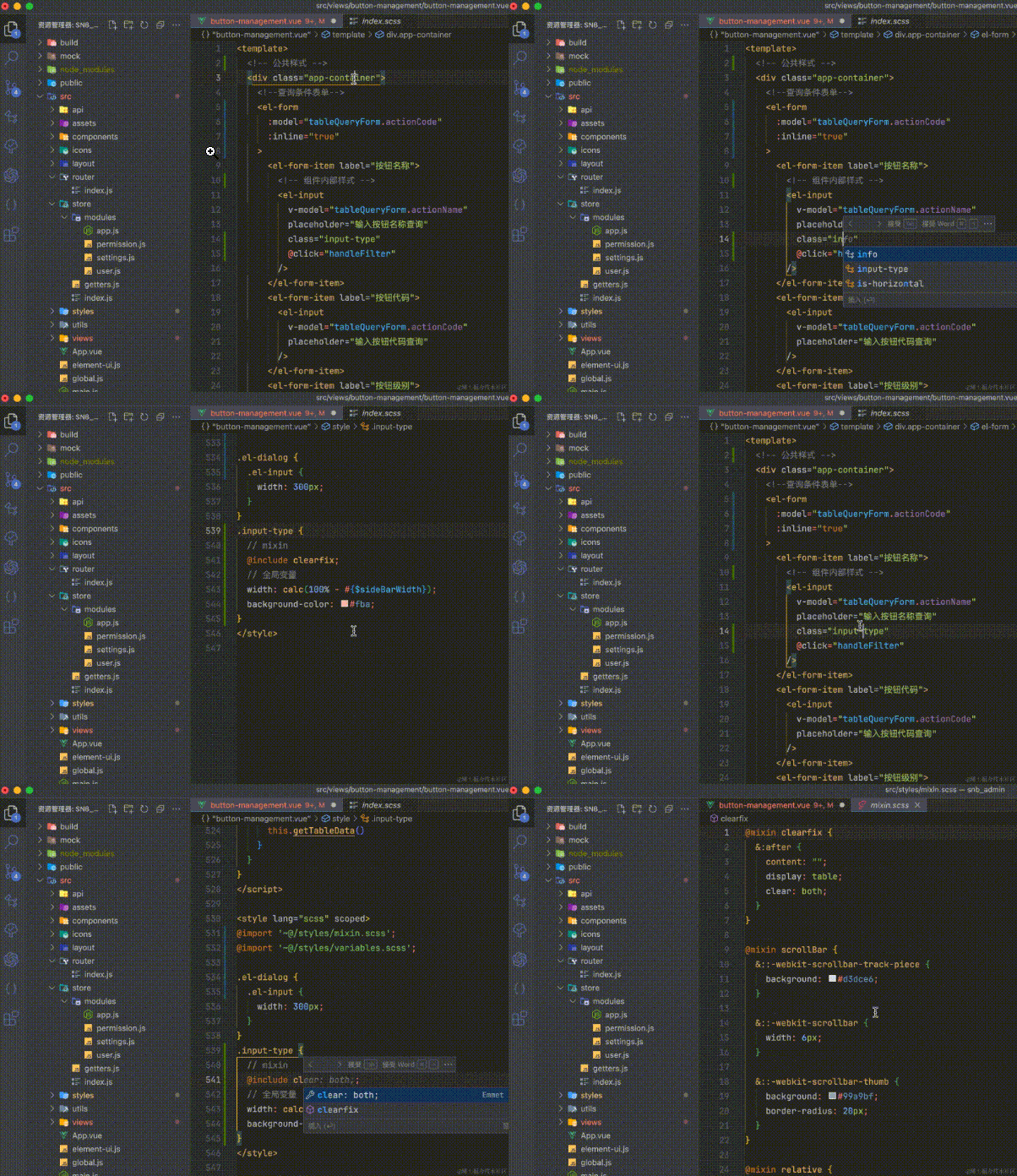
Vue

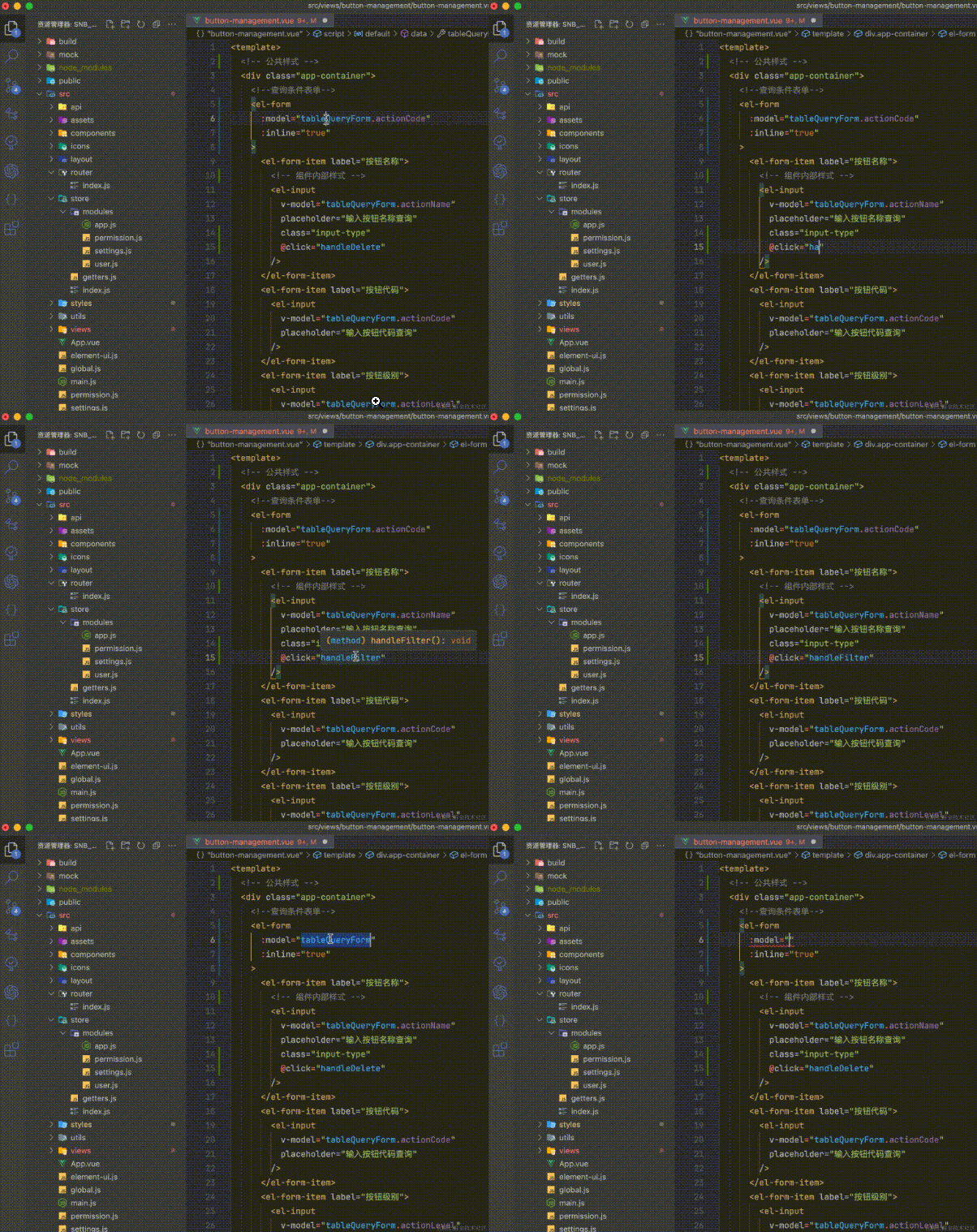
Suggestions and Navigation for Properties and Methods

Image

CSS Class Name Suggestions and Navigation

Image

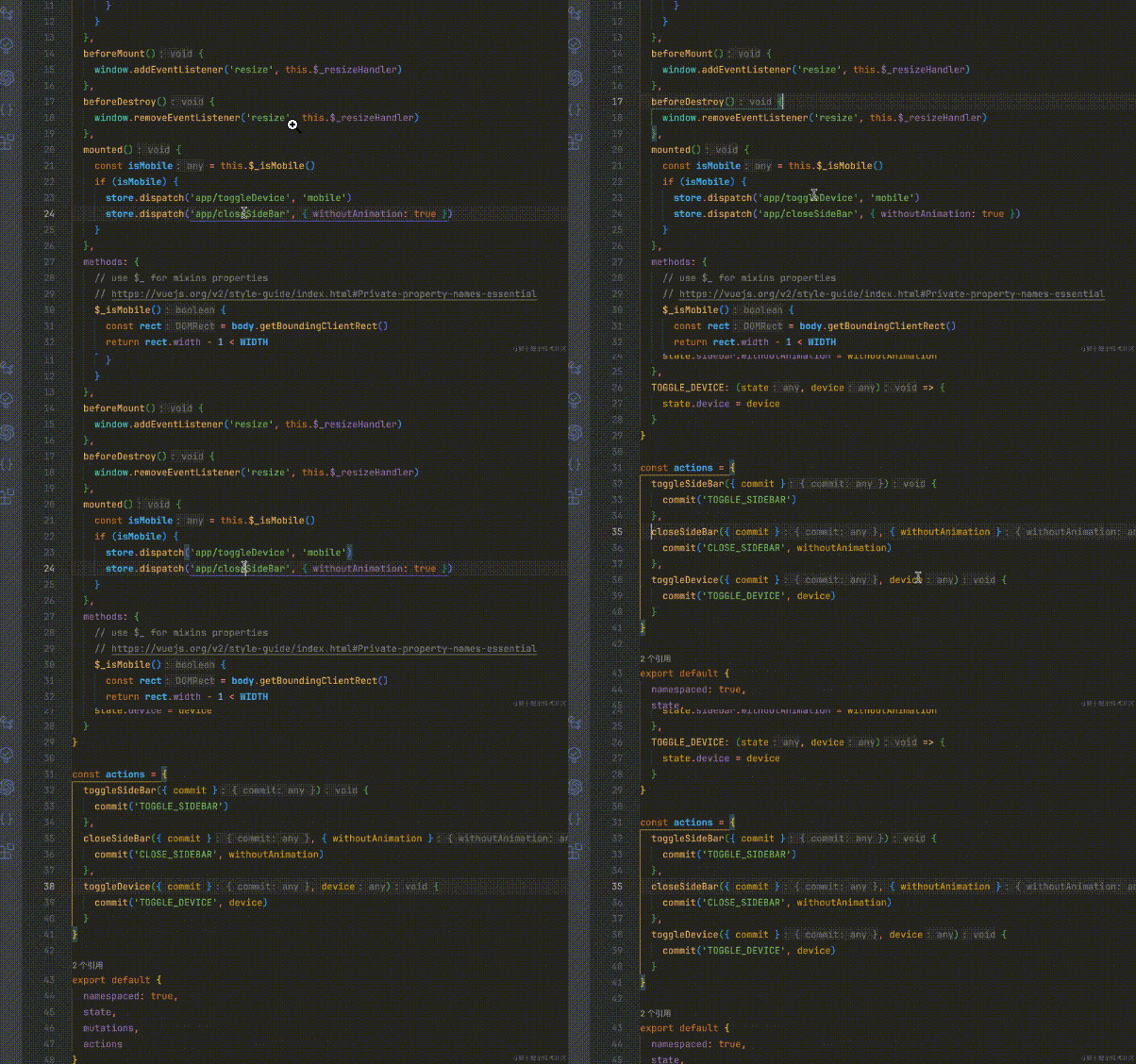
Vuex Navigation

Image

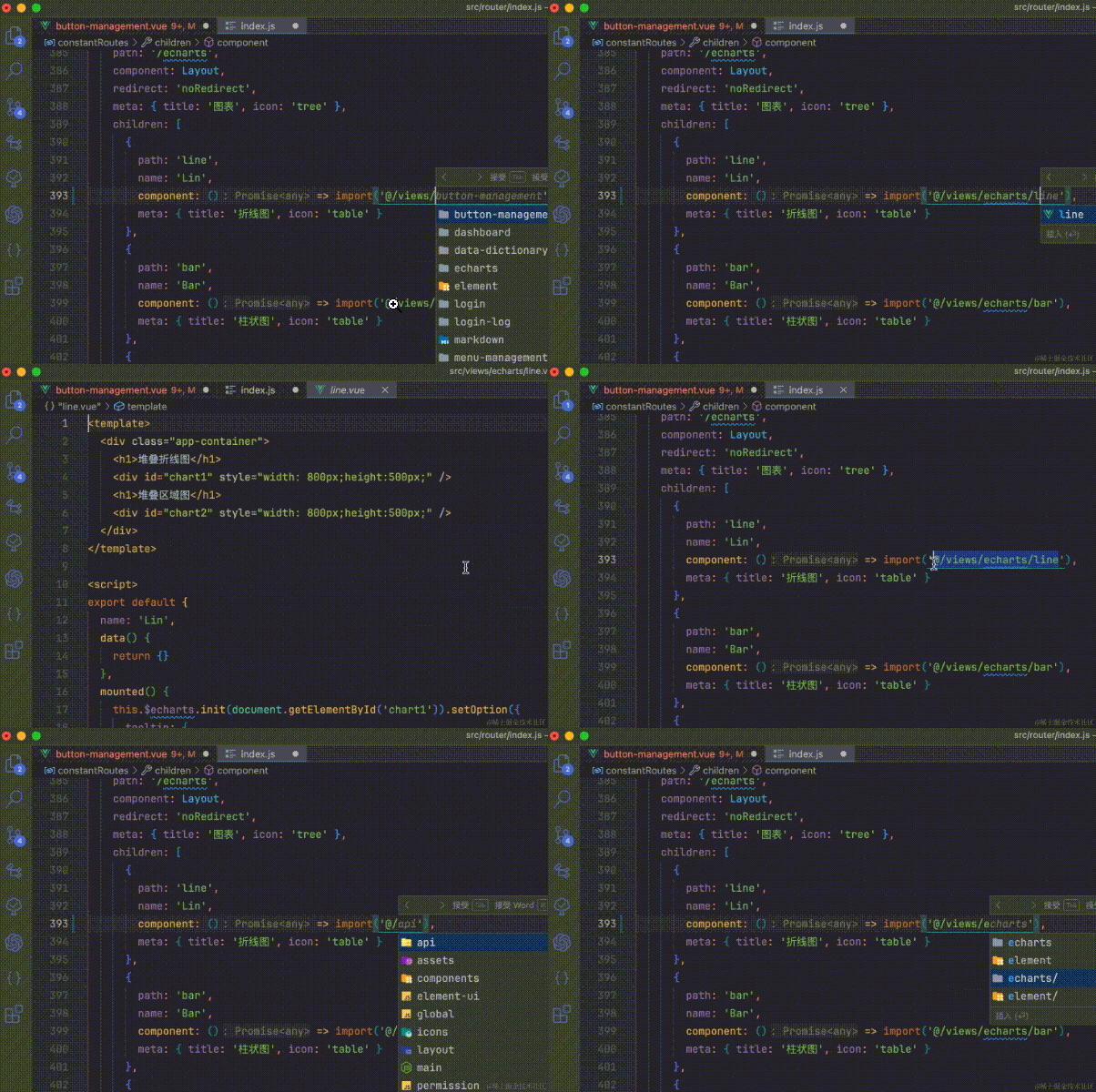
File Path Suggestions and Navigation

Image

React

I primarily use React. Personally, I think VSCode supports React even better than Vue. Everything Vue can do, React can also do, so I won't repeat it.

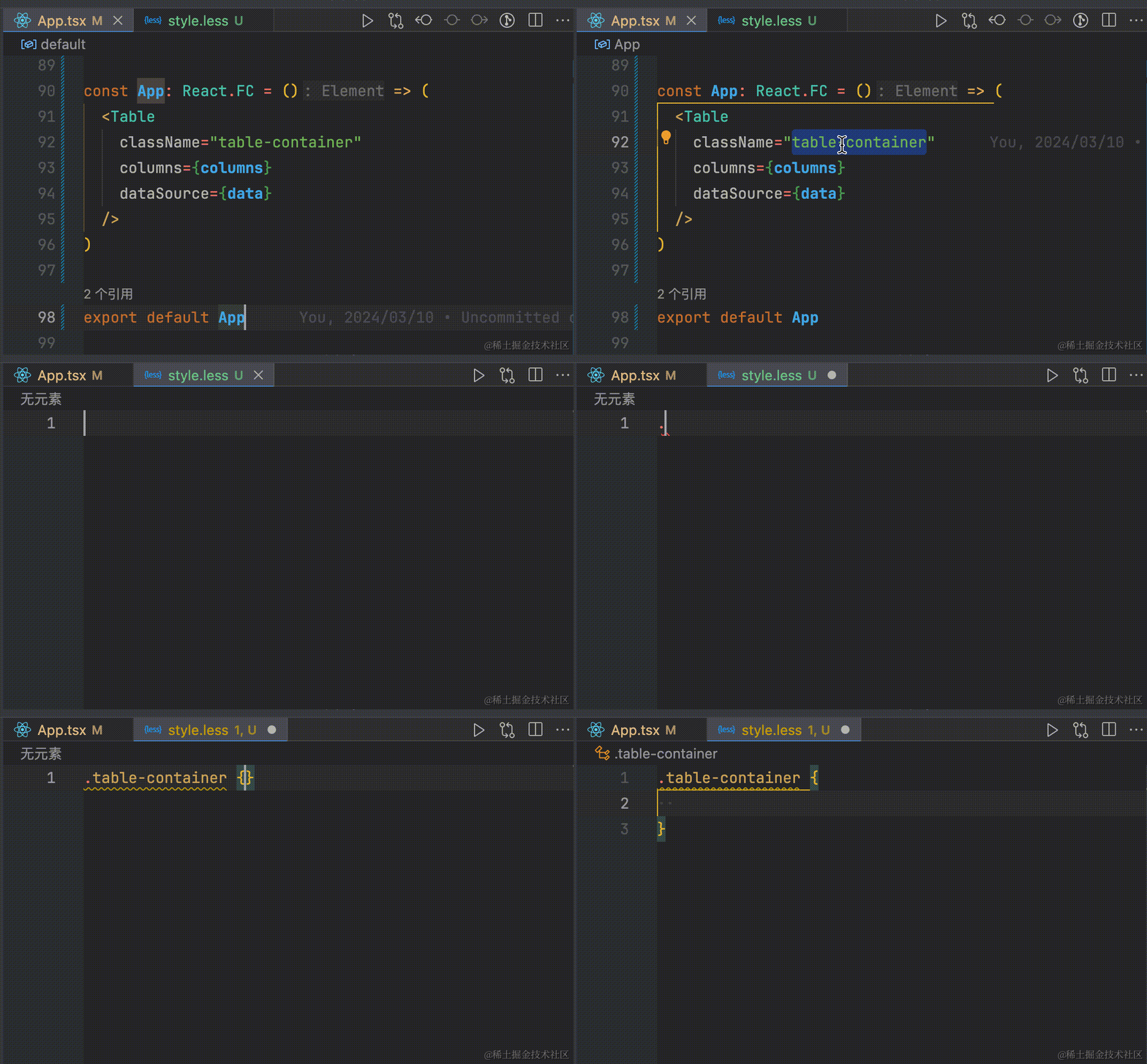
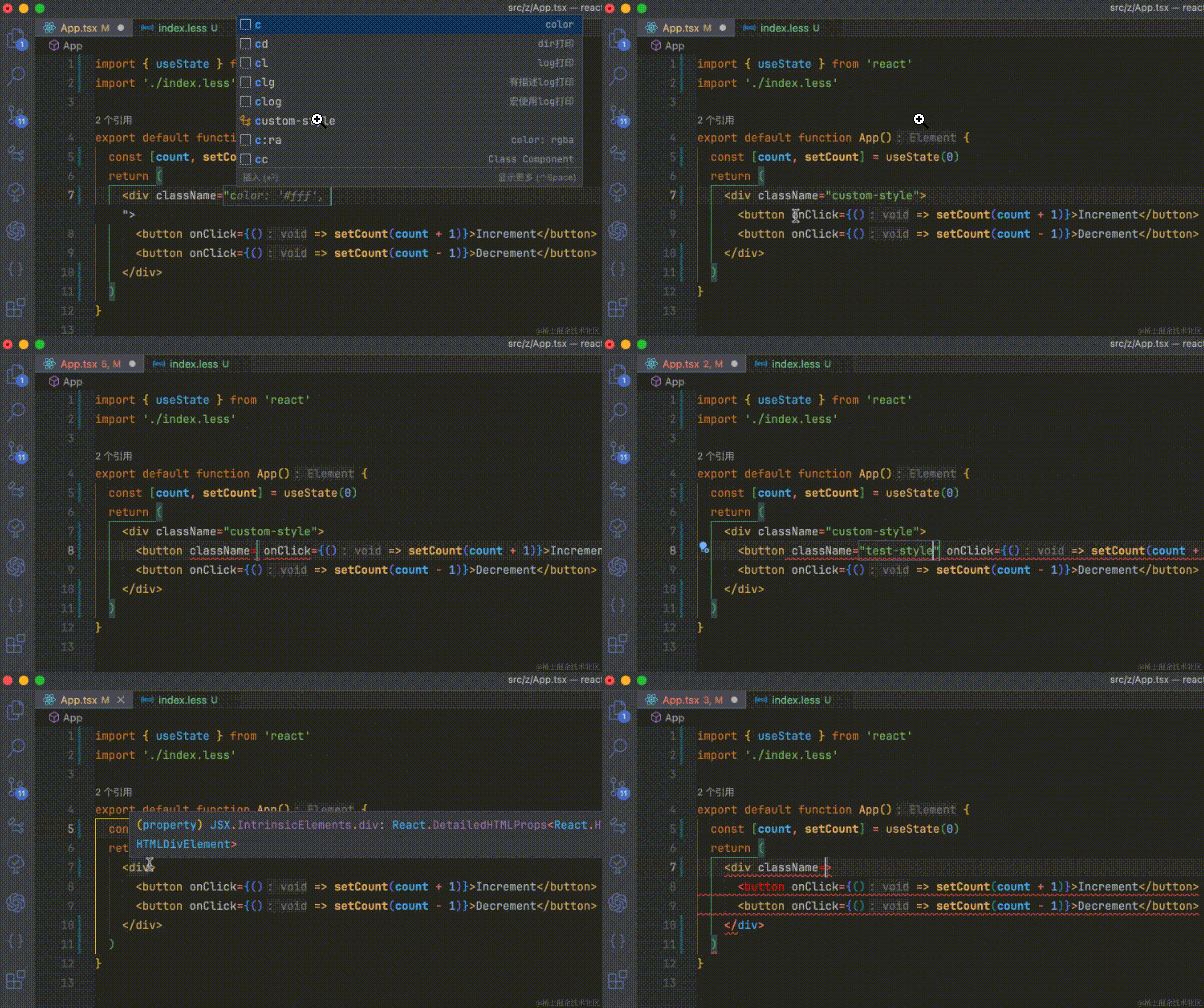
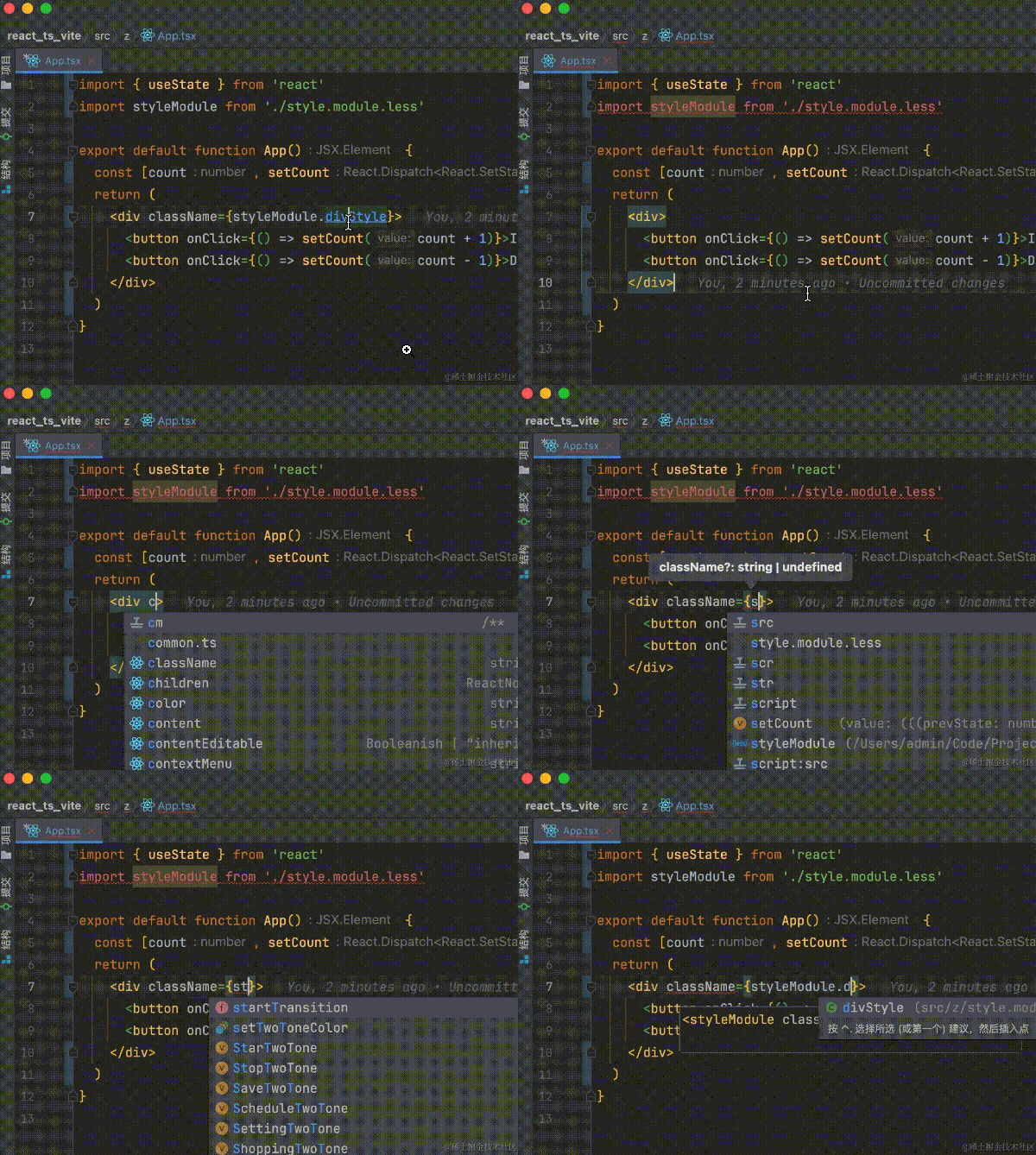
Let me just give one more CSS example:

Image

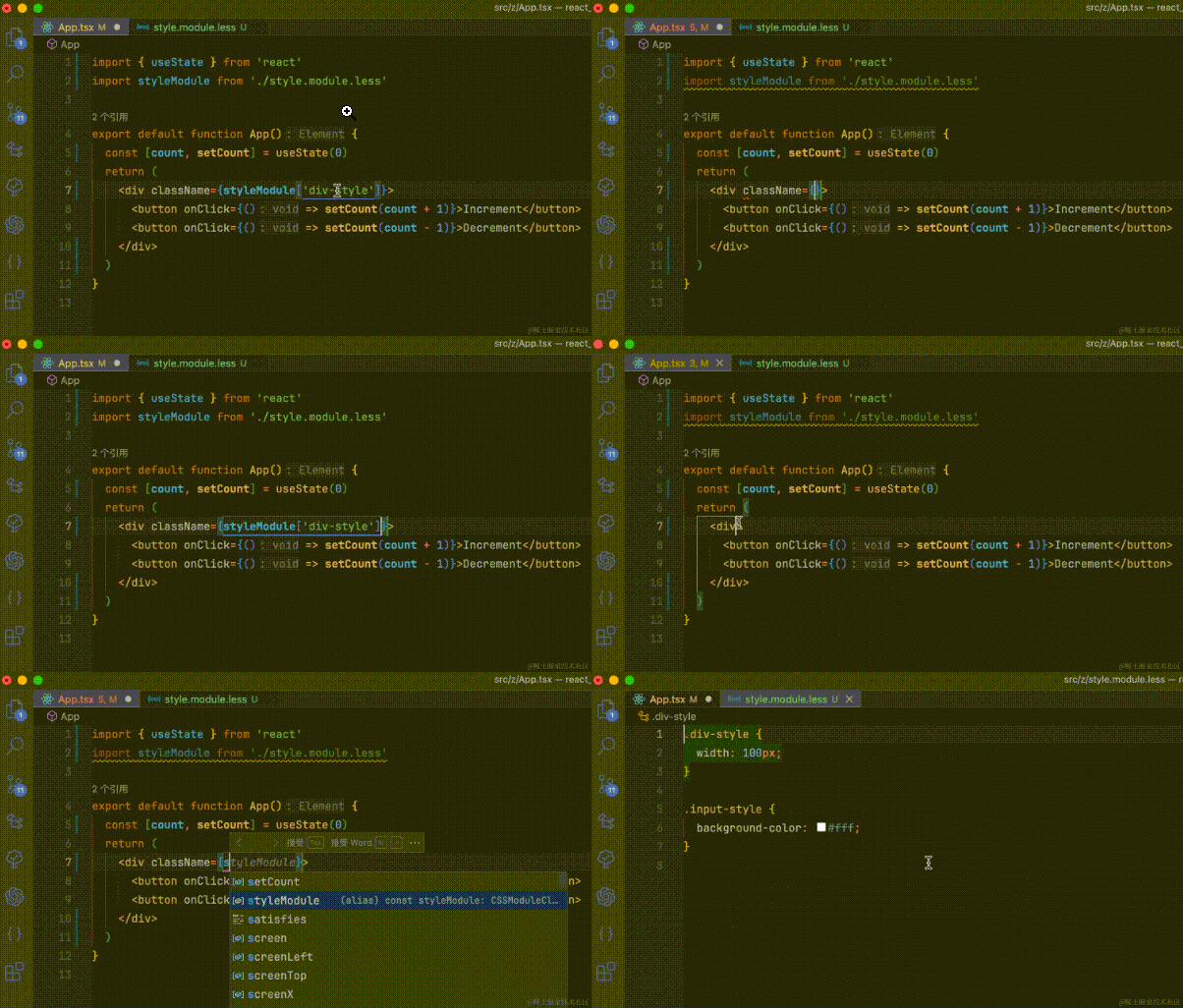
One related point: property values, such as className, can be either a string or a JSX expression. VSCode infers this automatically by default – className is treated as a string.

This creates a problem: in my projects, I use CSS Modules, which requires JSX expressions. Actually, it's better to say that for most property values, including className, I want to enter JSX expressions. You can configure this:

"javascript.preferences.jsxAttributeCompletionStyle": "braces",
"typescript.preferences.jsxAttributeCompletionStyle": "braces"
Image

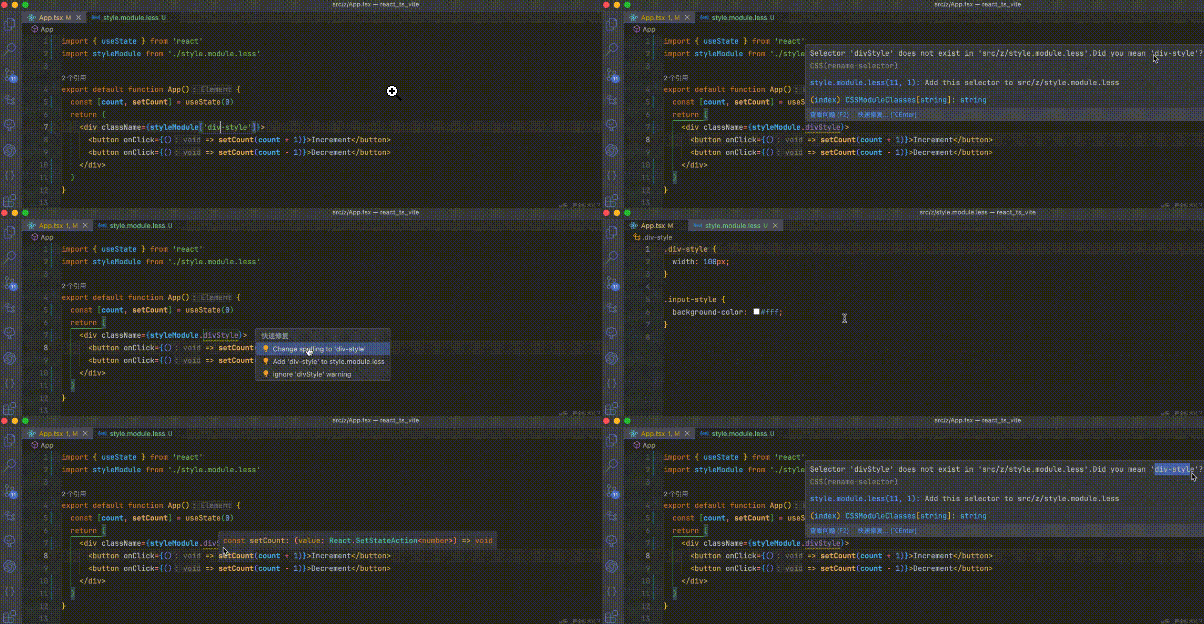
WebStorm, can't you even recognize case? Will that work? And you still **jump??? Unbelievable!

This highlights a major drawback of WebStorm: it always insists on providing suggestions, giving the illusion of intelligence. Consequently, it consumes a lot of performance and tends to lag.

Image

VSCode not only gives correct suggestions but also provides clear explanations for errors and offers solutions.

Image

Conclusion

As a developer who has used WebStorm for far more than two and a half years, VSCode only took half a month to impress me with its powerful code suggestions, search, and navigation, leading to more efficient development. No wonder employees at large companies, even with free access, rarely bother to look at WebStorm and mostly use VSCode.

I'm currently preparing my promotion materials, so I'm a bit busy. Also, because there are many configurations to cover, I've only included a portion of the features to avoid making the article too long.

If readers encounter any pain points, feel free to leave comments – I'll address them one by one. Trust my ability! Once I get promoted, I probably won't write code much anymore, so I'll supplement the article and start a series on VSCode tips.

As the saying goes, "Sharp tools make good work." Having a handy editor can greatly improve development efficiency and happiness. After all, we spend more time with our editor than with our significant other ╮(╯▽╰)╭.

Some people might find WebStorm very useful, but I would call VSCode the universe-level editor (#.#).

Perhaps, in the world of programmers, paid doesn't always mean the best!!!

Keep Exploring

Related Reading

More Articles
Same tag 2/21/2025

.NET Project Automation Secrets: Full Guide to One-Click Version Update and Publish Scripts

This article details how to use PowerShell scripts and batch files to automate version updates and one-click publishing in .NET Avalonia UI projects. First, it explains the setup and modification of PowerShell execution policies to ensure scripts can run properly. Then, it introduces methods for adding scripts in Visual Studio pre-build events to automatically update version numbers, as well as using batch files to publish applications on multiple platforms. Finally, a PowerShell script example is provided that can automatically update program version information based on Git tags. These methods can improve the development efficiency and convenience of the publish process for .NET projects.

Continue Reading
Same tag 2/21/2025

(1)From Nurse to C# Developer -- Can a Nurse Successfully Switch to Learning .NET Development?

The article tells the story of a nurse who resigned due to work pressure and family responsibilities. After facing difficulties in job hunting, she decided to learn programming, especially the C# language. She describes in detail what she learned on the first day, including .NET, .NET Framework, C# language concepts, types of C# development software, different UI frameworks, interaction modes, and the use of Visual Studio. She expresses her confidence and determination to learn programming and hopes to receive guidance and help from more people.

Continue Reading