
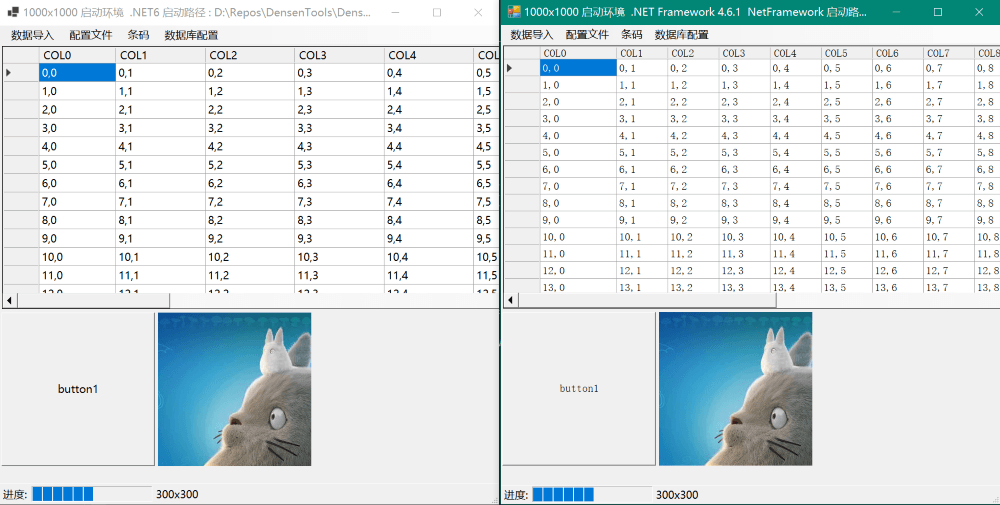
本文主要解决两个问题
- C# Winform 高 DPI 字体模糊.
- 高 DPI 下(缩放>100%), UI 设计器一直提示缩放到 100%, 如果不重启到 100%,设计的控件会乱飞.


建立测试程序
- 新建.Net Windows 窗体应用 (Winform)工程
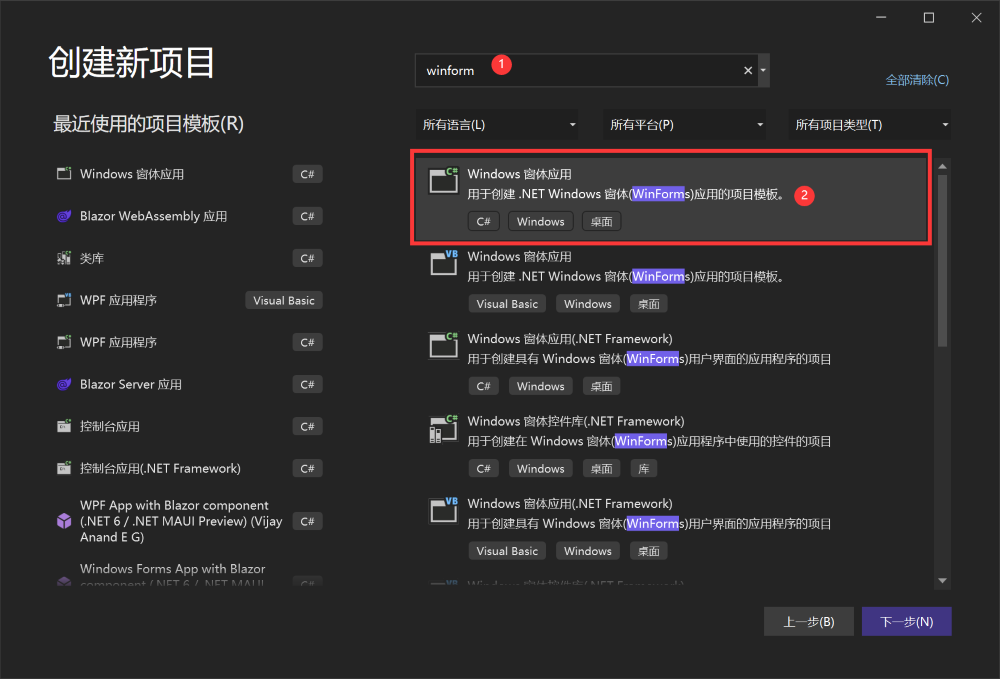
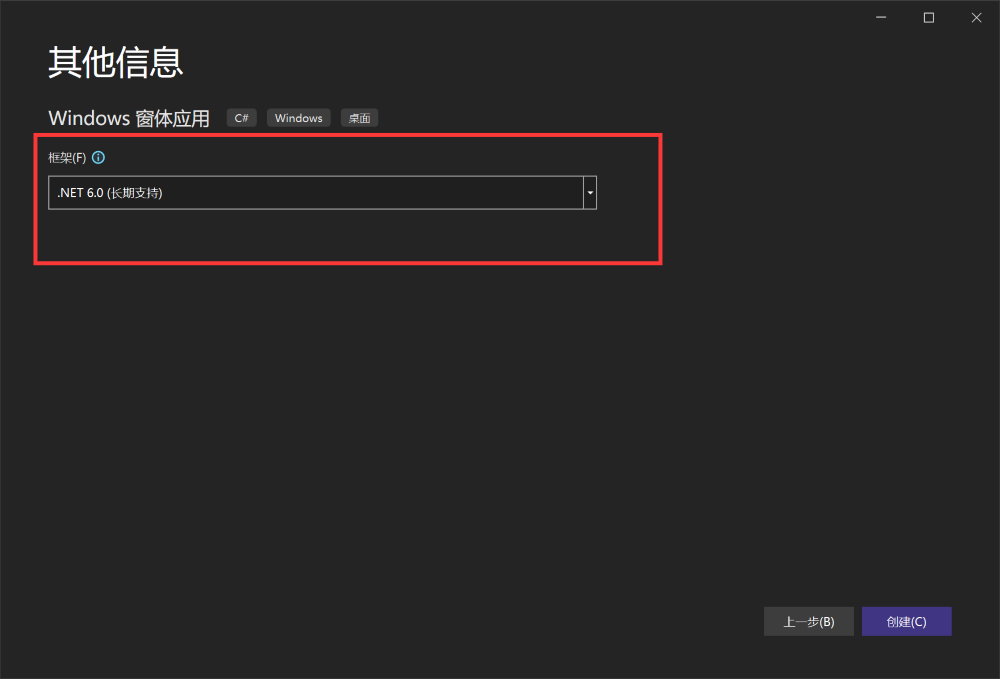
- 选择.Net6.0
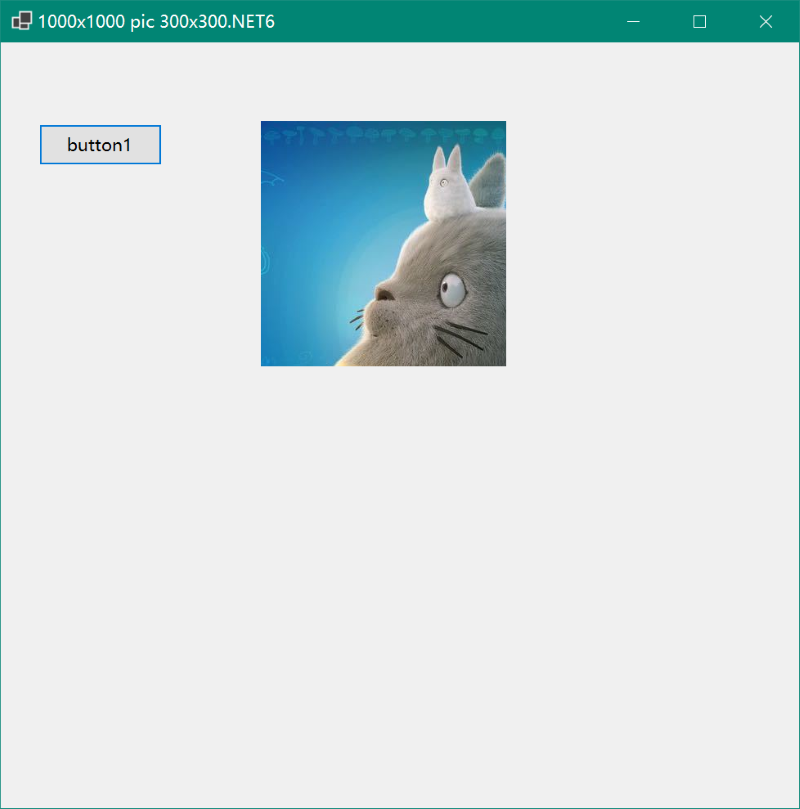
- 将窗体尺寸定为 1000 x 1000 , 用于后面检测缩放是否正确

- 添加一个按钮 , 尺寸定为 150 x 50

- 添加一个图片框 , 尺寸定为 300 x 300 , 右键导入一张图片


- 添加测试代码
namespace WinFormsApp1
{
    public partial class Form1 : Form
    {
        public Form1()
        {
            InitializeComponent();
        }

        private void Form1_Load(object sender, EventArgs e)
        {
            Text = this.Width + "x" + this.Height + " pic "+ pictureBox1.Width + "x" + pictureBox1.Height + 启动环境();

        }

        public static string 启动环境()
        {
#if NET461
            return (".NET Framework 4.6.1");
#elif NET6_0
            return (".NET6");
#endif
        }

    }
}
- 运行看看效果: net6 下运行,尺寸都是对的
正式开始
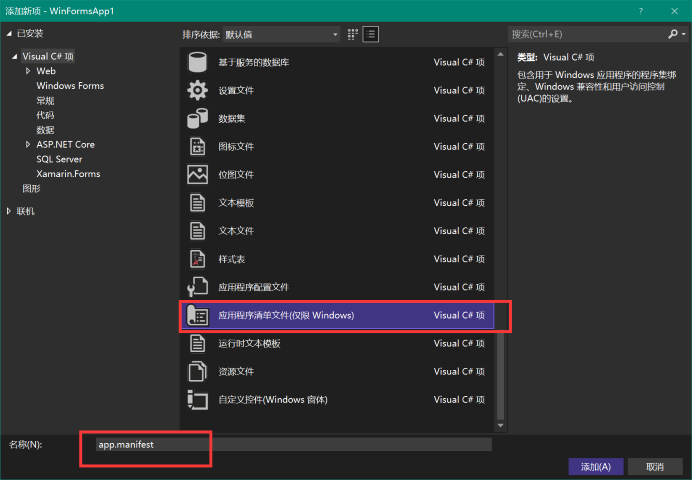
- 右键工程,添加应用程序清单
app.manifest, 文件名用默认,修改
取消这段的注释,打开感知 DPI
<application xmlns="urn:schemas-microsoft-com:asm.v3">
    <windowsSettings>
        <dpiAware xmlns="http://schemas.microsoft.com/SMI/2005/WindowsSettings">true</dpiAware>
        <longPathAware xmlns="http://schemas.microsoft.com/SMI/2016/WindowsSettings">true</longPathAware>
    </windowsSettings>
</application>
- 双击工程名称, 编辑配置文件
TargetFrameworks 改为双目标框架 <TargetFrameworks>net6.0-windows;net461;</TargetFrameworks> , 保存后提示重载工程 , 最好是关闭 vs 再打开一次.
完整文件如下
<Project Sdk="Microsoft.NET.Sdk">

	<PropertyGroup>
		<OutputType>WinExe</OutputType>
		<TargetFrameworks>net6.0-windows;net461;</TargetFrameworks>
		<UseWindowsForms>true</UseWindowsForms>
		<ApplicationManifest>app.manifest</ApplicationManifest>
		<ApplicationVisualStyles>true</ApplicationVisualStyles>
		<ApplicationUseCompatibleTextRendering>false</ApplicationUseCompatibleTextRendering>
		<ApplicationHighDpiMode>SystemAware</ApplicationHighDpiMode>
	</PropertyGroup>

	<ItemGroup>
		<Compile Update="Properties\Resources.Designer.cs">
			<DesignTime>True</DesignTime>
			<AutoGen>True</AutoGen>
			<DependentUpon>Resources.resx</DependentUpon>
		</Compile>
	</ItemGroup>

	<ItemGroup>
		<EmbeddedResource Update="Properties\Resources.resx">
			<Generator>ResXFileCodeGenerator</Generator>
			<LastGenOutput>Resources.Designer.cs</LastGenOutput>
		</EmbeddedResource>
	</ItemGroup>
</Project>
- 如果提示找不到控件, 在 Form1.Designer.cs 和 Form1.cs 添加
using System;
using System.Windows.Forms;
Program.cs注释掉ApplicationConfiguration.Initialize();运行选择
net461
备注:我的屏幕是 2800 x 1800 ,缩放 175%
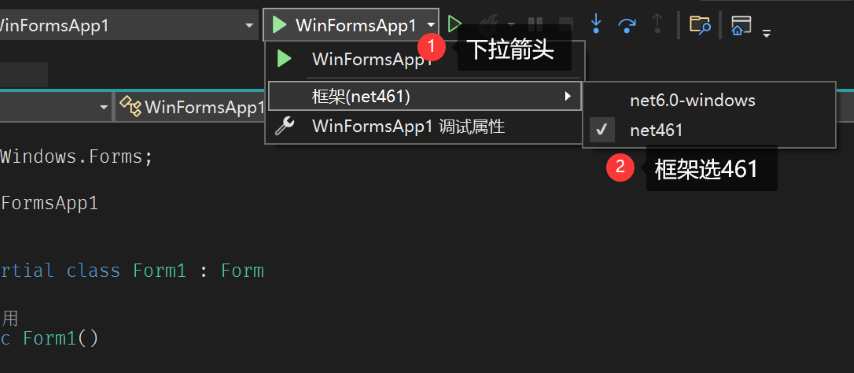
果然, 显示尺寸不对

- Form1.cs 添加 'AutoScaleMode = AutoScaleMode.Dpi;'
public Form1()
{
    AutoScaleMode = AutoScaleMode.Dpi; //添加这句,要在'InitializeComponent();'上方
    InitializeComponent();
}
再次运行

完美!
- 双击编辑窗体,没有提示 100%缩放, 添加标准菜单和 DataGridView 测试
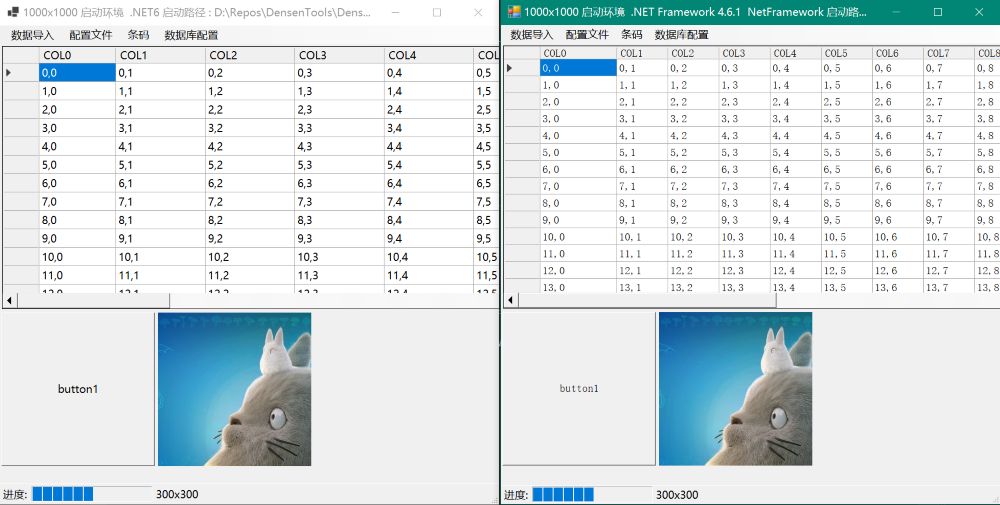
完美!双倍的快乐!
总结
- 新建.Net Windows 窗体应用 (Winform)工程 [.Net6.0]
- 添加应用程序清单
app.manifest, 打开感知 DPI TargetFrameworks改为双目标框架<TargetFrameworks>net6.0-windows;net461;</TargetFrameworks>Program.cs注释掉ApplicationConfiguration.Initialize();AutoScaleMode = AutoScaleMode.Dpi;//添加这句,要在'InitializeComponent();'上方
老工程也可以通过编辑 projet 文件升级到这种新工程格式,支持本文说的功能, 需要继续出教程的请在评论区留言, 这几天都在度假中, 今天就写到这里了. 下回见!
配套 DEMO